






Jewelry Photo Editing Prompts for Gold and Gemstone Detail
Test two jewelry photo editing prompts for off-white studio and charcoal velvet looks. Check gold color, gemstone shape, prongs, and band detail in the actual results.
Jewelry photo editing prompts have to preserve a small object whose defining details may be only a few pixels wide. A nicer background is not enough if a prong disappears or the stone changes shape. These two ring edits test light and surface styling while making the design-preservation checks explicit.
| Original reference | Soft white jewelry studio image |
|---|---|
 |  |
Jewelry lighting and background without redesign. Each result below was generated independently from the original reference image.
Choose a sharp view of the band and setting
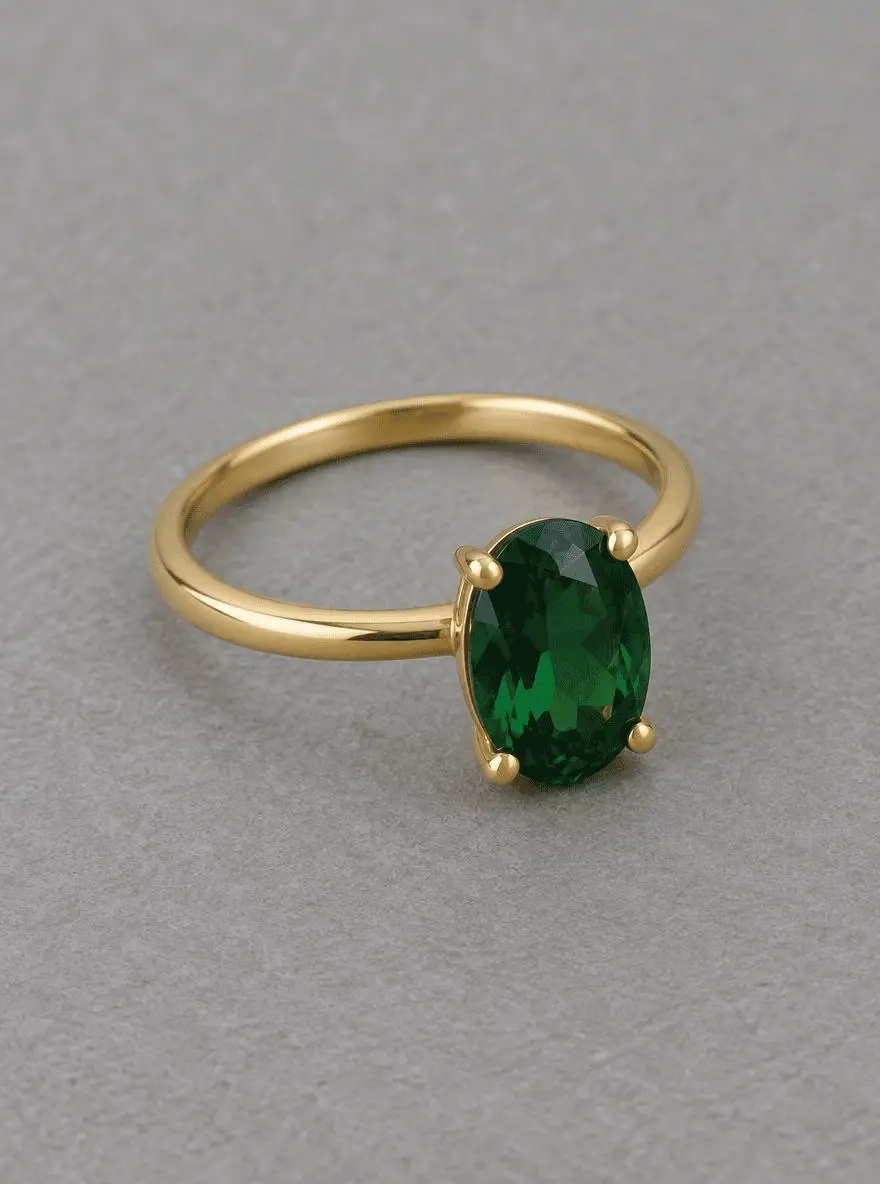
The synthetic ring has yellow gold, a single oval green stone and a four-prong setting. Use a source where those features are visible and not clipped by the crop. This is a creative photography example; the image cannot verify metal purity, gemstone identity, carat weight or actual product dimensions.
The original shown here is AI-generated for this demonstration. Both edits actually consumed that source as an attached reference. Use your own photo or another image you are authorized to edit.
Build a focused preservation brief
Describe lighting as broad and restrained rather than asking for unlimited sparkle. The white version should keep the gold warm and the stone green, while the velvet version should give the object separation without turning the stone into a glowing effect. Both prompts exclude extra gems and changes to the setting.
A useful structure is: target change → visible subject or object → details to retain → lighting and perspective → unwanted additions → output format. Adapt the nouns to the image in front of you. A preservation instruction is something to verify afterward, not a guarantee that every source pixel will survive.
Prompt 1: Soft white jewelry studio image
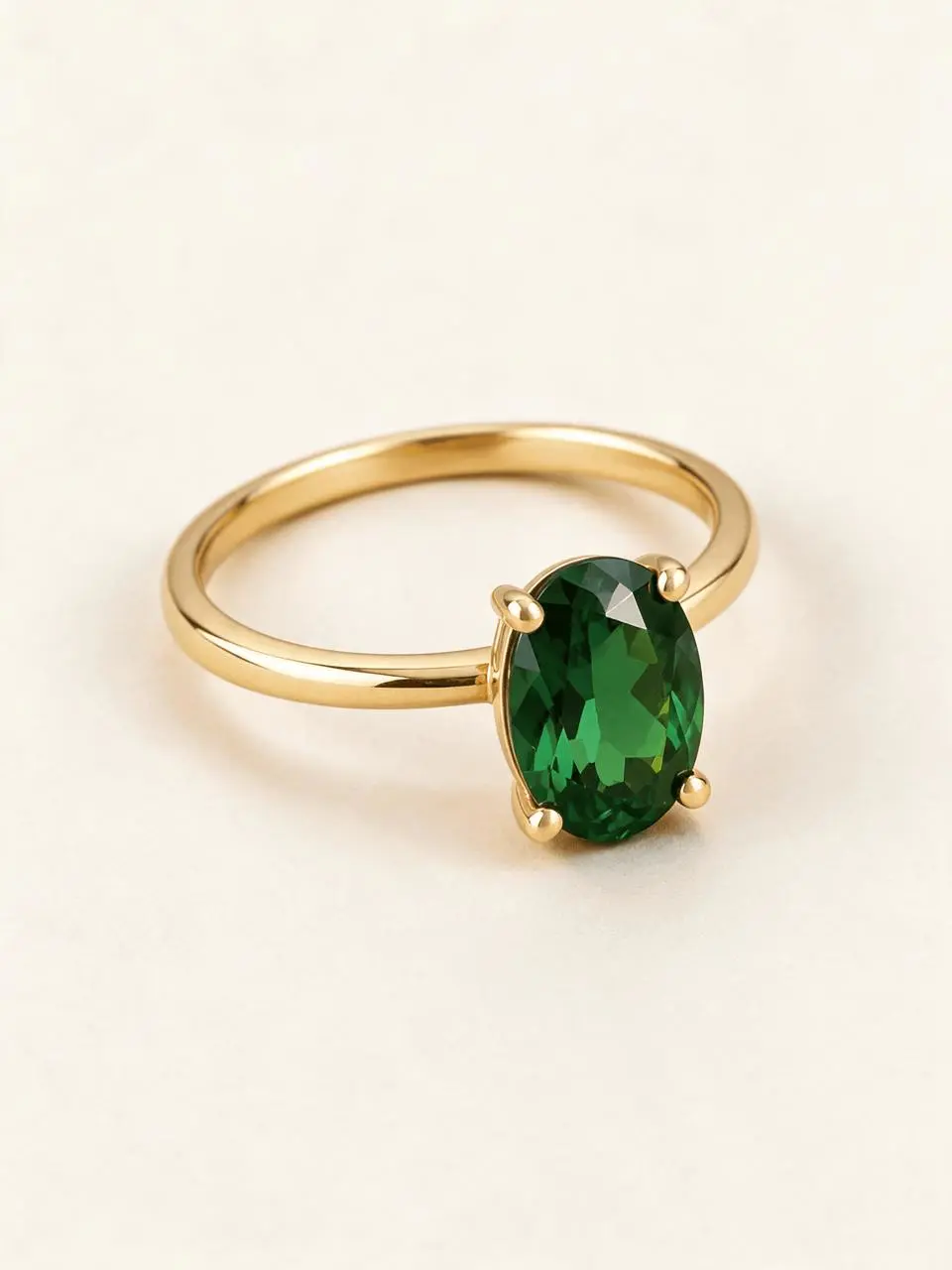
The opening comparison shows this result.
Edit image 1 into a soft white jewelry studio photograph. Keep the same yellow-gold ring, oval green gemstone, four-prong setting, band shape, angle and scale. Replace the gray surface and background with warm off-white matte material, use broad diffused light and a restrained contact shadow. Keep gold yellow and the stone green with readable highlights. Do not add stones, change the cut or setting, engrave text, add hands, boxes, logos or another ring.
The ring moves onto a warm off-white surface with softer bright lighting and a visible contact shadow. The yellow-gold band, oval green gemstone and four visible prong tips remain recognizable. The stone appears brighter and its internal highlight pattern is new.
Returned file: 1728 × 2304 pixels. The selected interactive example includes its original reference and this exact prompt. You can try it directly using the tool on the right.
Prompt 2: Dark velvet jewelry still life
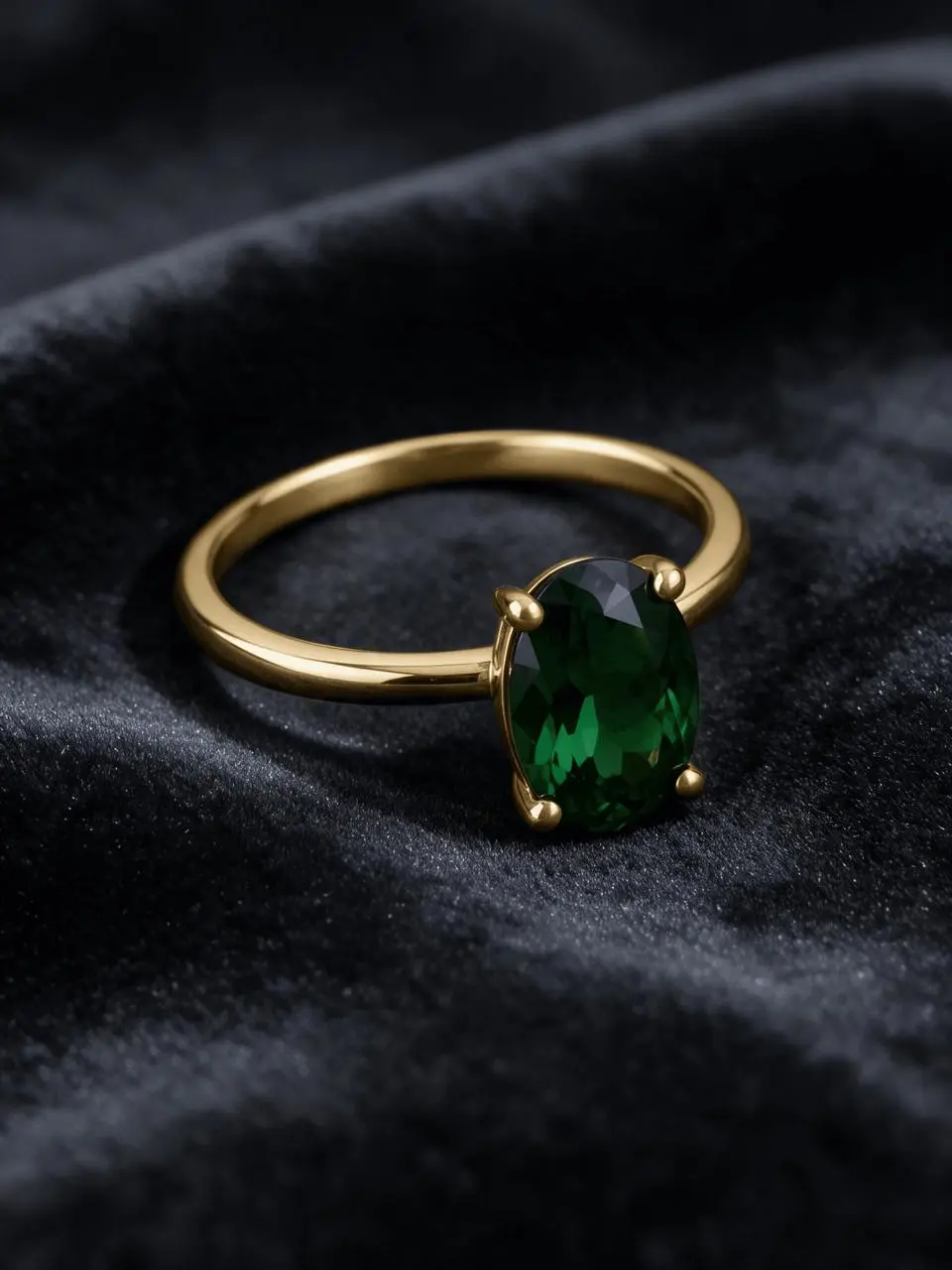
Edit image 1 into a jewelry still life on deep charcoal velvet. Preserve the same yellow-gold ring, single oval green gemstone, four-prong setting, band thickness, angle, shape and complete object. Use a soft strip of side light that reveals the gold edge and green stone without making the gemstone glow. Add believable contact shadow and restrained velvet texture. No extra gems, ring redesign, hands, packaging, text, logos or dramatic sparkling particles.
The surface becomes dark velvet with directional highlights defining the band and green stone. The oval setting and gold color remain recognizable. Velvet folds and gemstone facets are synthesized, and the shadows conceal more detail than the brighter version.
Returned file: 1728 × 2304 pixels.
Reproduce these two edits in WeShop
- Open Seedream 5.0 Pro on WeShop.
- Attach the original through the reference-image upload control and confirm the thumbnail. A written description without the image would be a different task.
- Choose the tested model and settings below, then copy one prompt. Generate one image and inspect it at full size.
- For the second look, return to the same original and replace the prompt. Do not use the first output as the second input unless you intentionally want cumulative edits.
| Setting | Tested value |
|---|---|
| Model | Seedream_50_Pro |
| Input | One attached reference image |
| Requested aspect ratio | 3:4 |
| Requested image size | 2K |
| Quantity | One result per prompt |
These examples were generated on October 29, 2026. They are two selected results, not a repeat-run reliability study or a comparison against other models. Requested settings and returned image dimensions are reported separately.
Check the details before choosing a result
- Compare stone outline, prongs and band thickness at full size.
- Inspect contact shadows and whether the ring appears to sit on the surface.
- Check metal color and clipped gemstone highlights against the source.
The generated material appearance cannot verify gemstone identity, cut accuracy, metal purity, weight or dimensions. Fine prongs, facets and band details may change.
If an important feature changes, return to the original and narrow the request. A more dramatic look is not automatically a better result when the task requires recognizable people, object detail or scene geometry.
Adapt the prompts to your own image
Replace the ring-specific constraints with the details of your actual jewelry. For product imagery, reject an output that invents stones, changes the setting or hides a material defect. A dramatic still life can be suitable for a concept, but that does not make it an exact product record.
Can these prompts verify gemstone or metal quality?
No. A generated image is not a material test. The prompts only guide visible appearance, and the output still needs comparison with the actual item.
For a wider range of editing tasks, see Top 10 Prompts for Photo Editing That Actually Work. Start with the loaded example, replace its reference with your own, and compare the requested change and retained details before using the result.