






Graduation Photo Editing Prompts: Two Tested Portrait Looks
Copy two graduation photo editing prompts for campus golden-hour and studio portraits. See actual results, identity checks, reference setup, and limitations.
Graduation photo editing prompts should protect the graduate as carefully as they describe the setting. A warmer campus background is not useful if the face, cap or diploma changes unexpectedly. These two prompts start from the same graduation portrait and create separate campus and studio versions, with the actual results shown below.
| Original reference | Campus golden-hour portrait |
|---|---|
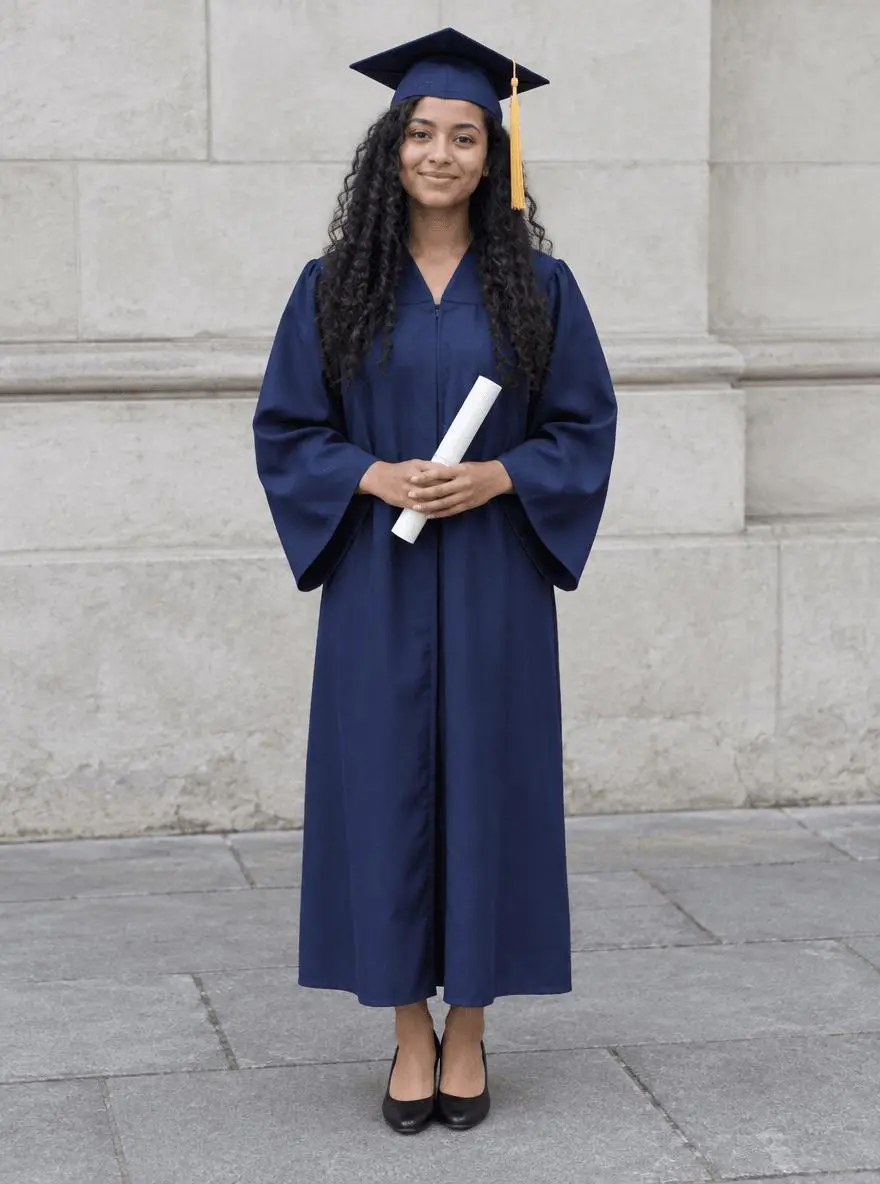 |  |
Graduation portrait setting and lighting. Each result below was generated independently from the original reference image.
Start with the gown, cap and hands already visible
The source already contains graduation clothing and a diploma. That keeps the test focused on setting and light rather than asking the model to invent the entire outfit at once. Choose a clear portrait with enough space around the cap and shoes. If your source is a casual selfie, adding a gown is an additional transformation and is not the specific test shown here.
The original shown here is AI-generated for this demonstration. Both edits actually consumed that source as an attached reference. Use your own photo or another image you are authorized to edit.
Build a focused preservation brief
Name the cap, tassel, gown and diploma separately in the preserve list. For the campus version, specify warm side light and a simple background; for the studio version, remove location detail and ask for a contact shadow under the shoes. Both instructions protect the pose and hands so the result can be judged as the same portrait.
A useful structure is: target change → visible subject or object → details to retain → lighting and perspective → unwanted additions → output format. Adapt the nouns to the image in front of you. A preservation instruction is something to verify afterward, not a guarantee that every source pixel will survive.
Prompt 1: Campus golden-hour portrait
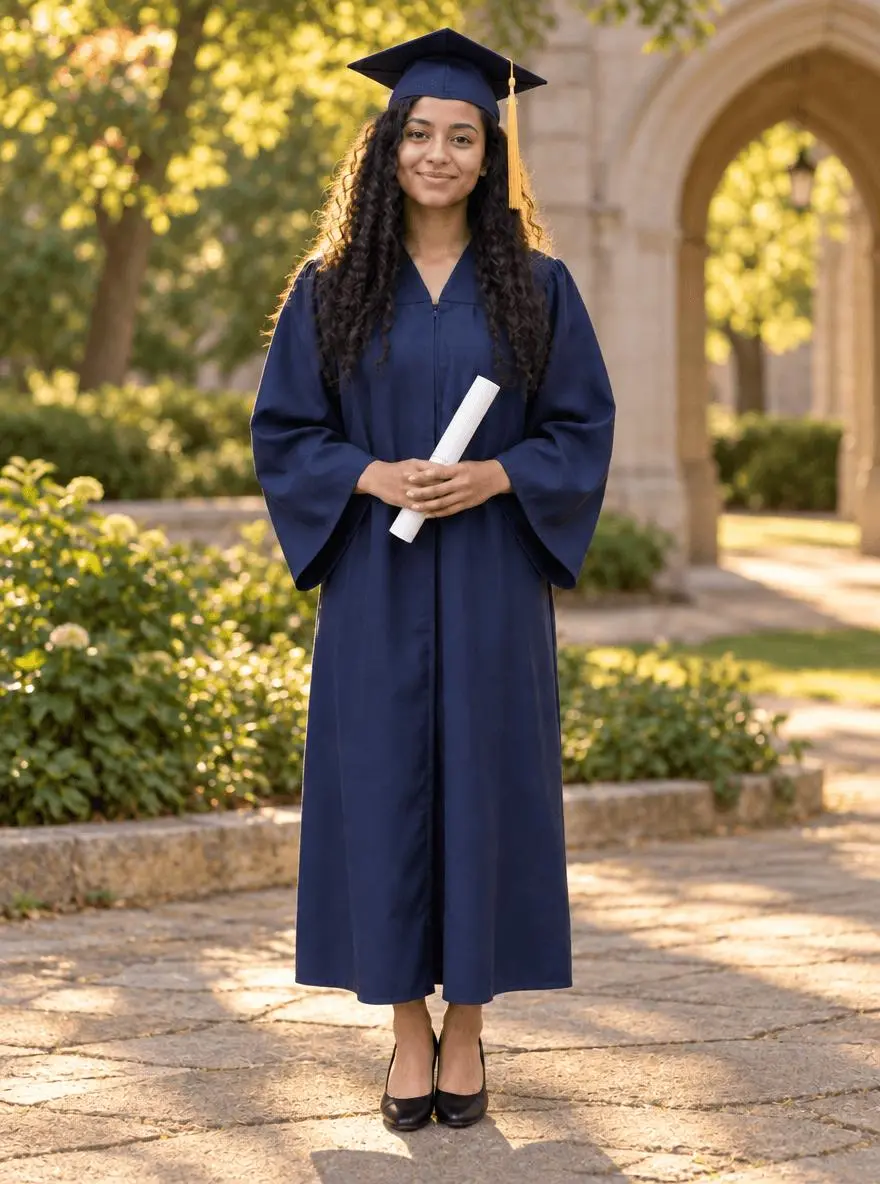
The opening comparison shows this result.
Edit image 1 into a graduation portrait beside a leafy university courtyard at golden hour. Keep the same adult graduate, recognizable face, age, dark curly hair, navy gown, mortarboard, gold tassel, diploma, pose and full-body framing. Change the background to a softly blurred pale stone campus arch and green trees. Add warm side light with natural shadows and believable skin tone. Keep both hands and shoes complete. No extra people, confetti, institutional logos, text or watermark.
The graduate remains recognizable in the navy gown and cap, with the diploma held at the waist. The new campus arch, foliage and warm side light create a golden-hour setting. Fine hair, gown folds and facial texture are regenerated rather than pixel-locked.
Returned file: 880 × 1184 pixels. The selected interactive example includes its original reference and this exact prompt. You can try it directly using the tool on the right.
Prompt 2: Simple studio graduation portrait
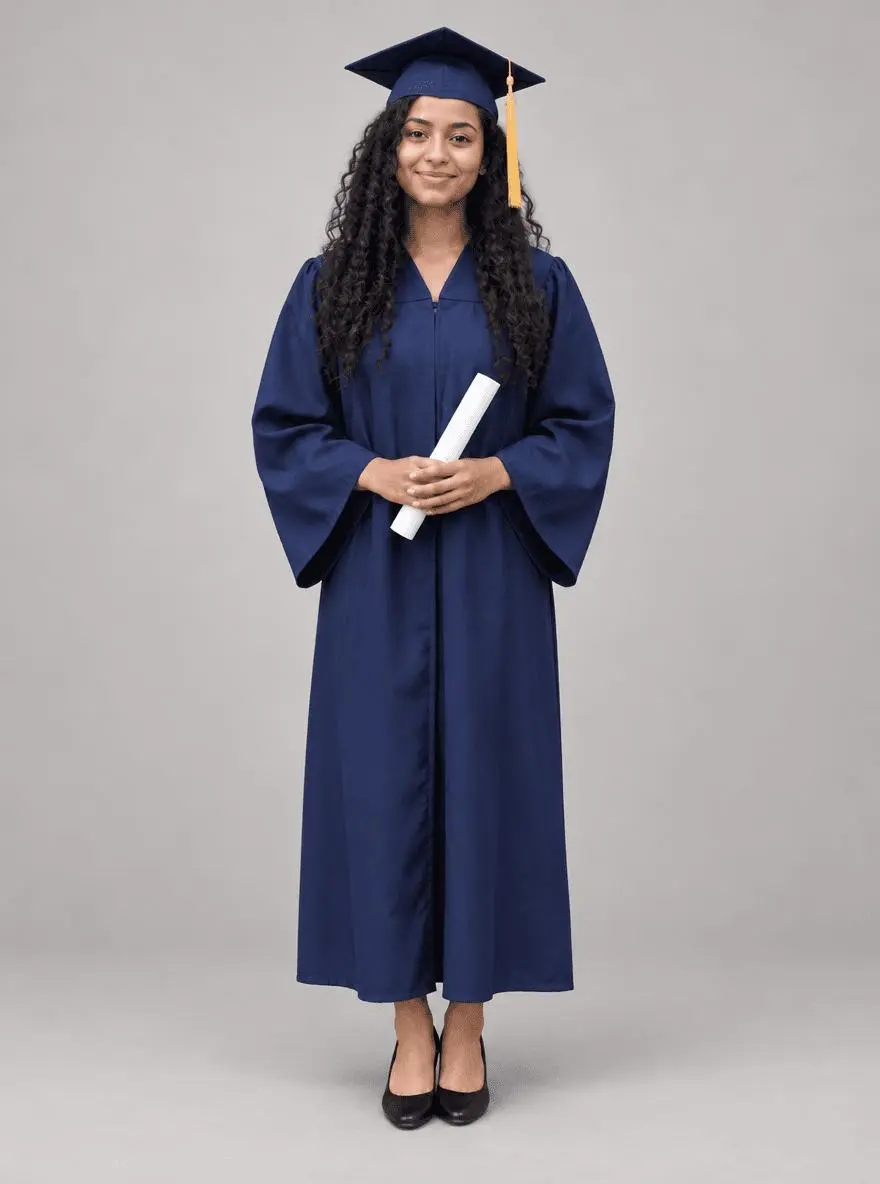
Edit image 1 into a clean graduation studio portrait against a warm light-gray seamless background. Keep the same adult graduate, face, hair, navy gown, cap, gold tassel, rolled diploma, pose, hands and full-body proportions. Use soft even studio light with a subtle contact shadow beneath the shoes. Do not add graduation year text, school crests, decorative props, extra people, beauty retouching or a different outfit.
The background becomes a light-gray studio surface, while the graduate keeps the recognizable cap, tassel, gown and diploma pose. The shoes remain within the frame and a floor shadow grounds the figure. This is a newly rendered studio version, not a masked background-only replacement.
Returned file: 880 × 1184 pixels.
Reproduce these two edits in WeShop
- Open GPT Image 2.5 Sunburst on WeShop.
- Attach the original through the reference-image upload control and confirm the thumbnail. A written description without the image would be a different task.
- Choose the tested model and settings below, then copy one prompt. Generate one image and inspect it at full size.
- For the second look, return to the same original and replace the prompt. Do not use the first output as the second input unless you intentionally want cumulative edits.
| Setting | Tested value |
|---|---|
| Model | gpt-image-2.5-sunburst |
| Input | One attached reference image |
| Requested aspect ratio | 3:4 |
| Requested image size | 1K |
| Quality | medium |
| Quantity | One result per prompt |
These examples were generated on October 29, 2026. They are two selected results, not a repeat-run reliability study or a comparison against other models. Requested settings and returned image dimensions are reported separately.
Check the details before choosing a result
- Compare face shape, expression and hair before judging the new location.
- Inspect tassel position, cap shape and diploma grip at full size.
- Keep school names and graduation years out of the image unless you plan a separate typography step.
Neither output establishes exact identity or garment preservation across repeated runs. Check cap edges, tassel, diploma grip and facial details before using a portrait.
If an important feature changes, return to the original and narrow the request. A more dramatic look is not automatically a better result when the task requires recognizable people, object detail or scene geometry.
Adapt the prompts to your own image
Replace the scene words with your own campus or preferred studio color, but keep the graduate’s actual appearance and clothing in the preserve list. Start each version from the original rather than editing the campus output into a studio portrait. Label a newly generated location as a creative edit when it could be mistaken for a real graduation photograph.
Can I use these prompts on a selfie without a gown?
You can request a gown as an additional edit, but it is a different task. These examples test an existing graduation outfit and do not establish reliable cap, gown or hand creation from every selfie.
For a wider range of editing tasks, see Top 10 Prompts for Photo Editing That Actually Work. Start with the loaded example, replace its reference with your own, and compare the requested change and retained details before using the result.