







Expand a Portrait Photo to Landscape with GPT Image 2.5
Expand a portrait photo to landscape with GPT Image 2.5. Copy the reference-based prompt and check subject retention, background continuity, and output dimensions.
A portrait photo may have the right subject but too little space for a landscape layout. The goal is to expand the background at the sides, rather than crop away the subject or stretch the photo. Here, GPT Image 2.5 Sunburst receives the original vertical image and a request for a wider cottage scene; the output is reviewed as a generative reconstruction, with no promise of pixel-locked outpainting.
| Reference input | Generated result |
|---|---|
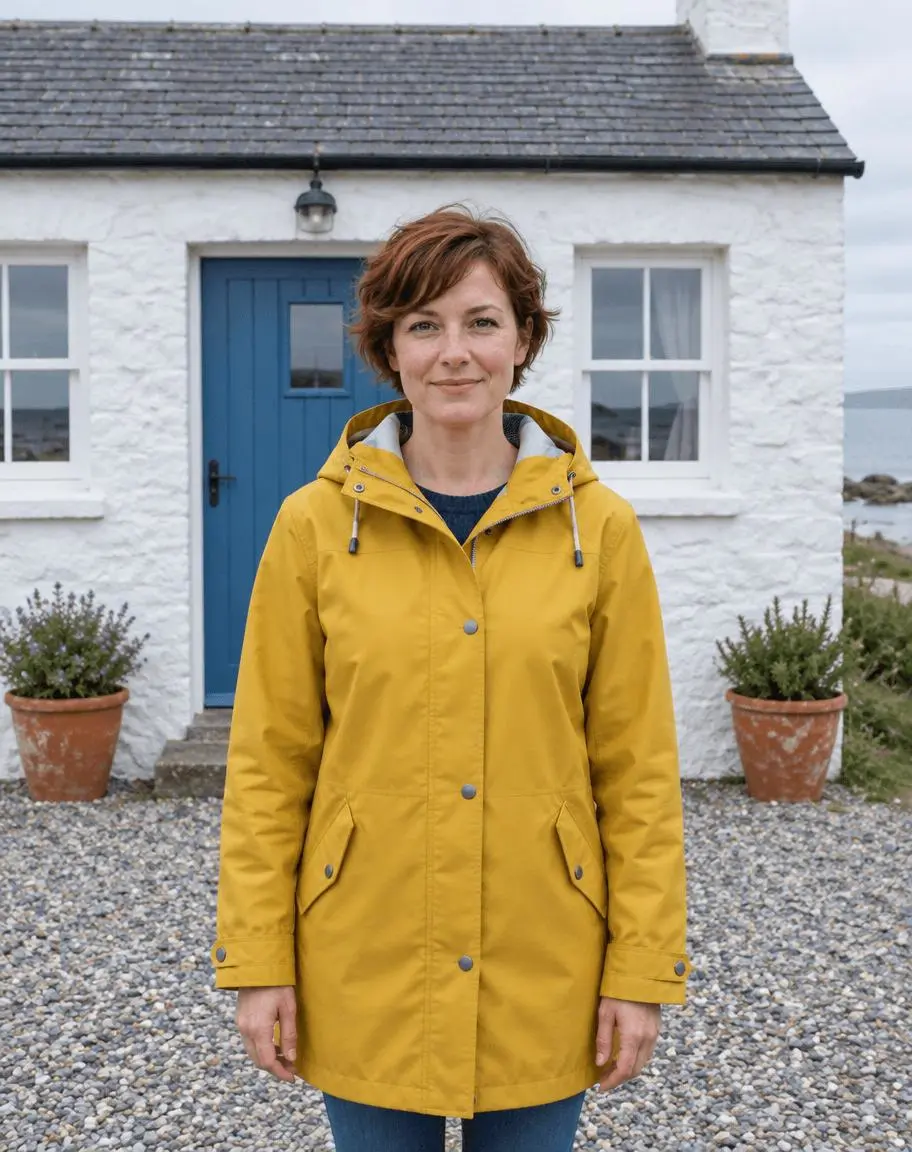 | 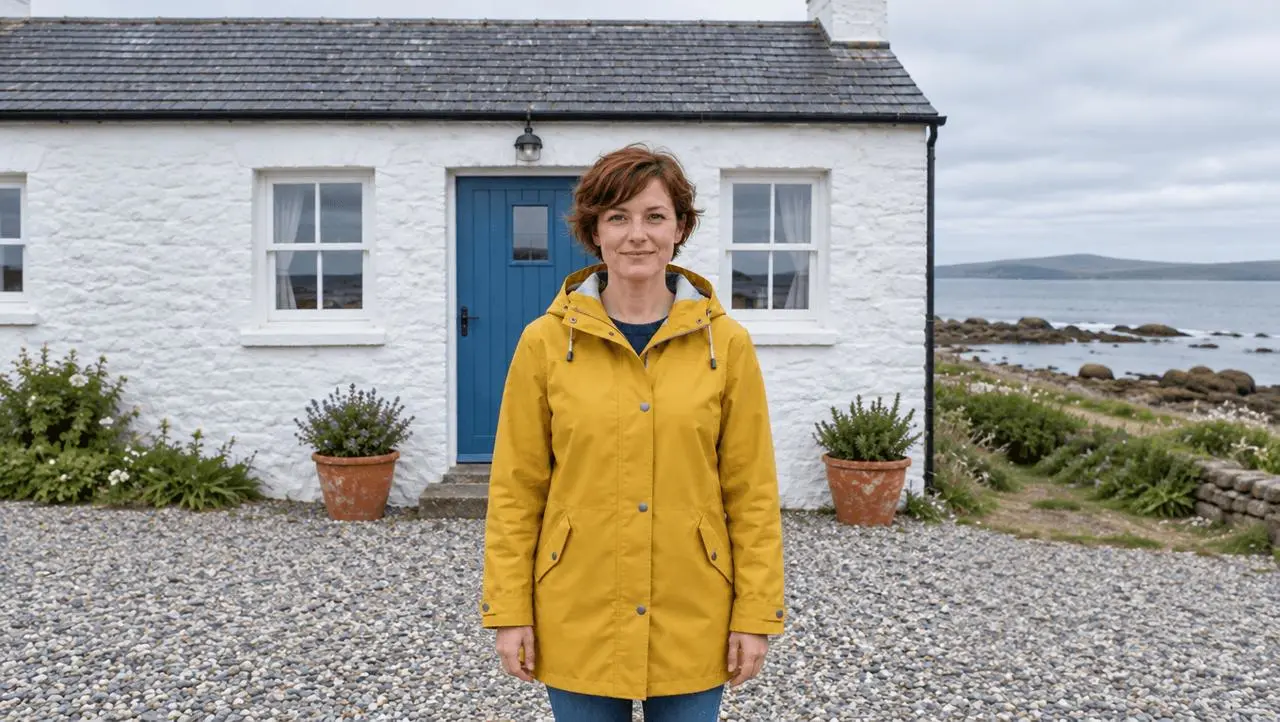 |
Portrait to landscape background extension. One attached source image and one focused edit.
Choose a background with room for plausible continuation
A plain wall, gravel path and open sky make the intended extension easier to describe than a tightly packed crowd. Our vertical reference has a centered woman in a yellow raincoat, a blue cottage door and two terracotta pots. Those recognizable elements help expose changes in composition. The generated image is a new output guided by the source, so retaining a subject is different from preserving every source pixel.
The reference shown here is AI-generated specifically for this demonstration. The result is an actual image-to-image generation from that source, not a text-only illustration presented as an edit. Use your own photo or an image you are authorized to edit.
Request side extension instead of a tighter crop
Ask for a landscape 16:9 composition with added space on the left and right. Say that the existing visible body and arms should remain. Otherwise, a wider canvas may still contain a newly cropped or smaller subject.
Constrain repeated architecture
Name the existing door and pots. Ask for continuation of the wall, gravel and sky, while excluding extra doors and decorative borders. Repeated windows, warped walls and mismatched ground perspective are useful failure checks.
Run the reference-based edit in WeShop
- Open WeShop’s GPT Image generator.
- Upload the source through the reference-image control and confirm its thumbnail is attached. A text description alone is not the same workflow.
- Select GPT Image 2.5 Sunburst, then enter the prompt below. Set the available controls to the tested values in the table.
- Generate an image and open the output at full size. Compare the requested change and the details you asked to retain against the original.
| Setting | Value in this test |
|---|---|
| Model | gpt-image-2.5-sunburst |
| Input | One attached image |
| Requested aspect ratio | 16:9 |
| Requested image size | 1K |
| Quality | medium |
| Quantity | 1 |
| Returned dimensions | 1360 × 768 pixels |
Copy the exact tested prompt
Use image 1 as the source for a landscape 16:9 photograph. Expand the scene to the left and right with plausible continuation of the white coastal cottage wall, gravel ground and overcast sky. Keep the woman in the mustard yellow raincoat centered, recognizable, with her full existing visible upper body and arms retained. Keep the blue door and two terracotta pots. Add breathing room at both sides rather than cropping the subject or stretching the image. Preserve natural perspective and lighting. Do not add people, extra doors, text, logos or decorative borders.
The interactive example loads the source, selected result and generation setup for this edit. You can try it directly using the tool on the right. Replace the example reference with your own and update the scene-specific wording before generating.
What the actual result shows
The output is a wider coastal-cottage composition with extra wall, gravel and shoreline visible at the sides. The yellow-coated woman remains centered and her previously visible body is retained.
The woman appears smaller within the expanded frame. The door, pots and cottage remain recognizable, but the image is reconstructed rather than a pixel-identical source pasted into a larger canvas.
The extended surroundings are invented. Fine facial and architectural details change, and the subject occupies less of the final frame. Do not treat this as recovery of the original uncropped scene or a guarantee of pixel-preserving outpainting.
This is one selected result from one request made on October 27, 2026. It demonstrates this example, not a success rate or a guarantee for every input. The requested aspect ratio and returned dimensions are reported separately.
Decide whether generative expansion fits the final use
Use the result for a creative layout where a plausible wider setting is acceptable. If you need exact original pixels in the middle, use a canvas expansion and masking workflow that explicitly protects that region; this test does not establish that control in the reference-guided generator. For a precise final export size, check the returned dimensions and finish with a suitable crop or resize that retains the subject.
If an output changes something important, return to the original and narrow the instruction to one edit. Do not keep stacking revisions on an output with an unnoticed defect. Suggested corrections are workflow guidance unless an additional result is shown here.
Frequently asked questions
Is this the same as stretching a photo?
No. The request asks the model to synthesize a wider scene rather than elongate the existing subject. Inspect anatomy and door proportions to make sure stretching or reshaping did not appear in the result.
Does a 16:9 setting guarantee an exact 16:9 file?
Check the actual returned dimensions, which are reported in the settings table here. A requested ratio and a returned pixel size should be treated as separate facts.
For broader prompt ideas, see Top 10 Prompts for Photo Editing That Actually Work. For this task, start with the loaded example and check the retained details before using the result.