






Change Clothes Color in a Photo with GPT Image 2.5
Change clothes color in a photo with GPT Image 2.5. Use a targeted cardigan prompt and check fabric texture, buttons, skin, and surrounding colors.
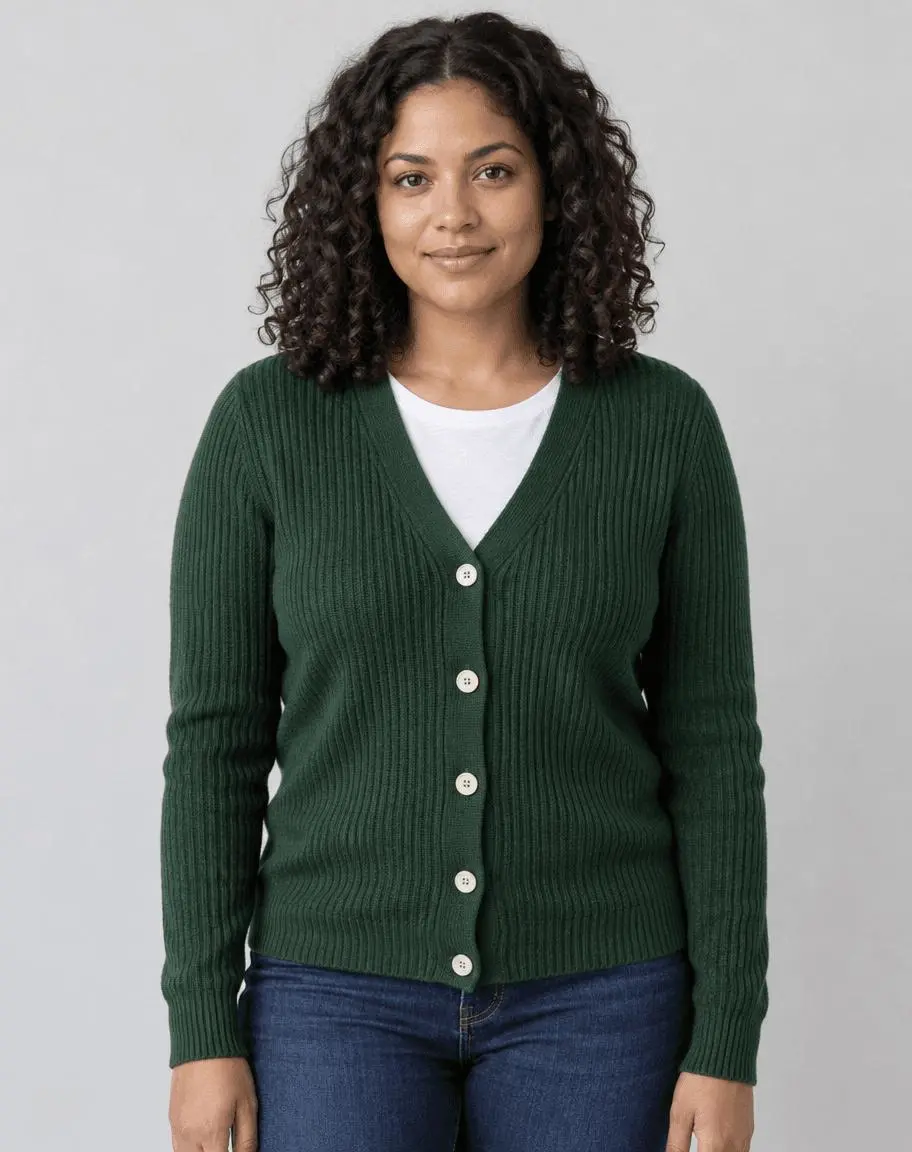
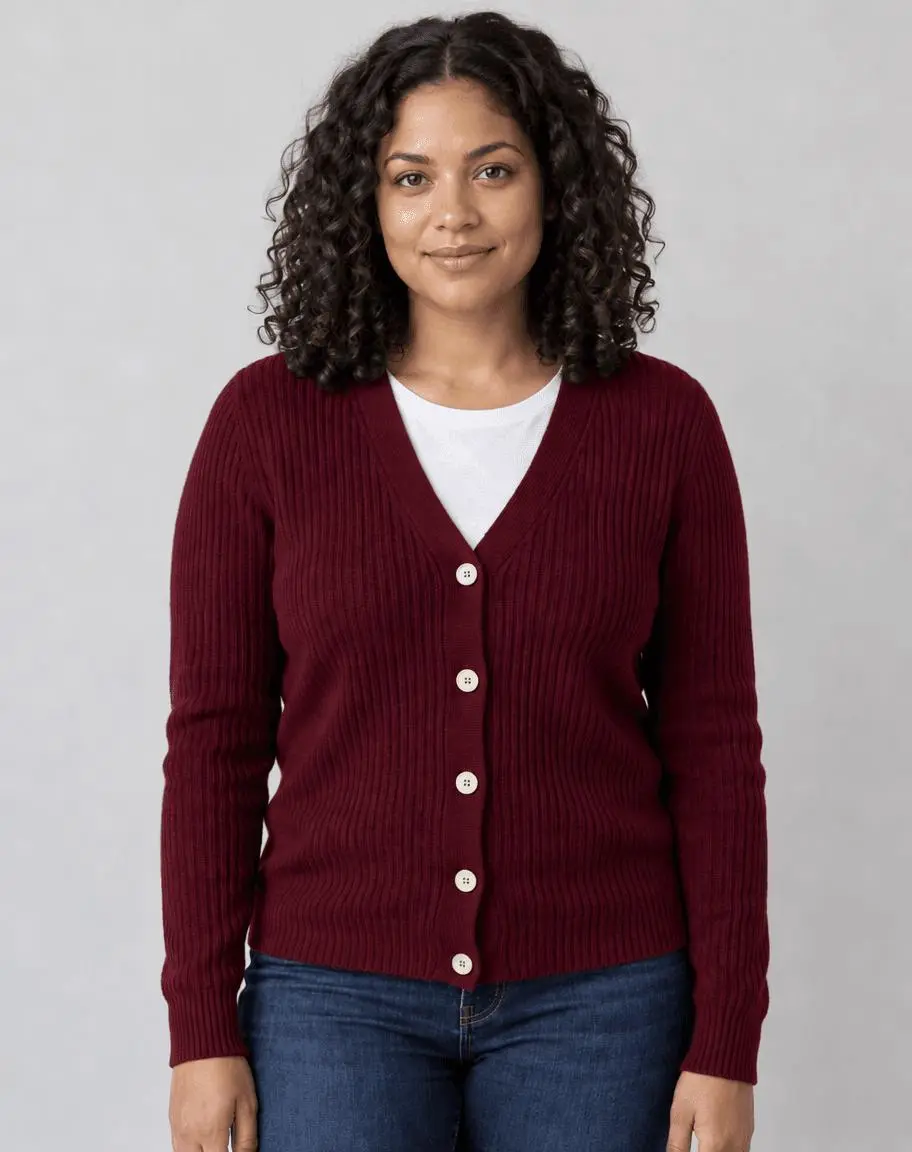
Changing a green cardigan to burgundy should not also change the neckline, buttons or person wearing it. A useful clothes-color edit names the garment, the new color, and the details that must survive. This guide shows a one-garment recoloring workflow with GPT Image 2.5 Sunburst, using an attached portrait as the actual input.
| Reference input | Generated result |
|---|---|
 |  |
Single garment recoloring. One attached source image and one focused edit.
Separate a color change from an outfit replacement
Use an evenly lit photo with a clear garment edge and visible textile detail. The demonstration cardigan is ribbed, green, and worn over a white T-shirt. That gives us three useful checks: did the knit remain recognizable, did the cream buttons survive, and did the T-shirt stay white? This is a color-preview task. It is not a virtual fitting or a measurement of how a real dye will look.
The reference shown here is AI-generated specifically for this demonstration. The result is an actual image-to-image generation from that source, not a text-only illustration presented as an edit. Use your own photo or an image you are authorized to edit.
Specify one garment and one target color
Name the cardigan rather than saying “make the outfit red.” Deep burgundy is the requested appearance; a descriptive color word is not a calibrated physical color specification. Avoid adding a new fabric, cut or accessory to the same request.
List the details a color edit should retain
Protect ribbing, seams, buttons, sleeves and folds. Also name nearby items that should not change color, including skin, the white T-shirt, jeans and wall. These are instructions to check against the output, not a guarantee of unchanged pixels.
Run the reference-based edit in WeShop
- Open WeShop’s GPT Image generator.
- Upload the source through the reference-image control and confirm its thumbnail is attached. A text description alone is not the same workflow.
- Select GPT Image 2.5 Sunburst, then enter the prompt below. Set the available controls to the tested values in the table.
- Generate an image and open the output at full size. Compare the requested change and the details you asked to retain against the original.
| Setting | Value in this test |
|---|---|
| Model | gpt-image-2.5-sunburst |
| Input | One attached image |
| Requested aspect ratio | 4:5 |
| Requested image size | 1K |
| Quality | medium |
| Quantity | 1 |
| Returned dimensions | 912 × 1152 pixels |
Copy the exact tested prompt
Edit image 1. Change only the forest green cardigan color to deep burgundy. Preserve its ribbed knit texture, cardigan cut, hem, sleeve length, five cream buttons, seams, folds and shading. Keep the white T-shirt white, jeans dark blue, wall gray, and preserve the same adult woman, facial features, skin tone, hair, pose, framing and lighting. Do not redesign the garment, smooth skin, recolor other objects, add accessories, text or logos.
The interactive example loads the source, selected result and generation setup for this edit. You can try it directly using the tool on the right. Replace the example reference with your own and update the scene-specific wording before generating.
What the actual result shows
The cardigan changes from forest green to deep burgundy while the white T-shirt, blue jeans and gray background retain their broad colors.
The V-neck, five cream buttons, sleeve cuffs and ribbed knit remain visible. The result keeps the same recognizable woman and a similar front-facing pose.
The output is a generative color preview. Fine textile detail and proportions can be redrawn, and the burgundy appearance is not a calibrated fabric-color match.
This is one selected result from one request made on October 27, 2026. It demonstrates this example, not a success rate or a guarantee for every input. The requested aspect ratio and returned dimensions are reported separately.
Try another color without stacking edits
For another colorway, attach the original reference again and replace only “deep burgundy” in the prompt. Working from the original makes comparisons easier and avoids carrying an unwanted change from a previous output into the next. Additional colorways are suggested extensions; only the displayed burgundy example is part of this test.
If an output changes something important, return to the original and narrow the instruction to one edit. Do not keep stacking revisions on an output with an unnoticed defect. Suggested corrections are workflow guidance unless an additional result is shown here.
Frequently asked questions
Can I use a hex code for an exact color match?
You can state a target color, but this test does not demonstrate colorimetric accuracy. Lighting, material shading and display settings affect perceived color; review against an approved reference when accuracy matters.
Will the fabric and buttons stay identical?
Preservation instructions can guide the edit, but generative output can redraw fine detail. Compare the result at full size and use a masked adjustment workflow when exact local pixel control is essential.
For broader prompt ideas, see Top 10 Prompts for Photo Editing That Actually Work. For this task, start with the loaded example and check the retained details before using the result.