How to Cancel Your WeShop AI Subscription on iOS
If you subscribed to WeShop AI through the Apple App Store, you can cancel your subscription in either of the following ways.
Canceling your subscription stops future automatic renewals. You can continue using your current subscription until the end of the existing billing period.
Option 1: Cancel from iPhone Settings
Step 1: Open Settings
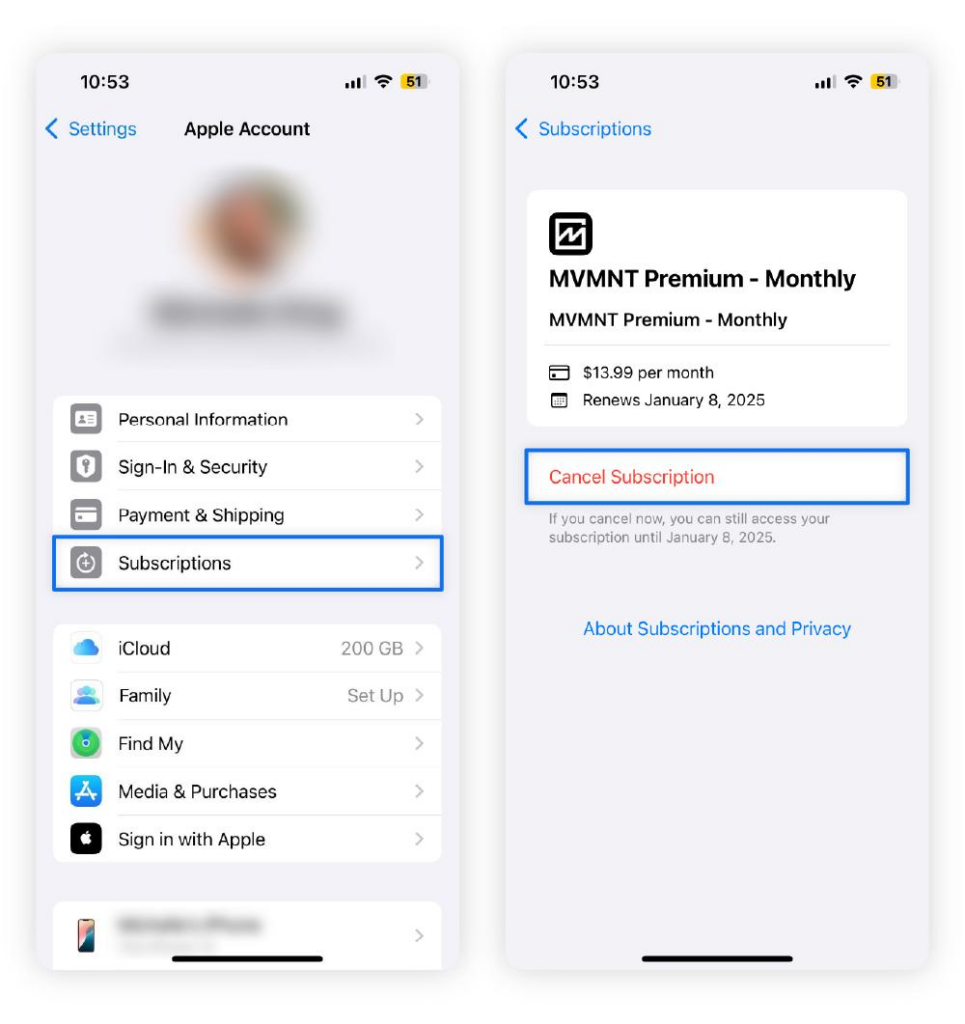
Open Settings on your iPhone and tap your Apple Account at the top of the screen.
Step 2: Tap “Subscriptions”
On your Apple Account page, tap Subscriptions.
This will show all subscriptions linked to your Apple ID.
Step 3: Select WeShop AI
Find WeShop AI under your active subscriptions and tap it.
You can view your current plan, renewal date, and subscription details.
Step 4: Tap “Cancel Subscription”
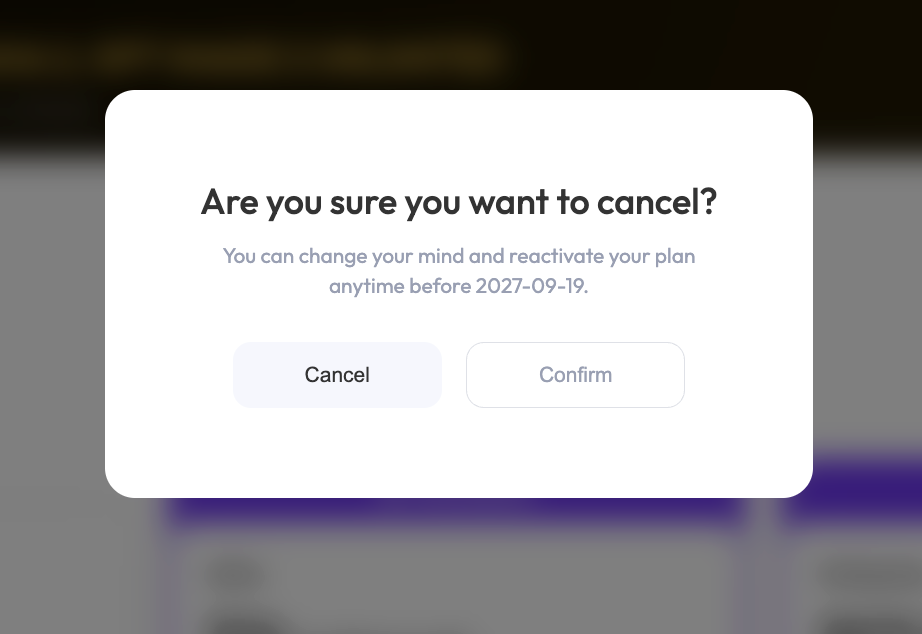
Tap Cancel Subscription and follow the on-screen instructions to confirm.
Path:
Settings → Apple Account → Subscriptions → WeShop AI → Cancel Subscription
Option 2: Cancel from the App Store
Step 1: Open the App Store
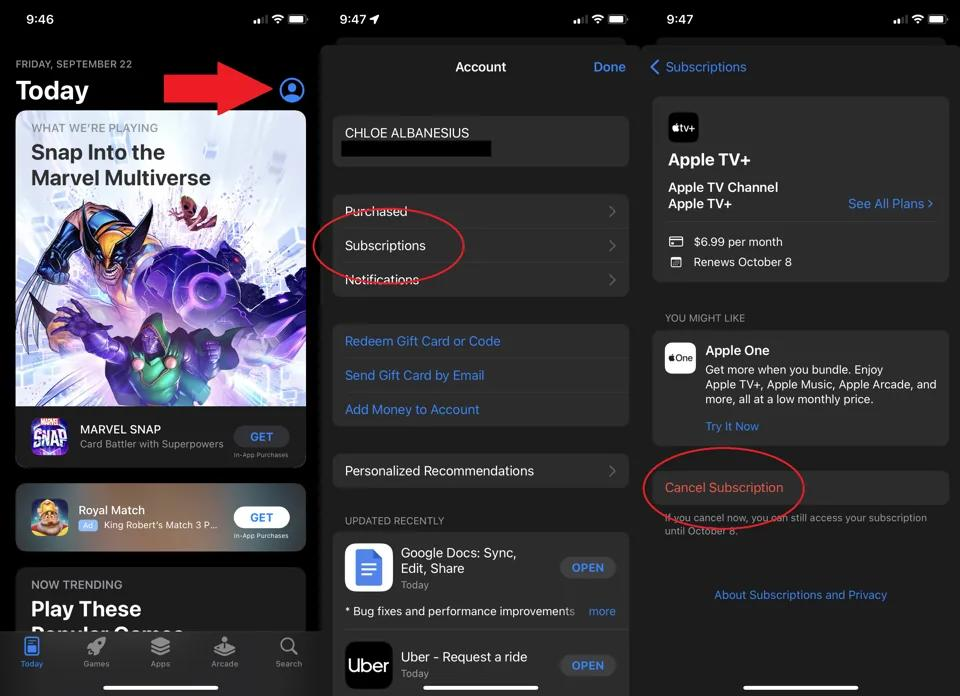
Open the App Store on your iPhone.
Tap your profile icon in the top-right corner.
Step 2: Open “Subscriptions”
On your account page, tap Subscriptions.
This will open the list of subscriptions associated with your Apple ID.
Step 3: Select WeShop AI
Find and tap WeShop AI from your active subscriptions.
Step 4: Tap “Cancel Subscription”
Tap Cancel Subscription and follow the on-screen instructions to complete the cancellation.
Path:
App Store → Profile → Subscriptions → WeShop AI → Cancel Subscription
How to Cancel Your WeShop AI Subscription on Android
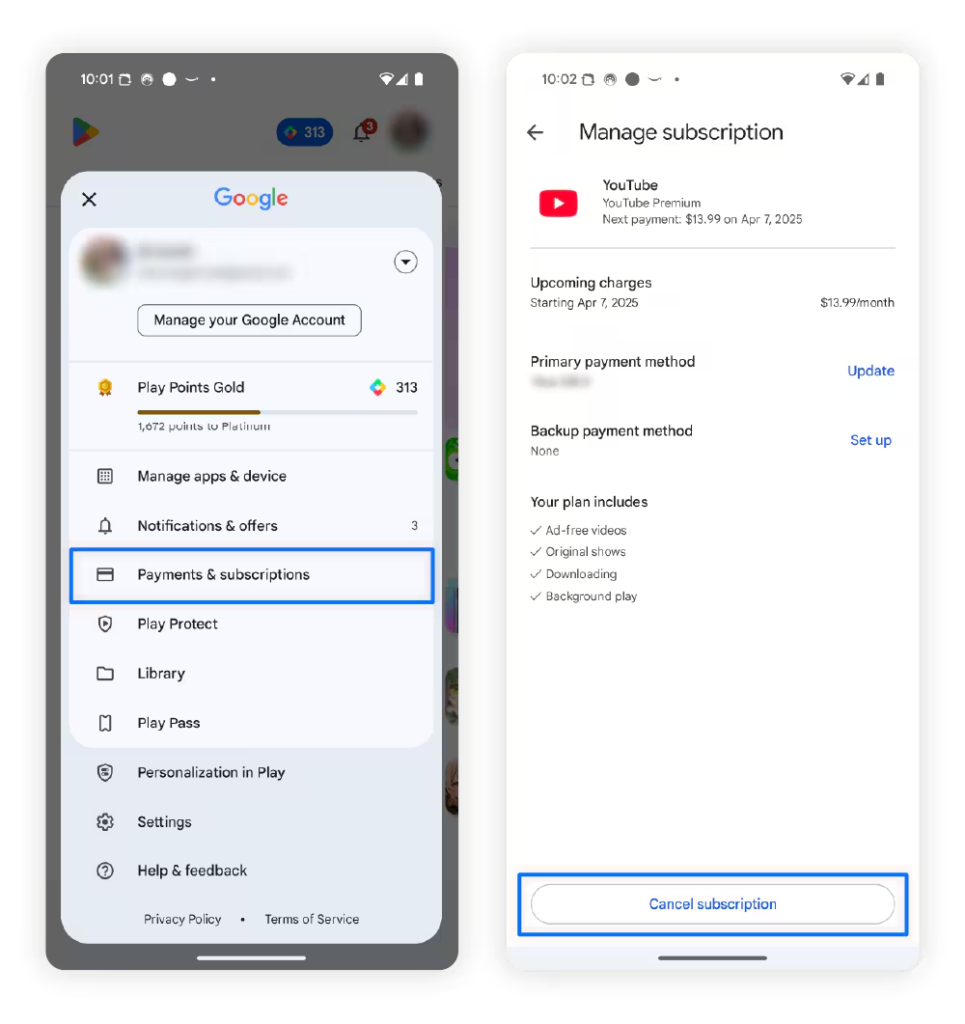
If you subscribed to WeShop AI through Google Play, you can manage and cancel your subscription directly from Google Play on your Android device.
Canceling your subscription stops future automatic renewals. Uninstalling the WeShop AI app alone does not cancel your subscription.
Step 1: Open Google Play
Open the Google Play Store on your Android device.
Make sure you are signed in to the Google Account you used to purchase your WeShop AI subscription.
Step 2: Open “Payments & subscriptions”
Tap your profile icon in the top-right corner.
Select Payments & subscriptions, then tap Subscriptions.
Step 3: Select WeShop AI
Find and select WeShop AI from your active subscriptions.
You will see your current subscription details, including your plan and next billing date.
Step 4: Tap “Cancel subscription”
On the Manage subscription page, scroll down and tap Cancel subscription.
Follow the on-screen instructions to complete the cancellation.
Path:
Google Play → Profile → Payments & subscriptions → Subscriptions → WeShop AI → Cancel subscription