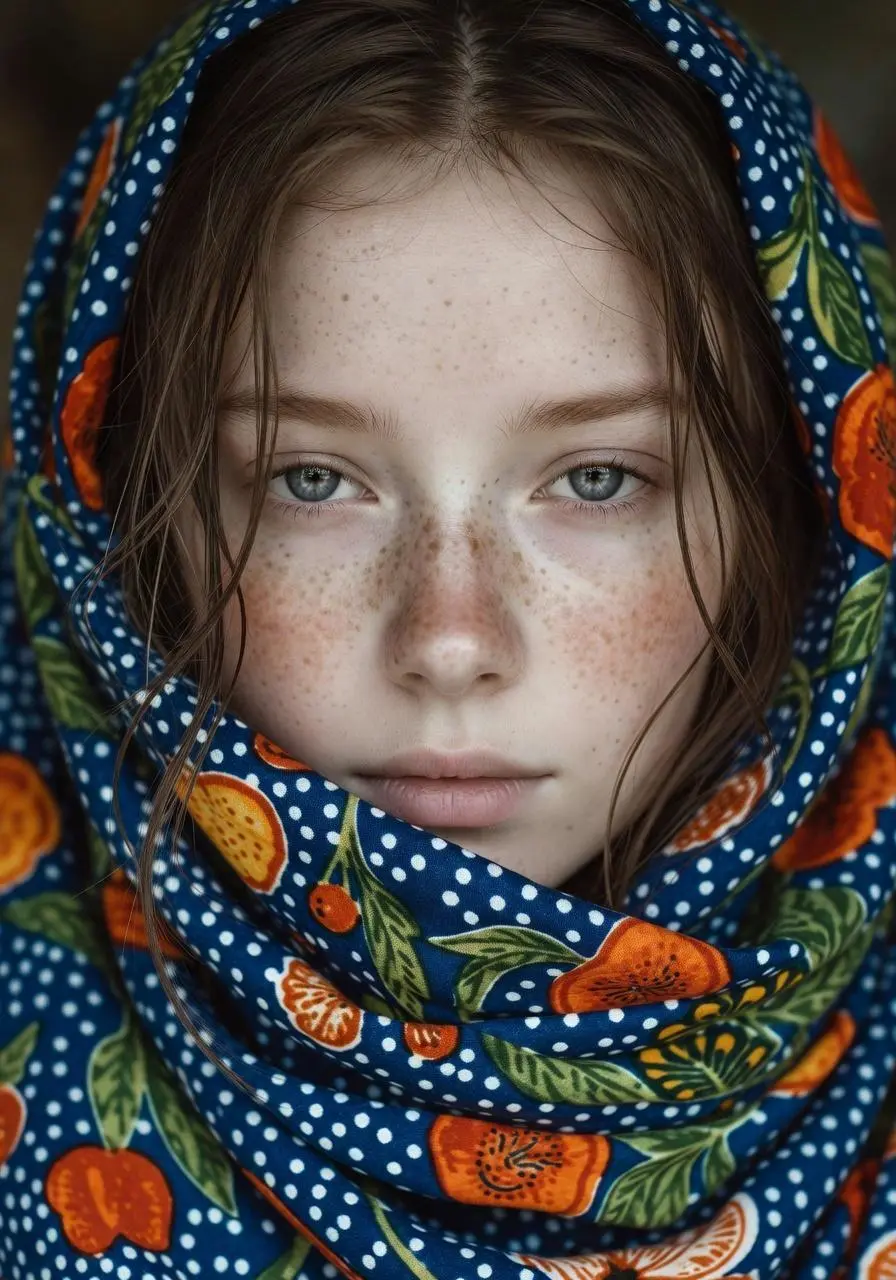
This image is an extreme close-up portrait with a soft, dreamlike, and highly intimate atmosphere. The composition is very tight, focusing almost entirely on the face and the richly patterned fabric surrounding it, which creates a strong sense of closeness and emotional intensity.The most striking feature is the face itself. The subject has very fair skin covered with a dense scattering of freckles across the nose, cheeks, and forehead, giving the image remarkable texture and individuality. The eyes are pale blue-gray and luminous, with a reflective catchlight that makes them appear vivid and almost glass-like. The gaze is quiet and slightly heavy-lidded, giving the portrait a contemplative, tired, or wistful mood. The eyebrows are soft and natural, and the lips are full, pale, and gently closed, contributing to the overall feeling of vulnerability and stillness. Loose damp-looking strands of hair fall across the forehead and around the face, adding an unpolished, organic softness.The lower part of the face is partially wrapped or framed by a richly colored textile. This fabric is one of the image’s most visually dynamic elements: it features a deep blue background with white speckled dots and botanical motifs, including warm orange fruit-like shapes and green leaves. The contrast between the cool blue fabric and the pale freckled skin makes the portrait especially vivid. The textile gives the image a painterly, almost illustrative quality, as though the subject is emerging from within a lush, patterned cocoon.The background itself is not clearly visible, because the frame is filled almost entirely by the face, hair, and fabric. This absence of environmental detail makes the portrait feel even more intimate and immersive. The lighting is soft and diffused, with no harsh shadows, which enhances the skin texture and preserves the delicate tonal transitions across the face. Overall, the image feels poetic, tactile, and emotionally charged, balancing realism with a slightly surreal, artful beauty.
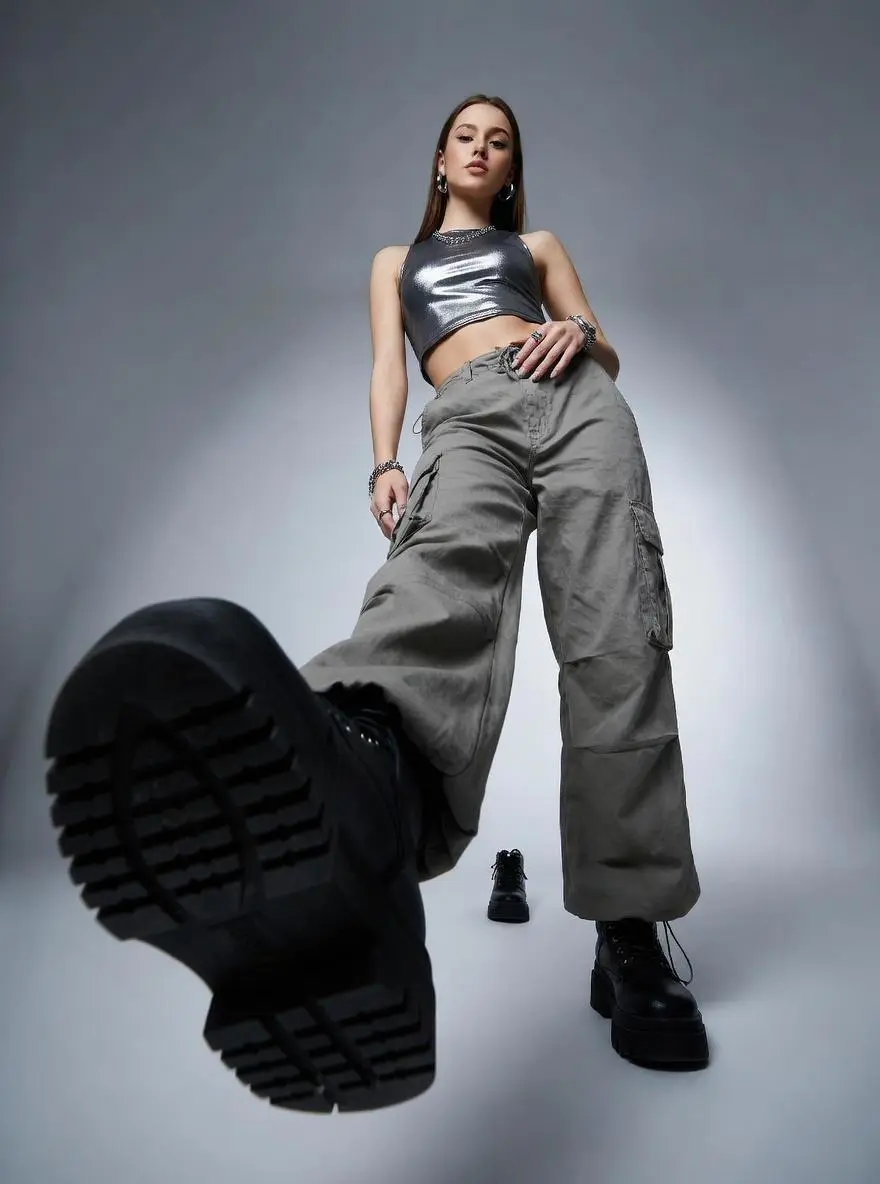
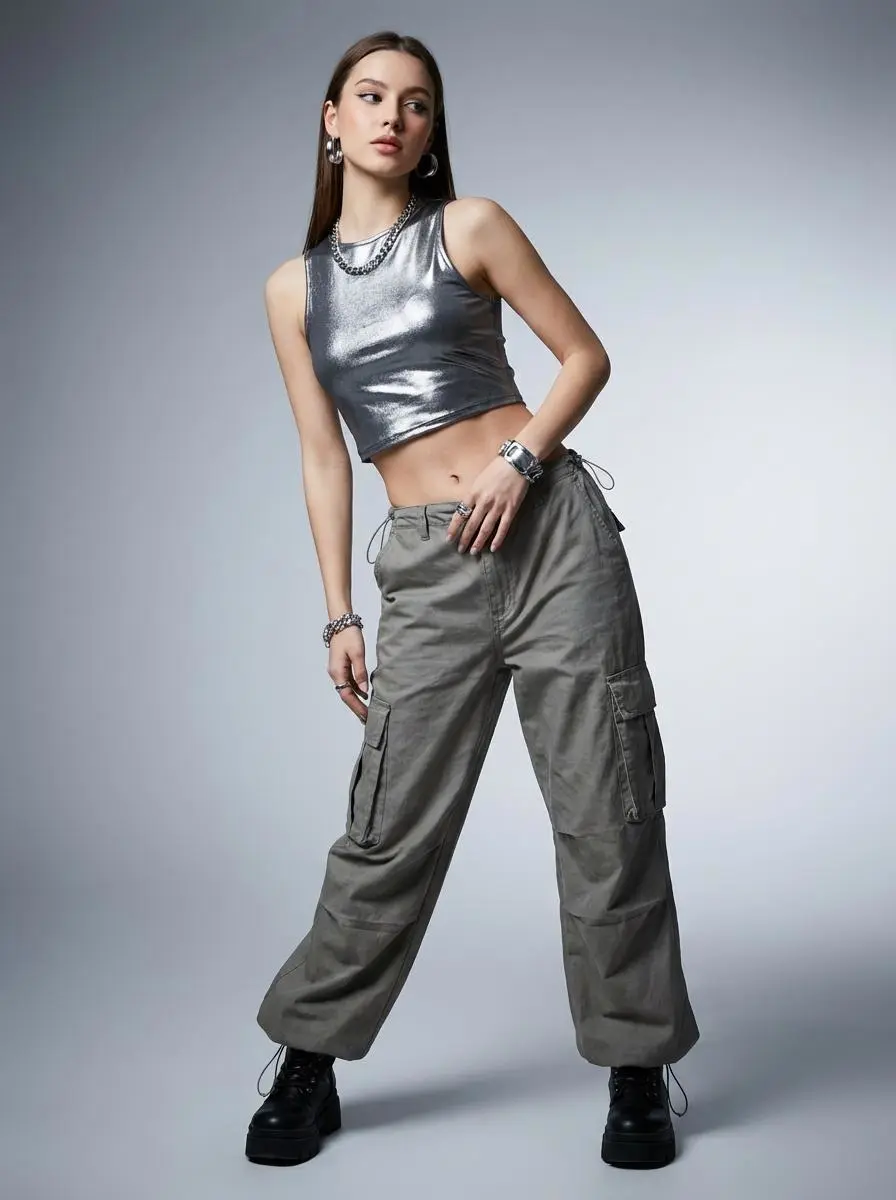
Transform the original photo into a dramatic, realistic, wide-angle shot with an extreme camera angle (including from a perspective directly below or directly above), where one or more body parts are close to the lens and appear huge, while the rest of the body recedes in perspective, and the same person assumes a fashionable, complex, and powerful pose in an expanded version of the original environment.
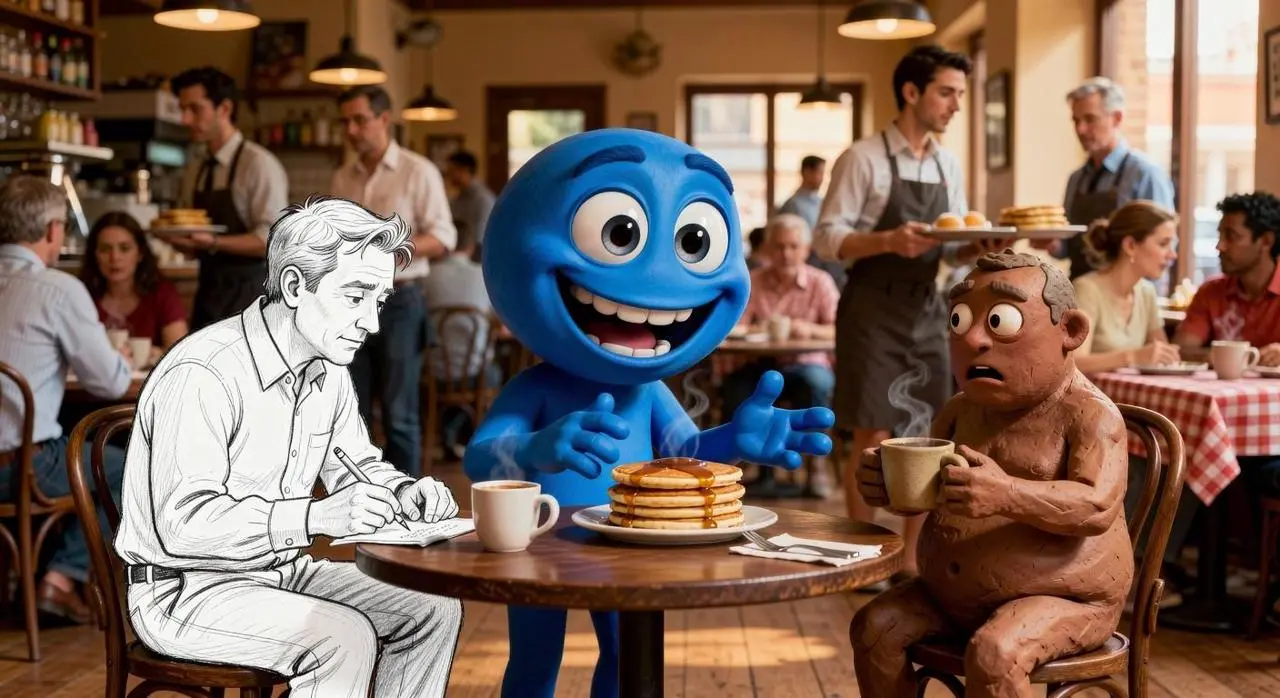
A photo depicting a busy café breakfast scene. In the foreground, there is a blue animated character. One of the characters is a pencil sketch, and the other is a clay animation character.
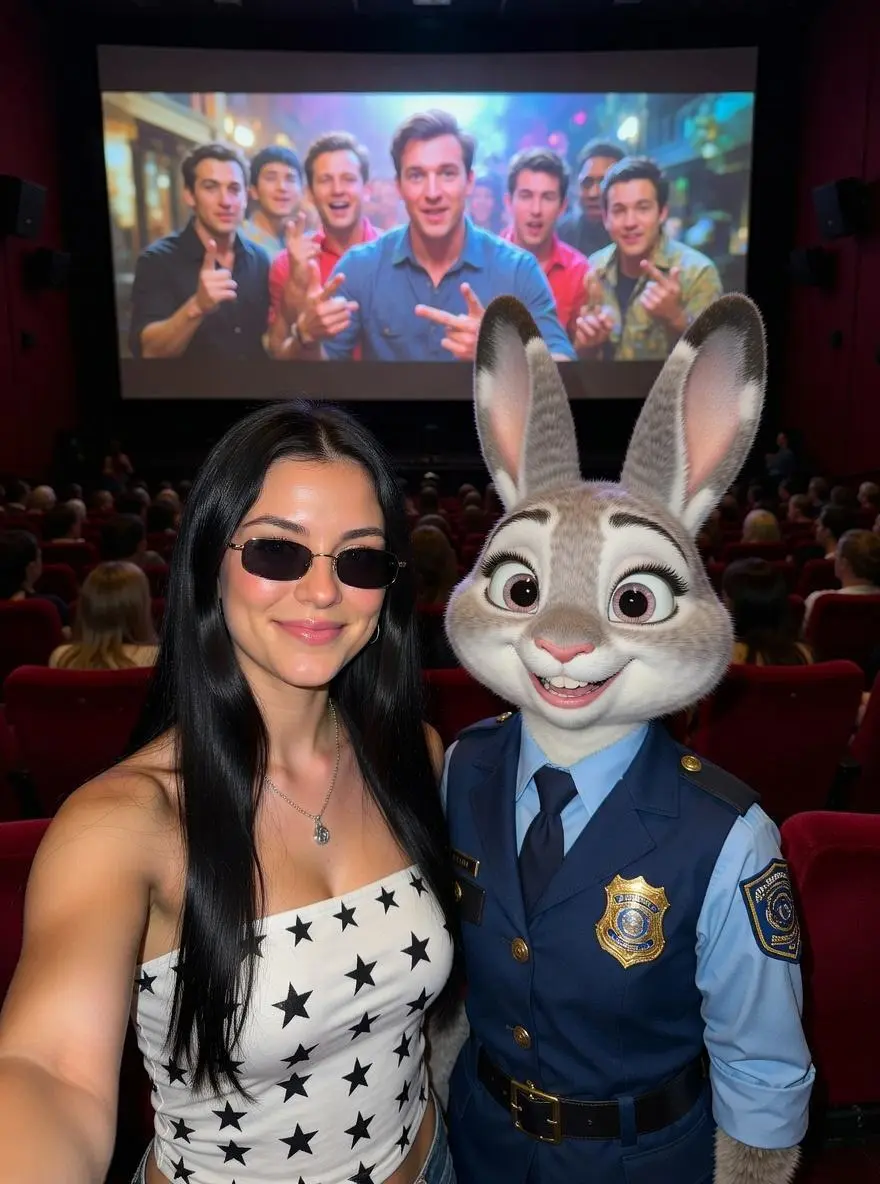
{
"Quickly": {
"Characters": [
{
"name": "Miyeon",
Description: A beautiful young Korean woman, with a smile on her face, has long black hair. She is wearing a white top with a shoulderless design, adorned with black stars, and is wearing a silver necklace. },
{
Name: Judy Hopps
Description: A character from the Disney animated film "Zootopia", wearing a police uniform and smiling. }
],
"Scene": {
"Location": "A dimly lit and crowded cinema/screening room",
"Background": "A scene on the big movie screen showing multiple male characters making various gestures",
"Lighting": "Movie lighting" },
"Interaction": "Mei Yan and Judy Hopps are standing side by side for a selfie"
Style: Photo-realistic, ultra-high detail, 8K }
}
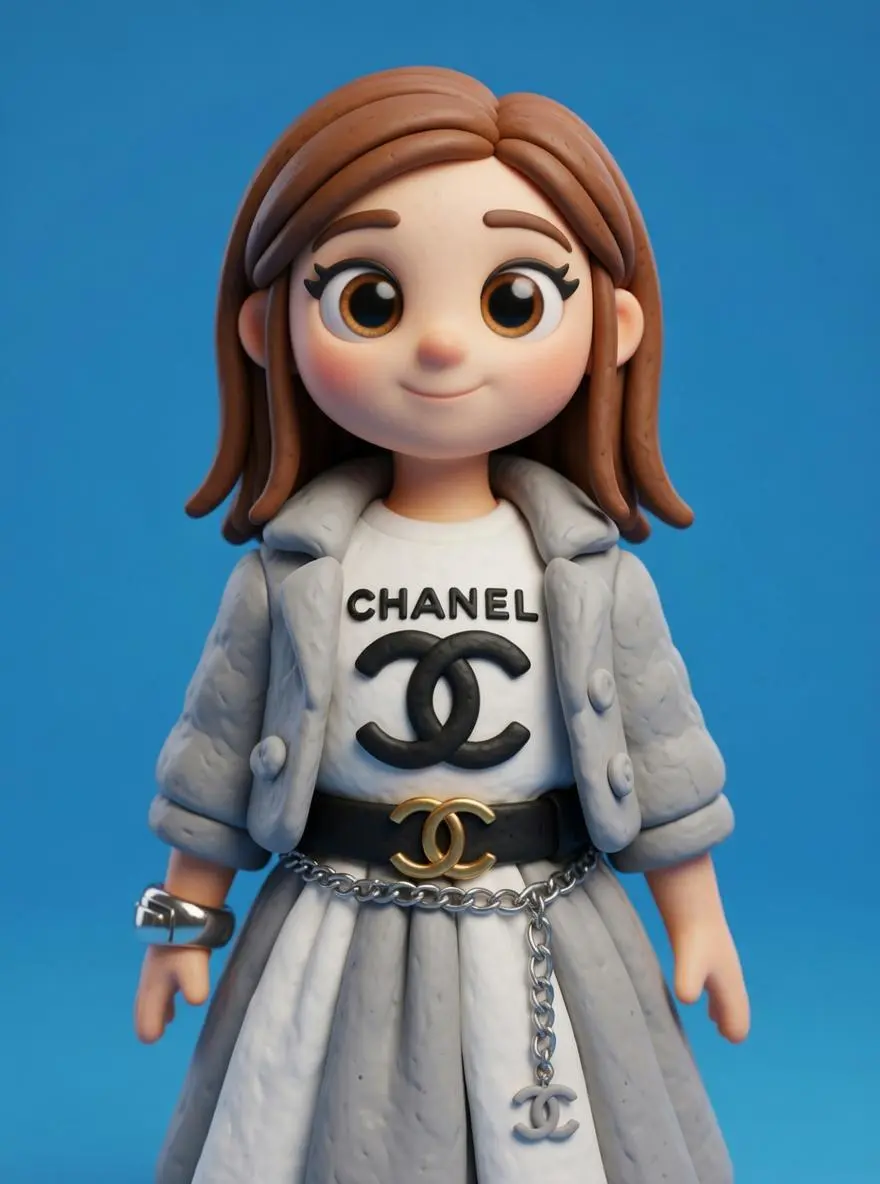
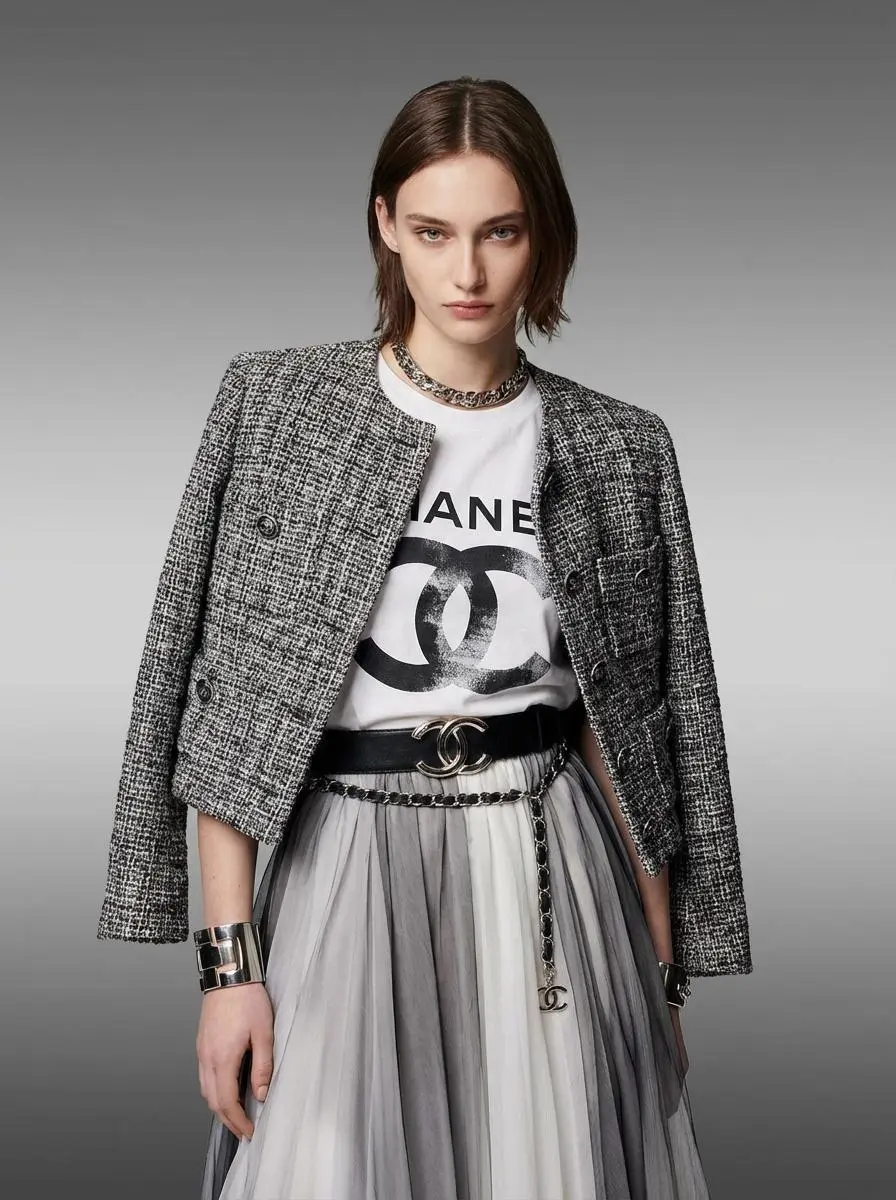
Transform the main body into a stylized 3D character, featuring a soft clay texture, round sculptural shape, exaggerated facial features, harmonious and vibrant color combinations, smooth underlying texture, cartoon-like big eyes and simplified anatomical structure. Render it against a prominent blue studio background, using soft frontal light and subtle shadows. Create a charming, surreal and exquisite character design aesthetic, similar to modern stylized 3D illustrations. Retain the composition and framing of the original photo.