动画场景转场
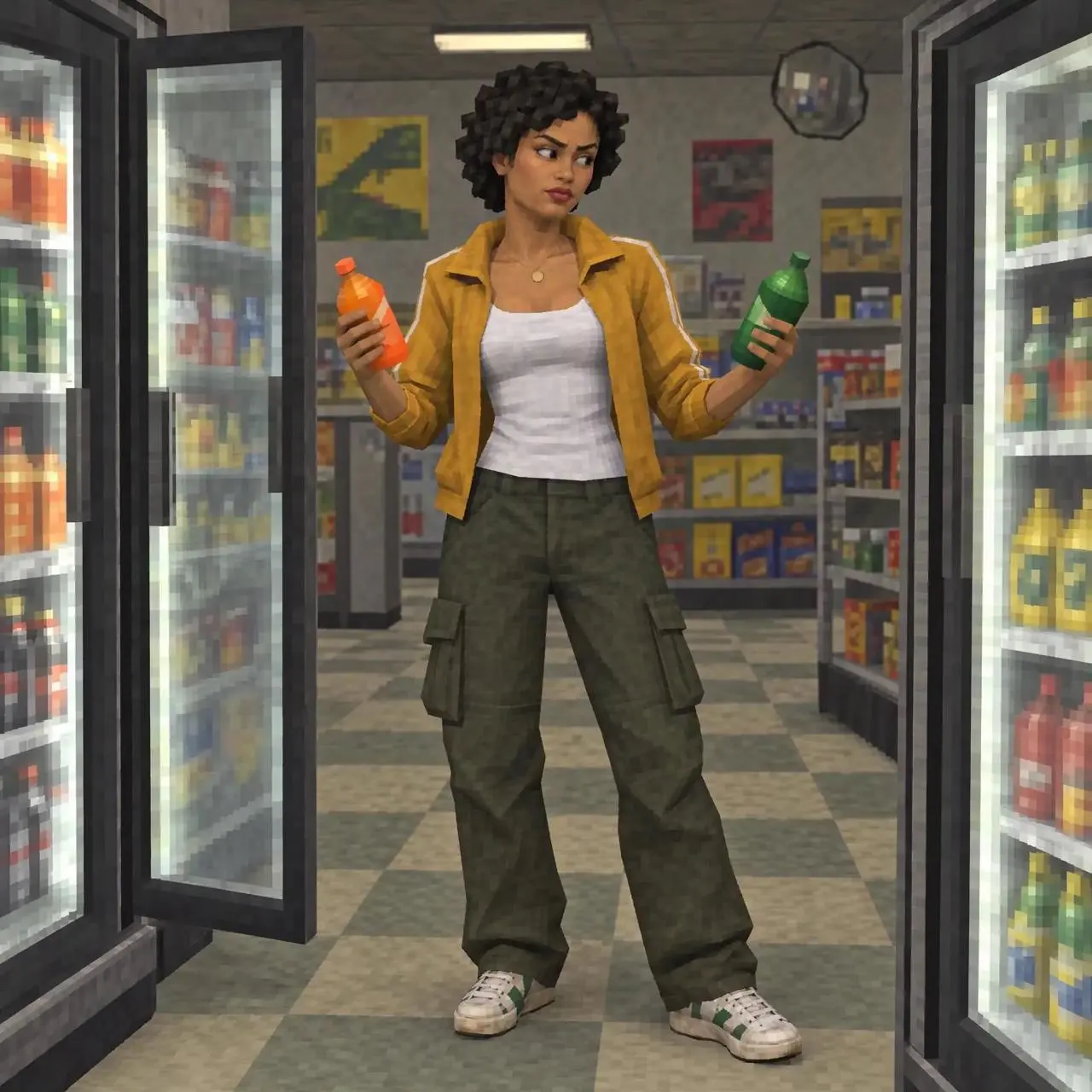
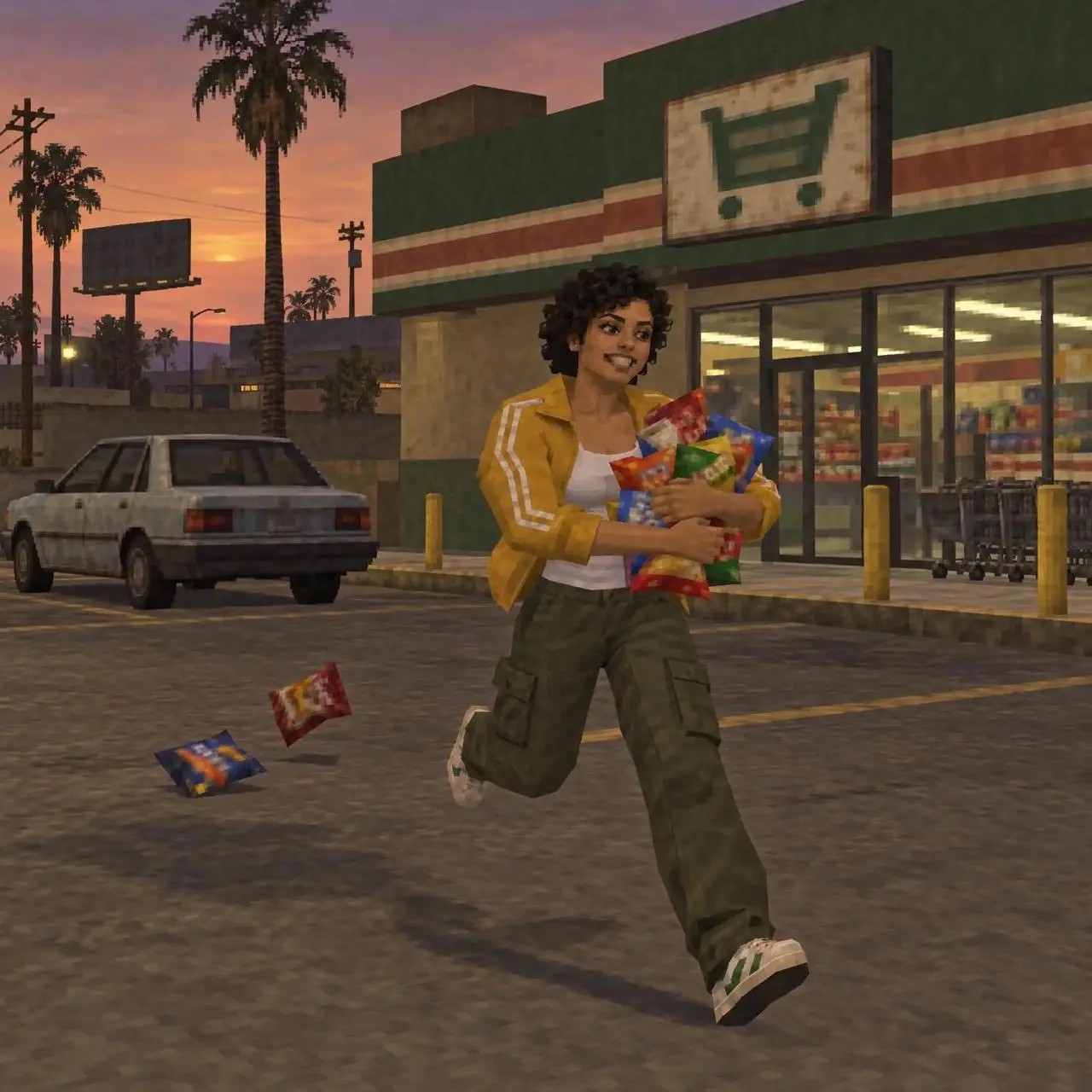
动画人物在商店、洗衣房和户外场景间切换,用亮光与旋转效果衔接镜头。
Combine three images into a single production, adding transitions and special effects.

从动画场景串联到穿搭转场,查看视频效果,复制提示词,或打开案例换上自己的参考图片。
动画人物在商店、洗衣房和户外场景间切换,用亮光与旋转效果衔接镜头。
Combine three images into a single production, adding transitions and special effects.
模特在白色影棚背景中入场、离场,将多组穿搭串联成短片。
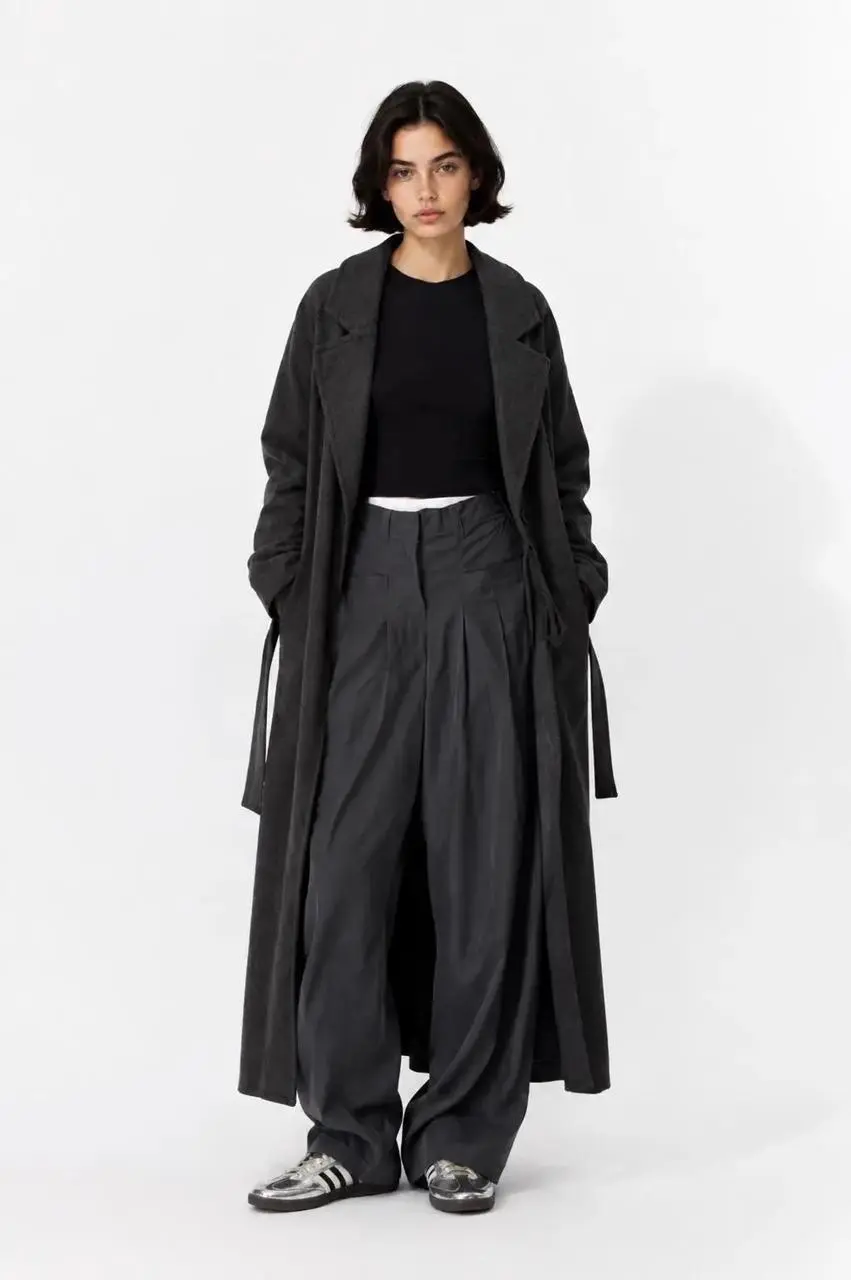
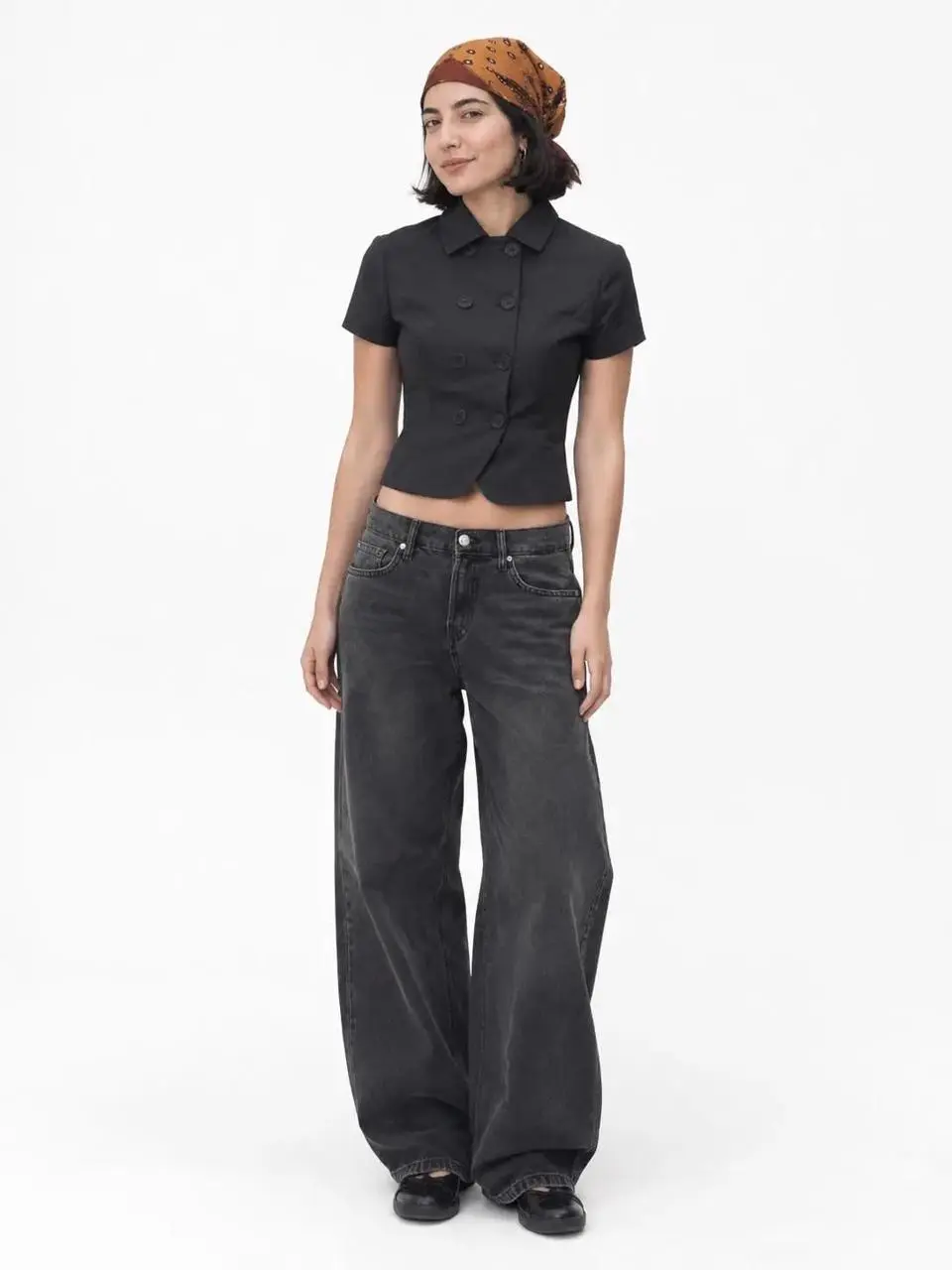
Using the uploaded images, create an OOTD transition video; incorporate elements such as "dropping into" the frame or "walking out" of the frame between the clips.
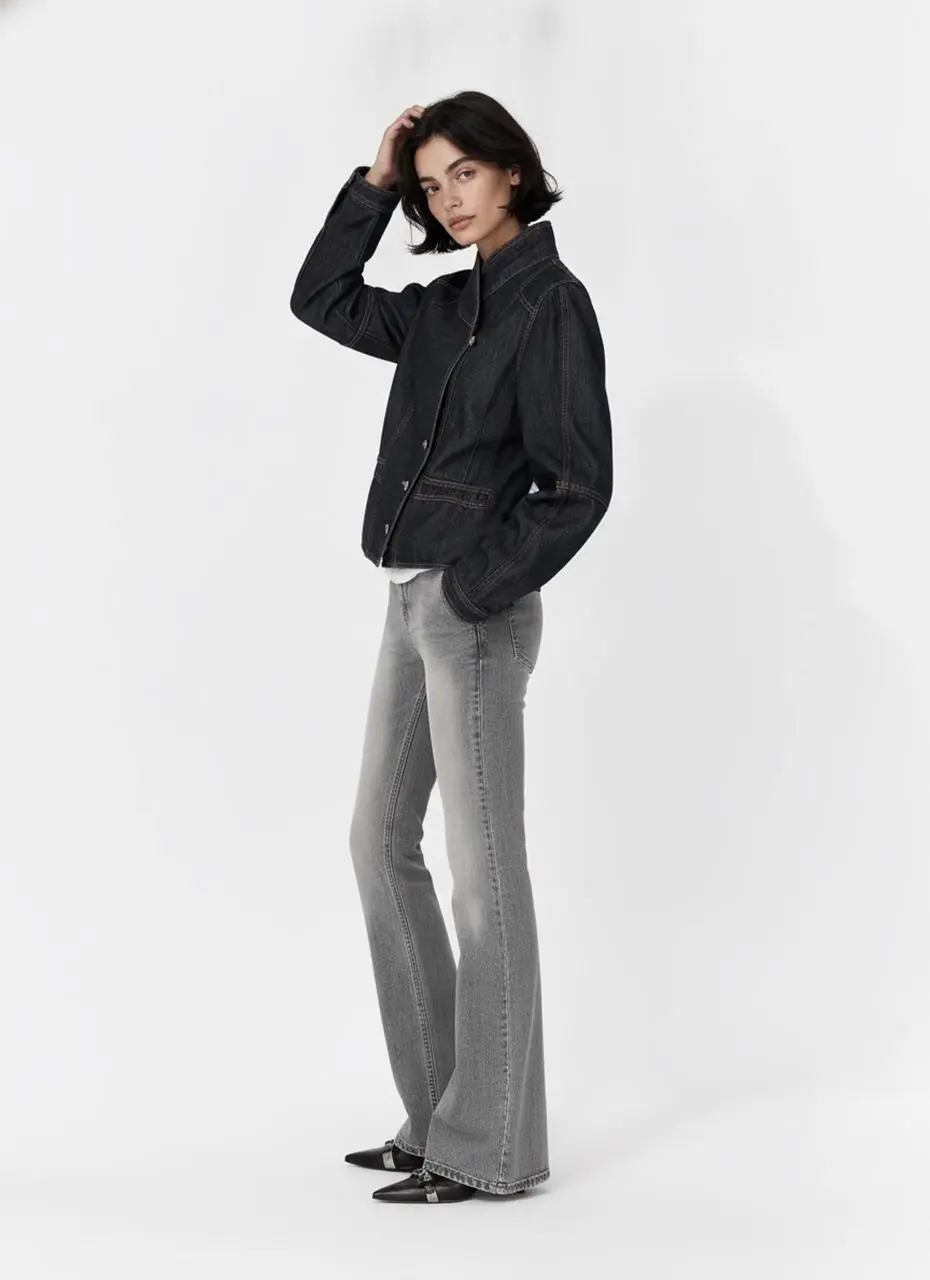
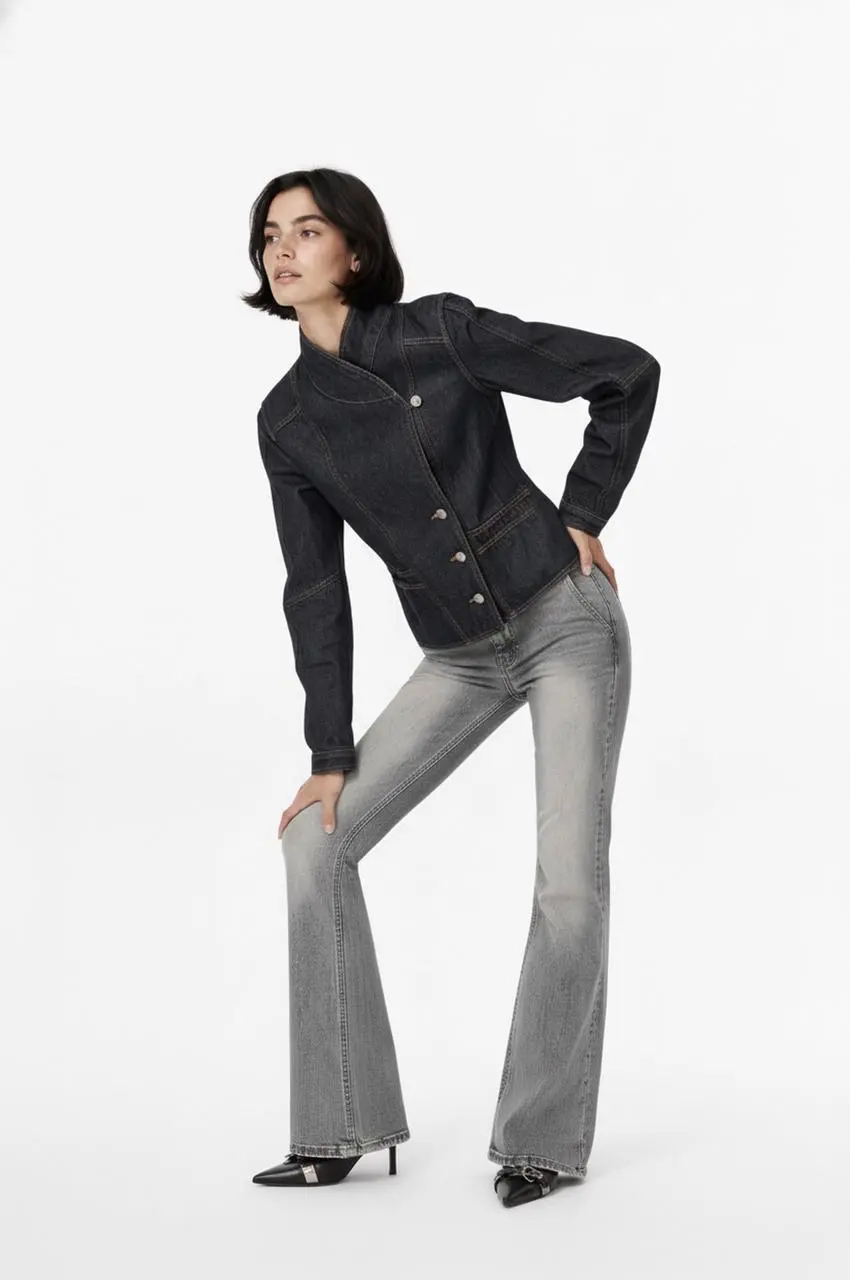
模特在影棚中变换姿势,造型从黑色外套切换到浅蓝色上装。
Edit into an OOTD transition video
Kling 官方将 4.0 的重点放在动态稳定性、创作控制和较长叙事。把这些作为创作方向,生成后仍需检查主体变化、动作错误与对白同步。
Kling 4.0 侧重快速动作、连续运动及跟拍、环绕等复杂运镜的稳定性。大厅与追逐演示呈现了镜头位置变化中的动作发展。
官方 Omni Reference 可结合视觉素材引导人物、商品、构图和运动。追逐案例将参考图集与包含多个人物、车辆的场景配对展示。
最长 30 秒的原生生成,为动作与场景发展提供更多空间。巨龙演示从悬崖展开到城市上空,实际文件约 27.9 秒。
Kling 菜单提供两个 4.0 选项,可根据手中的素材选择输入方式。
从文字构思或参考素材开始时,可选文字或参考模式,并在描述中说明各份素材的用途。
可从文字、首帧、首尾帧或多帧开始。准备关键画面时,让相邻画面的动作与场景能够衔接。
从视频案例中学习主体、动作、镜头与场景的写法。复制参考提示词,再根据自己的素材调整人物、场景和镜头。
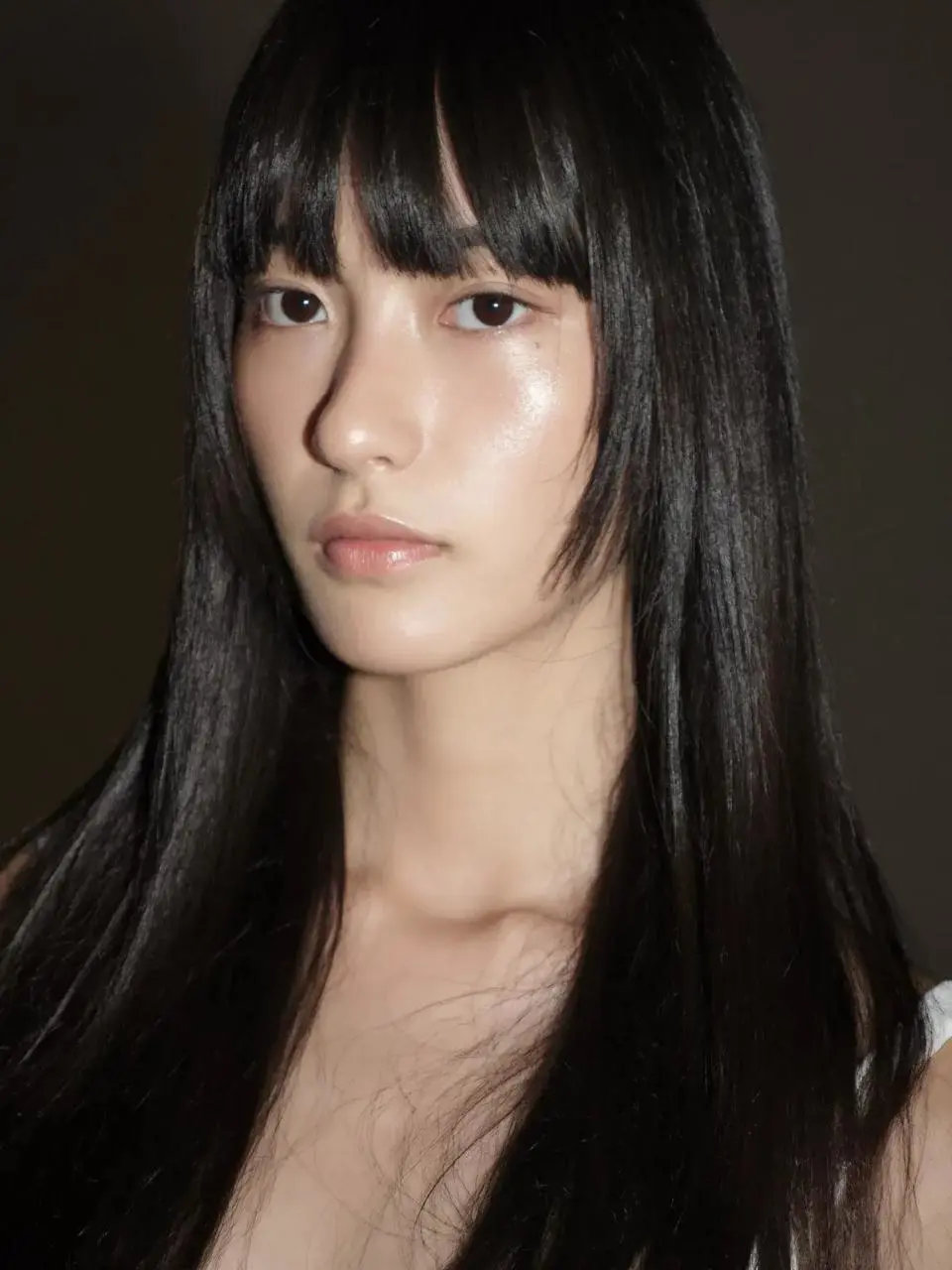
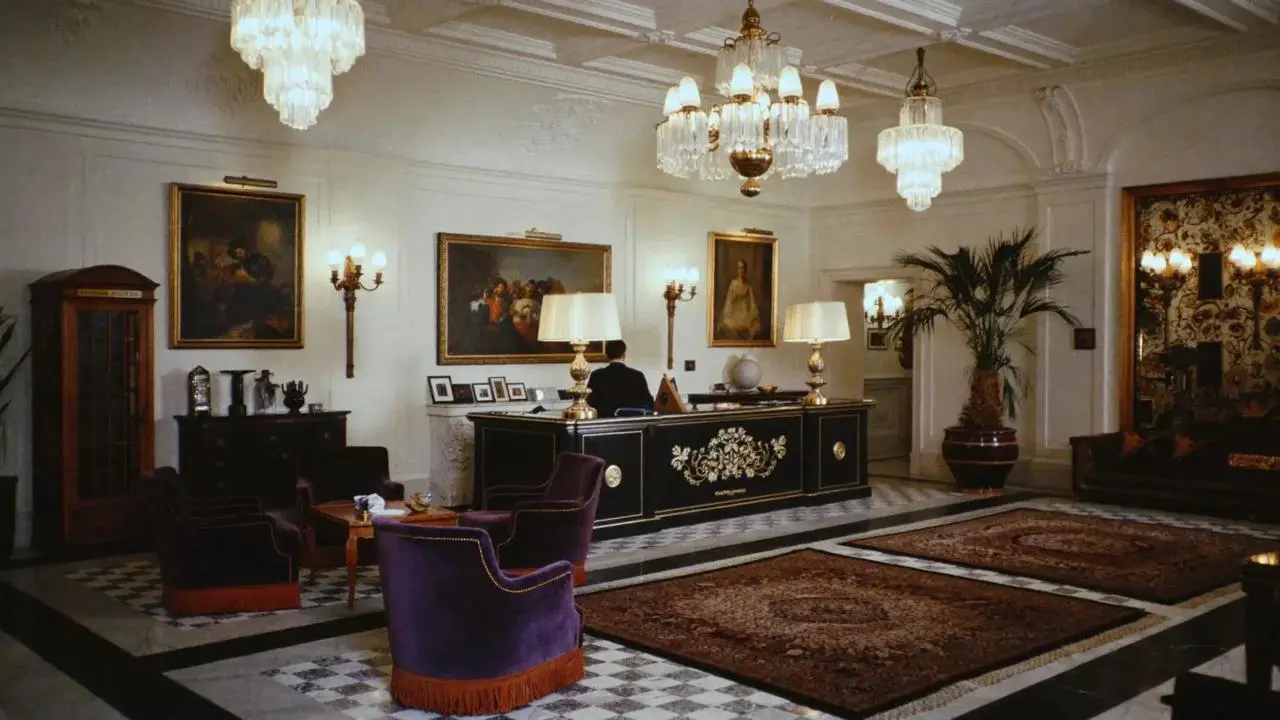
女性在大厅内连续应对多名人物,观察动作与镜头的衔接。
A woman defeats five men one after another in a hotel lobby.
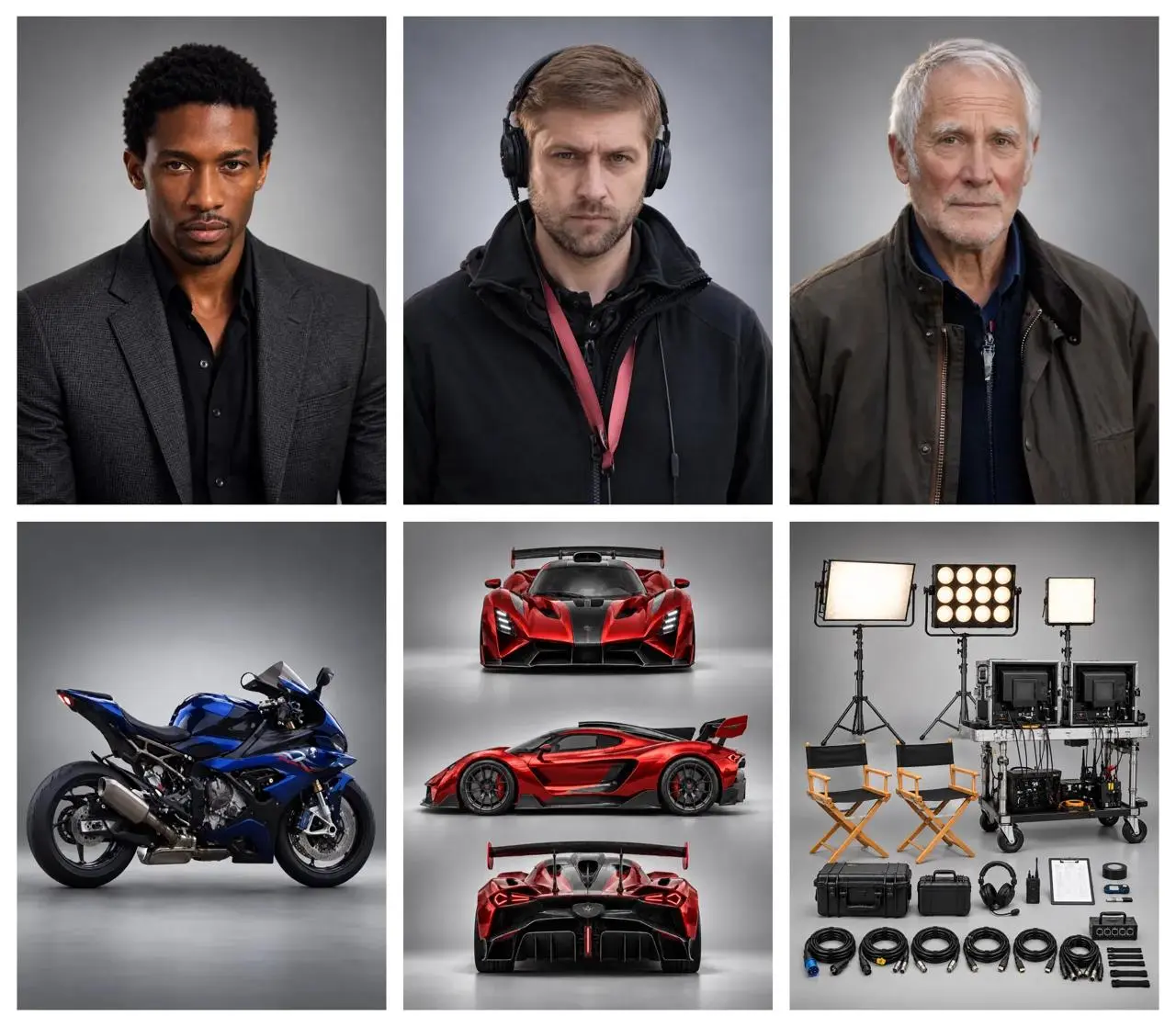
将导演、跑车与摩托车组织到同一场景中。
A director guides the actors while filming a high-speed chase between a supercar and a motorcycle.
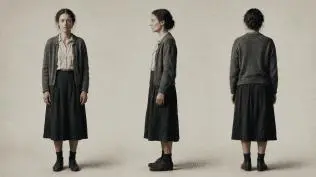
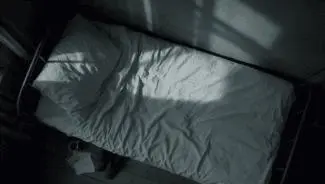
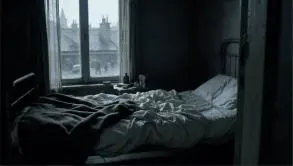
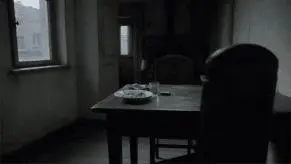
参考提示词:明确各参考图的作用,依次安排桌边、床边、人物近景与俯拍镜头。
Use the reference images to guide the same woman, her clothing, the room and the shot compositions. Create a quiet cinematic sequence in a modest bedroom with cool daylight entering through the window. First show her seated at a table, eating from a plate. Cut to her seated on the edge of an unmade bed, holding a white cup and taking a slow sip. Move into a close-up of her face and the cup. Finish with an overhead view of her lying on the bed. Keep her face, short dark hair, clothing and the room details consistent across the shots. Use restrained movement and a muted blue-gray color palette.


巨龙片段从悬崖上的场景展开到城市上空。
A giant dragon stands atop a cliff, roaring at the burning city below.
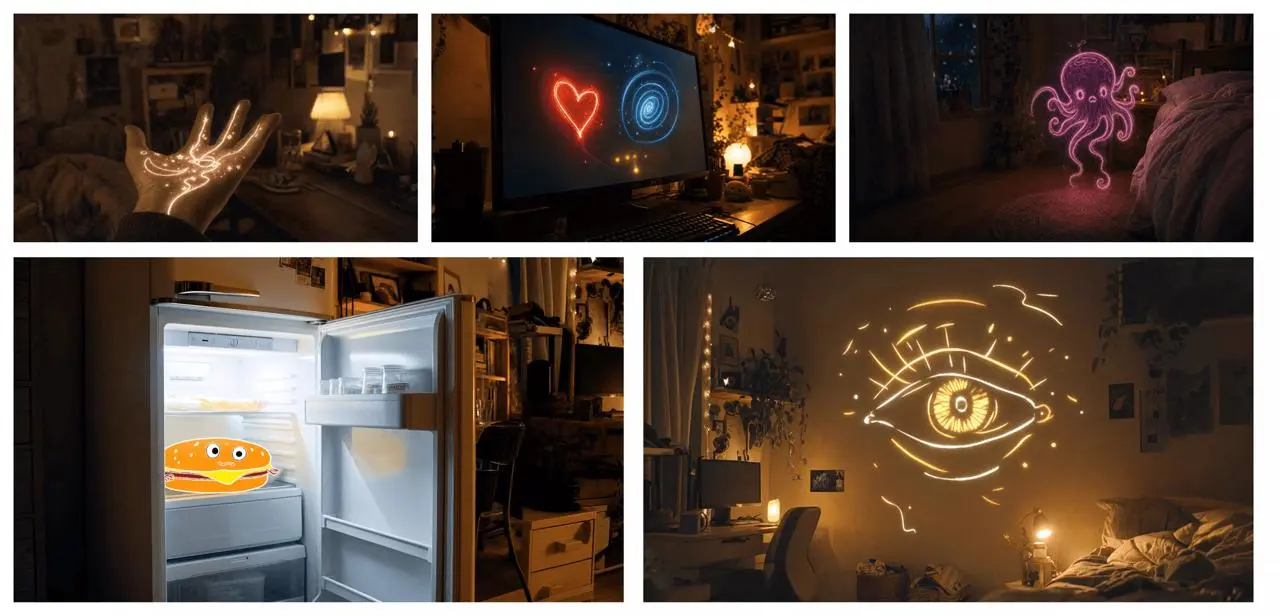
参考提示词:沿用图板中的视觉顺序,写清发光图形之间的变化和镜头衔接。
Use the supplied image board as visual guidance for a 20-second magical sequence in a cozy bedroom at night. Begin with a close-up of an open hand covered in glowing golden lines. A small golden star flies from the hand toward a computer monitor displaying a red heart and a blue spiral. Follow the light as it becomes a butterfly, then a flowing purple ribbon that forms a small floating octopus-like figure near the bed. Continue toward an open refrigerator containing a smiling cartoon hamburger. Finish on a large golden line-drawn eye opening above the bed. Connect these moments with fluid camera movement, warm practical lighting, sparkling light trails and a consistent bedroom setting.
简短提示词为表演和场景安排留出发挥空间。
An old man ranting about AI.
提示词同时交代重逢、拥抱、手持跟拍、光线与声音。
A single continuous 7-second shot set in the UK. At dusk, two friends who haven’t seen each other in a long time meet at the corner of a quiet street, with people going about their everyday lives around them. They smile, walk quickly toward each other, and share a warm embrace. Their expressions and body movements feel natural. The handheld camera follows them with a slight, natural shake. Soft, warm lighting and a nostalgic film look. Include natural footsteps, street ambience, background music, and dialogue in English.
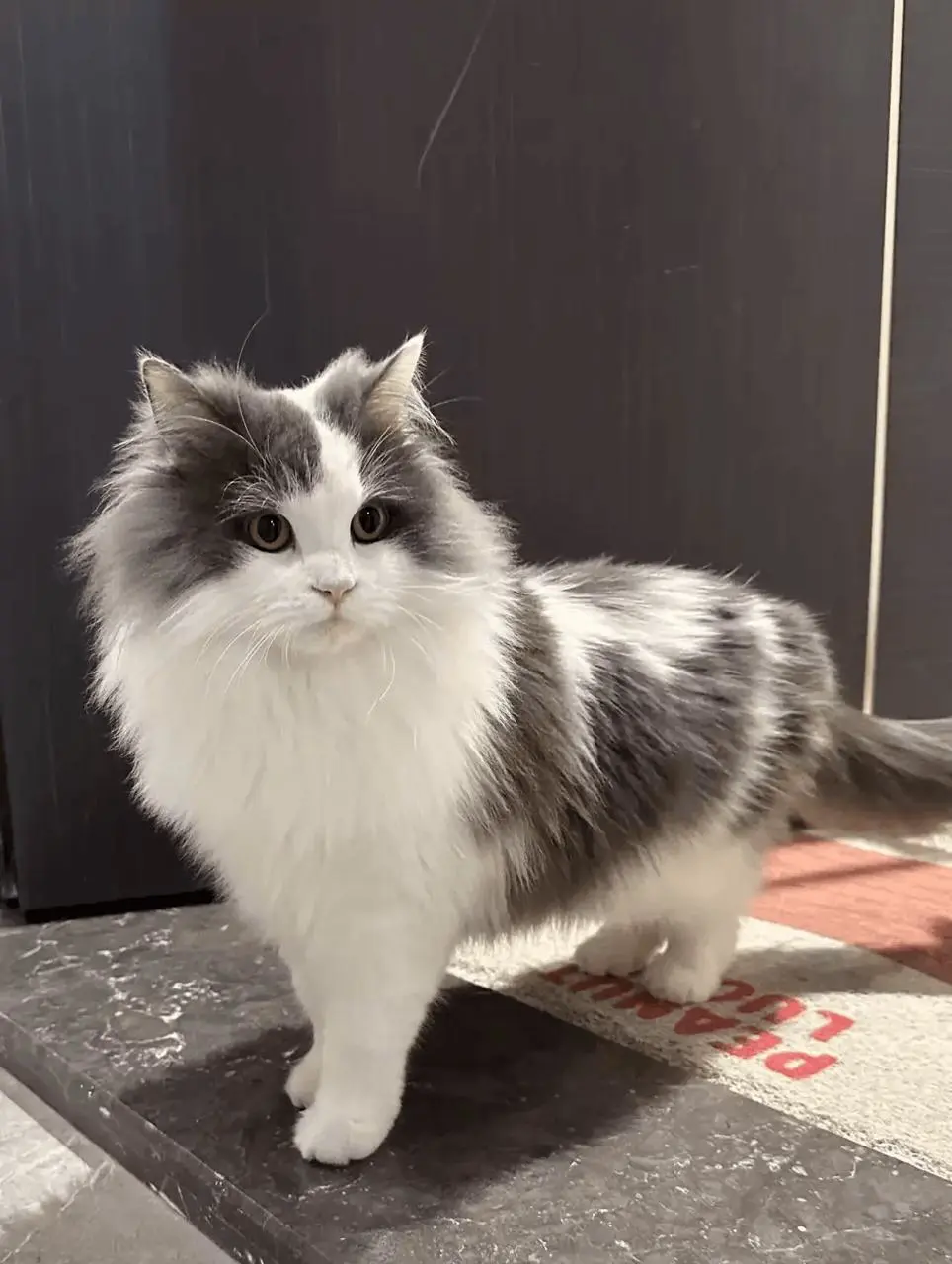
参考提示词:用猫的图片确定外观,用狗的视频引导镜头顺序、节奏和互动动作。
Replace the dog in the reference video with the gray-and-white long-haired cat from the reference image. Preserve the original shot sequence, framing, camera movement, timing, white background, and human interactions. Show the cat facing the camera, receiving a gentle stroke on its head, and peeking out of the person's clothing pocket. Keep the cat’s facial markings, fur colors, and fluffy appearance consistent throughout, adapting its movements naturally to each shot.
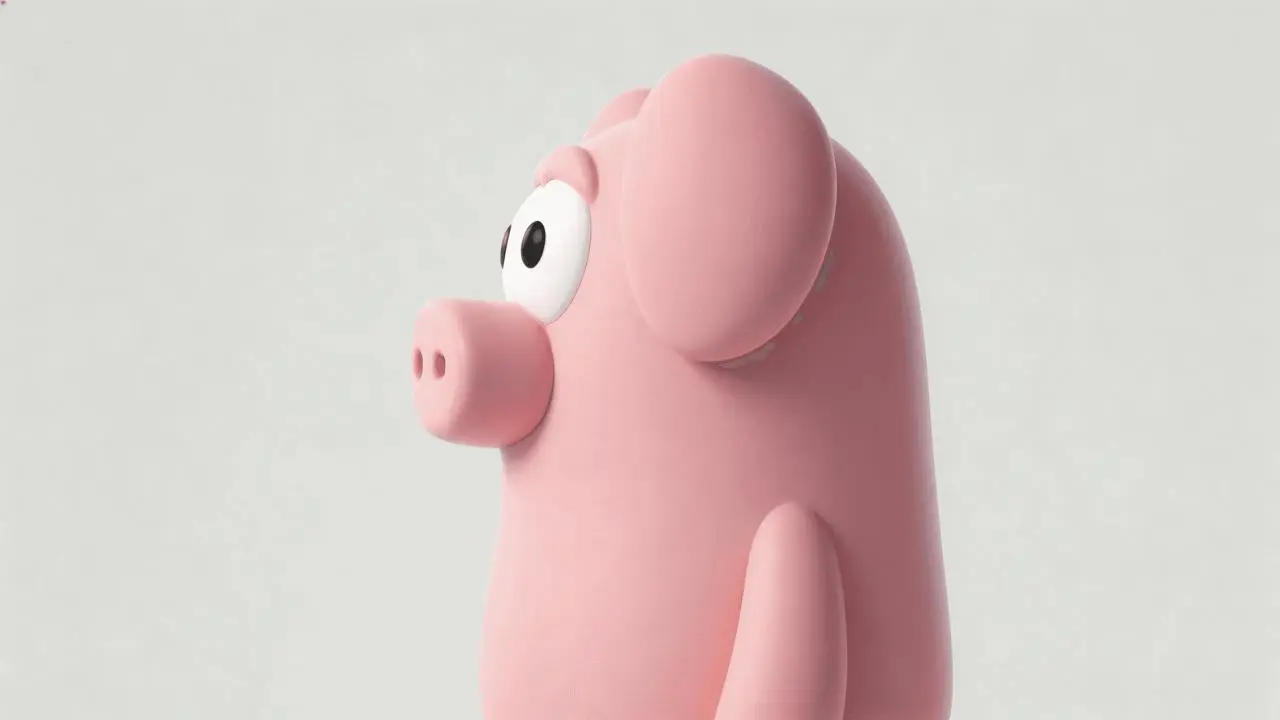
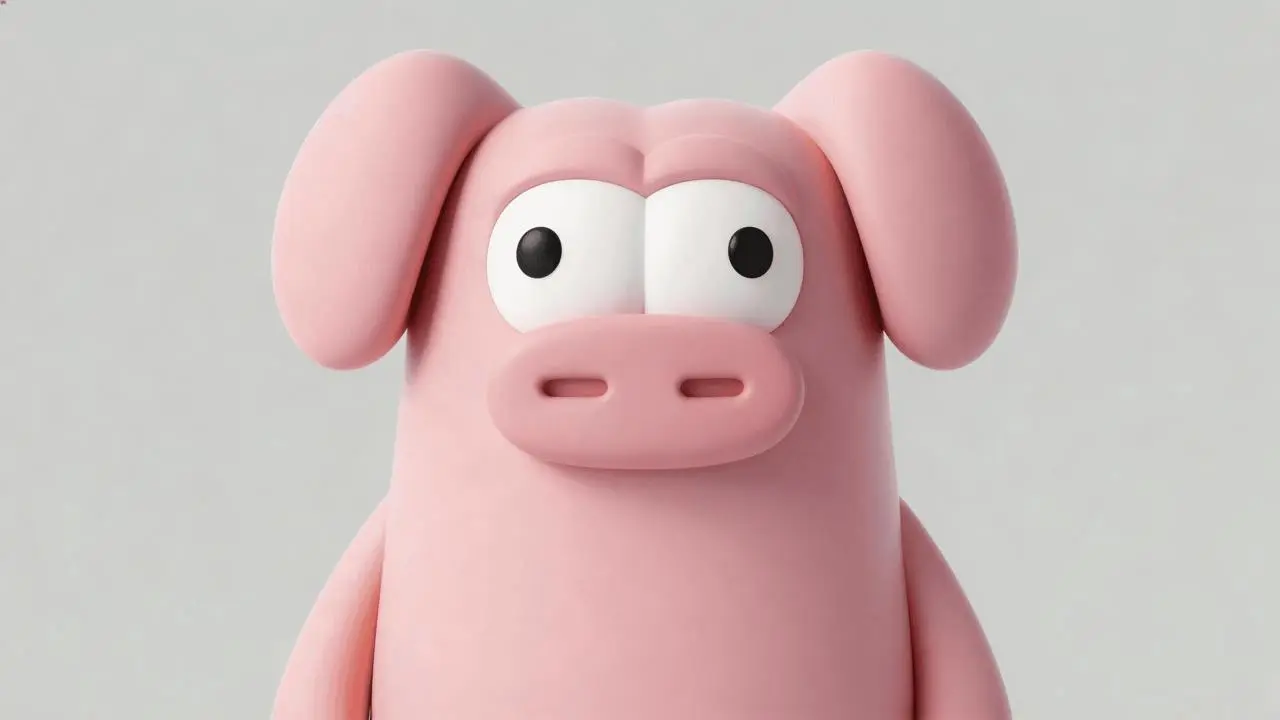
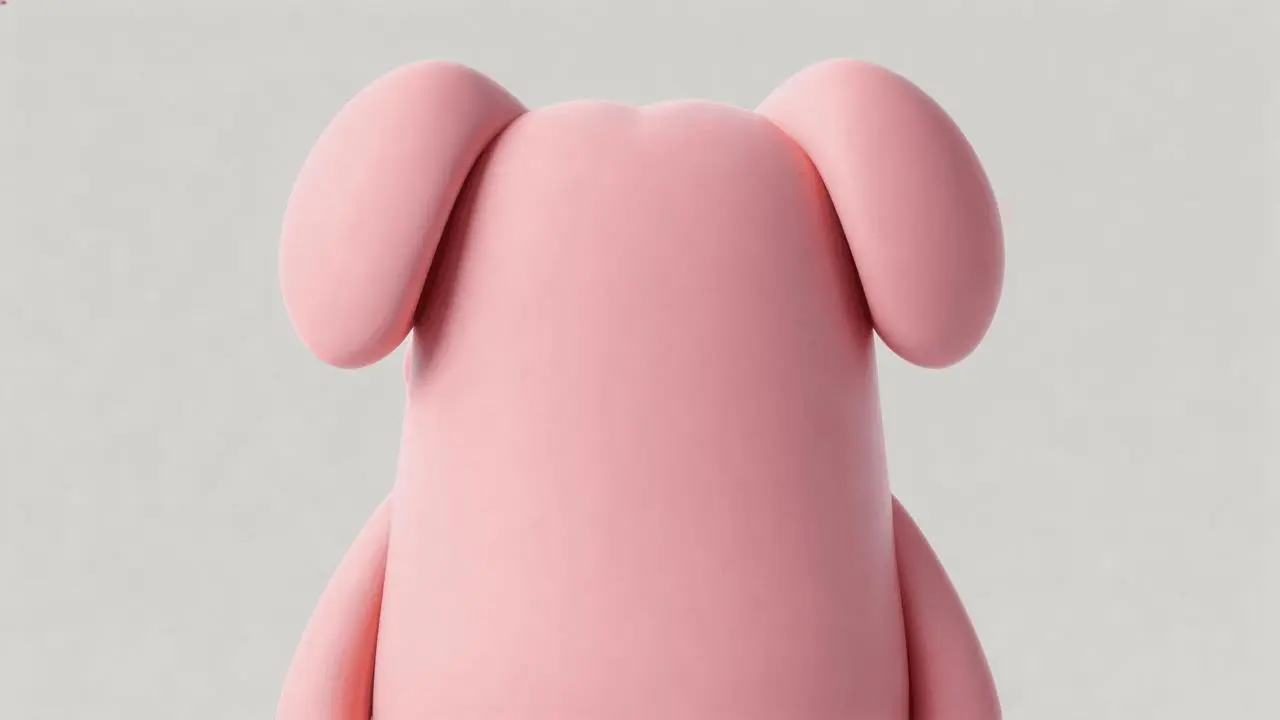
参考提示词:保留房间与原有动作,在木箱中揭示粉色角色,并调整结尾人物的反应。
Edit the reference video while preserving the wood-paneled room, the existing people, their clothing, the warm lighting, the camera cuts and the action around the wooden box. Use the three character images to add the same pink cartoon pig-like character inside the box. Reveal it lying in the box when the camera looks inside near the end, replacing the empty interior and its lettering. Match its position, perspective, scale and lighting to the box while retaining its smooth pink body, floppy ears and large white eyes. Keep the preceding action and dialogue, then change the final spoken reaction and matching English subtitle to: "Why is there a pig here?"
按任务选择对应的 4.0 选项,再选择文字、参考或帧输入方式。
交代动作、镜头与结尾,选择 3–30 秒、720p 或 1080p,以及自动、21:9、16:9、9:16 或 1:1。提交前查看当前积分报价。
从头到尾检查人物、商品细节、动作、转场、文字和声音,再调整需要改进的具体指令或参考素材。
根据已有素材和镜头时长选择模型。Kling 4.0 Reference 与 Image to Video 是 4.0 内部的输入方式,具体区别见上方“从哪种输入开始”。
| 比较维度 | Kling 4.0 | Kling 3.0 Omni | Kling 3.0 |
|---|---|---|---|
| 官方模型定位 | 较长叙事、动态运动与 Omni Reference 参考创作 | 参考素材引导的人物一致性与分镜控制 | 原生音视频生成与多镜头叙事 |
| WeShop 输入路径 | Reference:文字或参考素材;Image to Video:文字、首帧、首尾帧或多关键帧 | 文字、源视频与参考图片 | 首帧,或首帧与尾帧 |
| WeShop 时长选项 | 3–30 秒 | 3–15 秒 | 3–15 秒 |
| WeShop 可用设置 | 720p/1080p;自动、21:9、16:9、9:16 或 1:1 | 16:9、9:16 或 1:1;生成音频开关 | 生成音频开关 |
需要超过 15 秒的片段、用参考素材组织场景,或用多个关键画面引导镜头时,可选 4.0,再按素材选择 Reference 或 Image to Video。
需要较长片段或多关键帧时选 Kling 4.0已有源视频或人物参考,且片段在 3–15 秒范围内时,可考虑 3.0 Omni;其官方定位侧重参考一致性与分镜方向控制。
以人物参考组织场景时考虑 Kling 3.0 Omni从一张开场图出发,或再补一张结束图,且片段在 3–15 秒范围内时,可选 3.0,并按声音需求设置生成音频开关。
首帧或首尾帧镜头可选 Kling 3.0查看其他可从参考素材创作视频的模型。
不是。Flash 是单独命名的变体,本页介绍 WeShop 中标注为 Kling 4.0 的 Reference 与 Image to Video 两种入口。
希望从场景描述出发,或用参考图片、视频引导主体、场景和运动时,可选 Reference。希望从一张开场图出发,或用首尾帧、多关键帧引导镜头发展时,可选 Image to Video。两种入口都支持文字创作,属于 Kling 4.0 内部的不同输入方式,可按手中的素材和需要的控制方式选择。
不需要上传图片。打开 Kling 创作工具,选择 Kling 4.0 Reference,不添加参考图片或视频,并移除已加载的素材。输入文字描述,写清主体、动作、场景、镜头运动和视觉风格;有对白或声音要求时也一并说明。选择时长、分辨率和画幅比例,查看当前积分报价后点击生成,再到任务结果中查看视频。Kling 4.0 Image to Video 也支持纯文字创作;使用这一路径时,同样不要添加首帧、尾帧或中间关键帧。
时长选项为 3–30 秒,按一秒递增。需要在控件中选择时长,提示词中写入的数字不能替代该设置。
WeShop 当前列出的分辨率选项为 720p 和 1080p。官方演示文件的分辨率不等于本页可选输出设置。
不能保证。请检查整个片段中的人脸、服装、商品细节和文字,参考素材用于引导结果,不代表精确保留。
提交前查看当前型号、设置对应的积分报价及账户权限。单次显示的报价不代表所有请求的固定费用。