












WeShop API for Local Agents: Generate with Fewer Restrictions in Codex or Claude Code
Learn how to use WeShop Local Run with Codex, Claude Code, or another local agent by copying a prepared prompt, accessing your files, and reviewing results.
Some requests may encounter violation-related content blocks or platform-level restrictions when generated directly through a web interface. If you need more freedom, WeShop Local Run lets you copy a prepared prompt and execute it through your own API access in Codex, Claude Code, or another local agent.
Compared with the web workflow, running WeShop models in a local agent can involve fewer platform-level content restriction blocks. It also gives you more control over your files, prompts, execution steps, and follow-up edits.
You still need to follow the WeShop API terms, the underlying model policies, and applicable laws.
What You Need
Before starting, prepare:
- A paid WeShop plan
- Codex, Claude Code, or another compatible local agent
- The images, videos, or other source files required by your task
- A local project folder where the agent can access those files
You must purchase any WeShop plan before using Local Run. If your account does not have a plan, clicking Copy Prompt opens the payment wall.
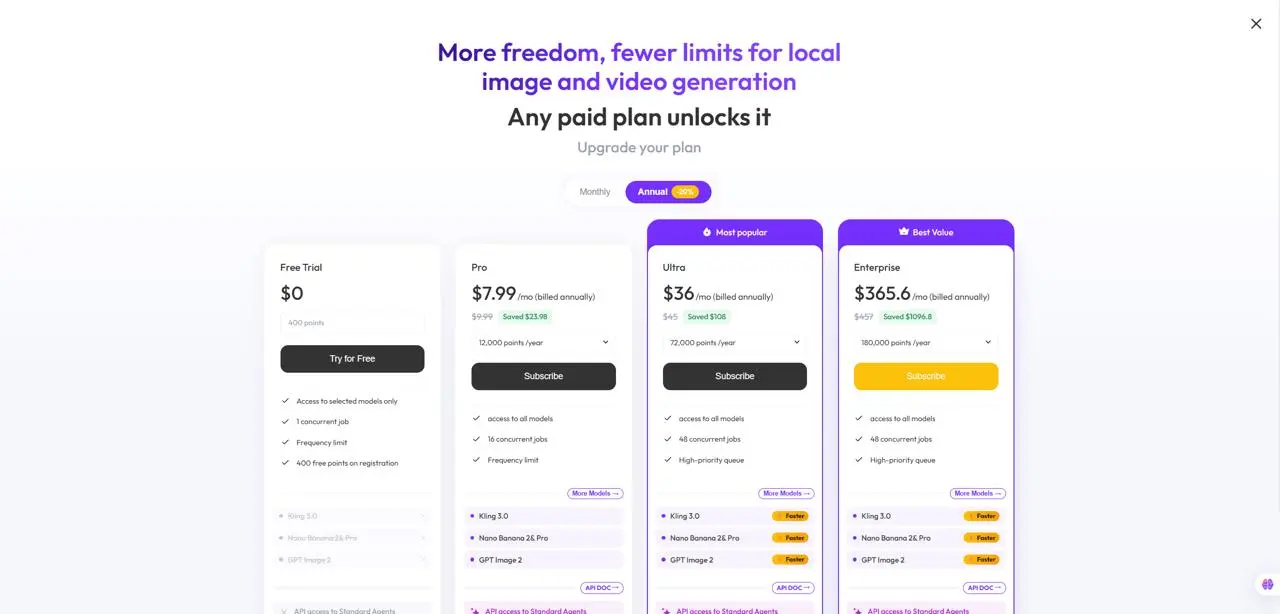
After purchasing a plan, clicking Copy Prompt automatically generates the API key and task instructions required by the local agent. You do not need to create the API key separately.
Step 1: Find the Local Agent Entry
Open the relevant model or generation workflow in WeShop and locate the Local Agent entry.
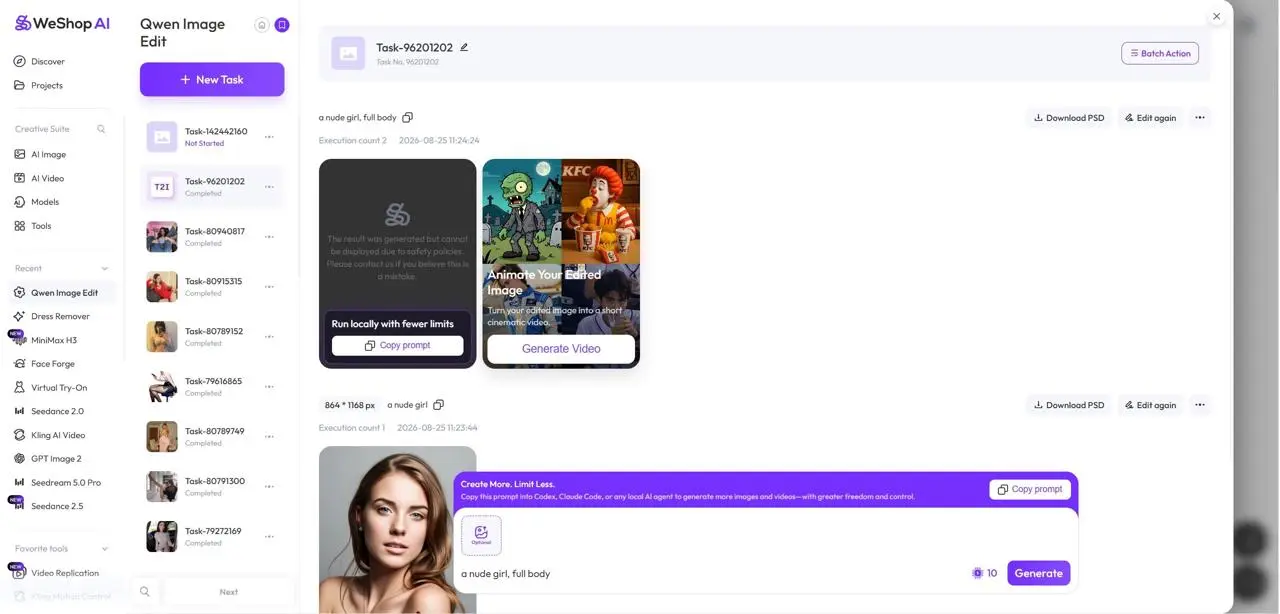
Open the Local Agent option from the WeShop generation page.
Step 2: Open the Local Run Workflow
The Local option may be available from more than one location in the WeShop interface. Use either entry to open the workflow for your selected model or task.
Local Entry One
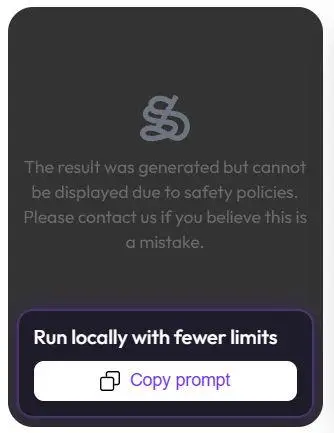
One available entry for starting a WeShop Local Run.
Local Entry Two
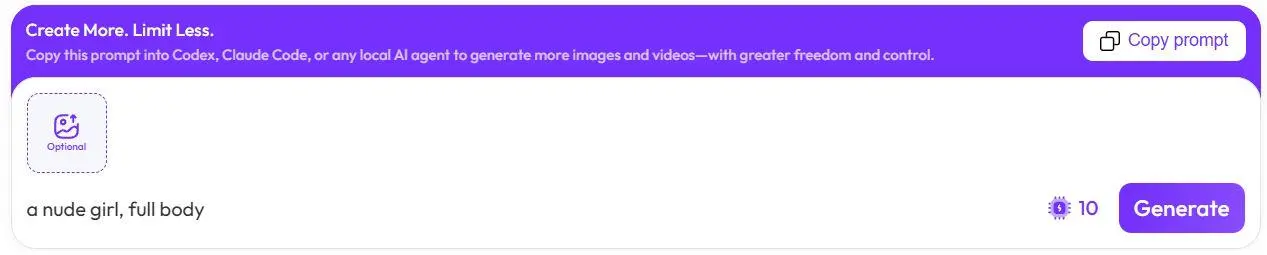
An alternative way to access the same Local Run workflow.
Step 3: Purchase a Plan and Click Copy Prompt
Click Copy Prompt after opening the Local workflow.
What happens next depends on your account:
- No paid plan: WeShop displays a payment wall. Purchase any available plan to activate Local Run.
- Paid plan: WeShop automatically generates an API key and prepares the complete prompt for your local agent.
Once the dialog appears, copy the complete prompt. It contains the information the agent needs to run the task through WeShop API access.
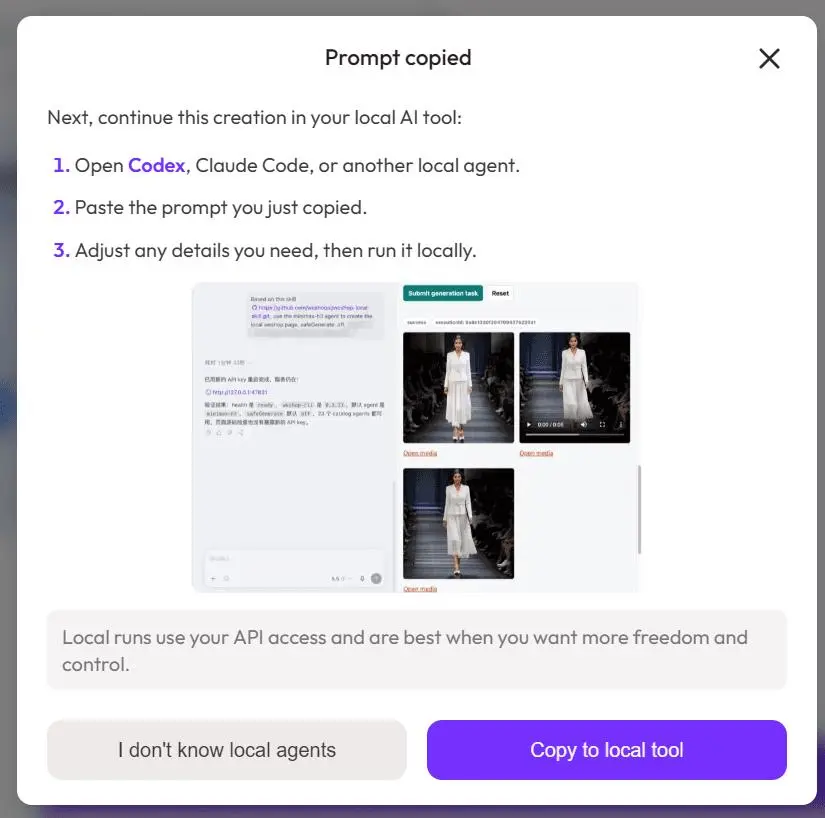
After a plan is active, WeShop prepares the API access and prompt for the local task.
Treat the generated API key as a password. Do not publish it, commit it to a public repository, or include the complete key in screenshots.
Step 4: Paste the Prompt into Codex
Close the WeShop dialog and open your preferred local agent. This example uses Codex:
- Open the local folder containing your project and source files.
- Paste the complete prompt copied from WeShop.
- Check that the requested task and referenced files are correct.
- Ask Codex to execute the task.
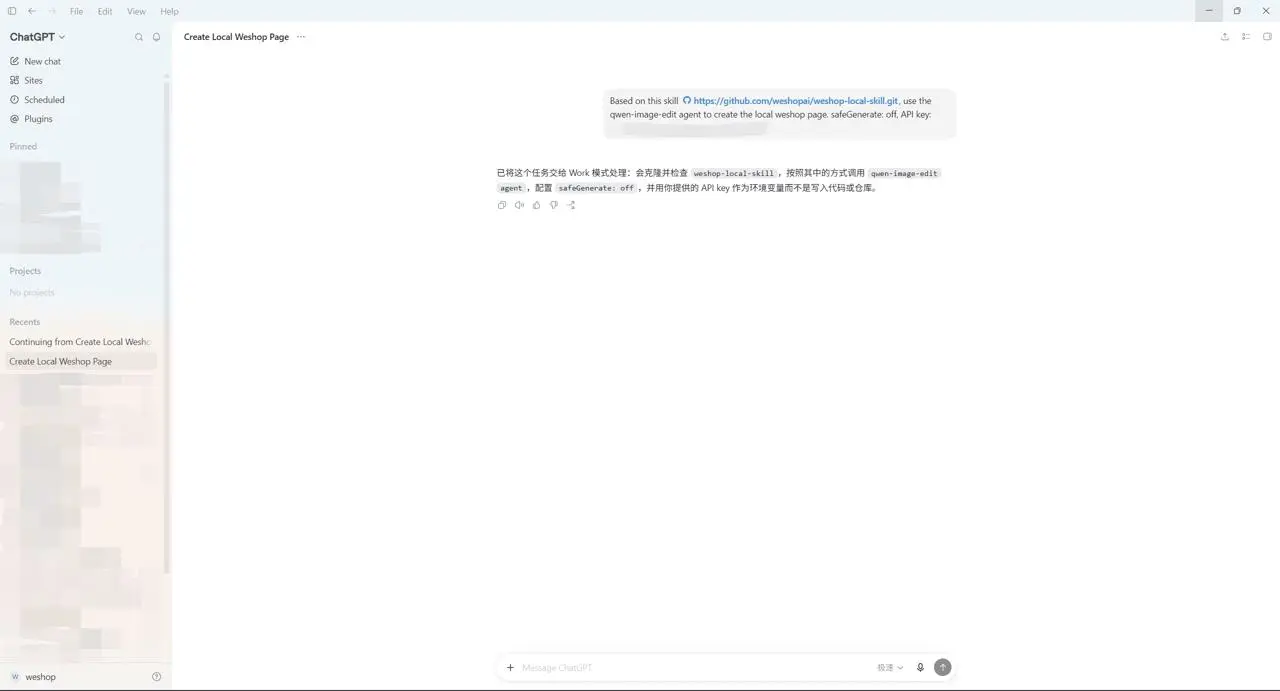
Paste the WeShop prompt into Codex and let the local agent run the task.
The same workflow can also be used with Claude Code or another compatible local agent. The interface may differ, but the process remains the same: copy the prepared WeShop prompt, paste it into the agent, and allow it to use your local files and API access.
Step 5: Review the Generated Result
The local agent follows the copied instructions, calls the corresponding WeShop model through the API, and returns the result to your local workflow.
Review the generated file against the original request. If you want to refine it, continue in the same agent conversation and describe what should change. Your source files, instructions, and previous result can remain in the same working context.
You can try it directly using the tool on the right.
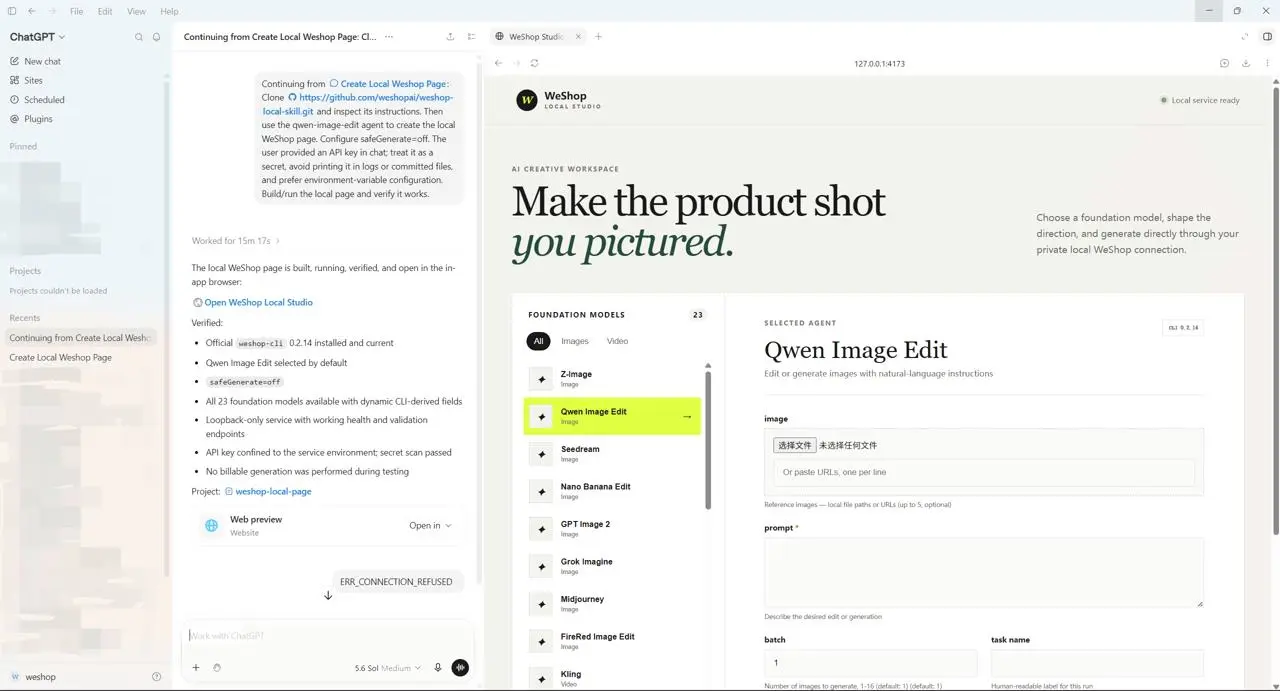
The completed WeShop generation is returned to the local agent workflow.
More Freedom Beyond a Single Generate Button
WeShop Local Run turns a one-time web generation into a workflow that can continue. Your prompt, local assets, generated files, and follow-up instructions stay together, making it easier to organize multi-step tasks and iterate on the result.
When the web interface feels too restrictive, copy the task into Codex, Claude Code, or another local agent. You gain fewer platform-level restriction blocks and more control over how the work is completed—while continuing to follow the API, model, and legal requirements.