









AI Watermark Remover for Images: Remove Watermarks Without Changing the Original Look
Learn how to use GPT Image to remove visible watermarks from authorized images while preserving portrait details, composition, lighting, and style.
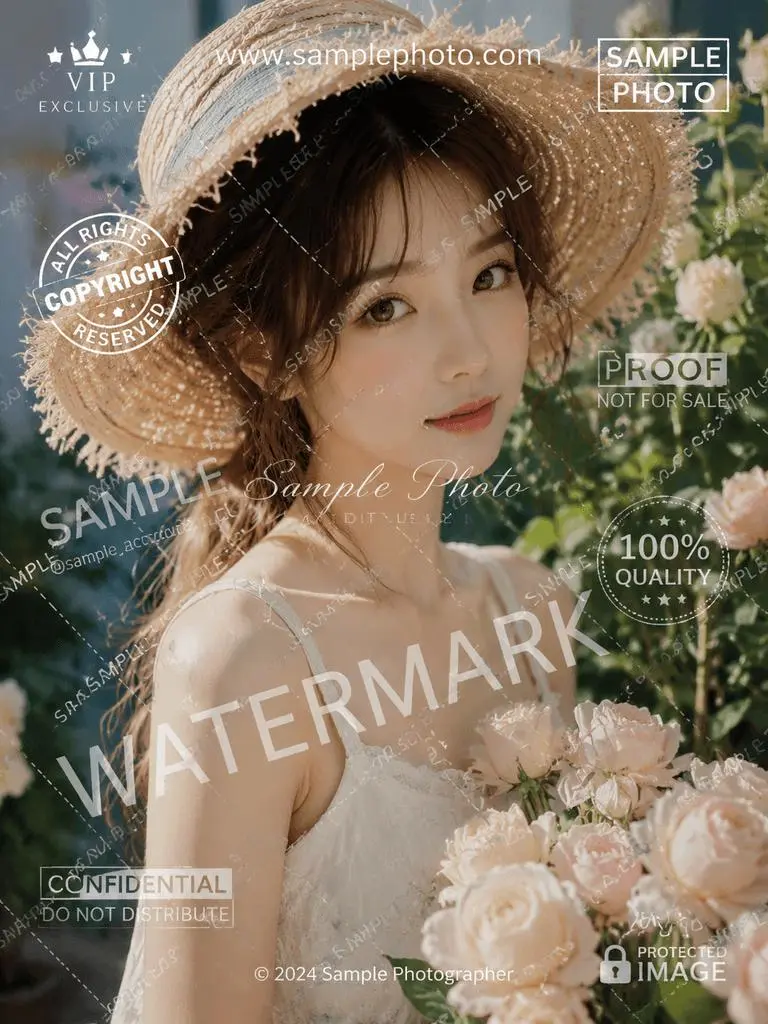
Removing a small watermark from an empty corner is simple. Removing multiple overlapping marks from a face, hair, clothing, flowers, and a detailed background is much harder because every cleared area must be reconstructed naturally. This example shows how to use an AI watermark remover for images to clean a heavily overlaid portrait while keeping its original composition and visual style.
Rights note: Only remove watermarks from images you own or have permission to edit. Removing rights-management information does not grant permission to reuse copyrighted material.
What You Need
- The image you are authorized to edit.
- The WeShop AI GPT Image tool.
- The preservation-focused prompt below.
This workflow is especially useful when a watermark overlaps detailed areas rather than sitting on a plain background. In this case, the model needs to rebuild strands of hair, woven straw, skin, fabric, flower petals, and foliage without unnecessarily redesigning the image.
Remove a Watermark from an Image with AI
1. Open GPT Image and Upload the Original
Open GPT Image and upload the watermarked picture. Use the highest-quality source file available so the model has more visual information for reconstructing covered areas.
2. Paste This Prompt Without Changing It
Use the following prompt exactly as written:
The instruction gives the model one change to make—remove the watermark—and one clear constraint: preserve the original appearance as much as possible. This helps keep the edit focused instead of inviting a full restyle.
3. Generate and Inspect the Result
Start the generation and compare the result with the input. Check the areas where watermarks crossed important details, especially the eyes, hairline, hat texture, dress straps, flower edges, lighting, and background depth.
You can try it directly using the tool on the right.
If a small region looks noticeably reconstructed or inconsistent, generate another version with the same image and the same prompt. AI image editing can vary between runs, particularly where large overlays hide complex textures.
A Clean Image Without an Unnecessary Redesign
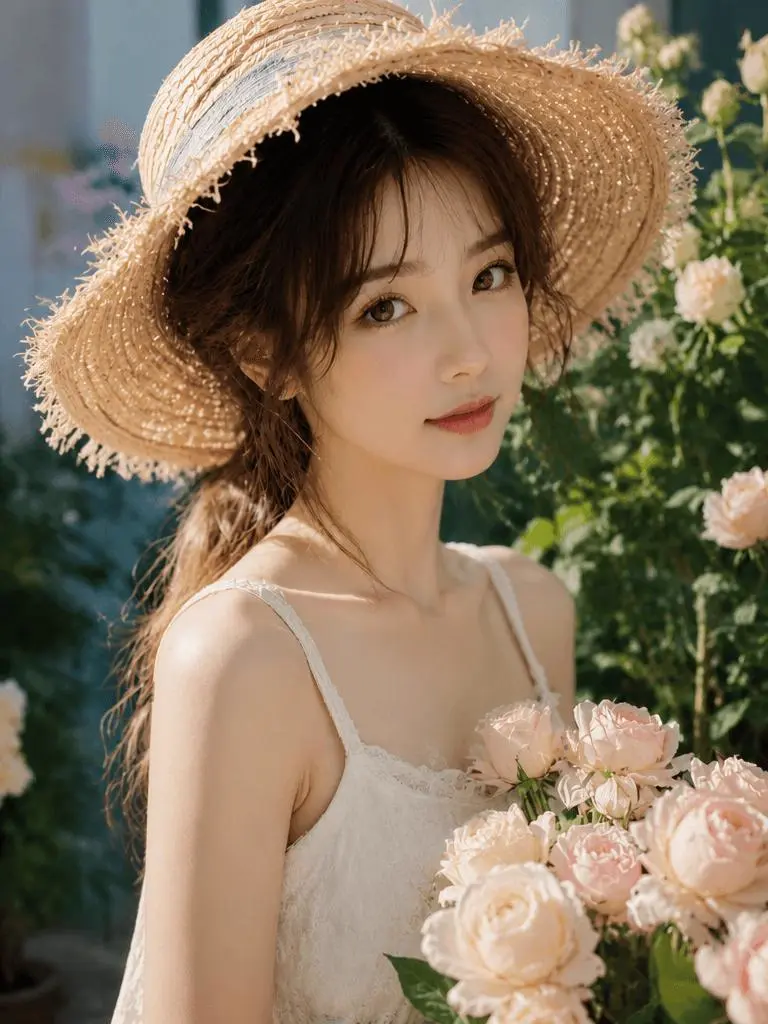
The finished image removes the visible watermark overlays while retaining the same portrait framing, warm garden lighting, straw hat, white dress, flower bouquet, and soft background. That is the goal of this workflow: restore a clean, usable version of an authorized image without turning it into a different picture.
Open GPT Image, upload your image, paste the prompt, and compare the generated result against the original before using it in your project.