









How Wig Merchants Can Create Custom Model Product Images with AI in 4 Steps
Learn to blend wig, clothing, background, and model face using AI. This 4-step guide shows how to deconstruct and recompose product images, saving costs on photo shoots. Perfect for e-commerce sellers.
For wig merchants and cross-border e-commerce sellers, the high cost of hiring foreign models and renting studios is a common pain point. Today, we will guide you step by step on how to use AI image generation tools to perfectly blend "specified wig + clothing + model face + background". In just 4 simple steps, you can save on expensive shooting budgets and create product images with high conversion rates!
Preparation / Required Tools
Before starting, please prepare the following tools and materials:
- Core Tool: WeShop AI (GPT-Image Workbench)
- Material Preparation (need to prepare 4 original images in advance):
- Wig image
- Scene/background image (e.g., indoor real scene)
- Clothing image (e.g., black top and bottom)
- Model face/portrait photo
Detailed Step-by-Step Guide
Step 1: Precisely Extract Wig Material
Extract the wig from the original image separately and place it on a white background.
- Open WeShop's GPT-Image tool and upload the original wig image.
- Enter the following command in the input box to extract the wig:
Display the wig in the picture on a white background - Click "Execute" to get the wig image on a white background.
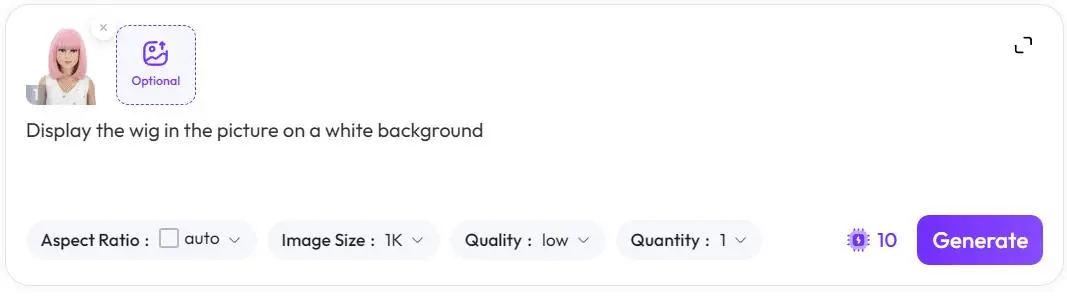
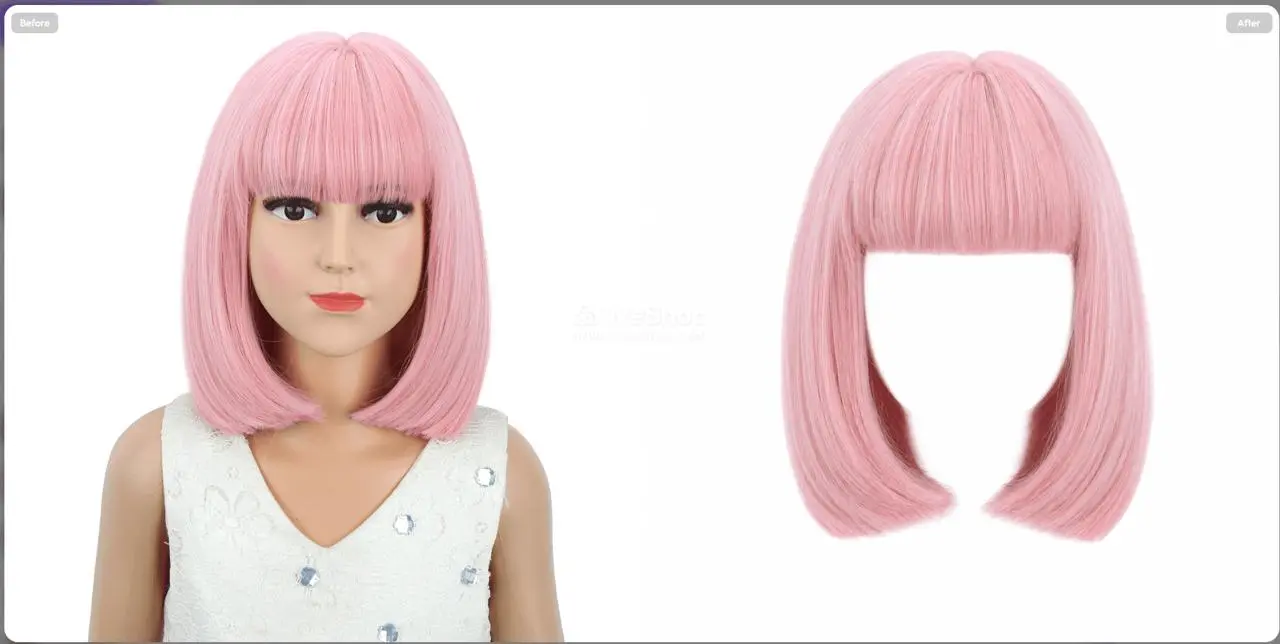
💡 Tip: A white background helps the AI more purely remember the style and texture of the wig, laying the foundation for the final composite.
Step 2: Remove People with One Click to Extract a Clean Background
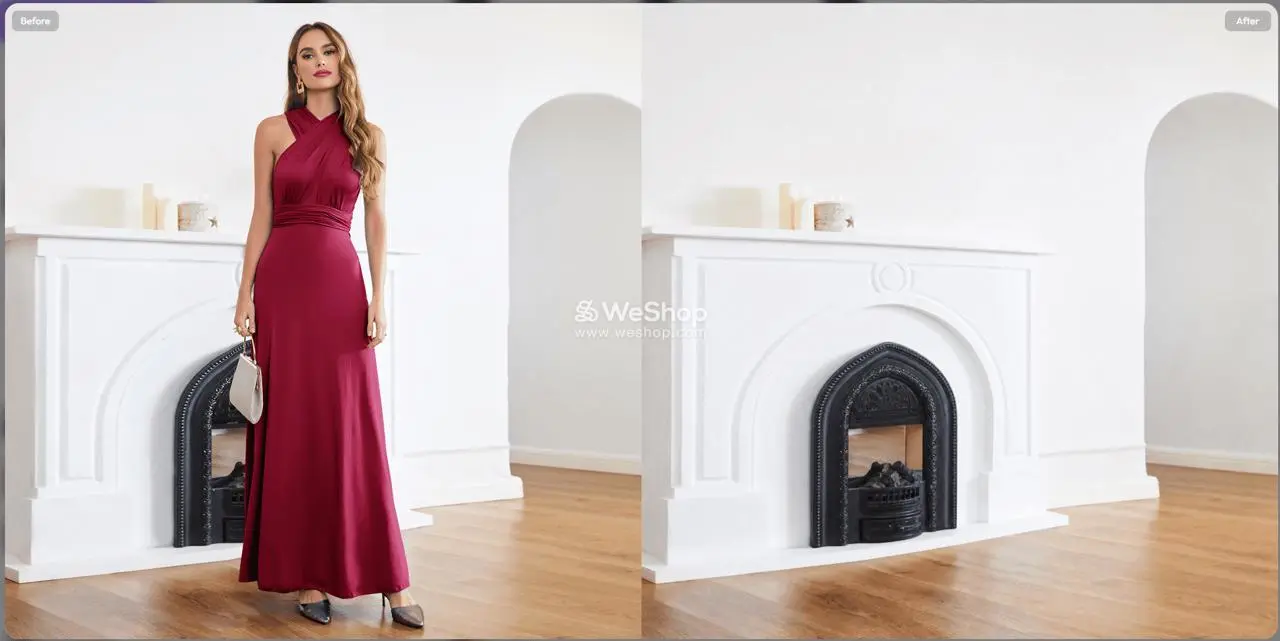
Clean up unwanted people in the web image and extract a clean scene.
- Upload the prepared original background image.
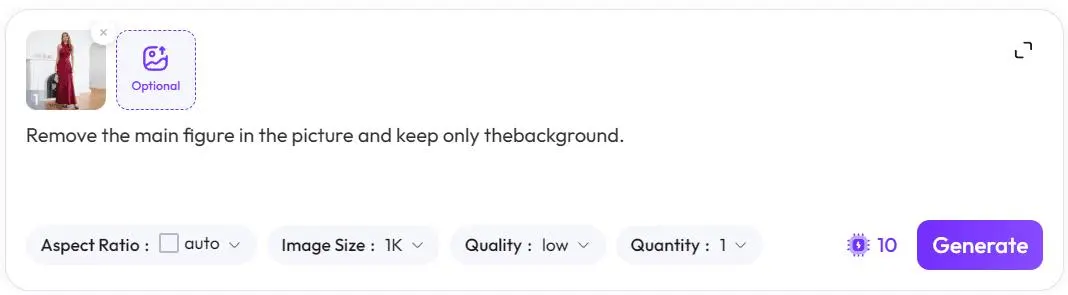
- Enter the following command to remove people:
Remove the main figure in the picture and keep only the background. - After execution, get a clean indoor scene image.
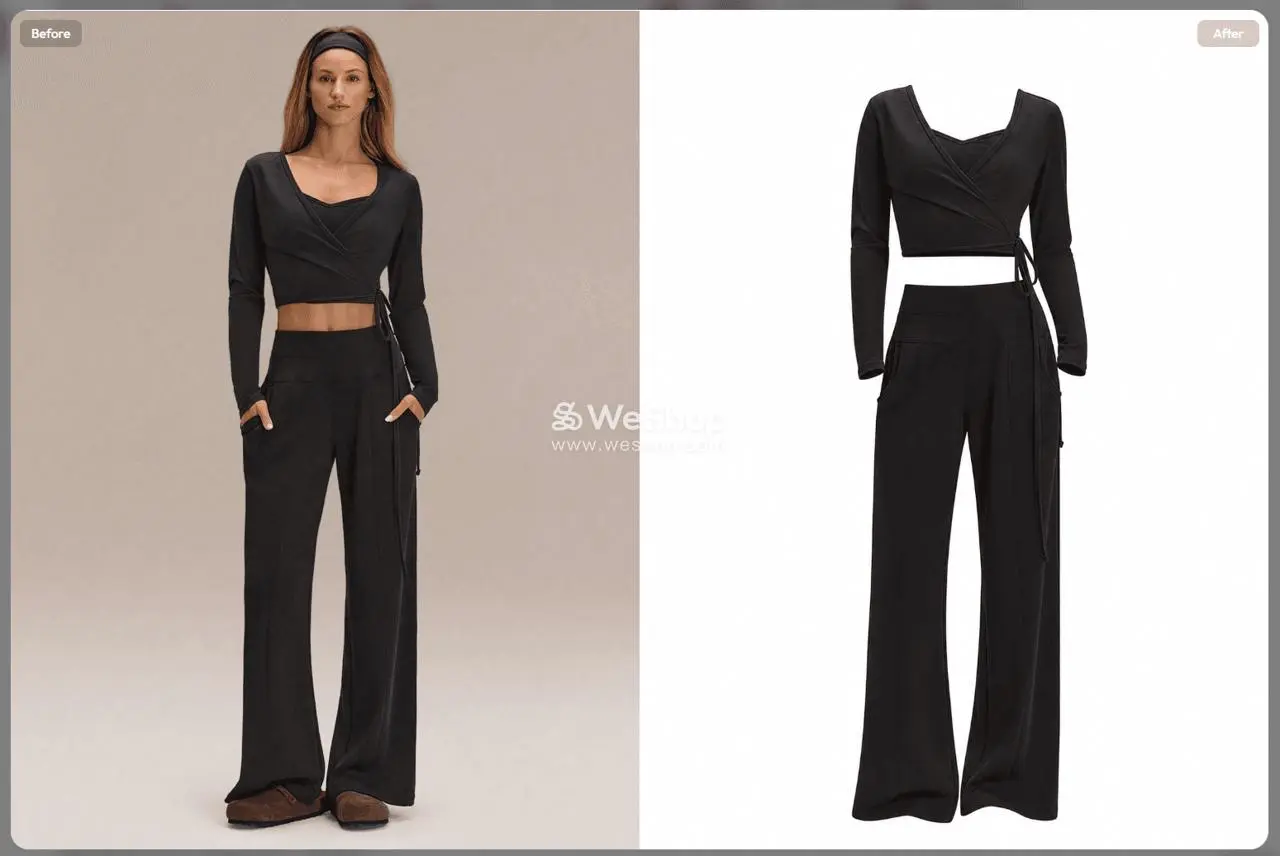
Step 3: Remove People to Generate a Clothing Image on White Background
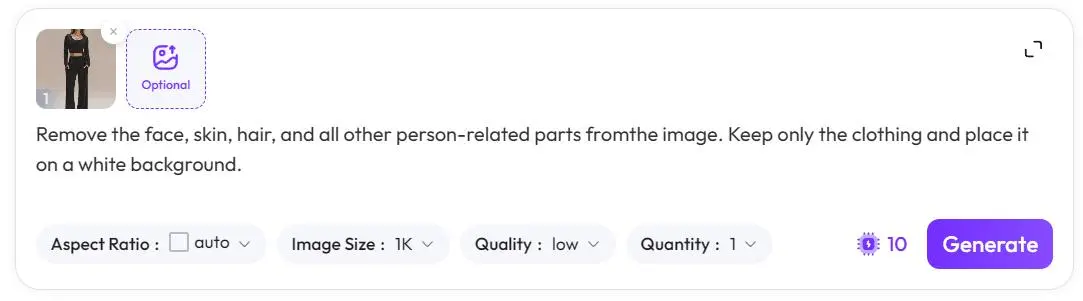
Remove the "person" from the outfit image, leaving only the "clothing".
- Upload the photo containing the target clothing.
- Enter the following command to remove skin, hair, and other human elements:
Remove the face, skin, hair, and all other person-related parts from the image. Keep only the clothing and place it on a white background. - After execution, get the clothing image on a white background.
Step 4: Merge Multiple Images to Create the Perfect Model Showcase
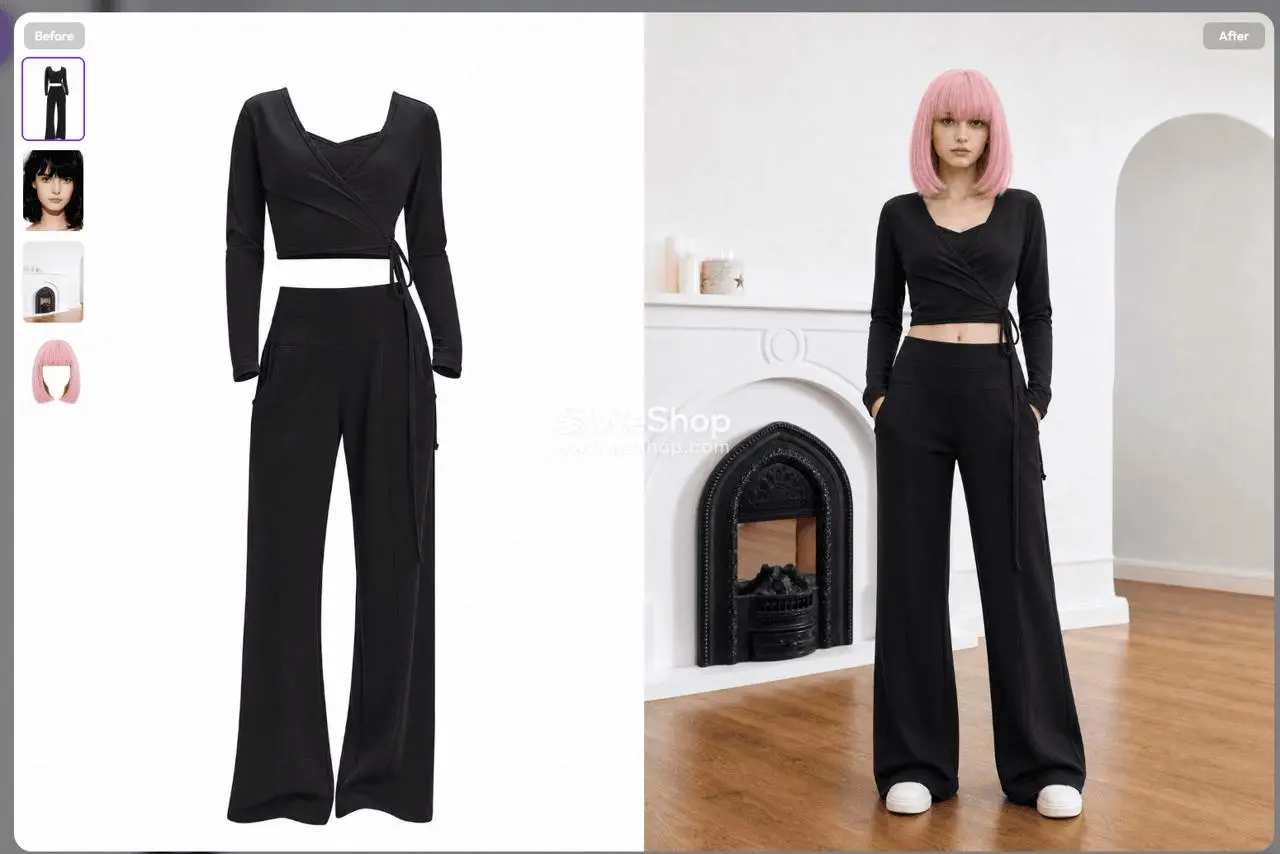
Perform the final composite of the materials from the first three steps with the model's face.
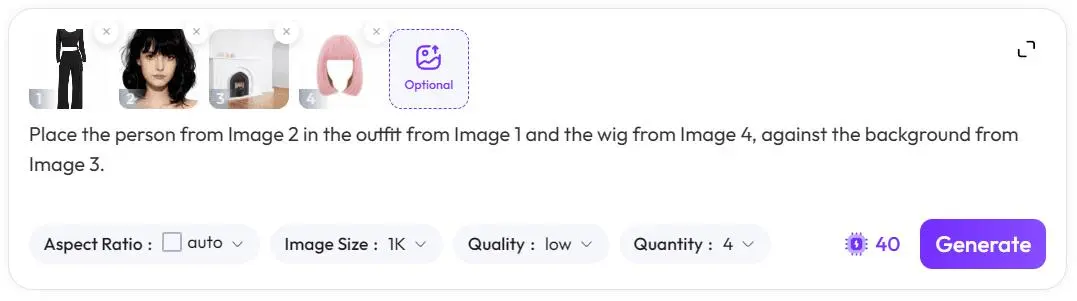
- Upload the four material images in the following strict order:
- Image 1: The white background clothing image from Step 3
- Image 2: The model's face image
- Image 3: The clean background image from Step 2
- Image 4: The white background wig image from Step 1
- Enter the final composite command:
Place the person from Image 2 in the outfit from Image 1 and the wig from Image 4, against the background from Image 3. - Click "Execute". The AI will automatically handle lighting and perspective to generate a highly realistic custom model image!
Advanced Tips / Frequently Asked Questions (FAQ)
- Q: The composite face and body proportions look strange?
- A: Ensure the clothing image and face image have similar perspectives (e.g., both front-facing). You can also add
proportional body, realistic anatomyafter the prompt in Step 4 to optimize proportions.
- A: Ensure the clothing image and face image have similar perspectives (e.g., both front-facing). You can also add
- Q: The wig edges look unnatural?
- A: Add
cinematic lighting, realistic shadow, highly detailed hairat the end of the prompt in Step 4 to optimize lighting fusion.
- A: Add
- 💡 Advanced Trick: Batch change outfits and backgrounds
- Keep the "wig" and "face" fixed, and only replace the "clothing" or "background" to quickly produce multiple scene product images in batches.
Conclusion
Mastering the AI deconstruction and recomposition editing mindset can completely free you from expensive outsourced photography. This is an excellent tool for wig merchants to reduce costs and increase efficiency.
Go ahead and try it out on [WeShop AI]! If you encounter any errors with prompts or numbering issues during operation, feel free to leave a comment below to discuss!