









AI Mannequin Generator: Turn Model Photos into Mannequin Images
Turn real model photos into clean, professional mannequin images with WeShop AI. This guide shows fashion brands and ecommerce teams how to preserve garment details, create consistent catalogs, and prepare product visuals for Shopify, Amazon, and other sales channels.
 | 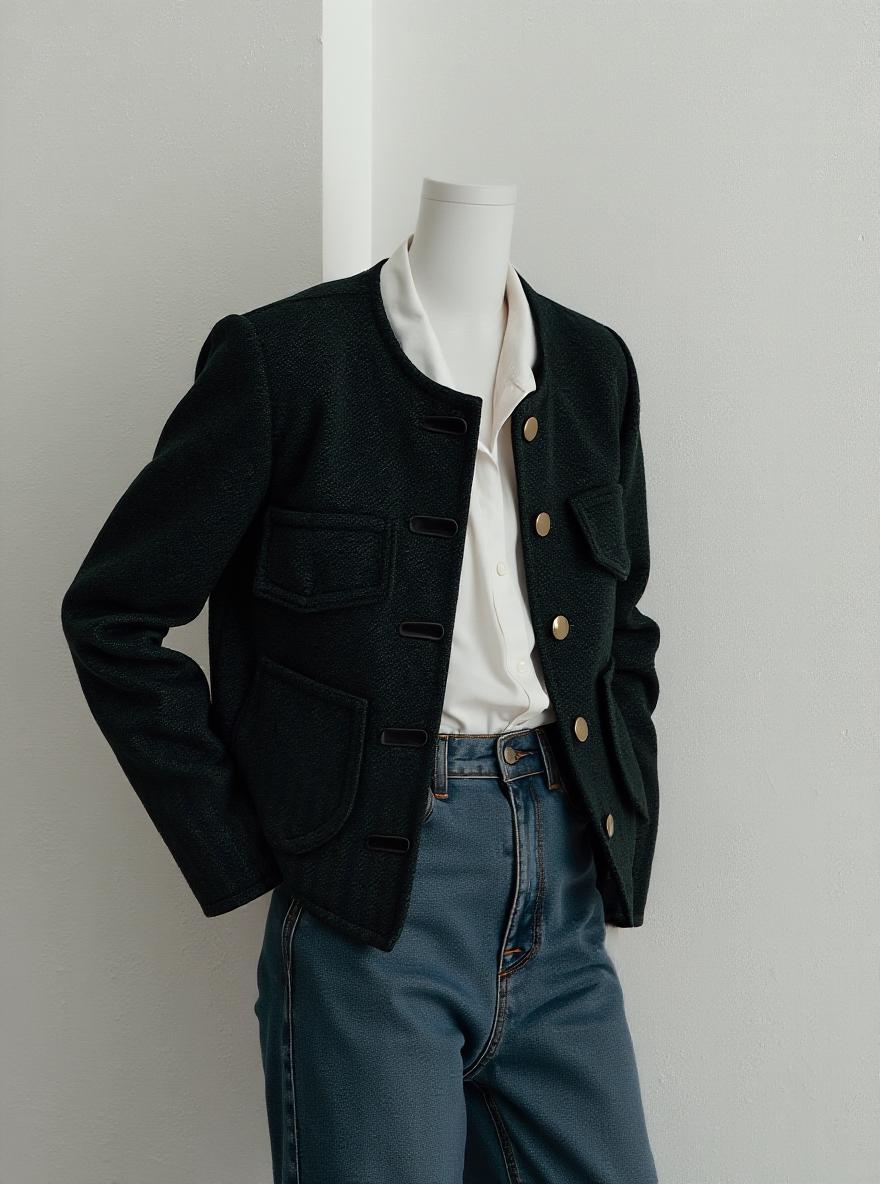 |
To Mannequin for Consistent E-commerce Apparel Catalogs
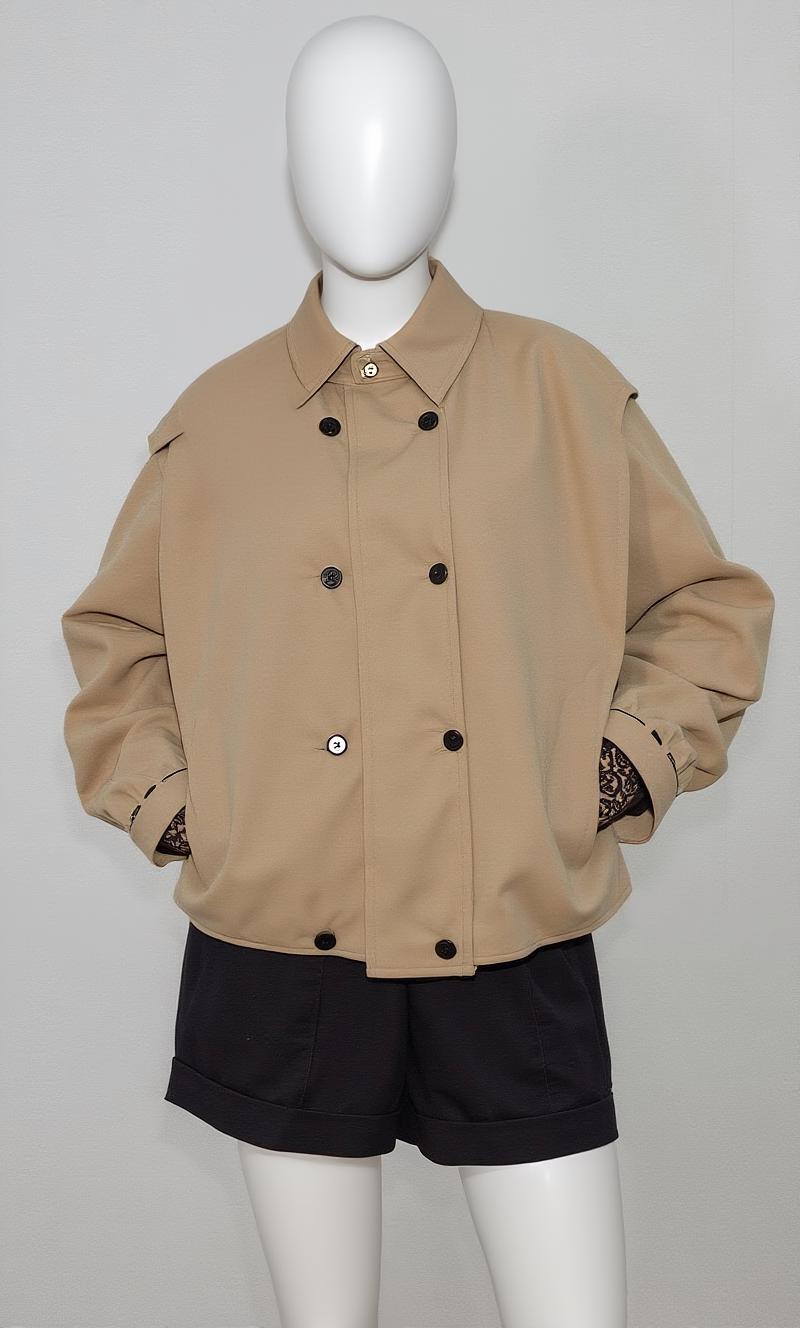
To Mannequin turns real-model photos into clean mannequin-style visuals for e-commerce teams. The results can support product pages, catalog planning, wholesale decks, internal reviews, and other sales channels. A structured workflow also helps teams keep product details and brand presentation consistent as the catalog grows.
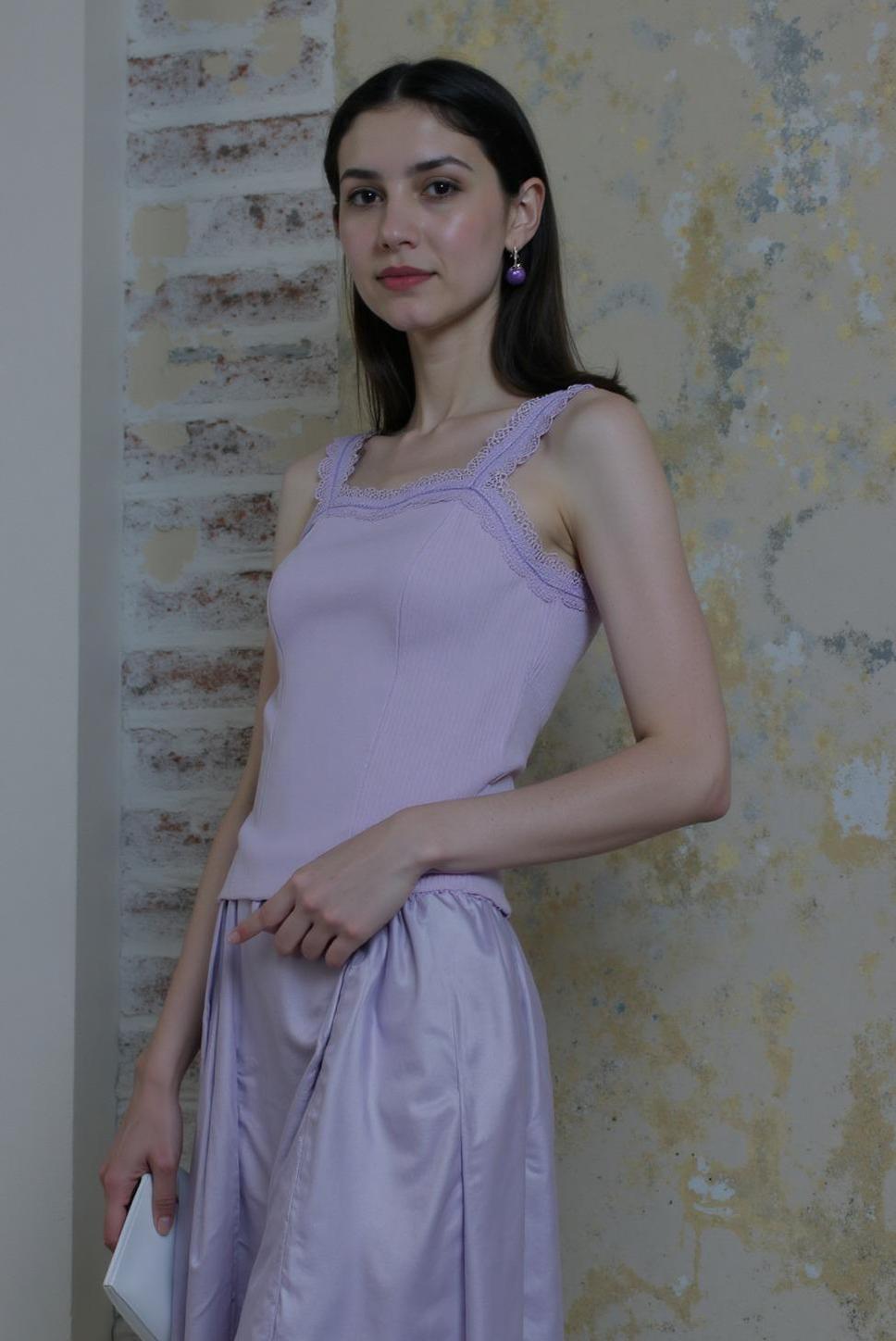 | 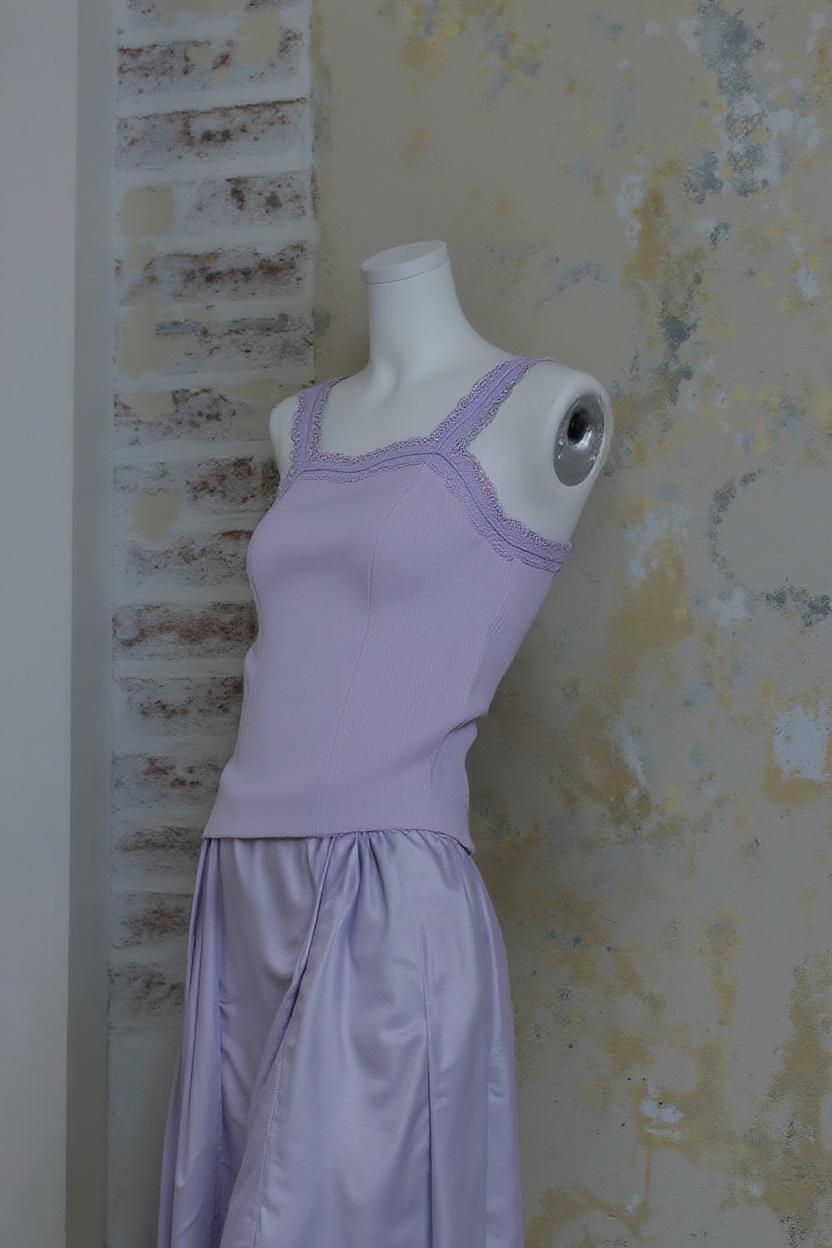 |
Why Apparel Image Production Becomes Hard at Scale
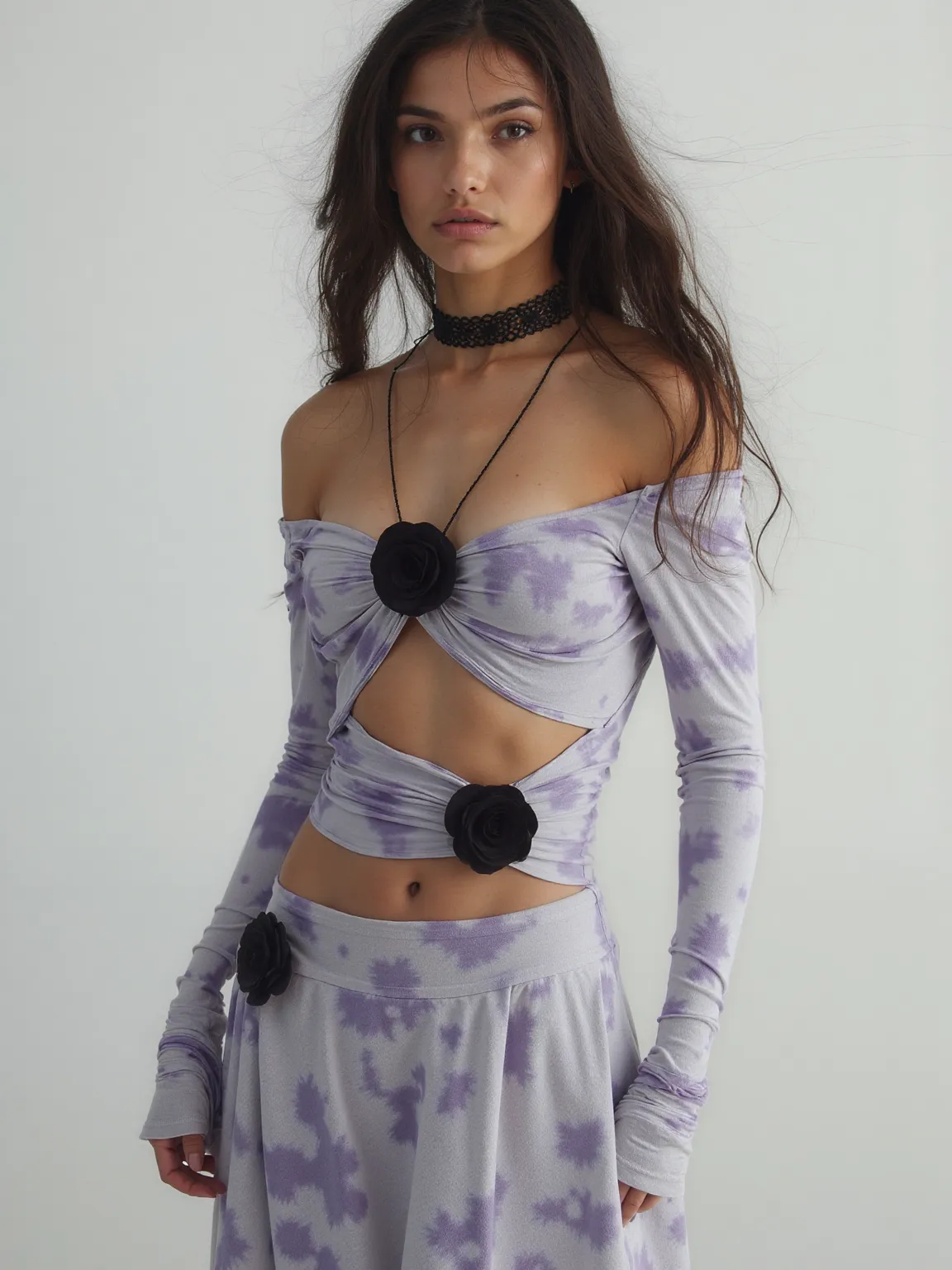
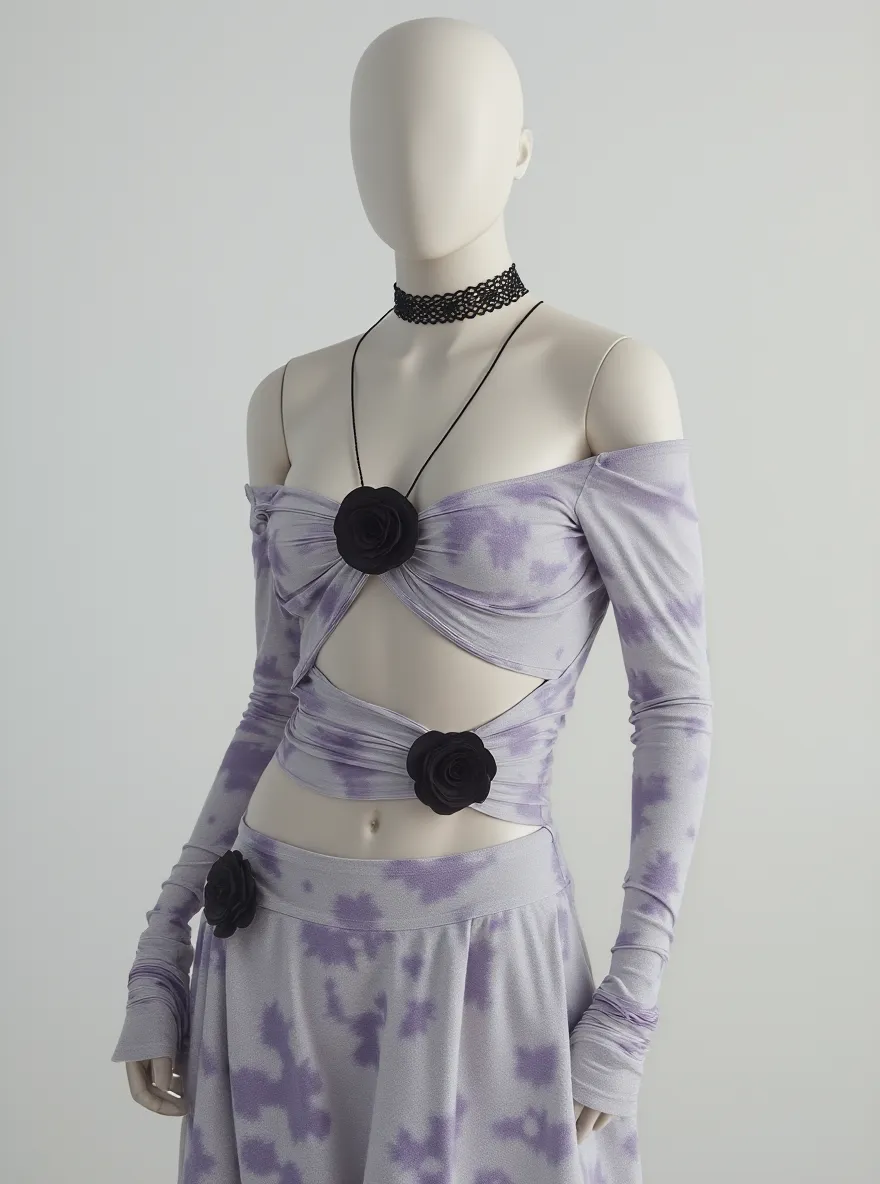
Large fashion catalogs often mix poses, camera distances, and styling. Even good shoots can leave a product grid looking uneven. To Mannequin reduces the model's visual influence, so teams can compare garments more easily. The tool offers standard and display mannequin styles, including headless, torso, and full-body options. These consistent views can support line sheets, buyer presentations, creative planning, and channels that permit mannequin imagery.
To Mannequin for Product Pages and Catalogs
Mannequin images reduce distractions from faces, expressions, and changing poses. As a result, shoppers can focus on the garment's silhouette, drape, construction, and styling. This makes the format useful for fashion product pages, collection grids, line sheets, and wholesale presentations.
Different stores and marketplaces may have their own image rules. Therefore, review the requirements for each destination before publishing. A visible dress form, headless figure, torso, or full-body display can work well on one channel while another platform may require a flat product image or human model.
Use the output in these practical ways:
- Create a consistent internal catalog for selection and review.
- Prepare fashion product pages and marketplace visuals where mannequin images are allowed.
- Build wholesale line sheets and seasonal assortment decks.
- Compare framing, styling, and garment presentation across SKUs.
- Use the mannequin version as a creative reference for campaign planning.
This flexibility helps To Mannequin support a wider e-commerce content system.
 |  |
 |  |
What To Mannequin Creates from a Model Photo
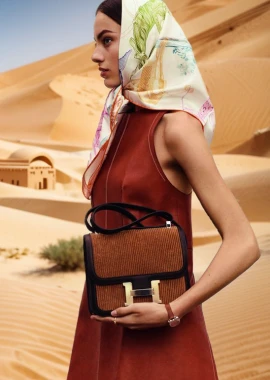
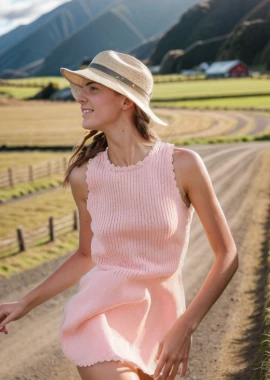
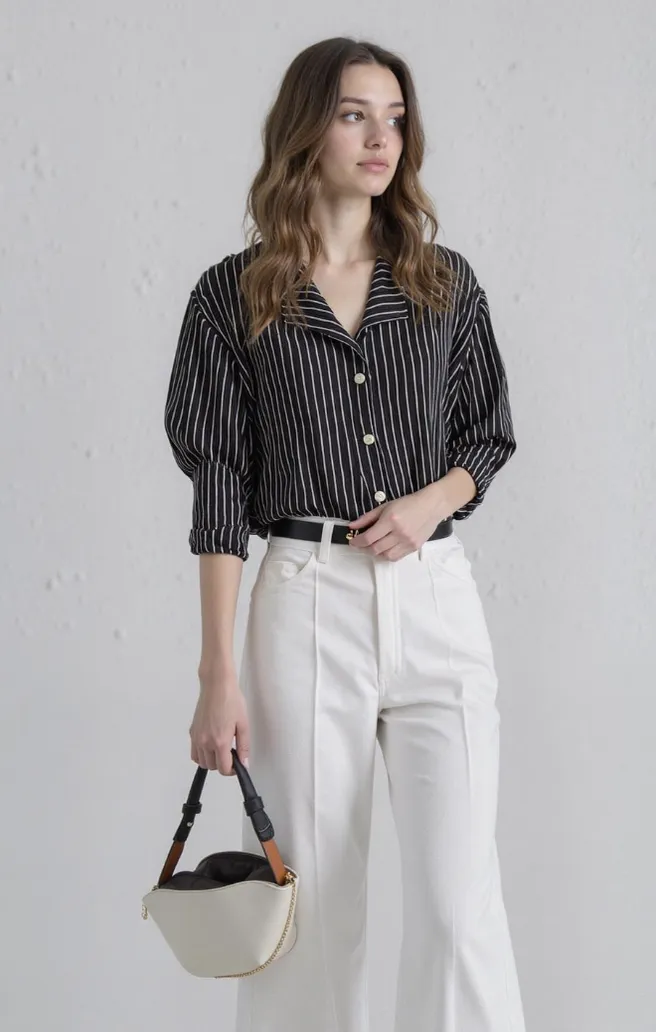
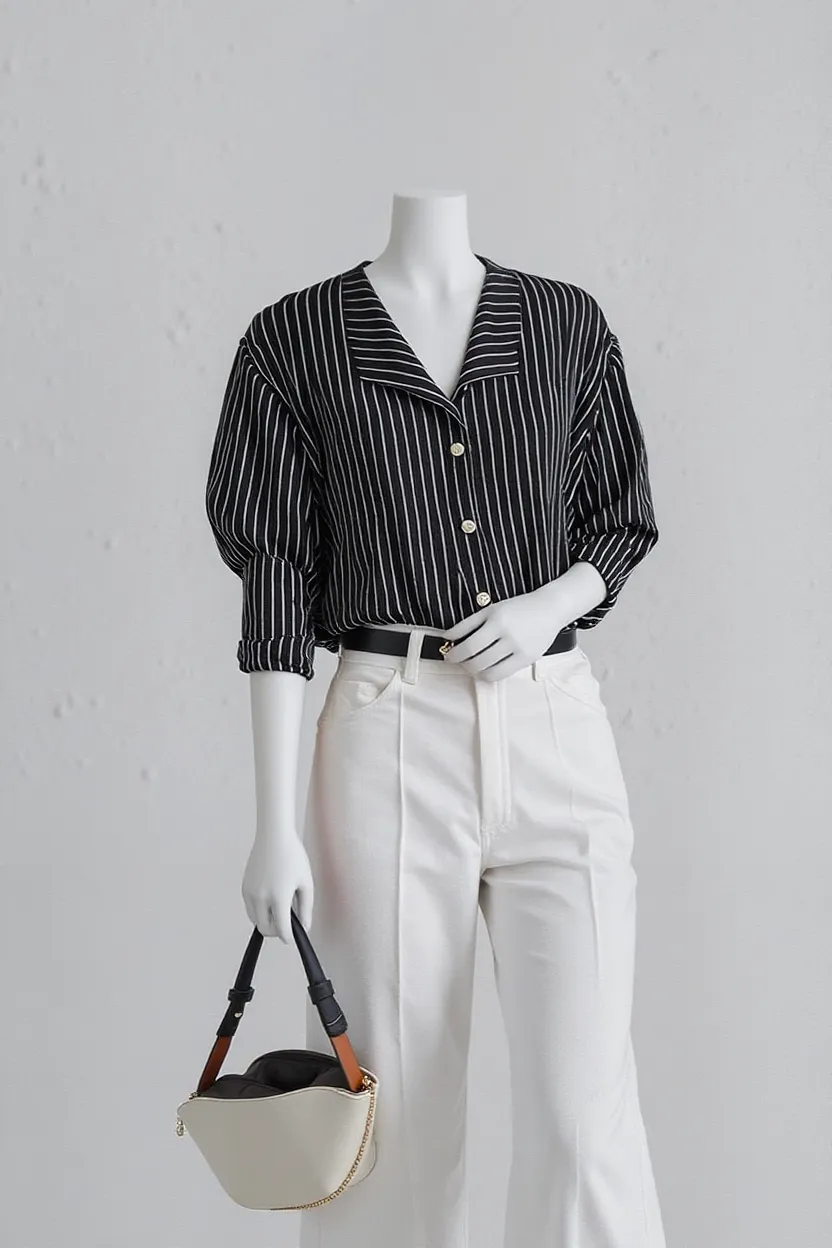
The input is a photo of a garment worn by a real model. To Mannequin changes the person into a mannequin-style display while aiming to retain the garment's texture, drape, fit, and folds. For example, a retailer can convert selected photos from different seasonal shoots into a unified product catalog. The original human-model assets can still support lifestyle pages, ads, and social campaigns.
The workflow produces two clearly separated asset groups:
| Asset group | Purpose | Best destination |
|---|---|---|
| Original human-model and flat product images | Lifestyle, fit, and product storytelling | PDP galleries, ads, social content |
| To Mannequin outputs | Consistent product presentation | Catalogs, collection grids, wholesale, and permitted marketplaces |
This routing rule helps each creative asset serve a clear commercial purpose.
How to Use To Mannequin Step by Step
Start with one strong source image. Once it passes review, repeat the same setup across similar products.
- Choose a clear model photo. Use good lighting and show the full garment. Avoid crossed arms, extreme poses, heavy props, and clutter.
- Upload it to To Mannequin. Keep the highest-quality original for comparison. It should show the true color, silhouette, texture, and design details.
- Select a mannequin direction. Choose a standard or display mannequin style that suits the garment. A torso may suit a top, while a full-body display may better show a long dress or coordinated outfit.
- Generate a draft. Let To Mannequin create the first result. Do not approve it before a detail review.
- Compare it with the original. Check hems, collars, cuffs, fasteners, prints, logos, seams, pockets, texture, length, and proportions.
- Clean only when needed. Magic Eraser can remove an unwanted prop after conversion.
- Add a channel label. Mark the file as PDP, marketplace, wholesale, direct-store, or internal.
- Prepare the final export. Check the background, crop, product visibility, resolution, and destination rules before upload.
Review Every To Mannequin Result for Product Fidelity
Visual consistency is not enough. The garment must still match the product a buyer will receive. Compare every output beside its source. Check repeated patterns, straps, sheer fabric, embroidery, knit texture, reflective trim, brand marks, and areas hidden by the original pose. For a collection, approve one product at a time. Then keep the same mannequin style, crop, background treatment, and visual scale across the group.
A Better Folder System for E-commerce Teams
Create clear production folders before generating variants.
- Source: untouched model and product photos
- Mannequin review: To Mannequin drafts and approved references
- PDP candidate: images prepared for product page review
- Marketplace approved: files checked against channel rules
- Campaign assets: approved images for ads, social, and seasonal launches
Use SKU, color, view, channel, and version in each filename. Also record who checked product accuracy and channel requirements. An attractive image still needs the correct crop, format, and treatment for its destination.
Where the Workflow Adds the Most Value
To Mannequin is useful when a retailer already owns model photography but needs a neutral view of the range. It can support product comparisons, collection grids, and buyer presentations without making faces or poses the center of the layout. On channels that allow visible mannequins, the result can become a customer-facing asset after a product fidelity review.
Turn Model Photos into a Controlled Catalog Workflow
To Mannequin can standardize apparel visuals and help teams manage a growing collection. Yet the destination matters as much as the result. Create mannequin visuals from strong model photos, review every garment detail, and organize outputs by channel. Then publish the version that fits each product page, marketplace, wholesale deck, or campaign.