







AI Lingerie Virtual Try-On: Complete Tutorial for E-Commerce
Learn how to use AI tools to create professional lingerie product images with designated model faces and backgrounds. This 3-step guide covers ghost mannequin extraction, background cleanup, and fusion using WeShop.ai. Save on costly photoshoots and accelerate your product launches.
For lingerie e-commerce merchants, the cost of shooting product images has always been high. The high fees for foreign models, professional studio rentals, and lengthy post-production retouching have severely slowed down the pace of new product launches. What if you could use AI to perfectly "clone" a designated model's face and high-end scenes with just a few casual snapshots?
This tutorial will walk you through the entire process of the popular "AI Lingerie Virtual Try-On" on social media. In just 3 simple steps, without complex Photoshop skills, even a beginner can swap in a dedicated model and advanced background for your lingerie products in 5 minutes!
Preparation / Required Tools
Before you start, prepare the following materials and online AI tools. We will use the professional image generation modules on WeShop.ai for the entire operation.
- Original Material Preparation:
- An original photo of the lingerie with a model wearing it or displayed flat.
- A clear close-up of the model's face (for specifying the generated face).
- Required AI Tools (all within the WeShop platform):
- Extract Clothing Tool: Free AI Ghost Mannequin Generator
- Extract Background Tool: GPT Image
- Virtual Try-On Tool: AI Lingerie
Detailed Step-by-Step Guide
Step 1: Extract the Clothing (Create a "Ghost Mannequin" Effect)
To let the AI accurately recognize the fit and fabric of the lingerie, we first need to "hide" the original model and extract a clean three-dimensional lingerie image (known in the industry as the "ghost mannequin" effect).
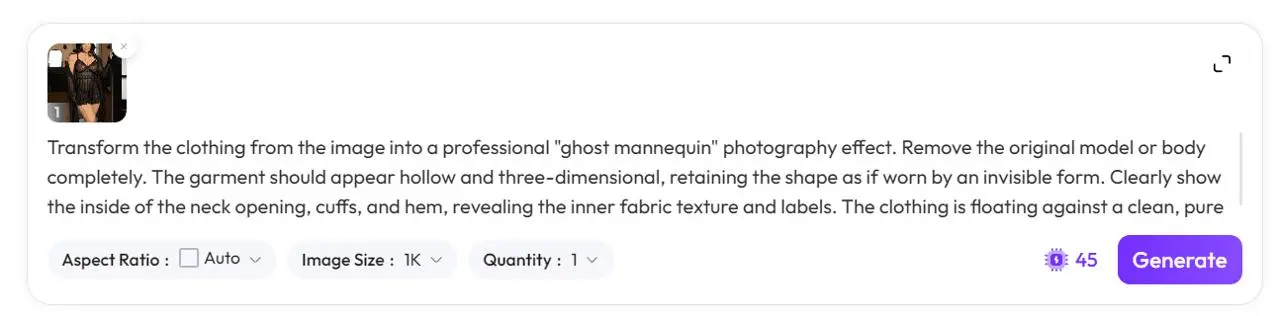
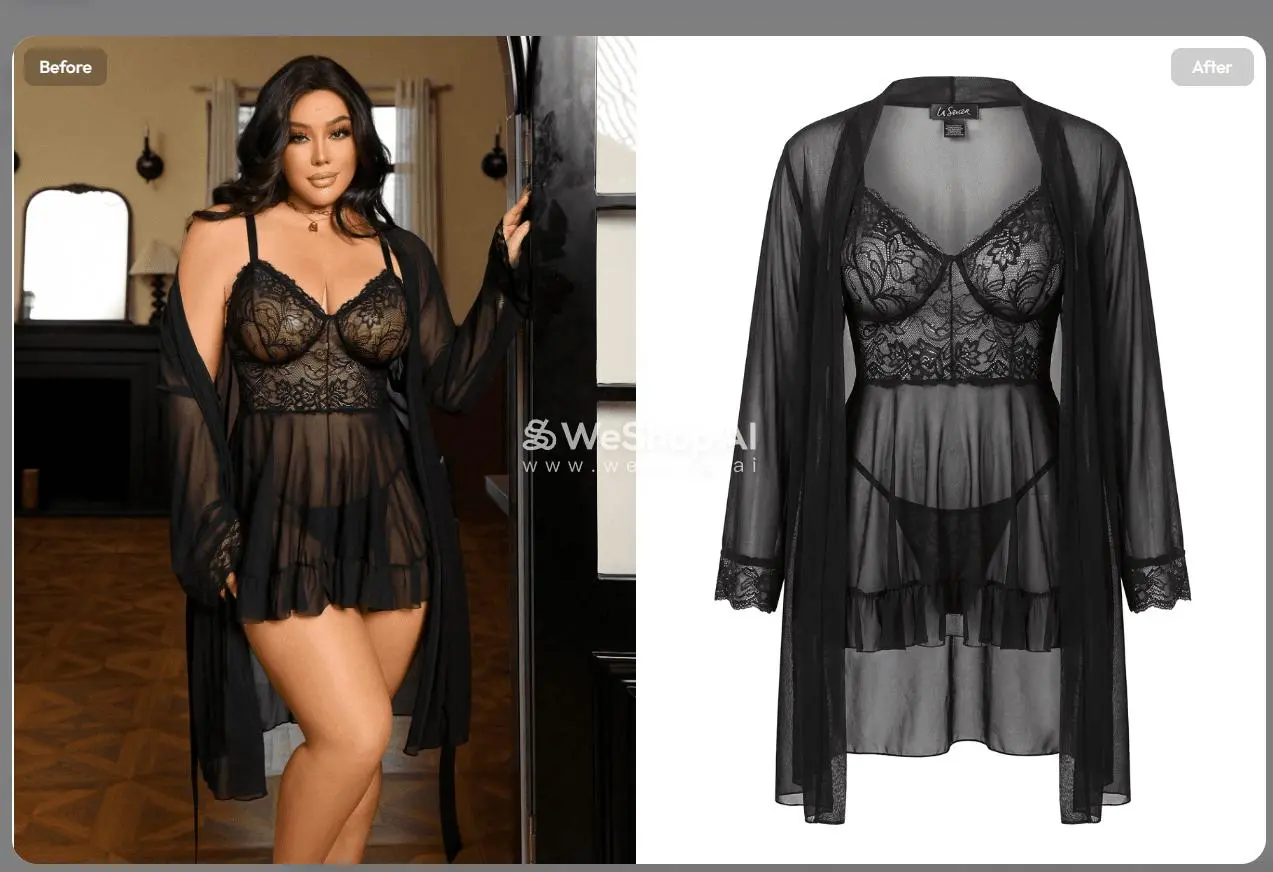
- Open the Tool: Visit the Free AI Ghost Mannequin Generator
- Upload the Original Image and Input Prompt: Place your original lingerie image in the upload box. Enter a prompt command in the input box below (e.g., "Transform the clothing from the image into a professional 'ghost mannequin' photography effect. Remove the original model... " i.e., convert the clothing into a professional ghost mannequin photography effect, completely removing the original model while retaining the three-dimensional shape and internal fabric).
- Configure Parameters and Generate:
Aspect Ratiokeep the default Auto.Image Sizeset to 1K for clarity.Quantityset to 1 image.- Click the purple 【Generate】 button at the bottom right (costs approximately 45 compute units). Wait a few seconds, and a perfect three-dimensional lingerie extraction image will be ready. Save it for later use.
💡 Tips / Pitfall Avoidance Guide: If you already have a white background image or a transparent background hanger image of the lingerie, you can skip this step entirely and go directly to Step 3!
Step 2: Obtain a Clean Background Without a Model
If you want the newly generated product image to retain the original advanced indoor environment but without the original model, we need to use AI to "clean up" the original background.
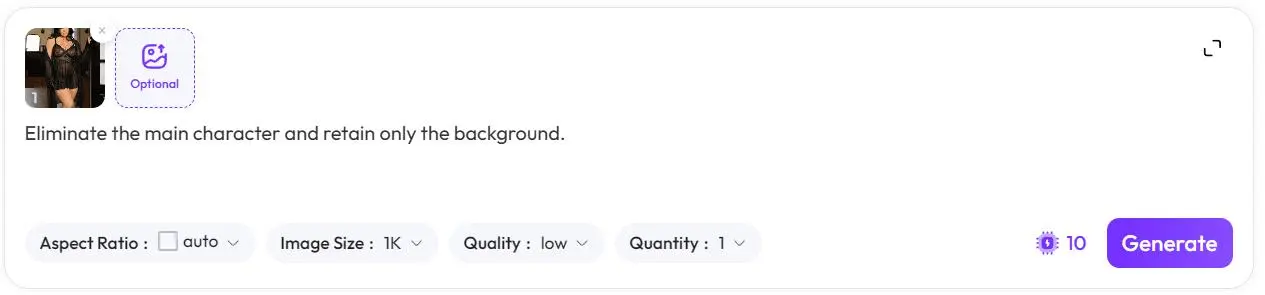
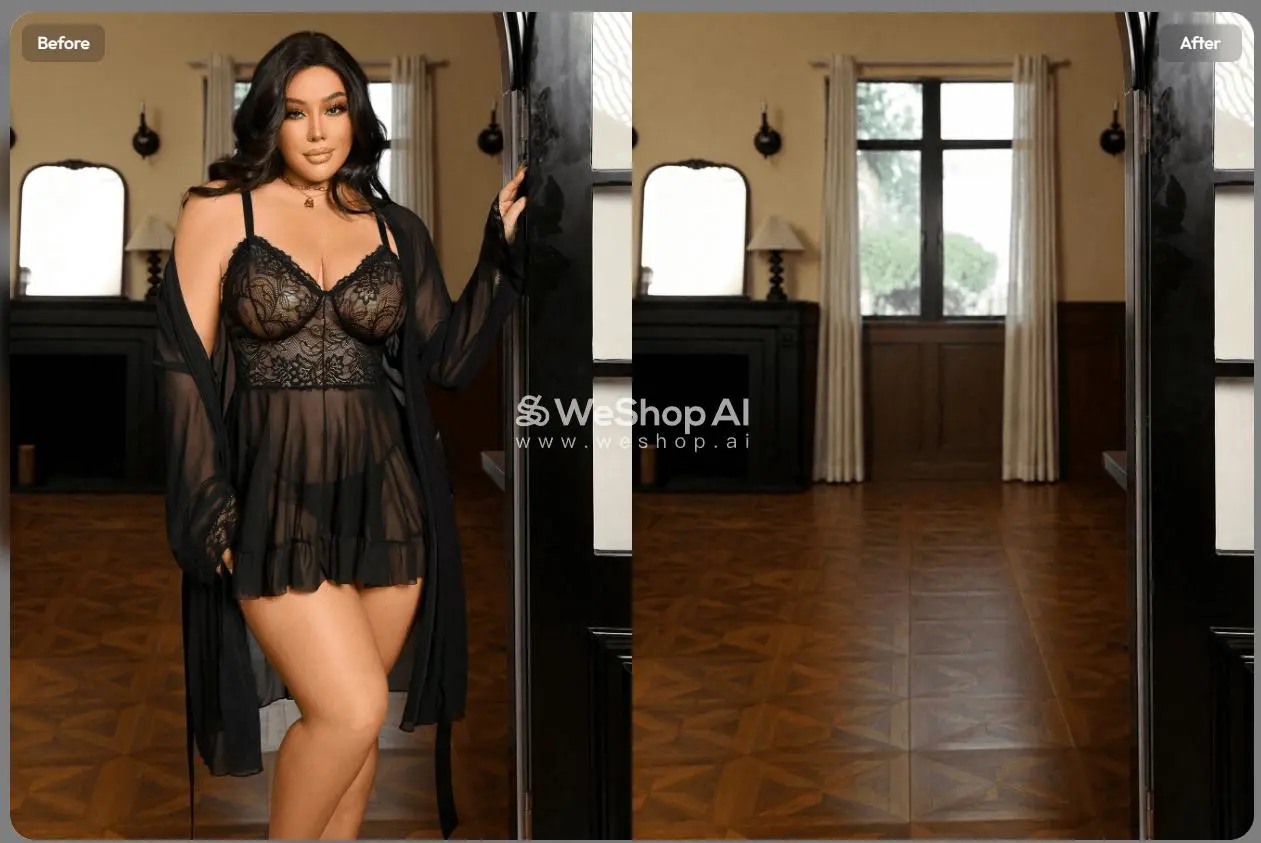
- Open the Tool: Visit GPT Image
- Remove the Subject: Upload your original photo again. Enter the prompt: "Eliminate the main character and retain only the background."
- Configure Parameters and Generate:
Aspect Ratio: Auto.Image Size: 1K.- To save compute units (as the background will be blurred or blended later),
Qualitycan be set to low, andQuantityselect 1. - Click 【Generate】 (costs approximately 10 compute units). A pristine empty-room background image with no trace of the model is generated. Download and save it.
💡 Tips / Pitfall Avoidance Guide: If your product listing only requires a solid color background (e.g., pure white, pure gray) and no complex real scene, then skip this step. In the final step, simply describe the background in the input box without uploading an image.
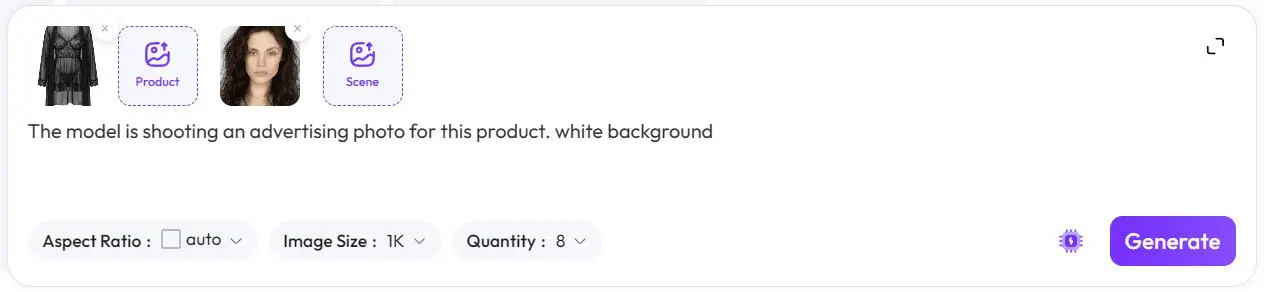
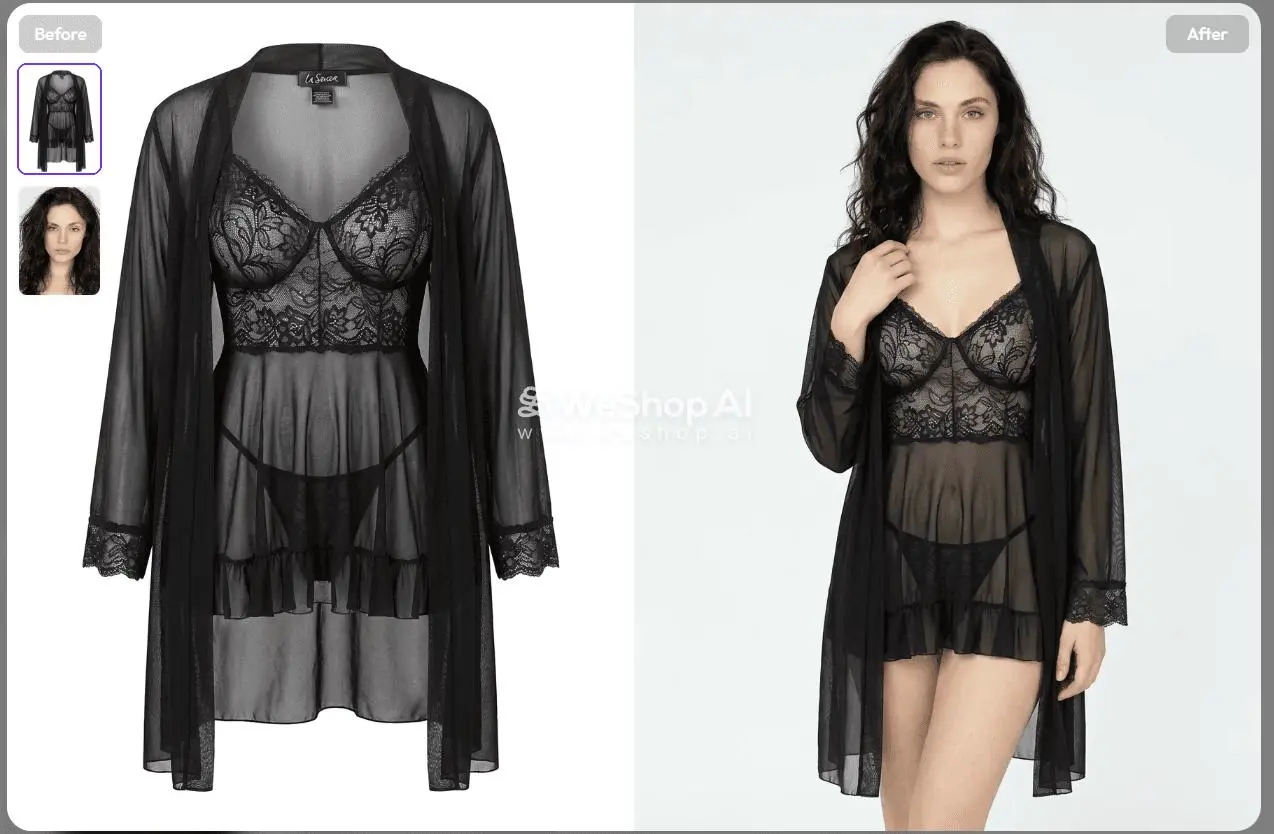
Step 3: Three-in-One Fusion (Generate Try-On Image with Designated Face and Background)
Now we have the "clothing," "face," and "background." The next step is the moment of magic—letting AI perfectly combine them.
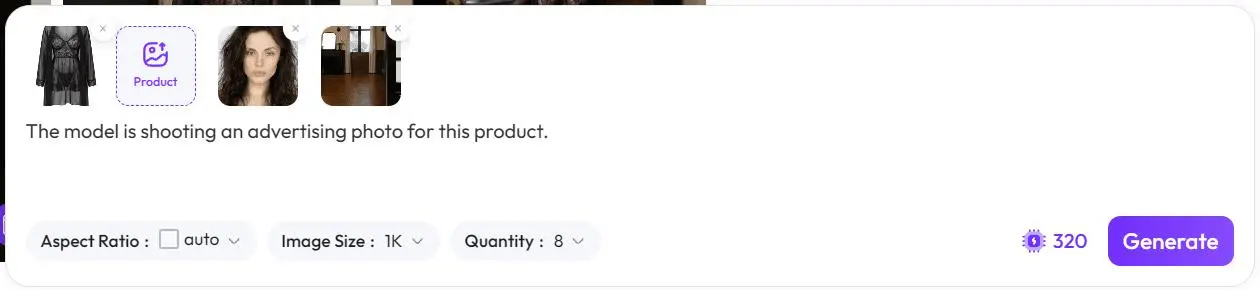
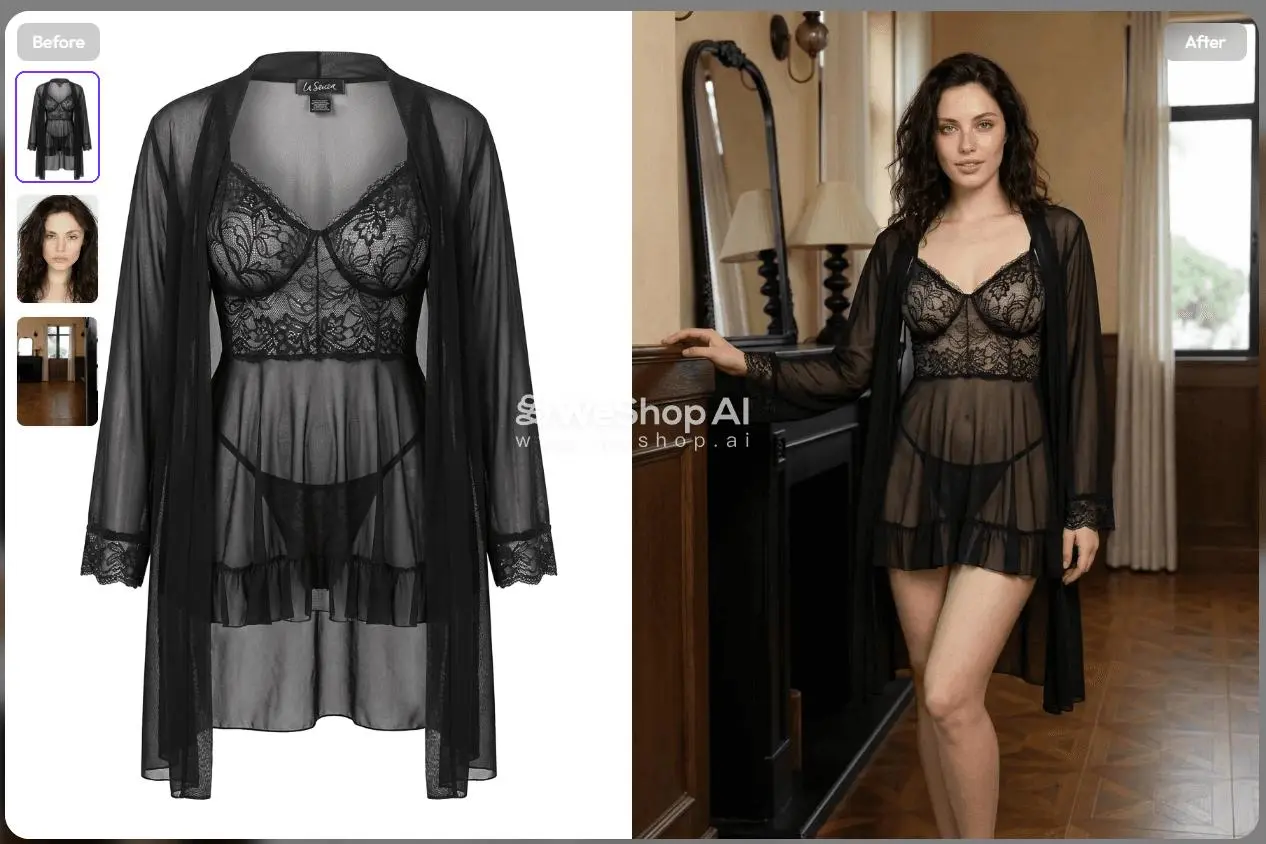
- Open the Tool: Visit AI Lingerie
- Upload Three Core Elements:
- Click the first plus sign to upload the lingerie image generated in Step 1 (Important: Check or mark it as Product to let the AI know this is the main element that must not be deformed).
- Click the second plus sign to upload your prepared designated model's face image.
- Click the third plus sign to upload the clean background image generated in Step 2.
- Set the Final Scene and Generate:
- In the prompt area, enter your scene description, e.g., "The model is shooting an advertising photo for this product."
Aspect Ratio: Auto.Image Size: 1K.- It is recommended to increase
Quantity, e.g., set it to 8 (costs approximately 320 compute units), so you can select the final images with the most natural lighting and perfect poses. - Click 【Generate】 and wait for the AI to output a set of high-end commercial lingerie images!
Advanced Tips / Frequently Asked Questions (FAQ)
- Q: Why do the edges of the generated lingerie sometimes look unnatural?
- A: This is usually because the original "ghost mannequin" image extracted in Step 1 is not clear enough, or the lighting in the original image is too extreme. It is recommended to ensure even lighting when shooting the original image and avoid large areas of dark shadows on the lingerie.
- Q: How can I make the designated face blend more naturally with the body?
- A: The close-up face image (the second image in Step 3) is crucial. Try to choose a front-facing portrait without obstructions and with soft lighting. If the original face image has strong side lighting, the AI may create lighting conflicts when merging with the body.
- Q: Can the generated images be directly used on Taobao/Amazon/Independent sites?
- A: The 1K size is sufficient for display on most e-commerce mobile platforms. If you need images for PC homepage banners or detailed zoom-in views, consider using the 2K or 4K option.
With these 3 simple steps, the lingerie product photography process that used to cost thousands of dollars and days can now be done in the time it takes to drink a cup of coffee and with minimal AI compute cost. Save your energy for product selection and marketing!
Open your computer now, grab a lingerie image, and try running through the entire process! If you encounter any issues with prompt writing or parameter adjustments during the operation, feel free to leave a comment below. I will answer your questions one-on-one!