








Create an AI Try-On Haul Video From Clothing Images
Learn how to use a reference video and clothing images to create a vertical AI try-on haul with clear outfit reveals and consistent styling.
Video Replication: Turn Clothing Images Into an AI Try-On Haul Video
A black thrift bag fills the frame. Seconds later, the same model moves through three different looks: a vivid printed maxi dress, a plaid shirt with a denim mini skirt, and a striped top with white shorts.
Instead of filming every garment presentation and outfit reveal separately, this workflow uses one reference video to guide the structure and four clothing images to build a new, compact AI try-on haul.
Reference Video and Generated Result
The reference establishes the visual format: present an item to the camera, cut to the on-body look, and repeat.
The generated version follows the same recognizable haul structure while introducing a different model, room, wardrobe, and faster sequence.
| Reference Video | Generated Result |
|---|---|
| The reference supplies the presentation sequence, front-facing framing, garment reveals, and try-on rhythm. | The AI-generated result recreates the haul format with a new model, setting, and clothing references. |
What You Need
Prepare these inputs before opening the tool:
- One reference video with a clear and repeatable content structure
- One base-look image
- Three clothing or outfit reference images
- Permission to use every person, garment image, and video included in the generation
Choose a reference video with a stable camera, clearly visible movements, limited obstruction, and an obvious transition between presenting a garment and wearing it.
Step 1: Open Video Replication
Open WeShop Video Replication.
The workspace provides separate input areas for a video reference and image references. The video guides the new clip’s presentation structure, while the images supply the replacement outfits and visual direction.
Step 2: Add the Model and Clothing Images
This example uses four images. Each one has a specific role in the generated video.
| Image Reference | Role in the Generated Video |
|---|---|
Base Look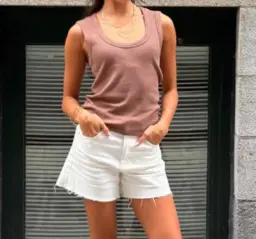 | Establishes the initial brown tank top and white shorts worn before the outfit reveals begin. |
Printed Maxi Dress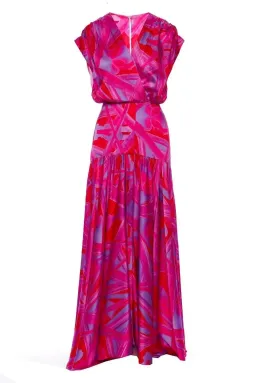 | Supplies the bright pink, red, and lavender maxi dress used for the first complete try-on reveal. |
Plaid Shirt and Denim Skirt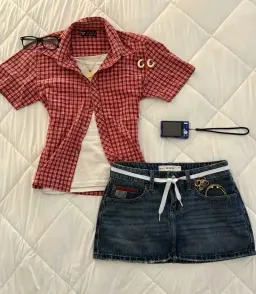 | Supplies the coordinated plaid shirt and denim mini skirt used for the second look. |
Striped Top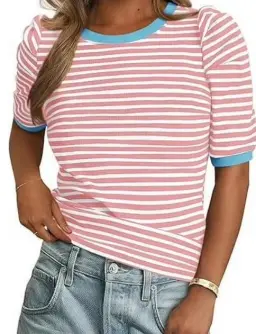 | Supplies the pink-and-white stripes and blue trim used for the final look with white shorts. |
Use images with clear garment boundaries, visible colors and patterns, and minimal obstruction.
For a coordinated outfit, one image may show both the top and bottom. For a single garment, make sure the neckline, sleeves, waist, and hem remain visible whenever possible.
Step 3: Arrange the Images in Story Order
Arrange the image references according to the order in which the looks should appear:
- Brown tank top and white shorts as the opening look
- Pink abstract-print maxi dress
- Red plaid shirt and denim mini skirt
- Pink-and-white striped top with white shorts
This order creates a clear visual progression.
The maxi dress introduces the strongest change in color and silhouette. The plaid-and-denim combination creates a second coordinated outfit. The striped top returns to a simpler shape for the final reveal.
Using fewer, visually distinct references also gives each outfit enough time to register in a short video.
Step 4: Choose the Output and Generate
Select a vertical aspect ratio and a concise duration suitable for the number of outfit changes.
This workflow does not require a written prompt. The generation is guided by:
- The motion and presentation structure of the reference video
- The subject and styling information in the uploaded images
- The selected image order
- The basic output settings
When the reference video and image references are ready, select Generate.
Avoid changing several inputs at once between attempts. If one outfit is unclear, adjust or replace that reference image first while keeping the reference video and remaining image order unchanged.
Step 5: Inspect the Outfit Reveals
Review the points where a garment held in front of the camera changes into an on-body outfit.
For the printed maxi dress, inspect the neckline, waist, abstract pattern, and moving hem during the turn.
For the plaid shirt and denim skirt, check that the two garments remain separate, the plaid pattern stays coherent, and the model’s hands do not merge into the waist.
For the striped top, inspect the horizontal stripes and contrasting blue trim. These repeated lines make unwanted warping easier to notice.
The result is a creative visualization rather than evidence of exact garment fit, sizing, or construction. Regenerate any section that could misrepresent the product’s recognizable design.
The Finished AI Try-On Haul
The completed video keeps the central idea of the reference: show the garment first, reveal it on the model, and move quickly to the next look.
What makes the sequence work is not a complicated visual effect. It is the repeated relationship between each product image and its on-body reveal, held together by one model, one room, and one consistent camera position.
Create your own clothing haul with WeShop Video Replication.
You can try it directly using the tool on the right.