











Create an Enji Night Gamer Girl Avatar with Seedream 5.5
Enji Night gamer girl with Seedream 5.5: a sourced reference photo, exact editing prompt, generated example and practical checks.
A gamer girl avatar can keep recognizable details from a creator portrait while becoming a reusable illustrated cutout. This Enji Night example uses Seedream 5.5 to reinterpret a public cosplay portrait with a hoodie, headphones and a friendly wave.
Turn Enji Night’s portrait reference into a gamer avatar
The public reference is the Ciri makeup portrait attributed to Enji Night in Diez’s gallery. Pale hair, green eyes and facial structure guide the illustrated character. The gamer styling is an AI-created fan concept, not an official avatar released or endorsed by the creator.
Public reference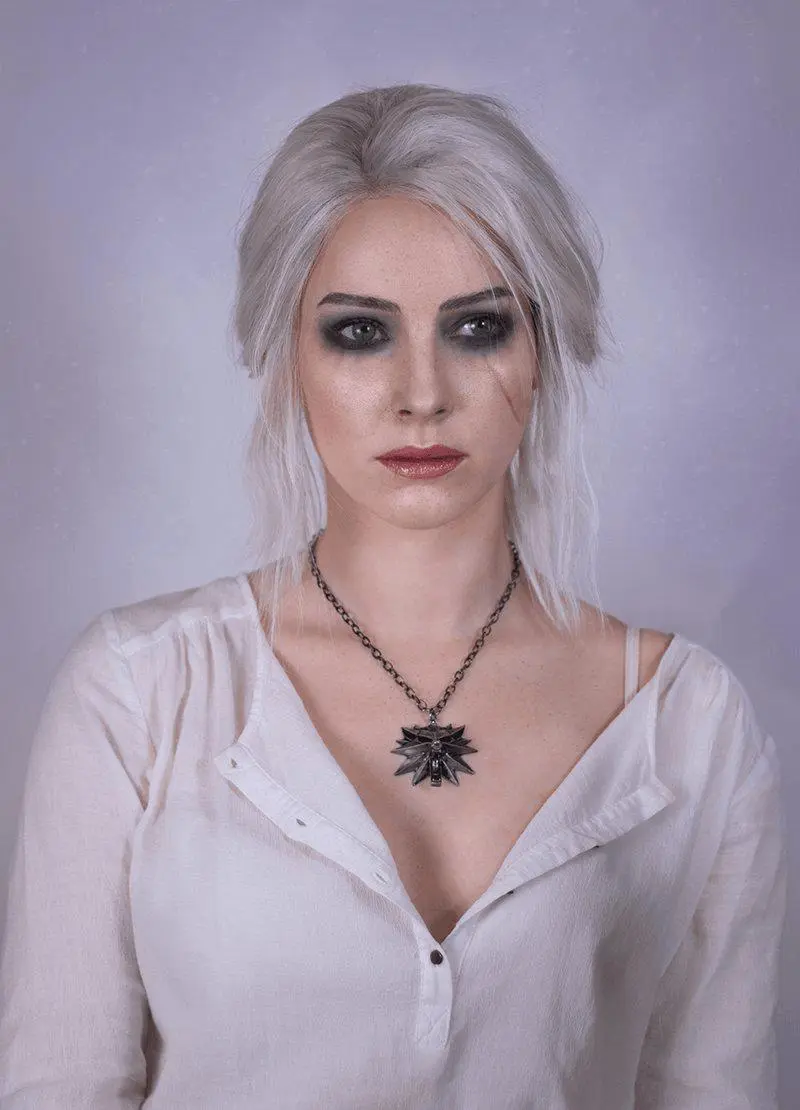 | AI-edited result · Seedream 5.5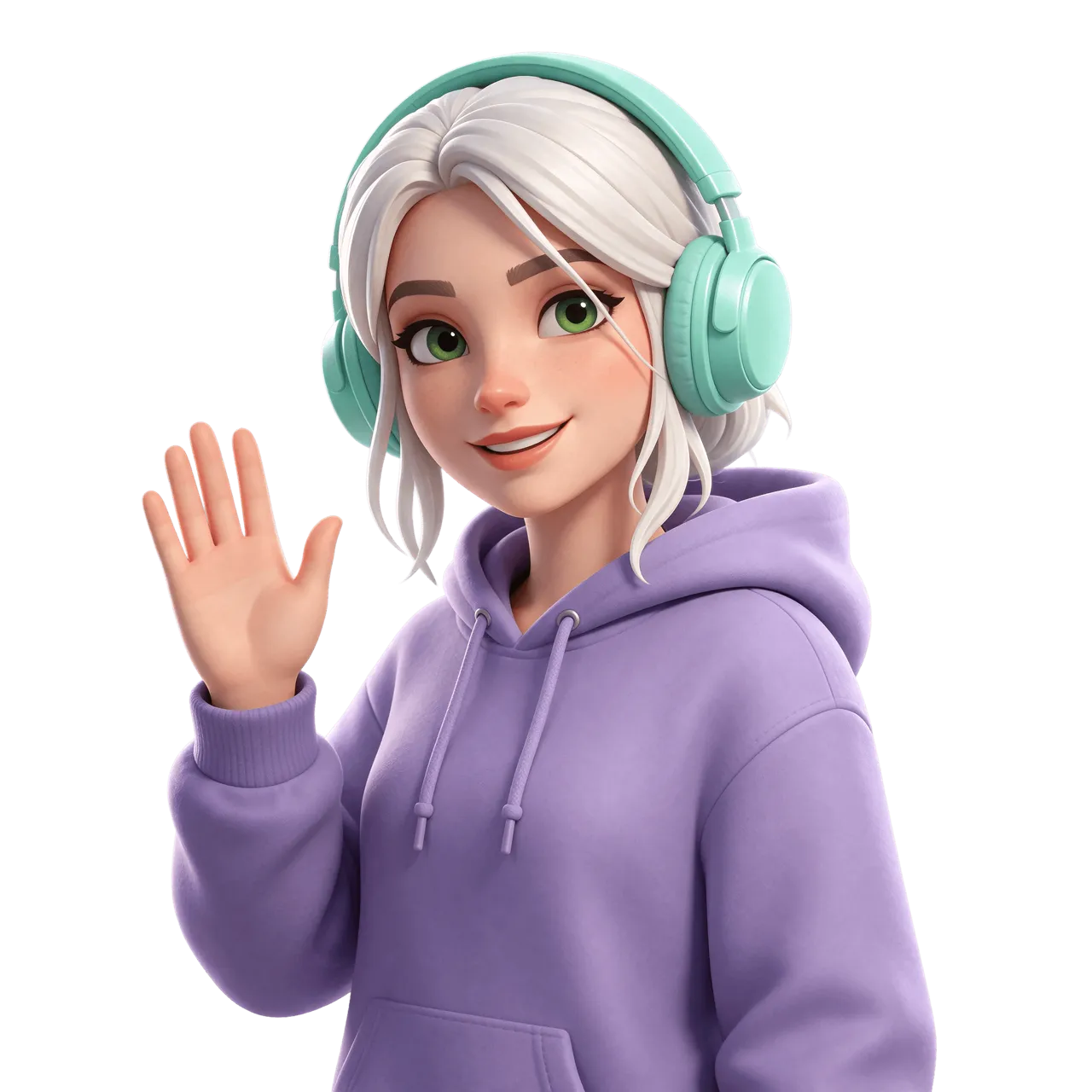 |
Enji Night, public Ciri cosplay photograph reproduced in Diez gallery, image 16 of 17, 1 April 2022. Public source.
Build the gamer girl editing brief
Separate likeness cues from the new outfit and illustration style. Preserve the reference’s hair color and face structure, then ask for a lavender hoodie and mint headset. A single waist-up figure with space around the silhouette is easier to place over a stream layout than a character attached to a desk or room.
Use Enji Night’s public reference for this gamer girl concept, and label the generated edit clearly.
Reproduce this Seedream 5.5 workflow
- Open the WeShop Seedream generator and select Seedream 5.5 in Model.
- Upload the actual reference photo or an image you are authorized to edit. Confirm that the correct reference thumbnail has finished loading.
- Select 2K, PNG, 1:1 aspect ratio and 1 output. Set Background → Transparent.
- Paste the following brief and generate. Compare the full-size result against the specific retained details before revising it.
Using the attached public adult cosplay portrait as the face and hairstyle reference, create a single friendly adult gamer girl avatar as a polished stylized 3D illustration. Keep the recognizable facial structure, pale hair and green eyes of the adult reference, interpreted as an illustration. She wears a fully covering lavender hoodie and mint gaming headphones and makes a friendly small wave. Waist-up three-quarter view, correct fingers, clear silhouette, precise hair and headphone edges, generous margin. Standalone isolated character cutout with genuine transparent RGBA background. No room, desk, floor, shadow, checkerboard drawing, text or logos. This is an AI-created fan avatar, not an official portrait.
The displayed reference was actually attached to this generation. A person’s name in a text-only prompt would be a different process.
Inspect the generated example
The selected cutout reinterprets the public portrait as a pale-haired, green-eyed 3D avatar wearing a lavender hoodie and mint headphones, with one hand waving. The output is a 2048 × 2048 PNG with a genuine transparent alpha channel.
Compare the illustrated face and pale hair with the reference, then inspect the raised hand and headphones. Check the downloaded PNG on both light and dark surfaces. A checkerboard drawing is not a transparent background, and a white site preview alone does not tell you whether the file contains alpha.
Refine the avatar silhouette
Select Background → Transparent and PNG before generating. If a saved template opens as Opaque, change the Background control back to Transparent yourself. If the hair or headphones touch the frame, request more empty margin rather than accepting a cropped cutout.
The face is stylized rather than photographically identical to the reference. Recheck the headset, hair margins and fingers on each new output; reselect Transparent if a saved template opens as Opaque.
You can try it directly using the tool on the right.
Replace the reference with your own image, retain the useful constraints and label shared AI edits clearly.