







Edit Alina Becker Cosplay Colors with GPT Image 2
Alina Becker cosplay with GPT Image 2: use the real reference photo, exact prompt and a reusable example to create and inspect the edit.
A cosplay color study works best when the target garment is unambiguous. This Alina Becker example uses a publicly attributed Jill Valentine photograph to explore a forest-green outer top while keeping the rest of the outfit and pose recognizable.
Target the outer top rather than the whole outfit
CosplayCodex attributes this public Jill Valentine photograph to Alina Becker and links the original @japp_leack Instagram post. The blue outer top, gray undershirt and black equipment create clear boundaries for a color edit. The result is an AI styling demonstration, not a costume the creator actually wore in that color.
Reference input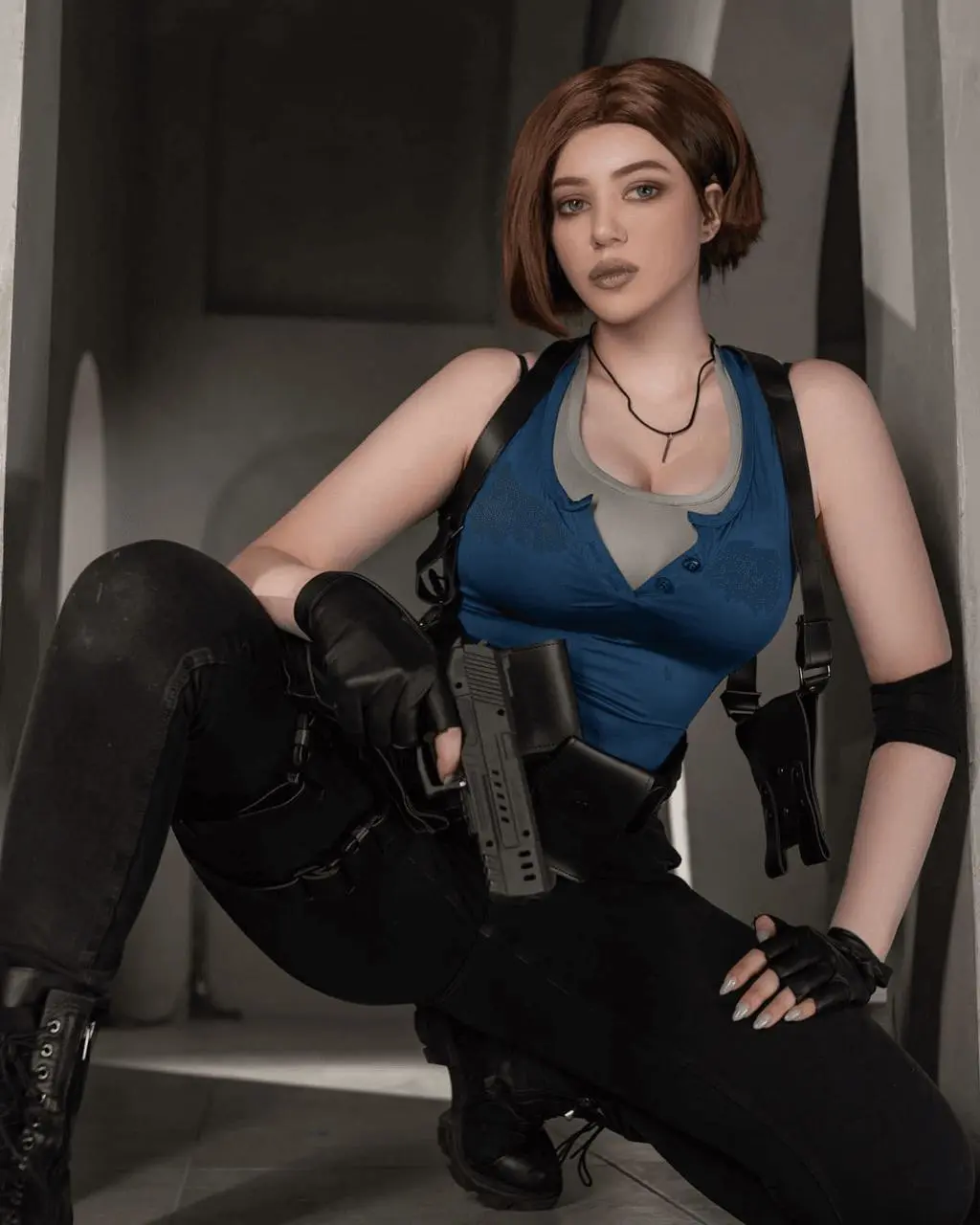 | AI-edited result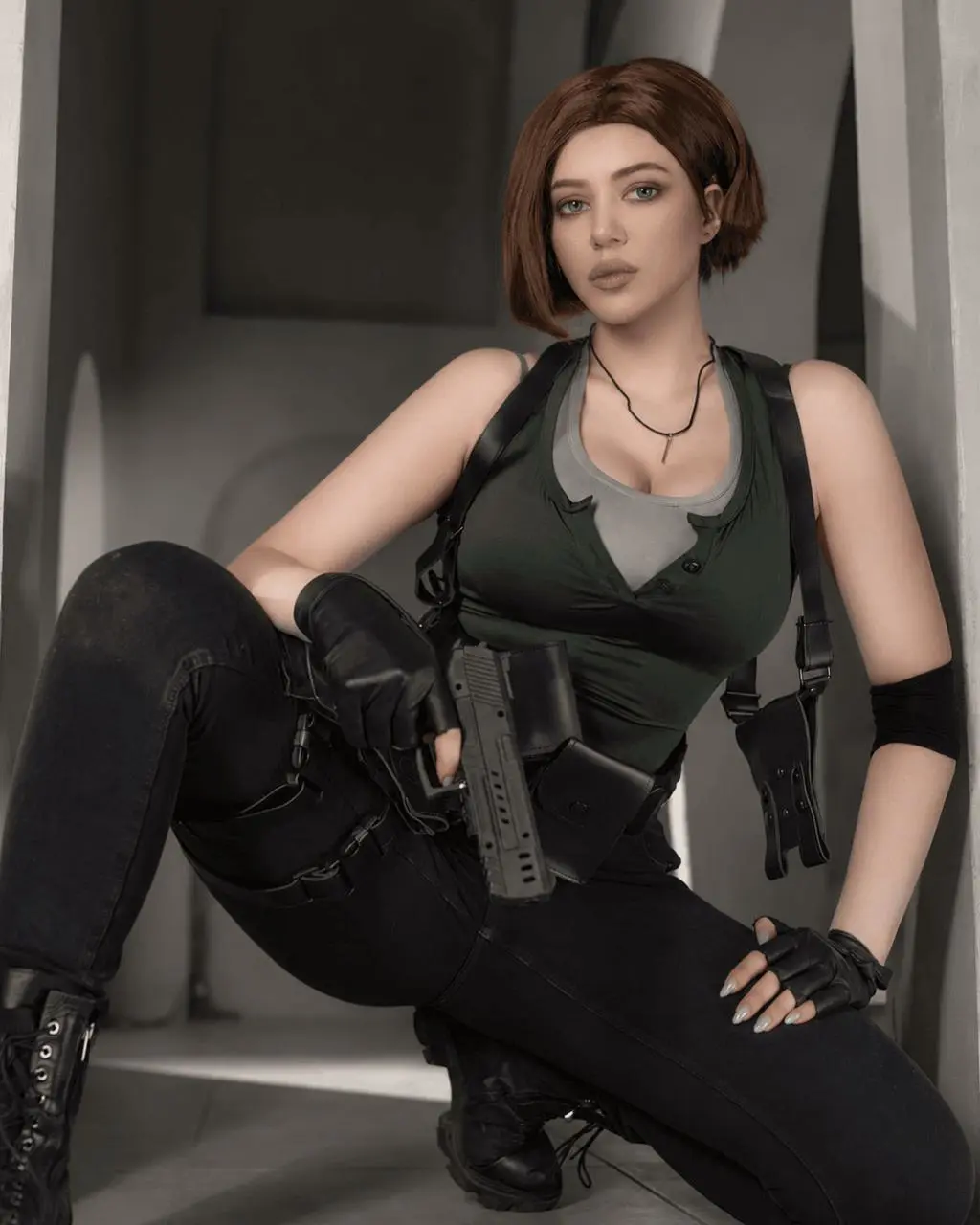 |
Reference credit: Alina Becker / @japp_leack, Jill Valentine cosplay photo attributed by CosplayCodex, 29 April 2022; original Instagram post linked by the source. View the public source. AI editing is labeled separately from the source photograph.
Prepare the reference and define the edit
Name the blue sleeveless outer top as the target, then preserve the gray undershirt, straps, gloves and trousers. Describe the new fabric color together with the original seams and folds. A specific garment boundary is more useful than asking to make the entire outfit green.
This guide uses the GPT Image 2 option available in WeShop. Select that exact version when following the example.
Run this reference-guided edit in WeShop
- Open the WeShop GPT Image generator and choose GPT Image 2 from Model.
- Upload the reference photo shown above, or replace it with an image you are authorized to edit. Confirm its thumbnail is attached before generating.
- Choose 2K, High quality, auto aspect ratio and 1 output. Keep the background opaque.
- Paste the following prompt, generate, and inspect the full-size output before making another edit.
Edit the attached public cosplay photograph as a clearly labeled AI clothing-color study. Preserve the adult woman's face, brown bob hairstyle, expression, seated pose, gray undershirt, black trousers, gloves, boots, straps, all visible props and the entire room. Change only the blue sleeveless outer top to muted deep forest green. Preserve its exact neckline, buttons, seams, folds and existing coverage. Keep realistic cloth shading, the original framing and lighting. No new objects or lettering.
The reference was actually attached to this generation. Writing a person’s name without uploading the photo would be a different workflow.
What the generated example shows
The selected GPT Image 2 edit changes the blue outer top to dark forest green. The gray undershirt, brown bob, seated pose, black trousers, straps and visible props remain recognizable against the same room.
Check the neckline, small buttons, side seams and the boundary against the gray undershirt. Green spill on skin, straps or the background means the edit has crossed its intended boundary. Compare the pose and props separately from the color.
Refine the garment boundary
If the whole photo changes tint, restart from the source and identify only the blue outer garment as editable. If the shape changes, retain the exact neckline and seams. Treat costume redesign as a separate operation.
The result is a visual styling comparison, not a pixel-identical preservation test. Inspect small seams and facial details at full size before accepting another edit.
You can try it directly using the tool on the right.
Replace the reference with your own photo, keep the useful preservation constraints, and label shared AI edits clearly.