여러 도시의 댄스, 게임형 캐릭터 커스터마이징, 네 장의 참조를 이용한 패션 광고를 보세요. 입력 이미지와 전체 원본 프롬프트, 생성 영상을 비교할 수 있습니다.
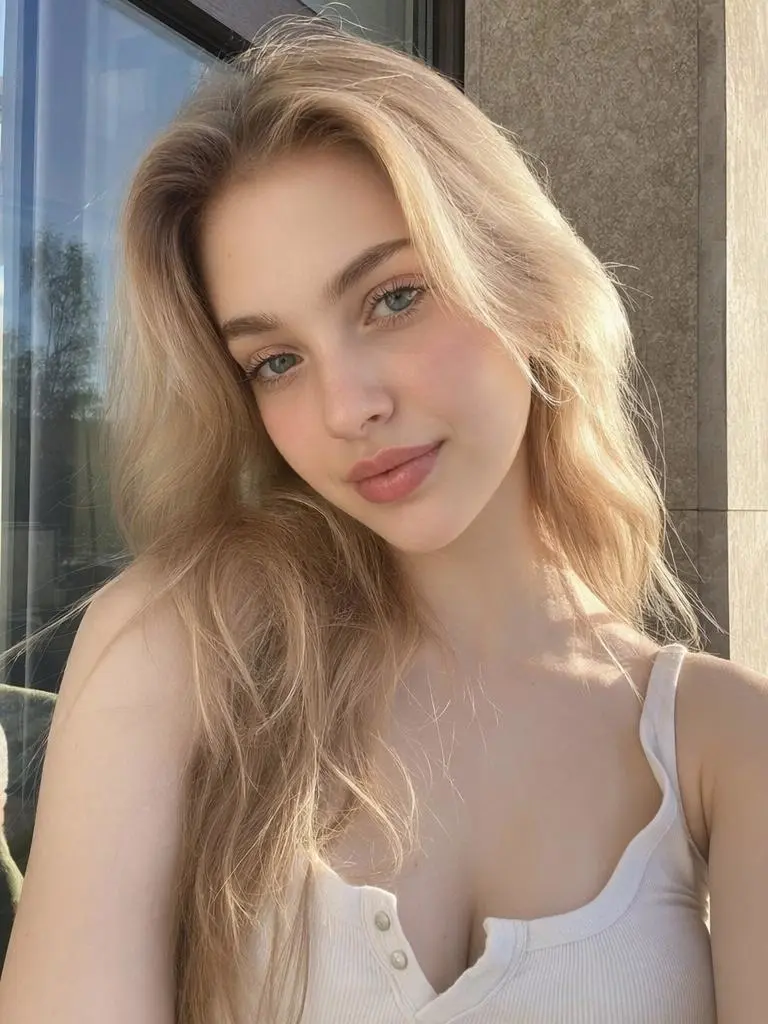
6개 도시 샷의 한 캐릭터
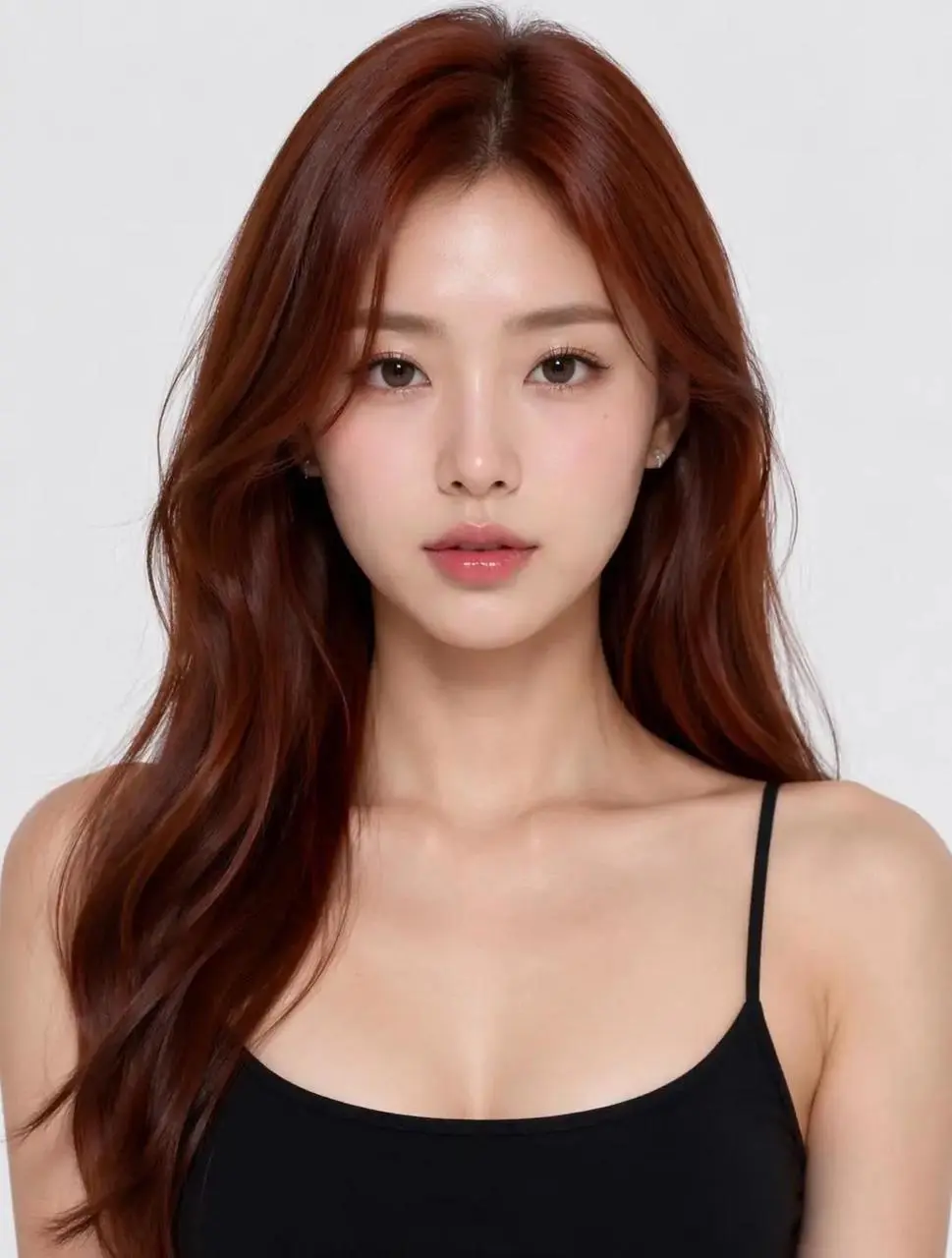
프롬프트는 노란 드레스, 포니테일과 여섯 도시를 지정합니다. 입력 인물 사진의 헤어와 옷은 다르며, 영상은 장소를 바꾸며 요청한 스타일을 따릅니다. 외형과 장면 시간을 비교하세요.
subject_definitions:
<Subject 1> is the young woman in <Picture 1>,
with a dark ponytail and a yellow sundress.
integrated_multimodal_description:
[Shot 1] <Subject 1> dances with Rome in the background.
[Shot 2] At 00:01.000, the shot changes to Paris.
[Shot 3] At 00:02.000, the shot changes to London.
[Shot 4] At 00:03.000, the shot changes to New York.
[Shot 5] At 00:04.000, the shot changes to Tokyo.
[Shot 6] At 00:05.000, the shot changes to Berlin.
overall_soundscape:
Light city ambience remains underneath the dance performance.
non_diegetic_music:
An upbeat instrumental dance rhythm without vocals.
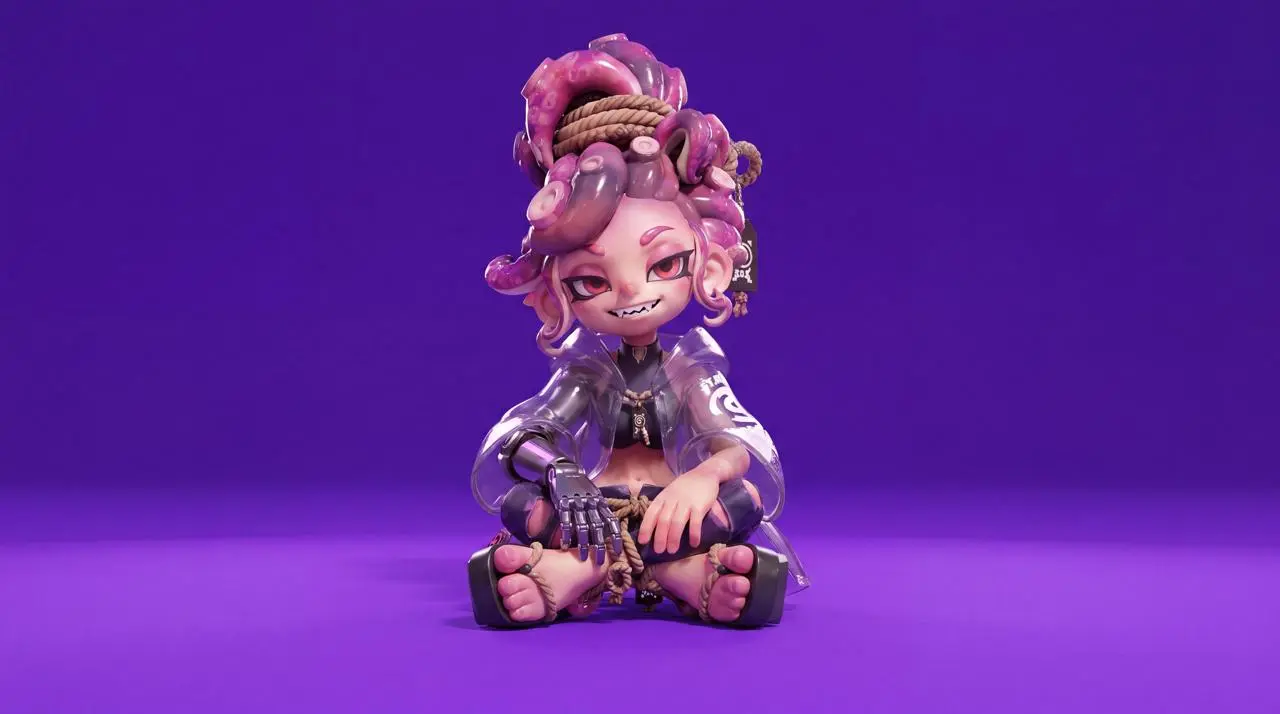
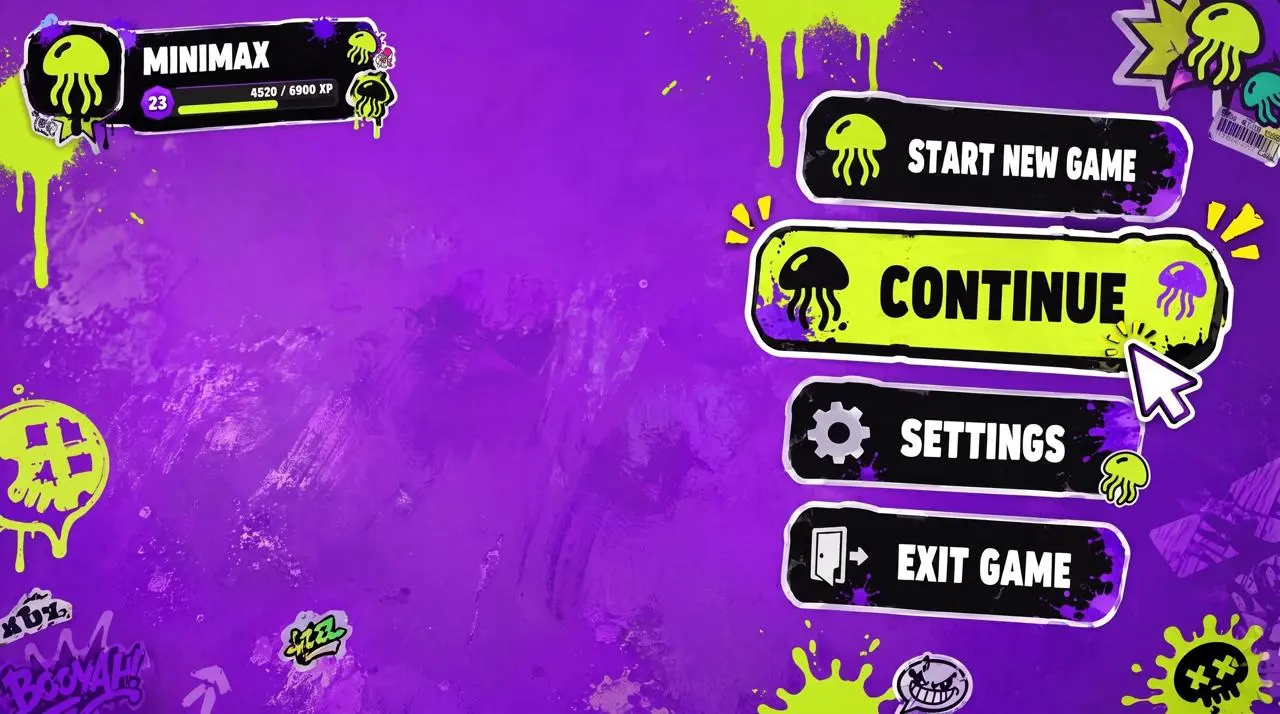
두 이미지가 스타일화된 캐릭터와 게임 메뉴를 제공합니다. 시간별 프롬프트는 장비 교체, 패널과 사이버펑크 거리로의 전환을 지시합니다. 진행 순서와 생성된 UI 글자를 확인하세요.
Character reference image 1, UI style reference image 2. [0 seconds - 2 seconds] High-angle overhead shot. The character sits on a highly saturated bright purple ground, as shown in image 1, looking up at the camera. The game menu UI is displayed on the right: Start New Game, Continue Game (highlighted), Settings, Exit Game. The player profile MINIMAX is displayed in the upper left corner. Click "Continue Game". [2 seconds - 4 seconds] Smoothly zoom to her right arm. The UI panel slides in from the right, and the "Right Arm EQUIPMENT" panel appears. Select the highlighted "Phantom Grap", then slide to "Chronos Claw". Her right hand mechanically reconfigures, fingers spread, new claw-like knuckles lock in place, and the cyan LED lights flash brighter. [4 seconds - 7 seconds] The camera smoothly moves to her left side. The new UI slides into the "ARMAMENT CUSTOMIZATION" grid, displaying the hand, forearm, elbow, and upper arm components. Selections quickly cycle through the components. Her left arm is disassembled piece by piece: the forearm plate detaches, new armor slides in, the elbow joint is replaced, and the hand is reconfigured, revealing exposed wiring and pistons during the replacement process. [7-8.5 seconds] The camera pulls back to a medium shot. The CONFIRM CONFIG button flashes. Click it. All UI panels shrink inward and disappear. The character's legs loosen, she adjusts her posture, and now sits relaxed, one knee raised, her prosthetic hand naturally raised, displaying a slight post-configuration movement. [8.5-10 seconds] A loading bar appears at the bottom. It quickly fills from 0% to 100%. The highly saturated bright purple environment begins to darken, shadows spread from the edges, and a warm golden light seeps in. [10-15 seconds] As she stands up, the complete environment loads around her. A dense cyberpunk slum appears, neon lights flashing, damp streets reflecting light, crowds surging, motorcycles weaving, and a tangled web of wires. Stacked buildings stretch towards futuristic skyscrapers in the distance. The camera stabilizes in a third-person perspective, positioned behind her, showing her back. HUD elements fade in, displaying a minimap in the upper right corner and a health and ammo counter in the lower left. A mission marker appears. She steps into the street.
MiniMax H3는 텍스트·이미지·영상·오디오 맥락을 결합해 영상을 만들고 변형합니다. MiniMax는 동작 전이, 여러 샷 생성과 네이티브 스테레오를 소개합니다. 움직이는 포스터, 제품 시연, 패션과 게임형 장면에 활용할 수 있습니다. 이 페이지에는 프레임 및 참조 방식이 있습니다.
참조마다 역할 지정
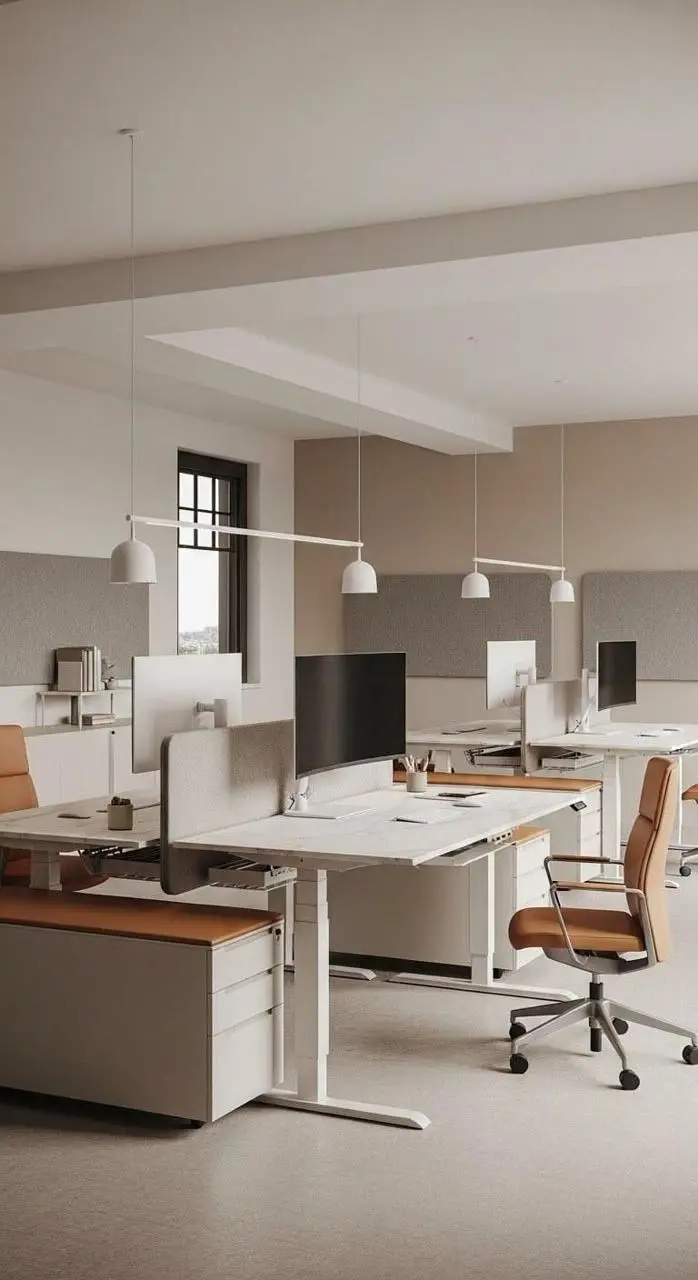
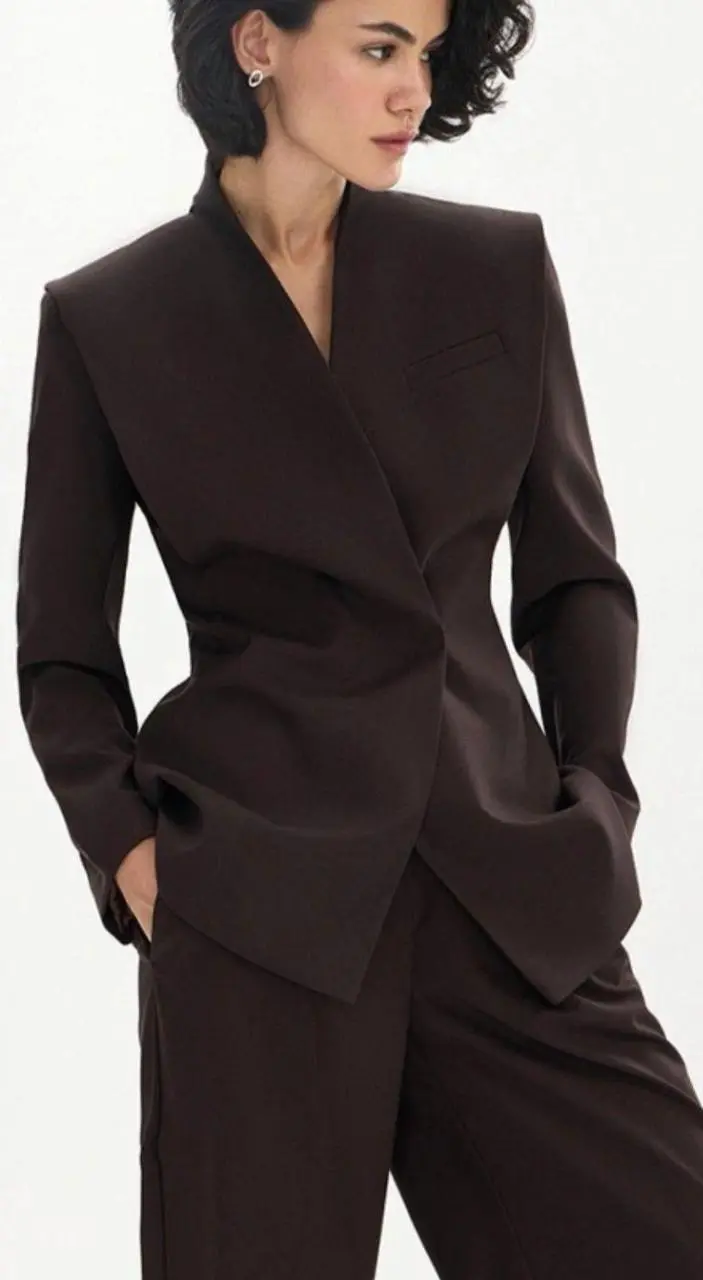
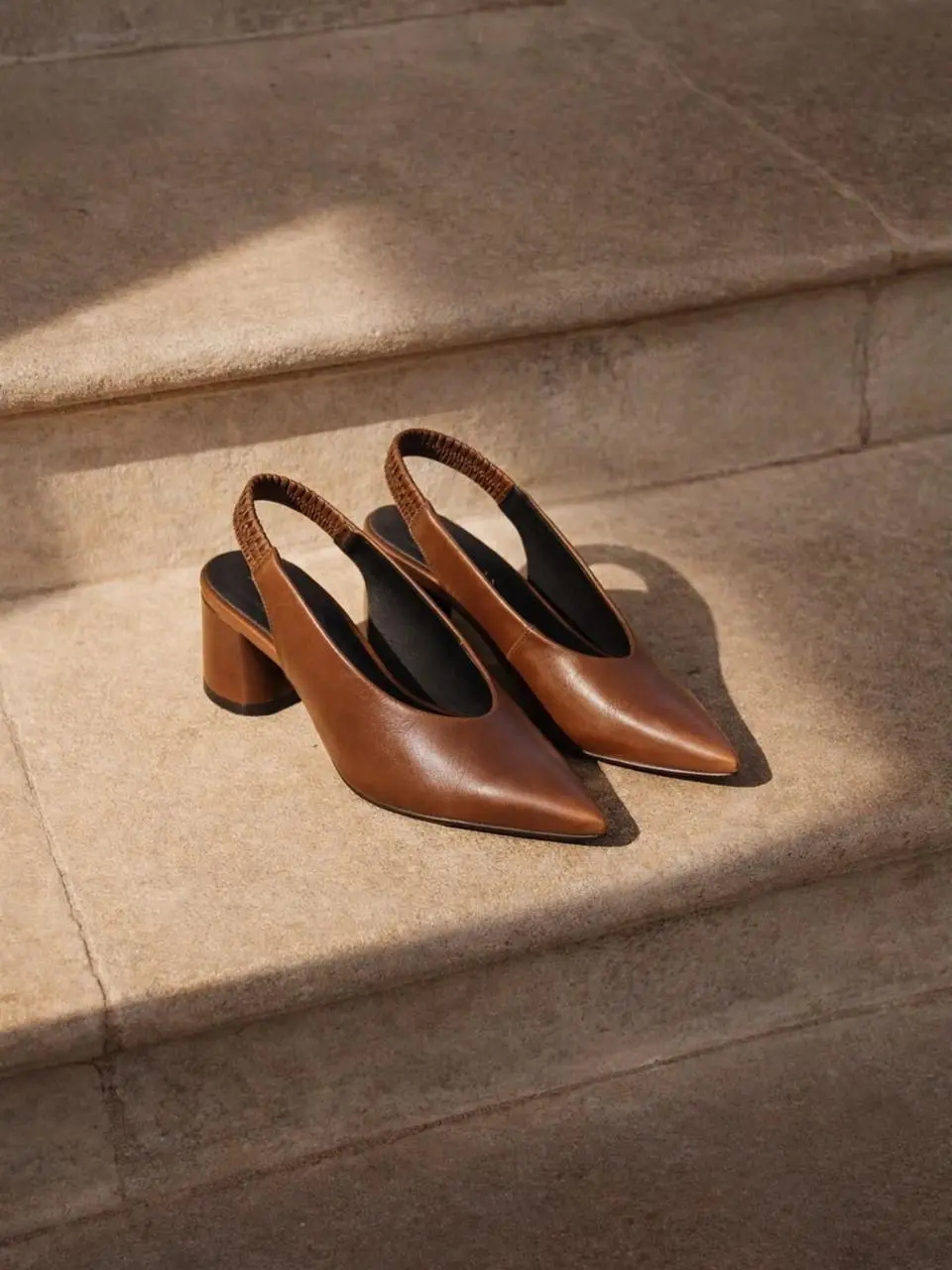
각 입력이 인물, 의상, 제품, 배경 중 무엇을 제공하는지 설명하세요. 패션 사례는 사무실, 인물, 정장과 구두를 결합합니다.
여러 샷의 순서 지시
동작과 장면 변화를 순서대로 설명하세요. 도시 댄스는 명소를 바꾸고 캐릭터 사례는 설정 화면에서 거리로 이동합니다. 전체 영상의 연속성과 시간을 확인하세요.
네이티브 스테레오 사운드
MiniMax H3는 영상과 함께 소리를 생성합니다. 도시와 포스터 프롬프트처럼 분위기, 음악이나 효과음을 설명하고 완성된 음성과 타이밍을 확인하세요.
제작 방식
시작 입력 선택하기
시작 이미지와 선택적인 마지막 이미지에는 MiniMax H3 Image to Video를 선택하세요. 텍스트로 시작하거나 이미지·영상·오디오를 참조하려면 MiniMax H3 Reference를 선택합니다. Model 메뉴에서 두 표준 H3 방식을 전환할 수 있습니다.
시작 이미지 움직이기
피사체와 장면을 정하는 프레임을 업로드하세요. 이어지는 동작, 환경의 움직임 또는 카메라 연출을 설명하세요.
시작·끝 프레임 지정하기
두 이미지를 제공하고 구도를 연결하는 동작이나 전환을 설명하세요. 이 모드에서 제공하는 길이를 선택하세요.
참조로 장면 연출
MiniMax H3 Reference에서 미디어를 추가하고 각 입력이 외형, 동작, 배경, 소리 중 무엇을 제공하는지 설명하세요. Adaptive 또는 표시되는 비율과 길이를 선택합니다. 영상 참조에는 Adaptive가 적용됩니다.
프롬프트 가이드
MiniMax H3 프롬프트 작성 방법
각 사례의 전체 원본 프롬프트를 입력과 결과와 함께 읽어보세요. 디자인 제약, 참조 역할, 피사체와 카메라 움직임을 설명하는 예시입니다. 자신의 소재에 맞게 지시를 바꾸세요.
유지할 디자인 요소 지정
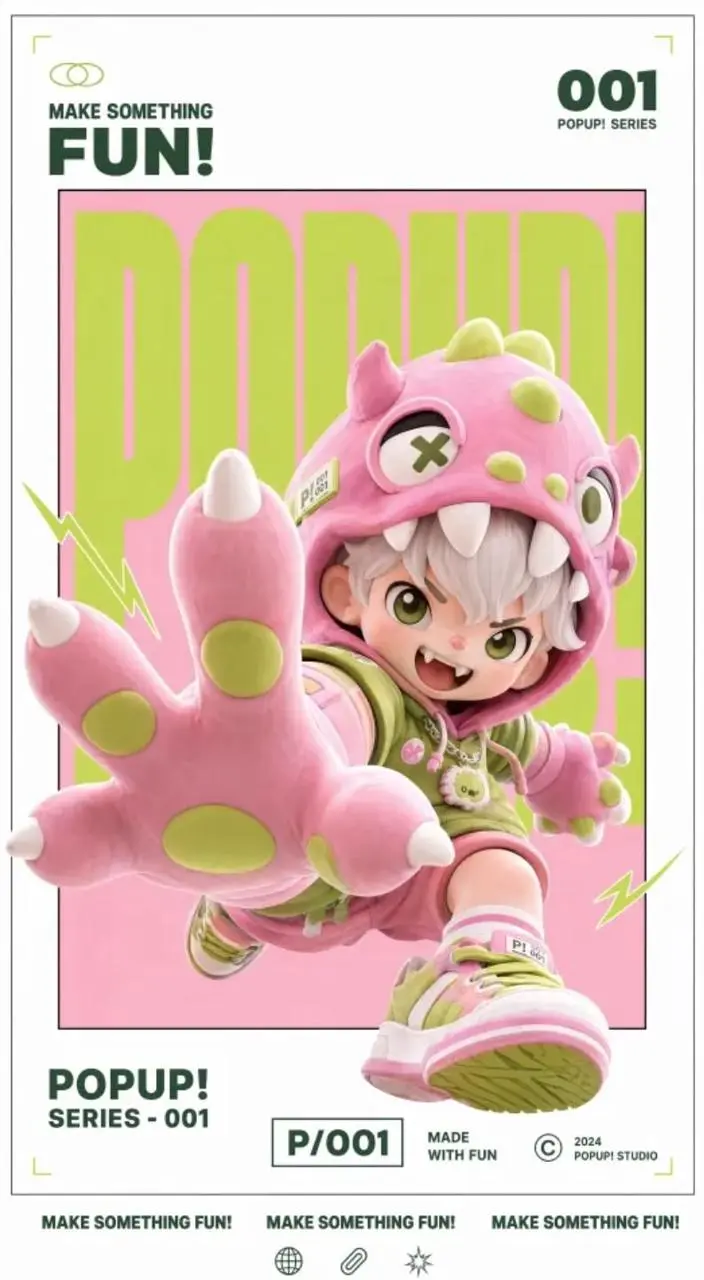
프롬프트는 테두리, 배치와 캐릭터를 지정하고 애니메이션과 소리를 요청합니다. 연녹색 참조와 빨간 결과를 비교하면 배치는 알아볼 수 있지만 색상이 변합니다. 색과 글자를 확인하세요.
Create a dynamic poster video that retains the original image's gallery white frame, inner frame, red, white and black color scheme, 3D figure feel and layout structure, and adds a lively sound effect when the text appears.
제품 정보와 외형 구분
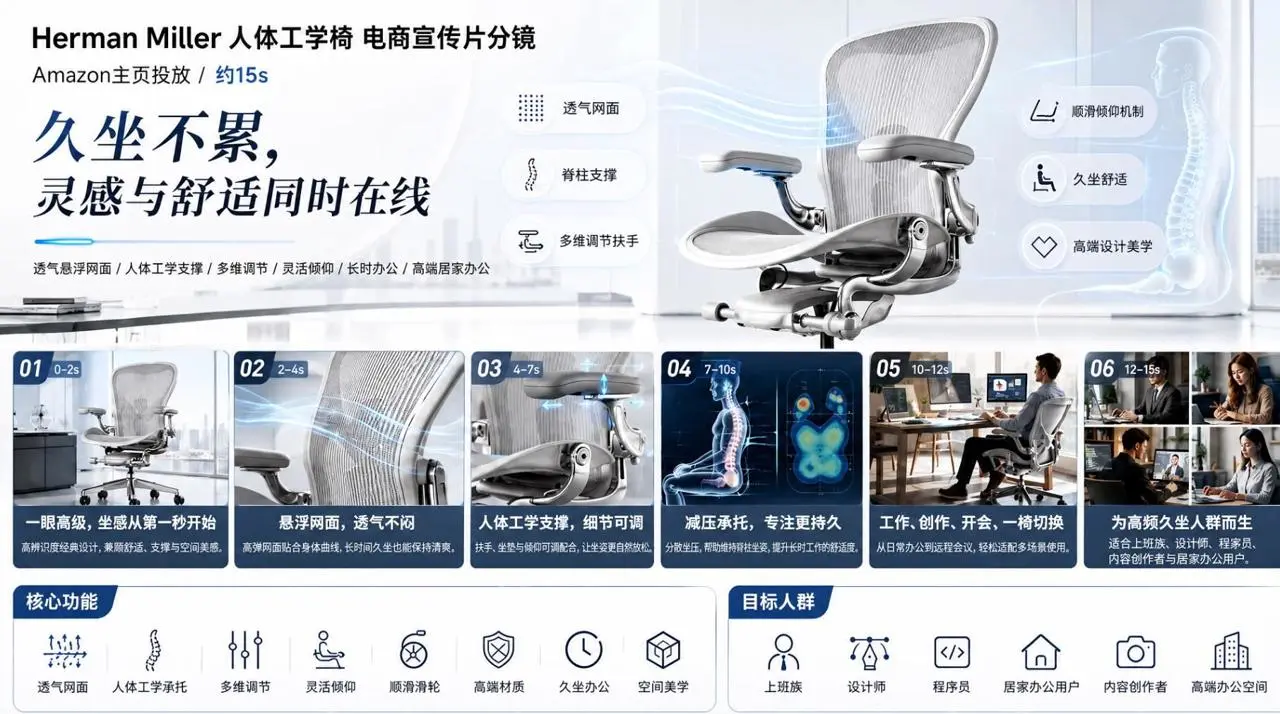
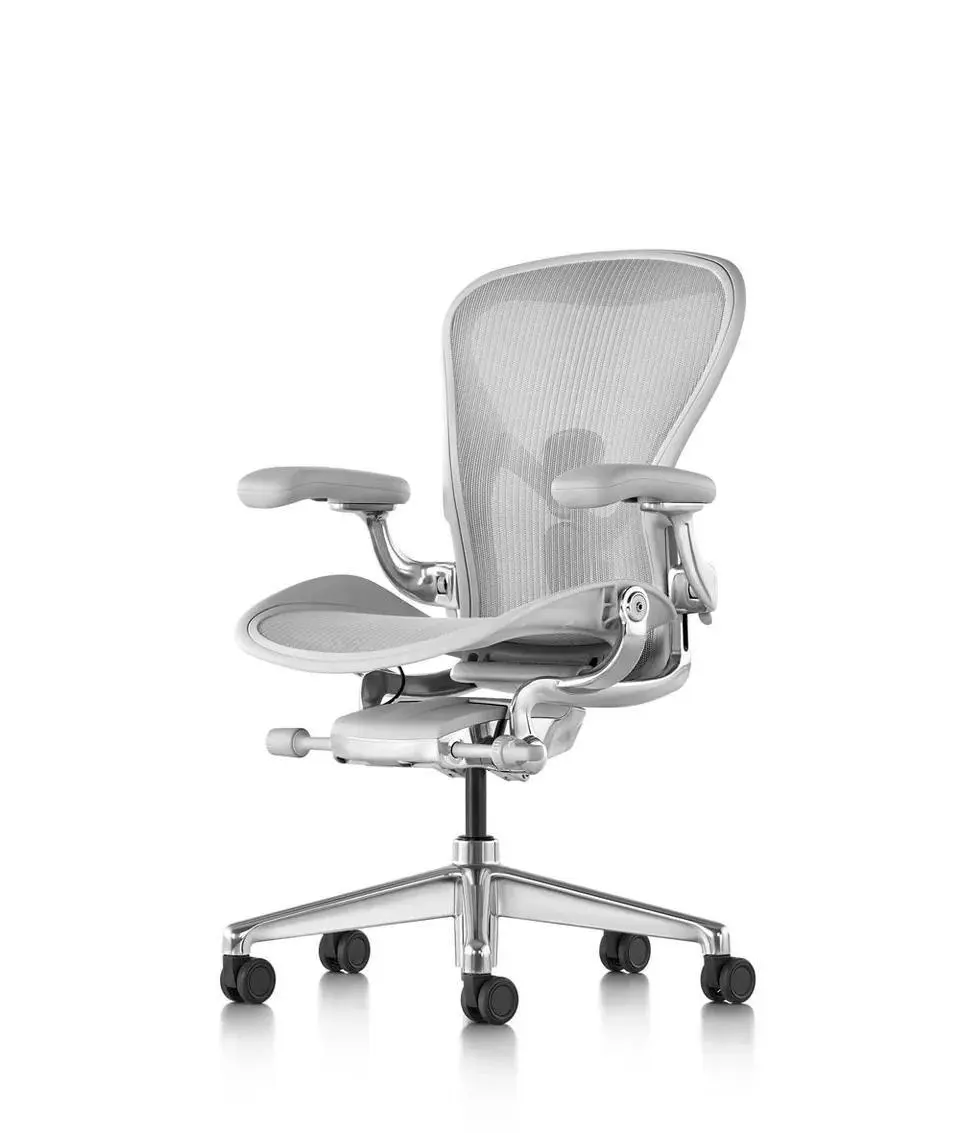
첫 참조는 제품 정보표, 두 번째는 의자 이미지입니다. 프롬프트는 역할을 나누고 세부 장면, 조절 시연과 마지막 문구를 요청합니다. 결과에는 어두운 의자, 공기 흐름과 척추 도식이 나옵니다. 제품과 글자를 확인하세요.
360-degree display of Herman Miller black ergonomic chair for high-end offices. Breathable mesh back for close-up visualization of air flow. Lumbar support + ergonomic curve engineering animation. Multi-dimensional armrest/seat height adjustment demonstration. Designers/programmers/creatives work in scenarios where they work for a long time, and their posture can be relaxed and comfortable. 3D skeletal support diagram to prevent fatigue from sitting for long periods of time. Spatial aesthetics interior display. At the end, the words "Inspiration and comfort are online at the same time" appear. High-end simplicity, cool colors, professional futuristic feel, and slow-paced camera movement. Please refer to Figure 1 for product details and Figure 2 for product images.
피사체와 카메라 동작 구분
두루미는 고개를 돌리고 프롬프트는 별도로 넓은 샷에서 중간 샷으로의 카메라 접근을 요청합니다. 안개, 물결과 음악 없는 자연음도 지정합니다. 구도, 새의 동작과 소리를 따로 확인하세요.
15 seconds, 16:9, realistic nature-documentary style.
In a misty wetland at dawn, an adult white crane stands on one leg in shallow water
and slowly turns its head toward the camera.
Soft backlight passes through the mist, and small ripples move across the water.
The camera slowly pushes from an extreme wide shot to a medium shot without cutting.
Use only wind, water, and distant bird calls. Do not add background music.
모델의 전진 동작 설명
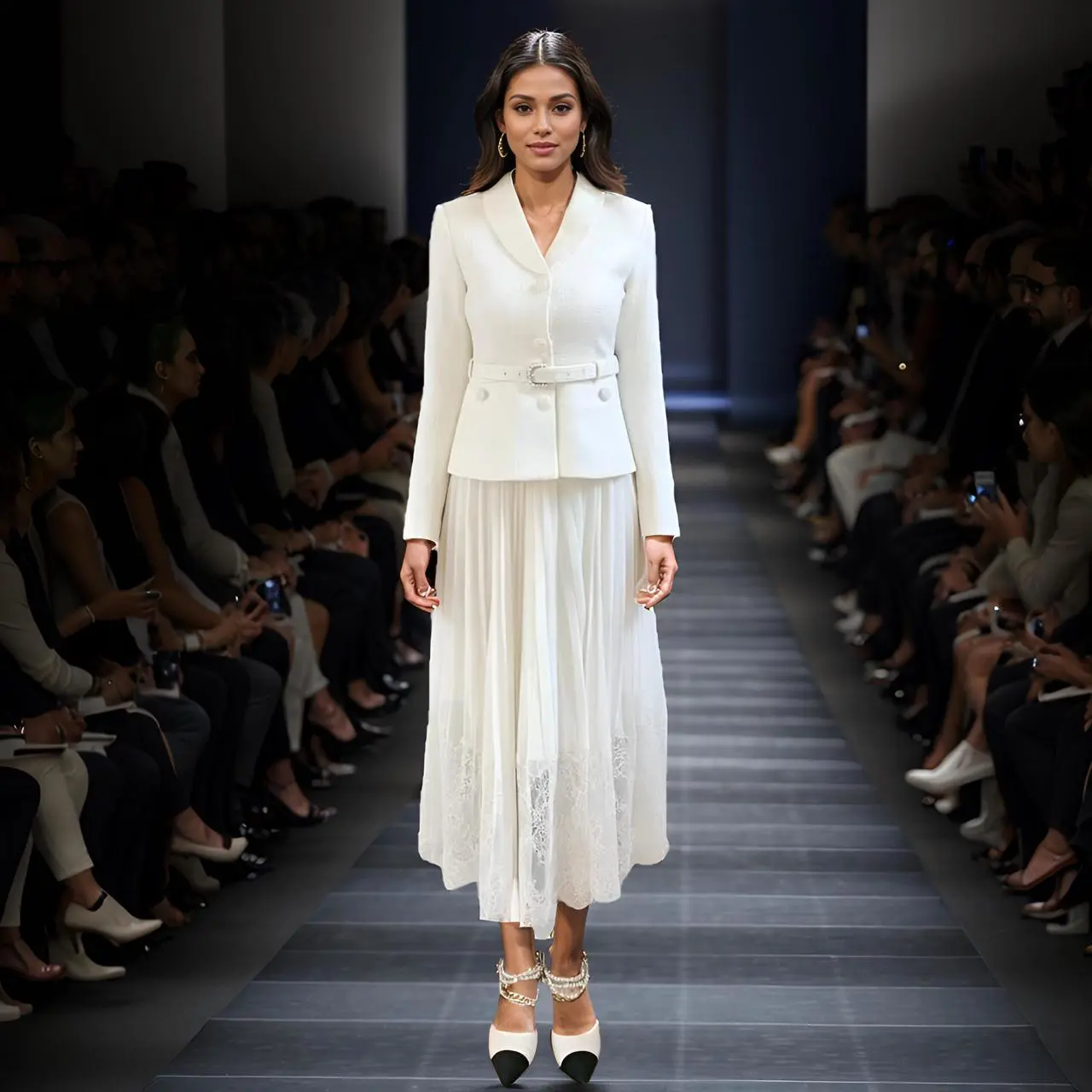
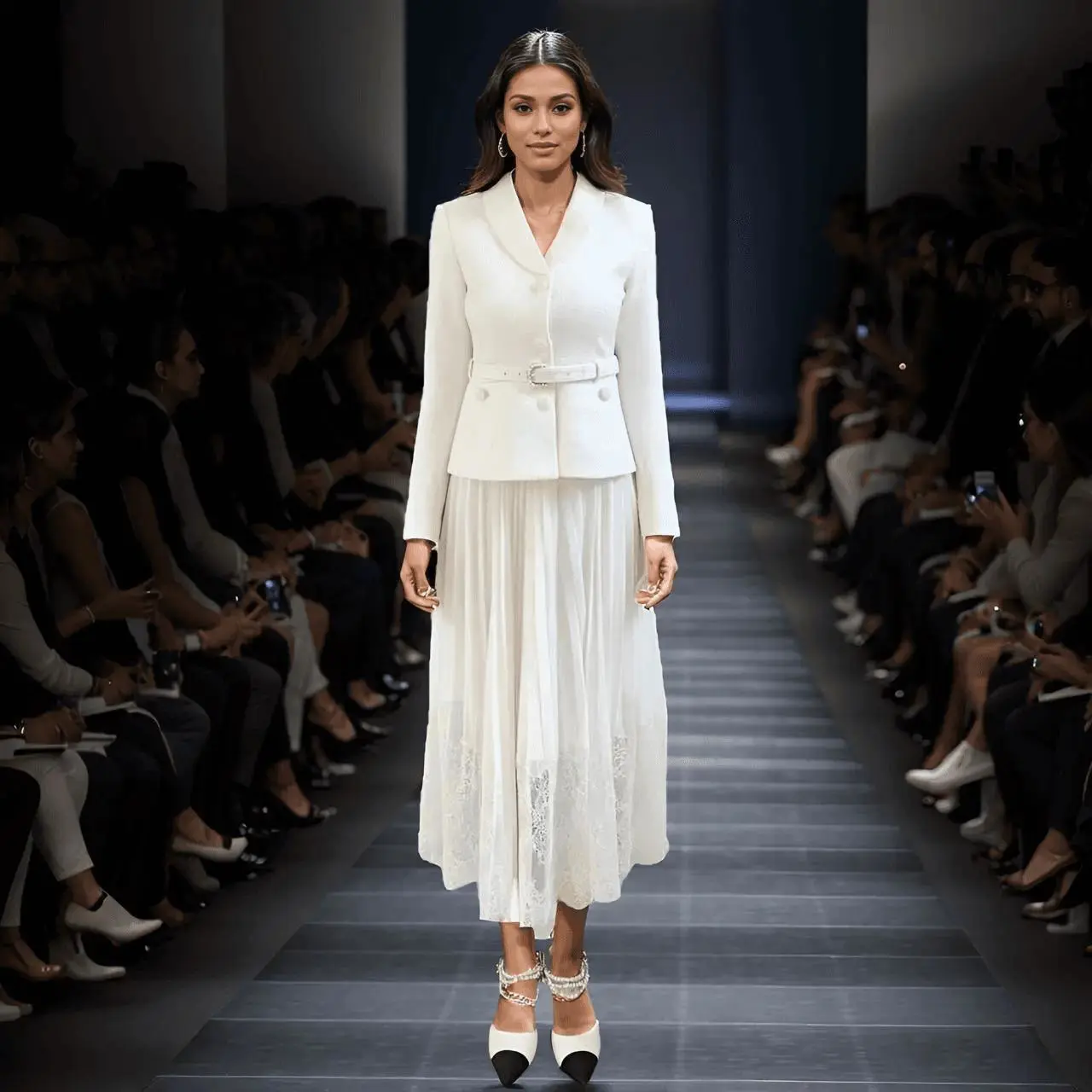
참조는 흰 런웨이 의상을 제공합니다. 프롬프트는 자연스럽게 앞으로 걷기, 잘 보이는 의상, 드러나지 않는 치마 안감을 요청합니다. 움직이는 밑단을 포함해 의상 전체를 확인하세요.
Generate a smooth animation of the model's runway show, moving forward naturally, showing the clothes clearly. The movie has extremely high-quality visuals. There is an inner lining in the skirt hem, and it must not be visible.
사용 방법
MiniMax H3 첫 영상 만들기
이 페이지 위쪽의 생성기를 사용하세요. 입력 방식을 선택하고 요청을 작성한 뒤 생성 전에 확인합니다.
이 모델에 필요한 입력 제공
Image to Video에서 시작 이미지를 올리고 필요하면 마지막 이미지도 추가하세요. 텍스트나 참조를 사용하려면 MiniMax H3 Reference를 선택하고 각 이미지·영상·오디오 역할을 설명합니다.
이용 가능한 설정과 포인트 확인
5~15초와 결과 수를 선택하세요. Reference는 Adaptive, 21:9, 16:9, 4:3, 1:1, 3:4, 9:16을 제공합니다. Generate 전에 포인트와 계정 권한을 확인하세요. 영상 참조는 Adaptive를 사용하므로 추가 후 설정을 다시 확인합니다.
결과 열기 및 확인
얼굴, 옷, 제품, 샷 순서와 마지막 구도를 전체 영상에서 확인하세요. 소리와 타이밍을 듣고, 다운로드한 파일에서 실제 픽셀 크기와 길이를 확인합니다.
MiniMax H3는 MiniMax의 멀티모달 영상 모델입니다. 시작 이미지를 움직이게 하거나 첫 프레임과 마지막 프레임을 연결하고, 이미지·영상·오디오 참조를 결합할 수 있습니다. WeShop의 표준 H3는 5~15초 요청을 제공합니다.
MiniMax H3는 어디에 쓰나요?
MiniMax H3는 텍스트·이미지·영상·오디오 맥락을 결합해 영상을 만들고 변형합니다. MiniMax는 동작 전이, 여러 샷 생성과 네이티브 스테레오를 소개합니다. 움직이는 포스터, 제품 시연, 패션과 게임형 장면에 활용할 수 있습니다. 이 페이지에는 프레임 및 참조 방식이 있습니다.
이 페이지에서 어떤 입력을 쓸 수 있나요?
시작 이미지와 선택적인 마지막 이미지에는 MiniMax H3 Image to Video를 선택하세요. 텍스트로 시작하거나 이미지·영상·오디오를 참조하려면 MiniMax H3 Reference를 선택합니다. Model 메뉴에서 두 표준 H3 방식을 전환할 수 있습니다.
길이·화면 비율·해상도를 선택할 수 있나요?
표준 H3는 5~15초입니다. Reference는 Adaptive, 21:9, 16:9, 4:3, 1:1, 3:4, 9:16을 제공하며 영상 참조에서는 Adaptive를 사용합니다. 별도 해상도 선택기는 없습니다. 다운로드한 파일의 실제 픽셀 크기와 길이를 확인하세요.
MiniMax H3 프롬프트는 어떻게 쓰나요?
피사체와 각 참조의 역할을 지정한 뒤 동작, 배경, 카메라와 소리를 설명하세요. 여러 샷은 순서도 지정합니다. 패션 사례는 네 이미지 역할을 나누고 두루미 사례는 고개 돌리기와 카메라 접근을 구분합니다.
H3와 H3 Lite는 어떻게 고르나요?
5~15초에는 표준 MiniMax H3를 선택하세요. MiniMax H3 Lite는 별도의 5초 방식입니다. 두 모델 모두 프레임 및 참조 모드가 있으므로 원하는 버전의 페이지에서 입력 방식을 선택하세요.
비용은 어떻게 확인하나요?
길이와 수량에 따른 예상 포인트를 확인하고 WeShop Pricing과 계정에서 모델 권한과 잔액을 확인하세요. 요청을 바꾸면 견적도 달라질 수 있습니다.
인물·제품·포스터를 완전히 보존하나요?
참조는 새 영상을 안내합니다. 얼굴, 의상, 제품 형태, 색과 글자는 달라질 수 있습니다. 특히 움직임과 전환을 포함해 전체 결과를 원본과 비교하세요.
이미지를 올리지 않고 생성할 수 있나요?
MiniMax H3 Reference에서는 텍스트로 시작할 수 있으며 참조 업로드는 선택 사항입니다. 두루미 사례는 텍스트만 사용합니다. Image to Video는 시작 이미지가 필요합니다.
소리를 지시할 수 있나요?
대사, 분위기, 효과음이나 음악을 프롬프트에 적으세요. H3는 네이티브 스테레오 음성·영상 생성을 지원합니다. 사용 전에 단어, 타이밍과 음향 균형을 확인하세요.