モデルビデオモデルMiniMax H3 AI動画生成
MINIMAX H3の動画モデル

MiniMax H3 AI動画生成

MiniMax H3はMiniMaxのマルチモーダル動画モデルです。開始画像を動かす、最初と最後のフレームをつなぐ、画像・動画・音声の参照を組み合わせるといった使い方ができます。WeShopの標準H3は5~15秒を指定できます。

MiniMax_H3_I2V
MINIMAX H3の作例

MiniMax H3の動画作例

都市を巡るダンス、ゲーム風のキャラクター設定、4枚の参照を使うファッション広告をご覧ください。入力画像、完全な元プロンプト、生成動画を比較できます。

参照画像 1

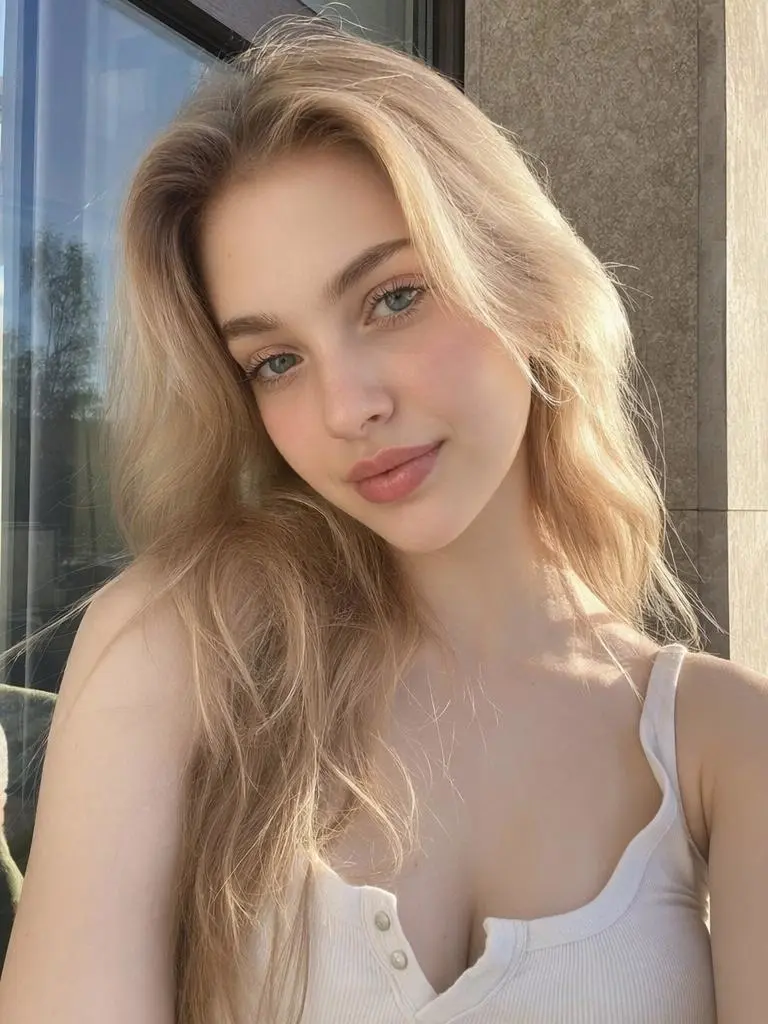
6つの都市ショットに同じキャラクターを配置する

プロンプトは黄色のドレス、ポニーテール、6都市を指定しています。入力の人物写真は別の髪型と服装ですが、動画は指定の装いで名所を巡ります。外見と各シーンのタイミングを比べてください。

subject_definitions: <Subject 1> is the young woman in <Picture 1>, with a dark ponytail and a yellow sundress. integrated_multimodal_description: [Shot 1] <Subject 1> dances with Rome in the background. [Shot 2] At 00:01.000, the shot changes to Paris. [Shot 3] At 00:02.000, the shot changes to London. [Shot 4] At 00:03.000, the shot changes to New York. [Shot 5] At 00:04.000, the shot changes to Tokyo. [Shot 6] At 00:05.000, the shot changes to Berlin. overall_soundscape: Light city ambience remains underneath the dance performance. non_diegetic_music: An upbeat instrumental dance rhythm without vocals.
このプロンプトを使用する
参照画像 1
参照画像 2

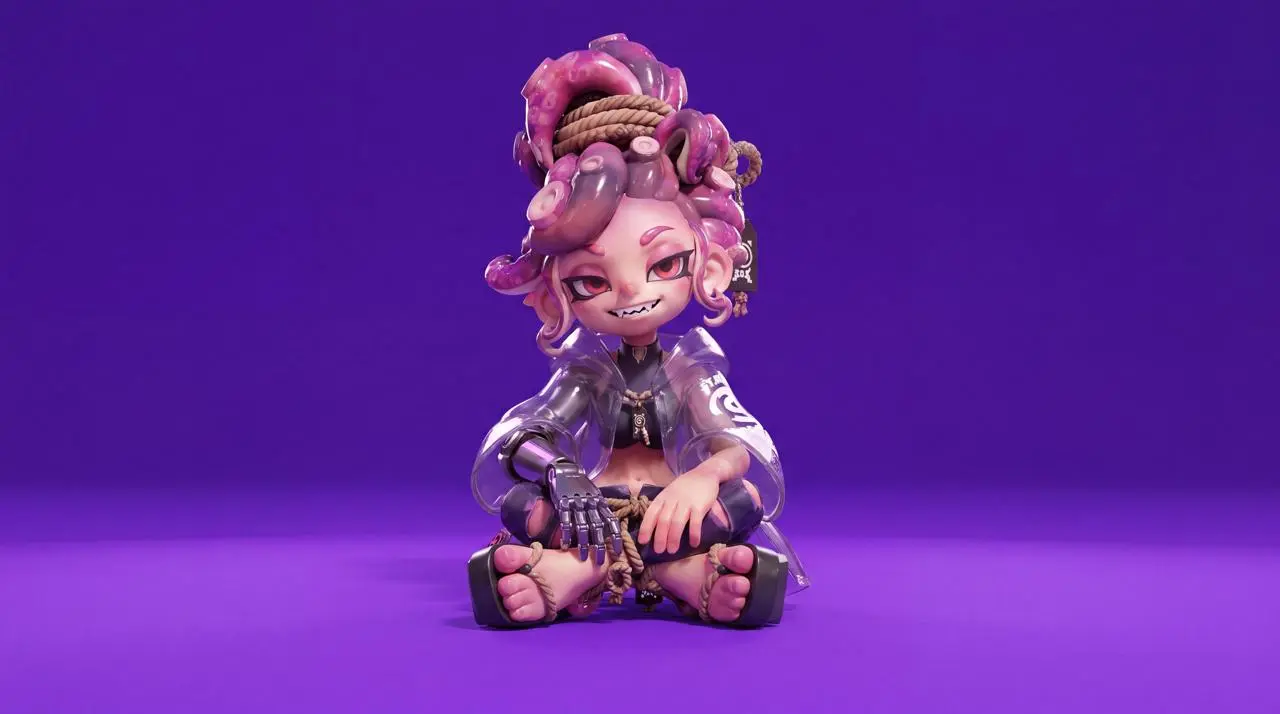
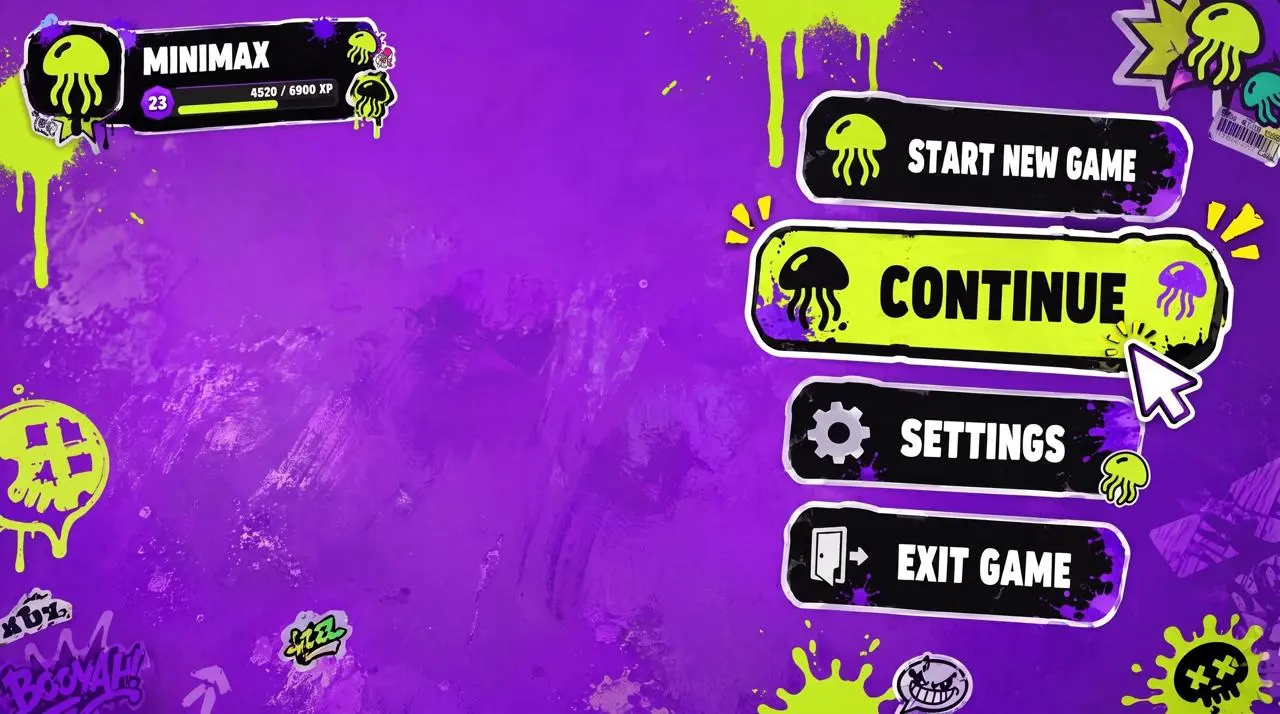
キャラクターと画面の参照シーケンス

2枚の画像がキャラクターとゲームメニューを指定します。時間別のプロンプトは装備変更、パネル、サイバーパンクの街への移行を指示しています。流れと生成されたUI文字を確認してください。

Character reference image 1, UI style reference image 2. [0 seconds - 2 seconds] High-angle overhead shot. The character sits on a highly saturated bright purple ground, as shown in image 1, looking up at the camera. The game menu UI is displayed on the right: Start New Game, Continue Game (highlighted), Settings, Exit Game. The player profile MINIMAX is displayed in the upper left corner. Click "Continue Game". [2 seconds - 4 seconds] Smoothly zoom to her right arm. The UI panel slides in from the right, and the "Right Arm EQUIPMENT" panel appears. Select the highlighted "Phantom Grap", then slide to "Chronos Claw". Her right hand mechanically reconfigures, fingers spread, new claw-like knuckles lock in place, and the cyan LED lights flash brighter. [4 seconds - 7 seconds] The camera smoothly moves to her left side. The new UI slides into the "ARMAMENT CUSTOMIZATION" grid, displaying the hand, forearm, elbow, and upper arm components. Selections quickly cycle through the components. Her left arm is disassembled piece by piece: the forearm plate detaches, new armor slides in, the elbow joint is replaced, and the hand is reconfigured, revealing exposed wiring and pistons during the replacement process. [7-8.5 seconds] The camera pulls back to a medium shot. The CONFIRM CONFIG button flashes. Click it. All UI panels shrink inward and disappear. The character's legs loosen, she adjusts her posture, and now sits relaxed, one knee raised, her prosthetic hand naturally raised, displaying a slight post-configuration movement. [8.5-10 seconds] A loading bar appears at the bottom. It quickly fills from 0% to 100%. The highly saturated bright purple environment begins to darken, shadows spread from the edges, and a warm golden light seeps in. [10-15 seconds] As she stands up, the complete environment loads around her. A dense cyberpunk slum appears, neon lights flashing, damp streets reflecting light, crowds surging, motorcycles weaving, and a tangled web of wires. Stacked buildings stretch towards futuristic skyscrapers in the distance. The camera stabilizes in a third-person perspective, positioned behind her, showing her back. HUD elements fade in, displaying a minimap in the upper right corner and a health and ammo counter in the lower left. A mission marker appears. She steps into the street.
このプロンプトを使用する
参照画像 1
参照画像 2
参照画像 3
参照画像4

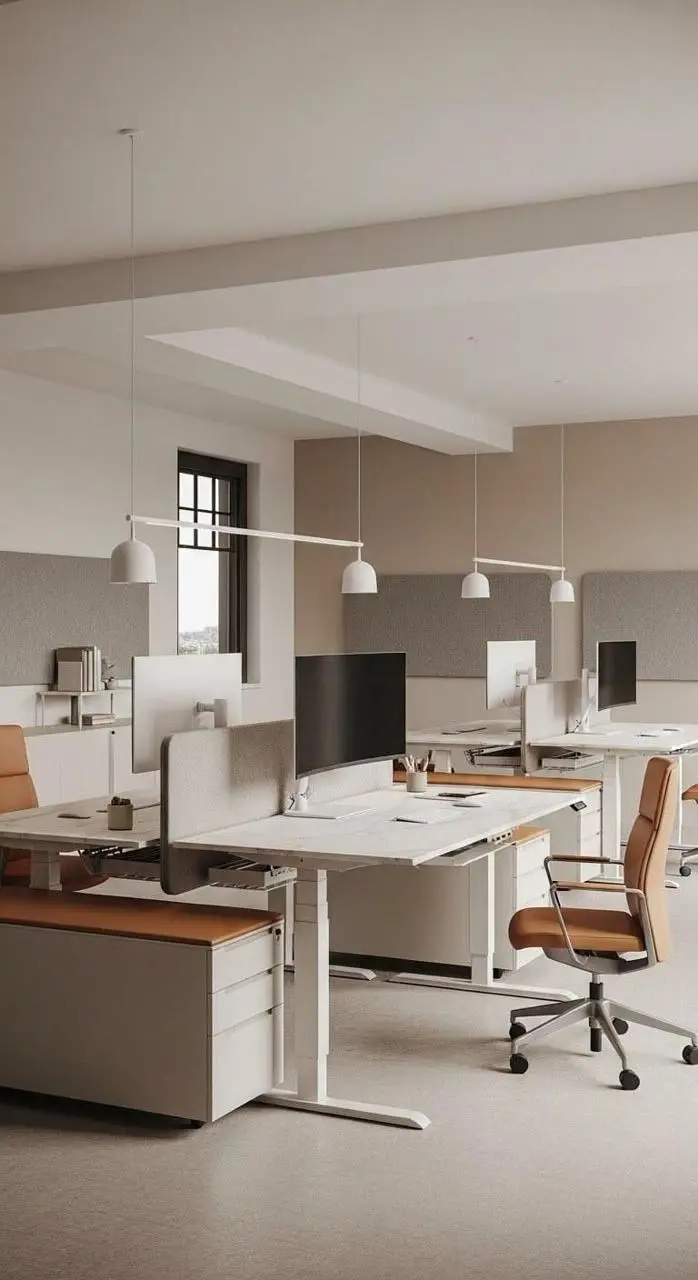
4枚の参照によるファッションキャンペーン

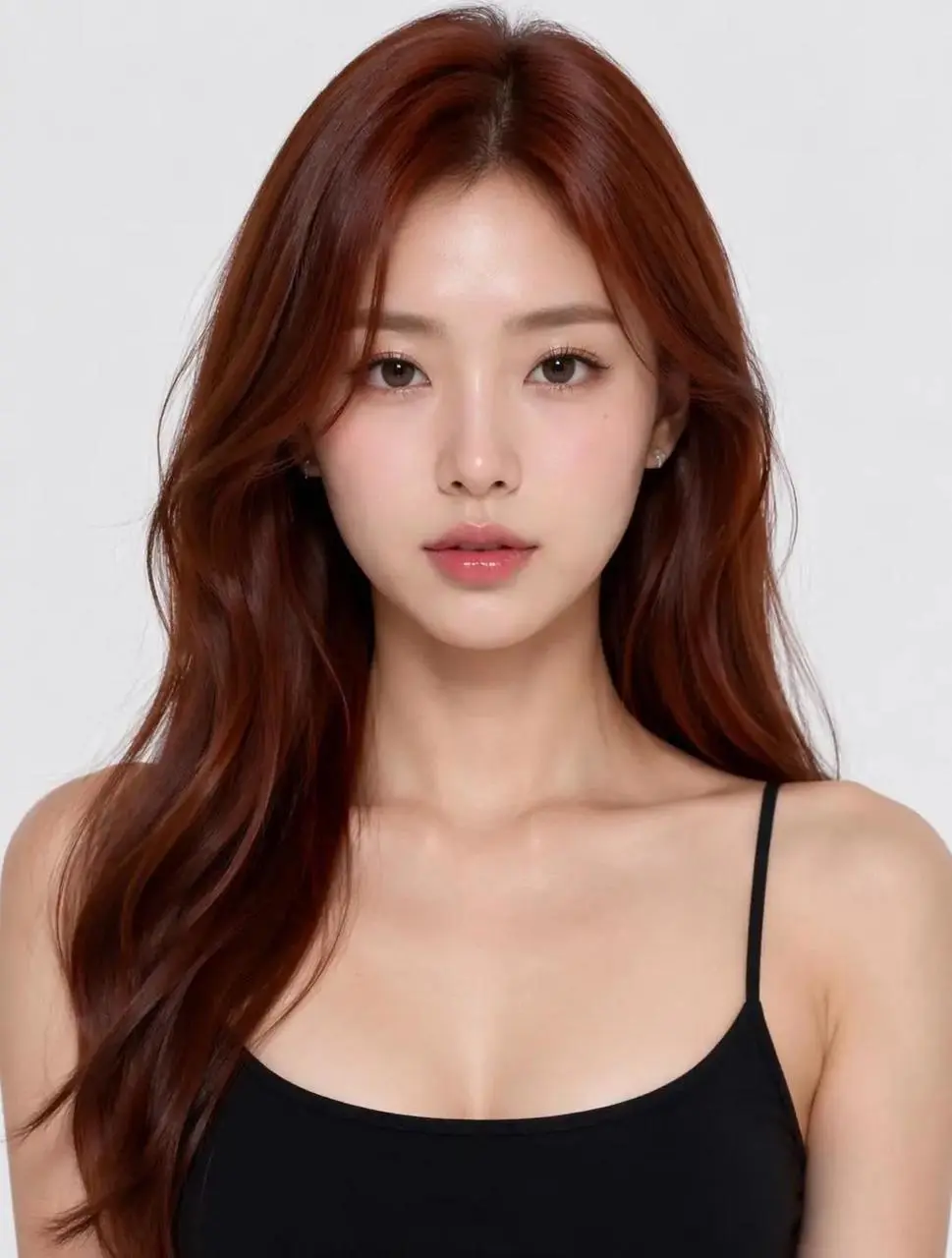
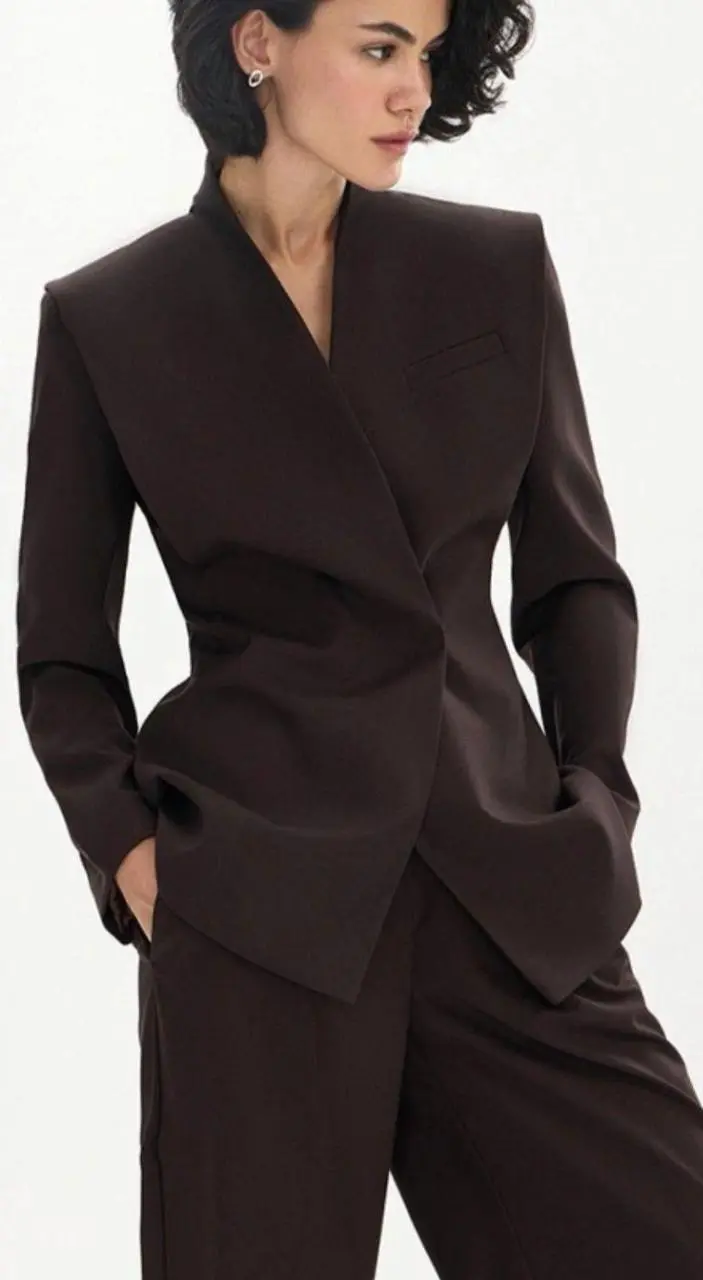
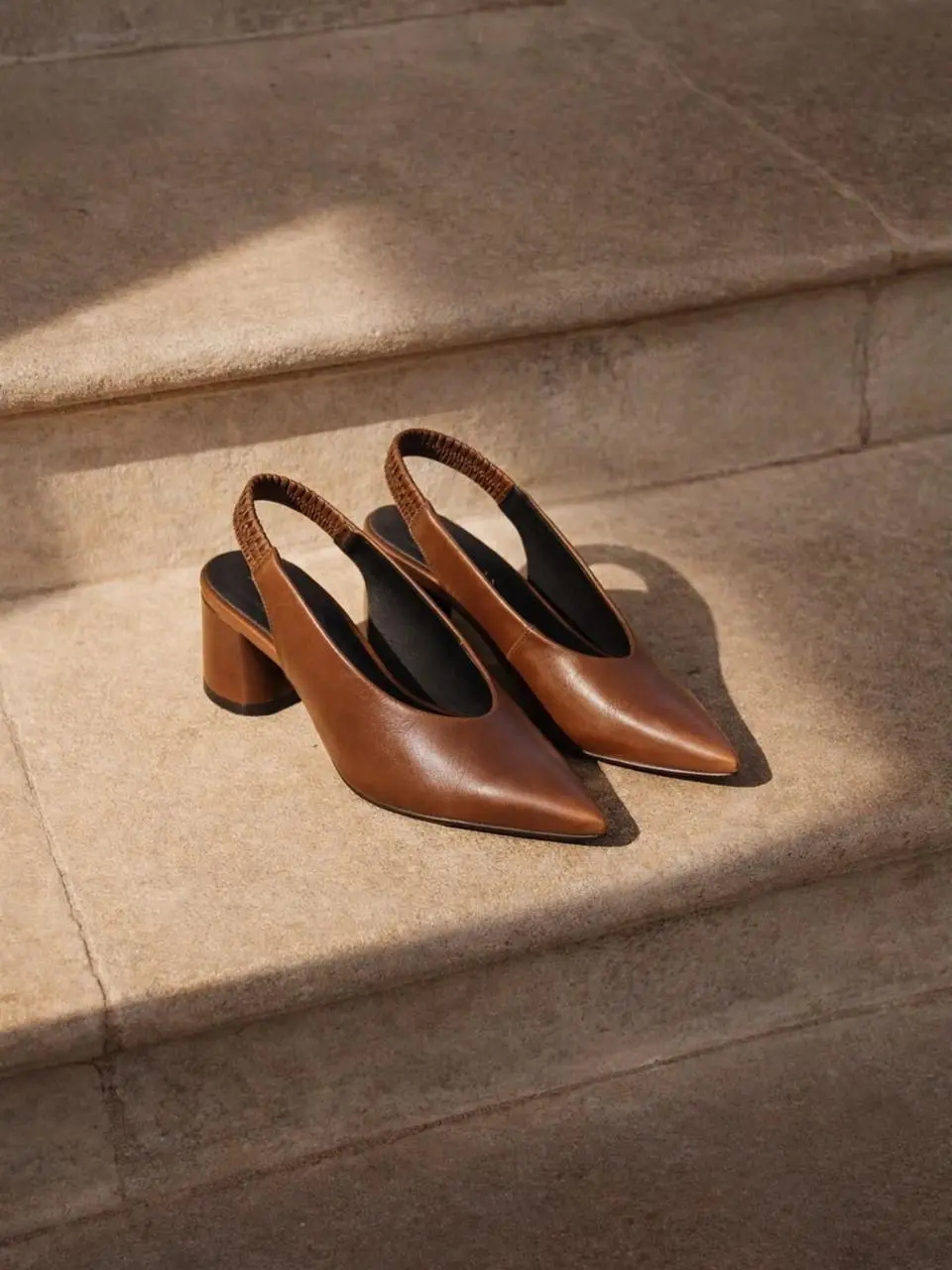
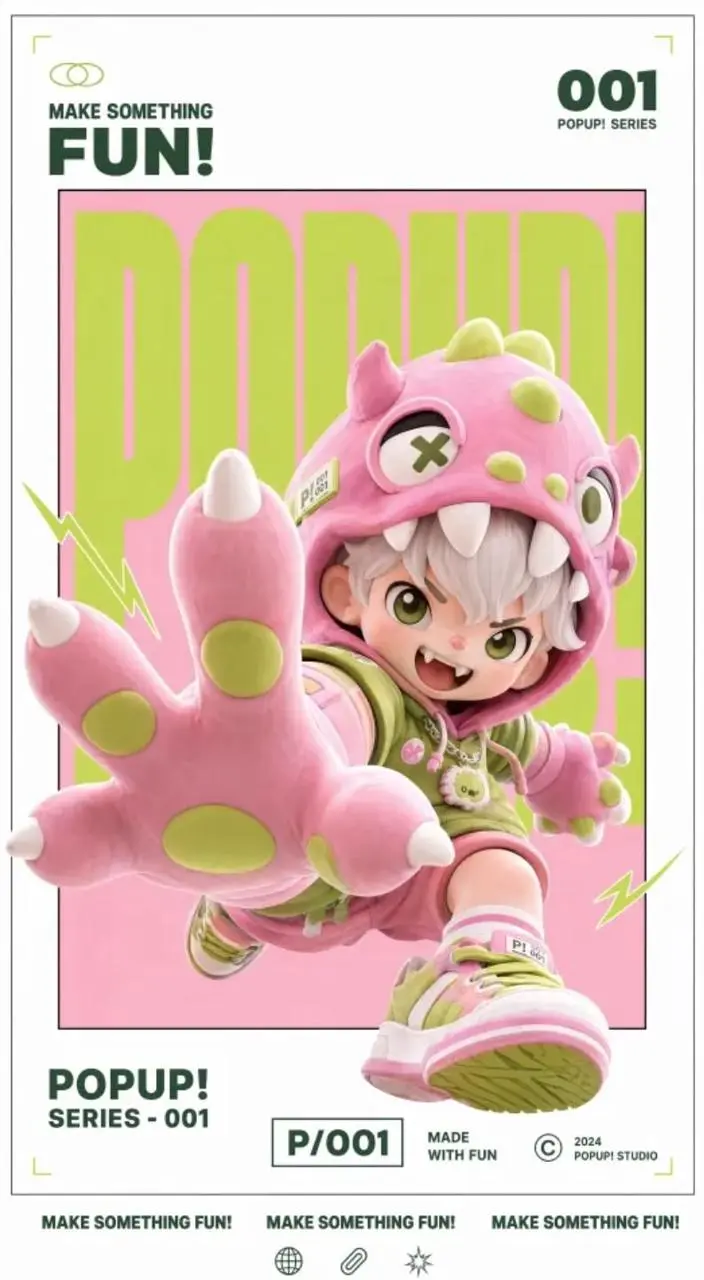
4枚の画像がオフィス、人物、スーツ、靴を別々に指定します。結果は黒いスーツの人物、室内、靴の接写を組み合わせています。シーンが変わる間の衣服や商品を確認してください。

The model in Figure 2 is wearing the suit in Figure 3 and the shoes in Figure 4, shooting an advertising campaign in the scene in Figure 1.
このプロンプトを使用する
MINIMAX H3とは

MiniMax H3とは?どんな用途に使える?

MiniMax H3はテキスト・画像・動画・音声の文脈を組み合わせて動画を作成、変換します。MiniMaxは動作転写、複数ショット、ネイティブステレオ音声を紹介しています。動くポスター、商品デモ、ファッション、ゲーム風のシーンに利用できます。本ページはフレームと参照の方式に対応します。

参照ごとに役割を分ける

各入力が人物、衣服、商品、背景のどれを提供するか説明します。ファッション例はオフィス、人物、スーツ、靴を組み合わせています。

複数ショットの順序を指定

動作と場面転換を順番に説明します。都市のダンスは名所を切り替え、キャラクター例は設定画面から街に移ります。全編の連続性とタイミングを確認してください。

ネイティブステレオ音声

MiniMax H3は動画と一緒に音を生成できます。都市やポスターのプロンプトのように環境音、音楽、効果音を説明し、完成後に音声とタイミングを確認してください。

制作モード

開始に使う入力を選ぶ

開始画像と任意の終了画像にはMiniMax H3 Image to Videoを選びます。テキストから始める場合や画像・動画・音声の参照を使う場合はMiniMax H3 Referenceを選びます。Modelメニューでこの2つの標準H3方式を切り替えられます。

開始画像を動かす

被写体とシーンを示すフレームをアップロードし、その後の動作、環境の動き、カメラ演出を説明します。

開始・終了フレームを指定する

2枚の画像を用意し、その構図をつなぐ動作や変化を説明します。このモードで提供されている長さを選んでください。

参照で場面を指定する

MiniMax H3 Referenceを選んで参照メディアを追加します。外見、動作、背景、音のどれを指定するか説明し、Adaptiveまたは表示された縦横比と秒数を選びます。動画参照はAdaptiveになります。

プロンプトガイド

MiniMax H3のプロンプトはどう書く?

各例の完全な元プロンプトを入力と結果と一緒に読んでください。デザイン上の制約、参照の役割、被写体とカメラの動きの書き分けを紹介しています。自分の素材に合わせて調整してください。

参照画像 1

残したいデザイン要素を指定

プロンプトは枠、配置、キャラクターを挙げ、動きと音を要求しています。薄緑の参照と赤い結果を比べると、配置は分かるものの配色が変わっています。色と文字を確認してください。

Create a dynamic poster video that retains the original image's gallery white frame, inner frame, red, white and black color scheme, 3D figure feel and layout structure, and adds a lively sound effect when the text appears.
参照画像 1
参照画像 2

商品情報と外観を分ける

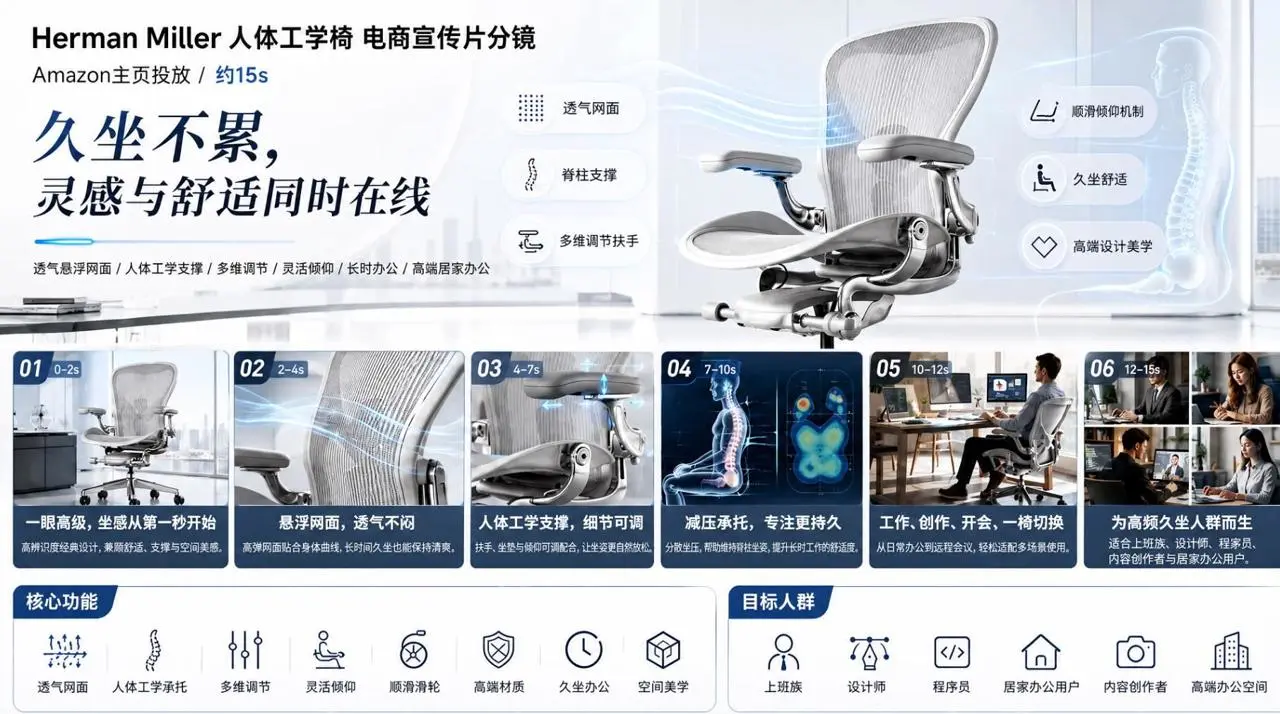
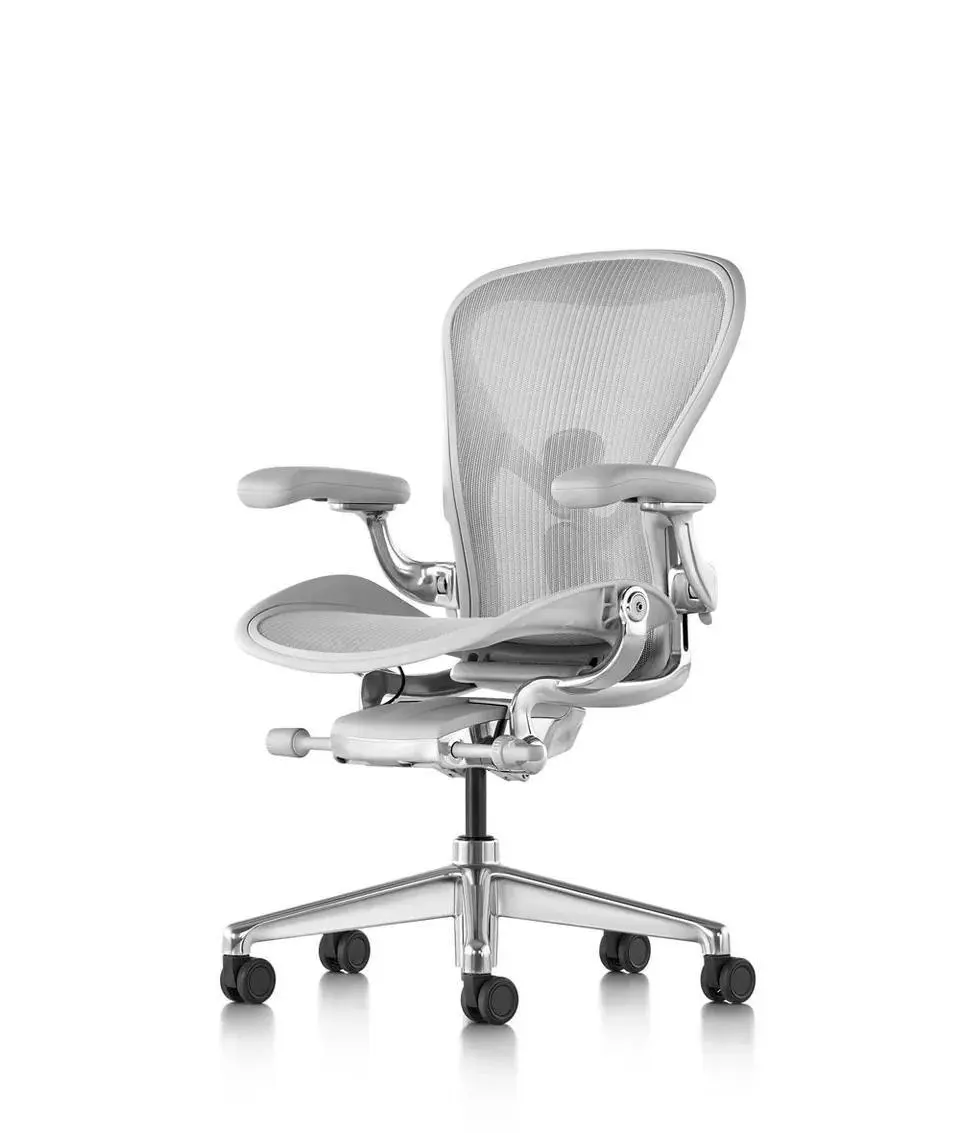
1枚目は商品説明図、2枚目は椅子の画像です。プロンプトは役割を分け、細部、調節動作、最後の文を求めます。動画には暗色の椅子、気流、背骨の図が登場します。商品と文字を確認してください。

360-degree display of Herman Miller black ergonomic chair for high-end offices. Breathable mesh back for close-up visualization of air flow. Lumbar support + ergonomic curve engineering animation. Multi-dimensional armrest/seat height adjustment demonstration. Designers/programmers/creatives work in scenarios where they work for a long time, and their posture can be relaxed and comfortable. 3D skeletal support diagram to prevent fatigue from sitting for long periods of time. Spatial aesthetics interior display. At the end, the words "Inspiration and comfort are online at the same time" appear. High-end simplicity, cool colors, professional futuristic feel, and slow-paced camera movement. Please refer to Figure 1 for product details and Figure 2 for product images.

被写体とカメラの動きを分ける

ツルは頭を回し、プロンプトは別に遠景から中景へのカメラの接近を求めています。霧、水面、音楽のない自然音も指定しています。画角、鳥の動作、音を分けて確認してください。

15 seconds, 16:9, realistic nature-documentary style. In a misty wetland at dawn, an adult white crane stands on one leg in shallow water and slowly turns its head toward the camera. Soft backlight passes through the mist, and small ripples move across the water. The camera slowly pushes from an extreme wide shot to a medium shot without cutting. Use only wind, water, and distant bird calls. Do not add background music.
参照画像 1

モデルの前進を説明

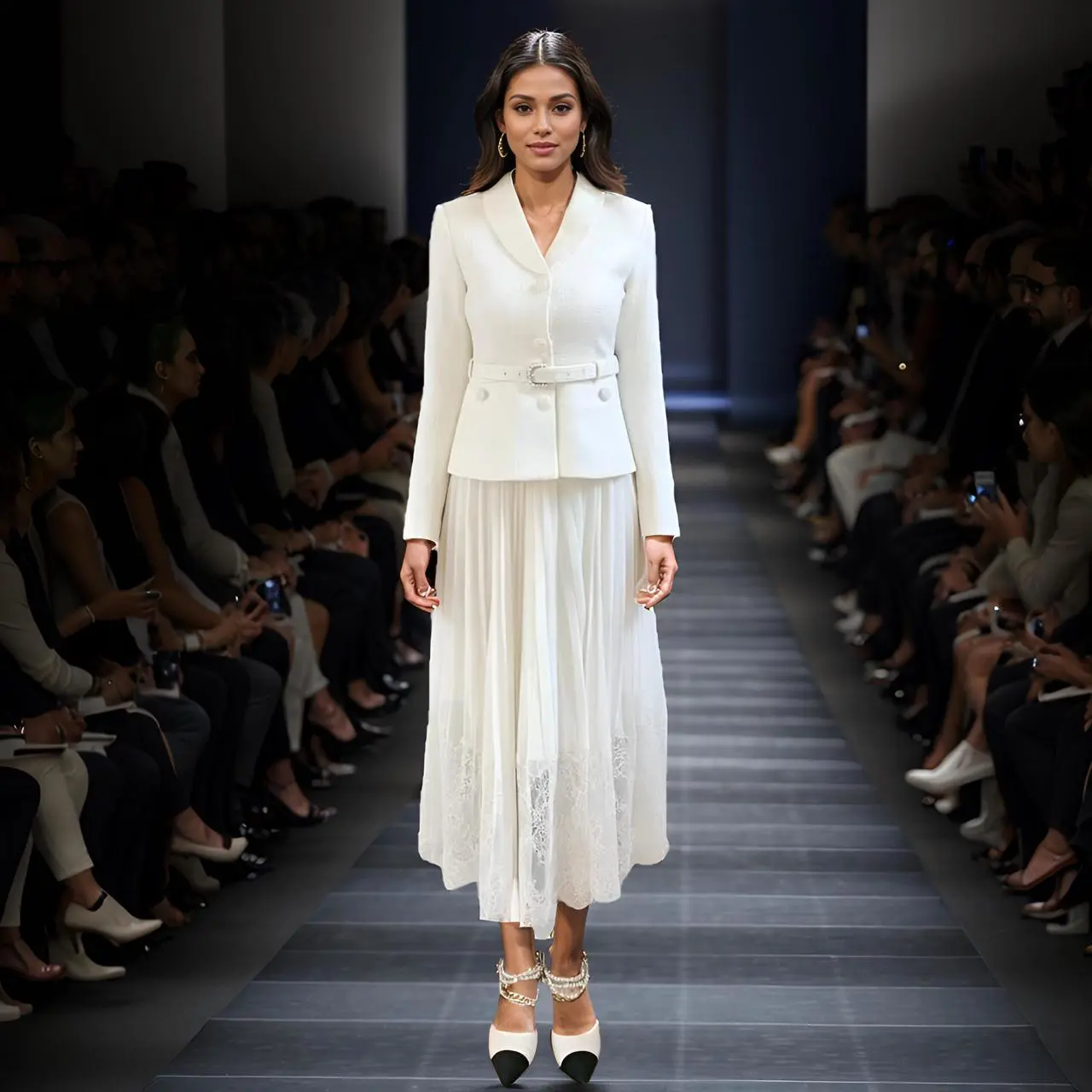
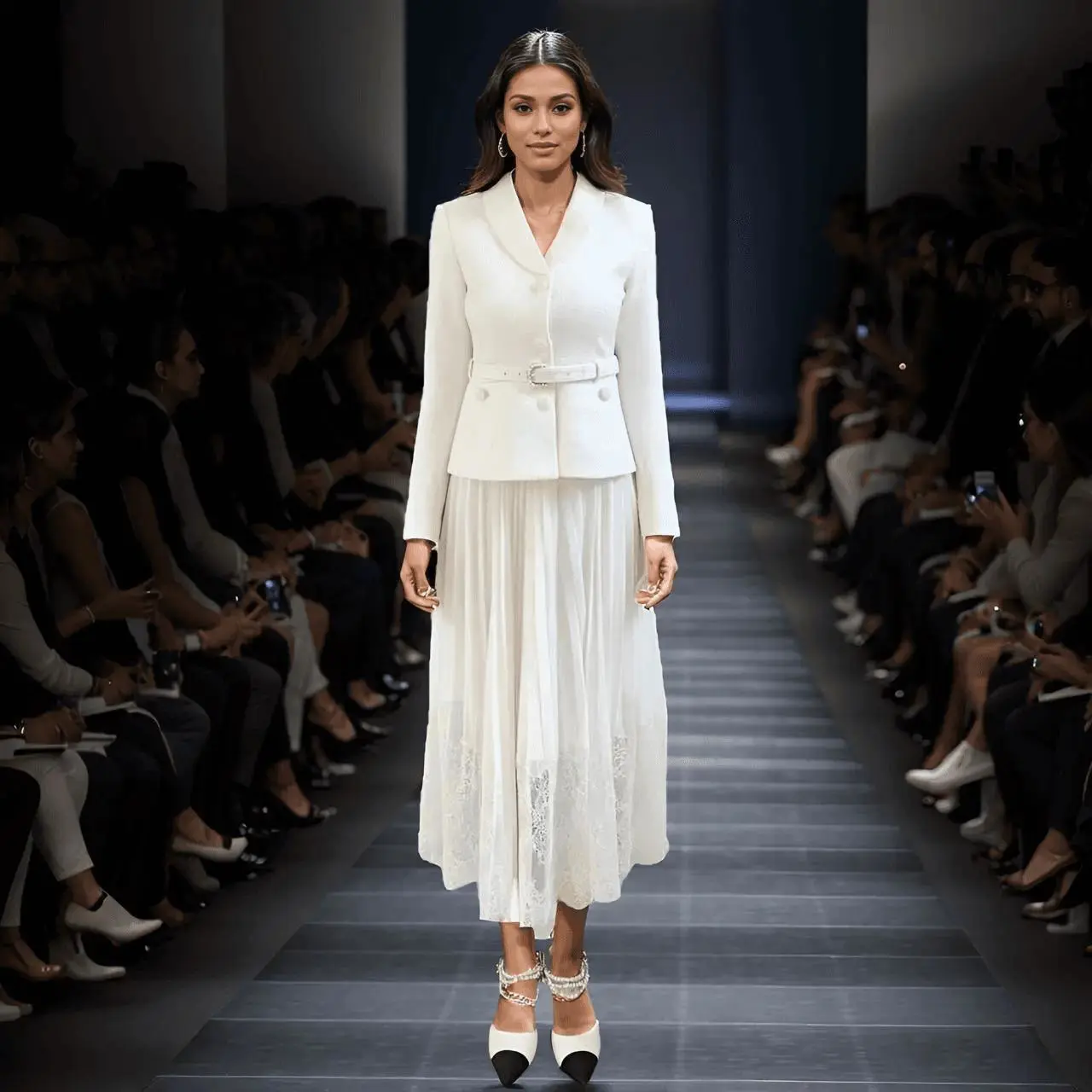
参照は白いランウェイ衣装を示します。プロンプトは自然な前進と見やすい服装、スカートの裏地を見せないことを指定しています。動く裾を含めて衣服全体を確認してください。

Generate a smooth animation of the model's runway show, moving forward naturally, showing the clothes clearly. The movie has extremely high-quality visuals. There is an inner lining in the skirt hem, and it must not be visible.

使い方

MiniMax H3で最初の動画を作る

ページ上部の生成器を使用します。入力方式を選び、内容を記述し、生成前にリクエストを確認してください。

  1. このモデルに必要な入力を用意する

    Image to Videoで開始画像を追加し、必要なら終了画像も追加します。テキストや参照を使う場合はMiniMax H3 Referenceを選び、各画像・動画・音声の役割を説明します。

  2. 利用可能な設定とポイントを確認する

    5~15秒と生成数を選びます。ReferenceにはAdaptive、21:9、16:9、4:3、1:1、3:4、9:16があります。Generate前にポイントとアカウントの利用権を確認してください。動画参照はAdaptiveになるため、追加後に設定を再確認します。

  3. 結果を開いて確認する

    顔、衣服、商品、ショット順、終了画面を全編で確認します。音声とタイミングを確認し、ダウンロードしたファイルで実際の画素数と長さを調べてください。

MiniMax H3 チュートリアル

写真アニメーション、フレーム間の変化、商品動画、粘土風変換、参照ダンス、ファッション動画比較のガイドを紹介します。

モデルの選択

自分のタスクに合うMiniMaxは?

5~15秒なら標準MiniMax H3を選びます。MiniMax H3 Liteは別の5秒用ワークフローです。どちらにもフレームと参照の方式があるので、使いたいバージョンを開いて入力方式を選んでください。

比較項目MiniMax H3MiniMax H3 Lite
モデルの役割動画作成・変換の標準H35秒リクエスト用の独立したH3 Lite
WeShopの入力開始画像と任意の終了画像、またはテキストと任意の画像・動画・音声参照開始画像と任意の終了画像、またはテキストと任意の画像・動画・音声参照
現在の WeShop オプション5~15秒、Referenceで縦横比を選択5秒、Referenceで縦横比を選択
モデルの役割
MiniMax H3
動画作成・変換の標準H3
MiniMax H3 Lite
5秒リクエスト用の独立したH3 Lite
WeShopの入力
MiniMax H3
開始画像と任意の終了画像、またはテキストと任意の画像・動画・音声参照
MiniMax H3 Lite
開始画像と任意の終了画像、またはテキストと任意の画像・動画・音声参照
現在の WeShop オプション
MiniMax H3
5~15秒、Referenceで縦横比を選択
MiniMax H3 Lite
5秒、Referenceで縦横比を選択

MiniMax H3 を選ぶ場合

5~15秒のシーンには標準H3を使用します。開始画像、必要に応じた終了画像、または参照素材で映像を指定できます。

MiniMax H3 を選ぶ場合

MiniMax H3 Lite を選ぶ場合

独立したLiteモデルで5秒のシーンを作る場合は、Liteページを開き、画像から動画または参照モードを選びます。

MiniMax H3 Lite を選ぶ場合
ほかの動画モデル

ほかの動画モデルを見る

関連モデルのページで、能力、作例、現在の生成オプションを確認できます。

よくある質問

MiniMax H3のよくある質問

このバージョンの概要、入力、始め方についての回答です。

MiniMax H3とは何ですか?

MiniMax H3はMiniMaxのマルチモーダル動画モデルです。開始画像を動かす、最初と最後のフレームをつなぐ、画像・動画・音声の参照を組み合わせるといった使い方ができます。WeShopの標準H3は5~15秒を指定できます。

MiniMax H3は何に使えますか?

MiniMax H3はテキスト・画像・動画・音声の文脈を組み合わせて動画を作成、変換します。MiniMaxは動作転写、複数ショット、ネイティブステレオ音声を紹介しています。動くポスター、商品デモ、ファッション、ゲーム風のシーンに利用できます。本ページはフレームと参照の方式に対応します。

このページでは何を入力できますか?

開始画像と任意の終了画像にはMiniMax H3 Image to Videoを選びます。テキストから始める場合や画像・動画・音声の参照を使う場合はMiniMax H3 Referenceを選びます。Modelメニューでこの2つの標準H3方式を切り替えられます。

秒数・縦横比・解像度は選べますか?

標準H3は5~15秒です。ReferenceはAdaptive、21:9、16:9、4:3、1:1、3:4、9:16を表示し、動画参照ではAdaptiveになります。独立した解像度選択はありません。実際の画素数と長さはダウンロードしたファイルで確認してください。

MiniMax H3のプロンプトはどう書きますか?

被写体と各参照の役割を示し、動作、背景、カメラ、必要な音を説明します。複数ショットは順序も指定します。ファッション例は4枚の役割を分け、ツルの例は首の動きとカメラの接近を分けています。

H3とH3 Liteはどう選びますか?

5~15秒なら標準MiniMax H3を選びます。MiniMax H3 Liteは別の5秒用ワークフローです。どちらにもフレームと参照の方式があるので、使いたいバージョンを開いて入力方式を選んでください。

料金はどこで確認しますか?

秒数と生成数に応じたポイント見積もりを確認し、WeShop Pricingとアカウントでモデルの利用権と残高を確認してください。条件変更で見積もりも変わる場合があります。

人物・商品・ポスターを完全に保てますか?

参照は新しい動画を導くもので、顔、衣服、商品の形、色、文字は変化することがあります。特に動作と場面転換を通じて、全編を元の素材と比較してください。

画像をアップロードせずに生成できますか?

MiniMax H3 Referenceならテキストから始められ、参照アップロードは任意です。ツルの例はテキストのみです。Image to Videoには開始画像が必要です。

音声を指示できますか?

台詞、環境音、効果音、音楽をプロンプトで説明します。H3はネイティブステレオの音声付き動画生成に対応します。使用前に言葉、タイミング、音のバランスを確認してください。