You can edit Illustrator files online when the job is simple and the file opens well. For example, you may need to change a price or color. You may also need to move a logo or export a clear PNG. However, a browser editor cannot replace Adobe Illustrator for every job. Meshes, patterns, fonts, linked images, spot colors, and print settings may change.
This guide uses Photopea because its own guides explain AI file support and known limits. It also covers Vectorpea as a second option. Finally, it shows how an exported product image can move into WeShop AI Product. WeShop AI does not edit native .ai files.
The tool details below were checked against official pages on August 17, 2026. Interfaces and free access can change. Therefore, confirm the current export options before you edit client or production files.
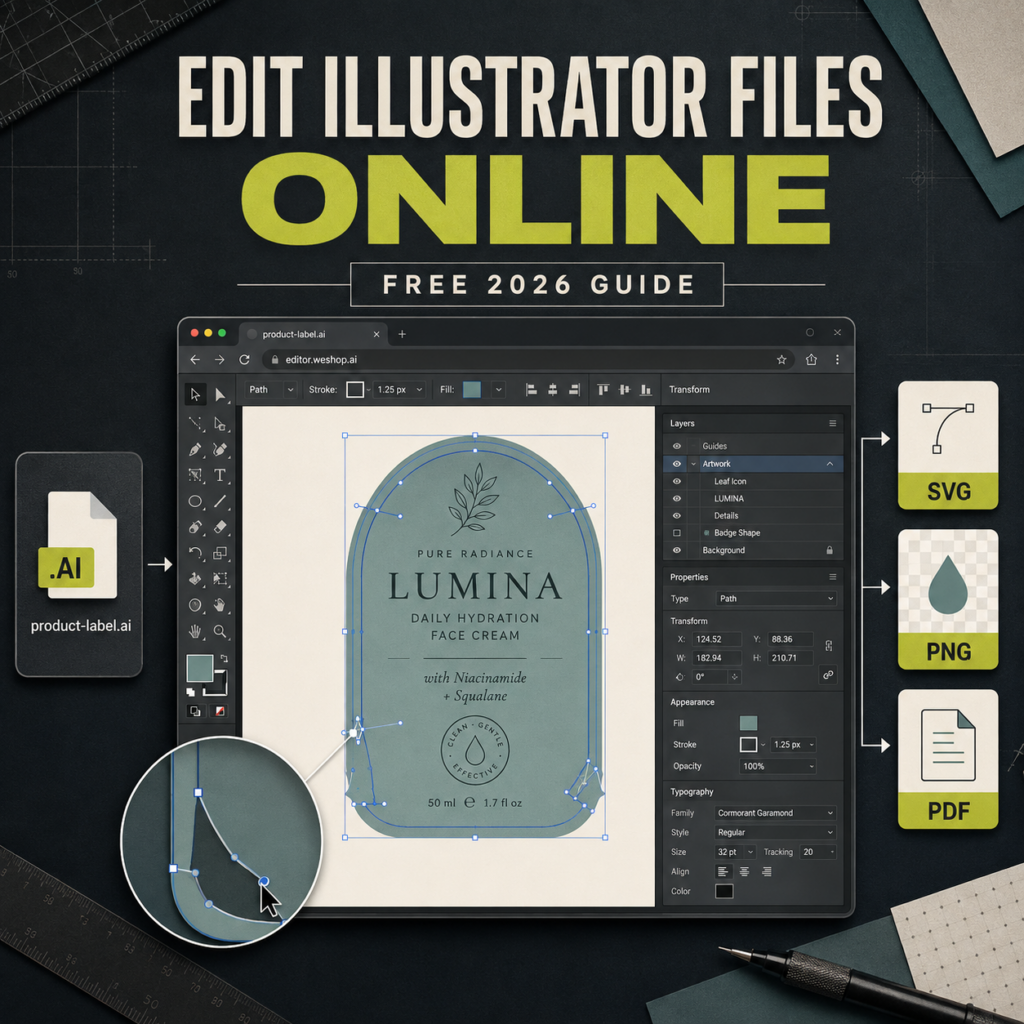
Can You Edit Illustrator Files Online Reliably?
Photopea can open Adobe Illustrator files. Its release notes say that many paths, groups, and clip groups stay in place. Opacity, blend modes, raster images, and editable text can also remain. In addition, Photopea can convert the result to PSD, SVG, PDF, and other formats.
When you edit Illustrator files online, this import check matters more than the tool’s feature list.
Still, “supported” does not mean “an exact match.” Photopea says vector patterns do not have a direct match in its PSD structure. It also turns gradient meshes into a simpler linear gradient. Therefore, a file can open with no error and still look wrong.
There is another key limit. Photopea uses PSD as its main work format. It can open .ai. However, its stated save paths are PSD, PNG, JPG, SVG, PDF, and other export types. Consequently, do not promise a new native Illustrator file.
Use a browser editor for low-risk tasks such as:
- changing simple text when the font is available;
- changing solid fills or strokes;
- moving or resizing basic shapes;
- hiding an unwanted layer;
- exporting a logo or web graphic;
- creating a PNG preview for ecommerce or social media.
However, some jobs should go back to the designer. Use Illustrator when the work needs print separations, spot colors, linked assets, exact type, or live gradient meshes.
What You Need Before You Edit Illustrator Files Online
Before you edit Illustrator files online, protect the only source. First, copy the original .ai file and add -working-copy to the name. Next, collect the designer’s reference PDF or JPG. Use it to spot changes in fonts, color, and layout.
If possible, ask the designer for a file package. Adobe’s package tool can collect the AI file, linked art, allowed font files, and a report. However, font rights may limit sharing. Ask for outlined text or an approved font when the original cannot be sent.
Prepare these items before opening the file:
- the untouched
.aisource; - a PDF or image showing the correct design;
- the Links folder, if the design uses linked images;
- approved fonts or outlined text;
- the exact new copy, color value, and output size;
- a written note about the final destination, such as Shopify, Amazon, print, or social media.
As a result, you can tell if a fault came from the editor or a missing source file.
Two Tools That Can Edit Illustrator Files Online
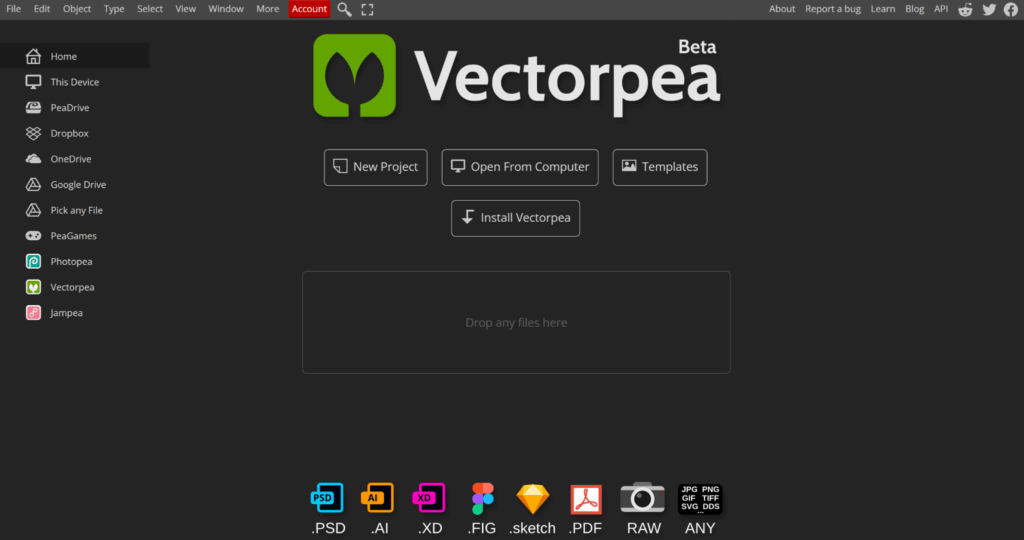
Photopea: documented AI import with clear limits
Photopea is the main option in this guide. Its site lists AI among the formats it can open. Moreover, its AI support notes explain what can stay editable and what may change. Photopea also says that opened files stay on the user’s device.
The free editor shows ads. A paid account is also available. Still, free access lets you test an AI file, inspect layers, make a basic change, and export it.
Vectorpea: a vector-focused second check
Vectorpea calls itself an online editor for AI, SVG, and PDF files. Therefore, try it when a simple file opens badly in Photopea. You can edit Illustrator files online in a more vector-led view. However, its public guides are thin. Do not claim it keeps every artboard, font, effect, or print setting without a real test.
Use Vectorpea as a second check. It cannot prove that a damaged import is right. Compare its output with the PDF before you go on.
Both tools can help you edit Illustrator files online, but only a same-file test can show which one fits your asset.
| Tool | Confirmed position | Best use in this guide | Important limit |
|---|---|---|---|
| Photopea | Opens AI and documents specific preserved elements | Main tutorial for text, color, layers, and export | Not a full Illustrator replacement; patterns and meshes may change |
| Vectorpea | Official page says it edits AI, SVG, and PDF | Second import check for simple vector work | Public compatibility documentation is limited |
How to Edit Illustrator Files Online in Photopea
The steps below use a simple product label as the example. The task is to change one line of text and one solid color. Then the file is exported for the web. This is not a test of complex print work.
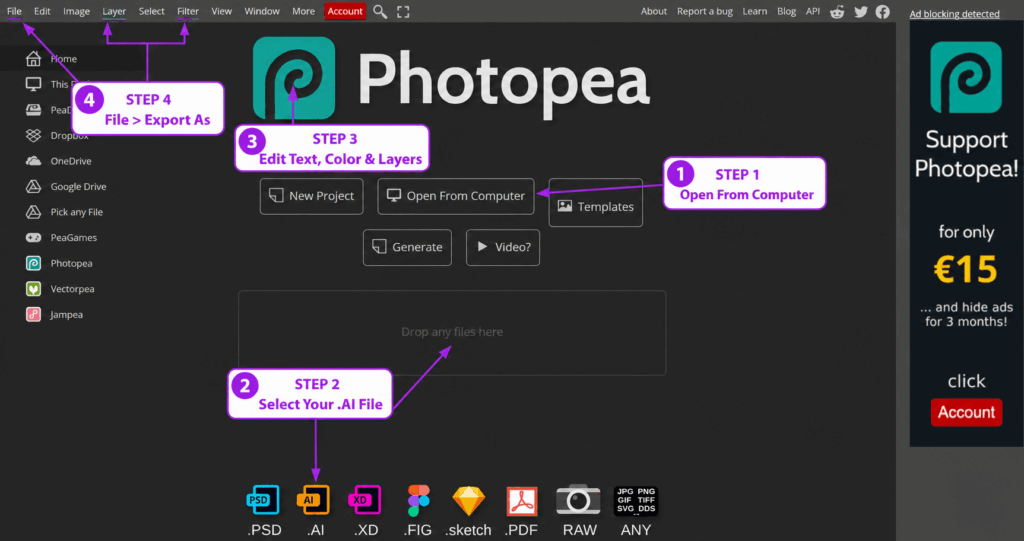
Step 1: Open and compare the Illustrator file
To edit Illustrator files online in Photopea, open it in a desktop browser. Then choose File > Open and select the work copy. You can also drag the file into an empty workspace.
Once the file opens, do not edit it yet. First, place the reference PDF or JPG beside the browser. Check the page size, text breaks, logo spot, solid colors, linked images, masks, and gradients. Next, zoom to 100%. Inspect small type and thin lines.
Stop if the file is blank, cropped, or missing key objects. Likewise, stop if a mesh or pattern has changed the design. A fast edit has no value when the import is wrong.
Step 2: Edit Illustrator Files Online Without Breaking Text
Find the text layer in the Layers panel. If it is still live, choose the Type tool and change only the needed words. Then check the font, weight, size, line height, spacing, and position against the reference.
If the font is missing, do not accept a swap without review. Instead, load a licensed font when allowed. You can also choose an approved substitute or ask for outlined text. However, outlined letters no longer work like normal text.
Keep the old layer until the new copy is approved. For example, copy the layer and hide the original. Then edit the copy. As a result, you can compare both versions and restore the old one.
Step 3: Change colors and simple vector shapes
Select the target shape or vector layer. Then set its fill or stroke to the approved value. For web work, type the HEX value instead of guessing. In addition, check the mask, shadow, and group for unwanted changes.
Use the path and move tools with care. Do not rebuild a complex logo by eye. If the path has many points or custom brushes, ask the designer for a clean SVG or new source.
Step 4: Save a working copy and export the result
First, save a PSD work copy if you may edit again. Photopea uses PSD as its main format. Therefore, it keeps more of the work than a flat PNG.
Next, choose the output based on the real destination:
- SVG: use for simple scalable web graphics when the exported paths and text pass inspection;
- PDF: use for review or handoff, but ask a print vendor for the required preset and preflight rules;
- PNG: use for transparent logos, web graphics, or a clean product asset;
- JPG: use for flat images that do not need transparency;
- PSD: use as the editable Photopea working file, not as a native AI replacement.
Finally, reopen the export in a second app or browser tab. Check its size, clear background, fonts, color, thin lines, and edges. Do not send it until this copy passes review.
Which Export Format Should You Choose After You Edit Illustrator Files Online?
After you edit Illustrator files online, the destination should decide the file type.
| Destination | Suggested output | Check before use |
| Website logo or icon | SVG | Paths, view box, font handling, and browser display |
| Transparent ecommerce graphic | PNG | Alpha edges, output dimensions, and color |
| Client review | Page size, text, images, and visual match | |
| Continued Photopea editing | PSD | Layers, text, smart objects, and masks |
| Commercial print | Vendor-approved PDF or original AI workflow | Bleed, spot colors, fonts, images, overprint, and preflight |
The word “vector” does not make every SVG or PDF safe. Therefore, check the export instead of trusting its file name.
From an Edited AI Asset to a WeShop Product Visual
WeShop AI is not an Illustrator editor. It enters the flow only after you edit Illustrator files online and approve the export. Prepare a clean product image with the final pack, logo, and text. Then use WeShop AI Product to place it in a sales scene.
Prepare the product image before WeShop AI
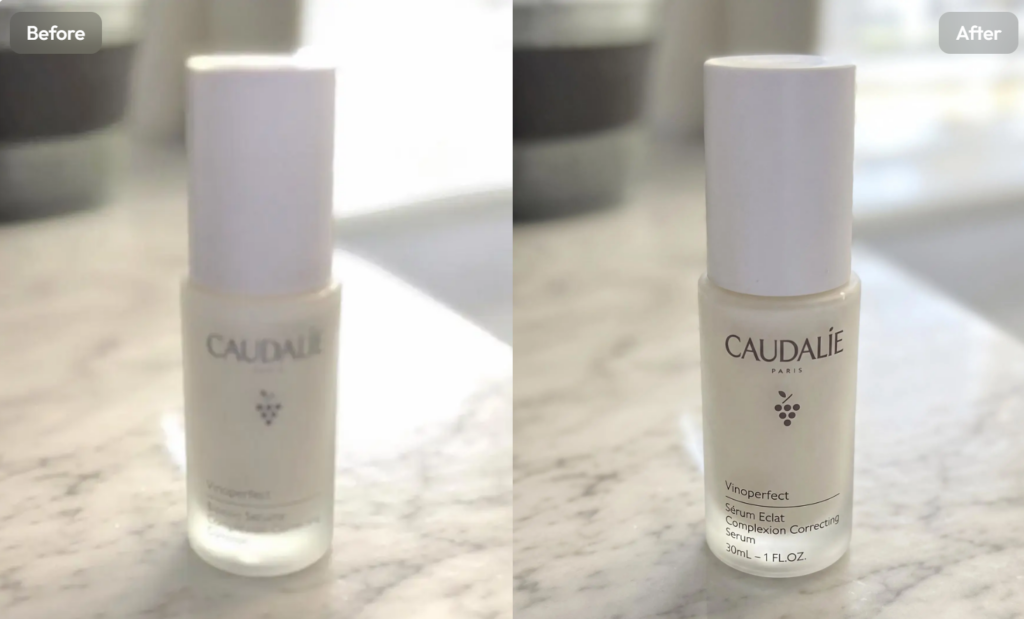
Export a large PNG or a clean product photo with the final design in place. Keep the whole product in view. Also, avoid glare, fingers, and props that hide the label. AI Product starts with a product image. It cannot fix wrong vector art.
Build a scene in WeShop AI Product
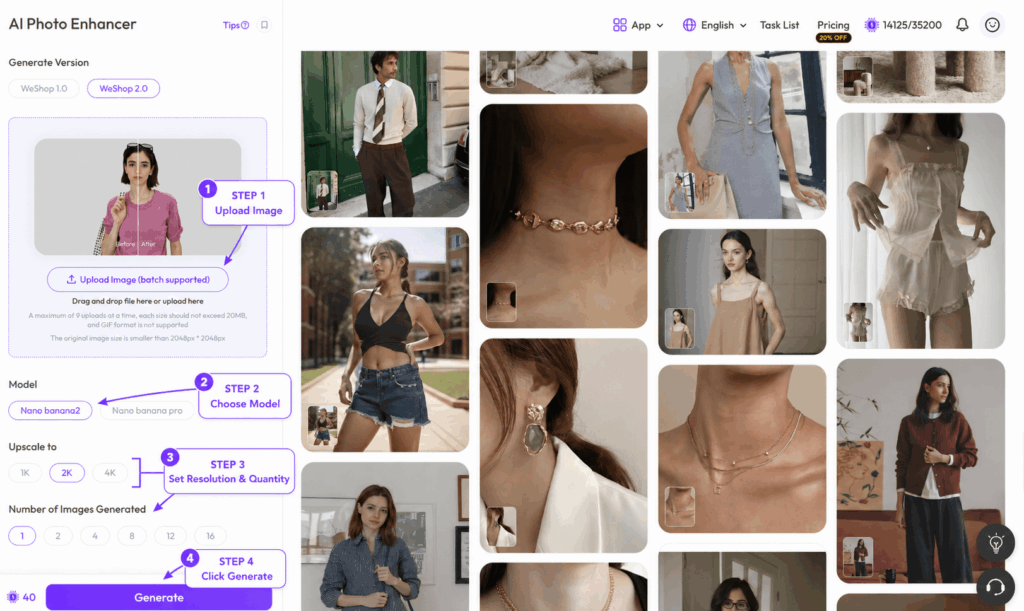
Upload the clean product image to AI Product. Its page lists Recommended, Similar, and Creative Adaptation modes. For a listing image, start with Recommended. WeShop presents this mode as the more accurate, realistic choice.
Use a short scene brief such as:
Clean daylight bathroom shelf, light gray stone, front-facing skincare carton, label fully visible, soft contact shadow, no extra text, no props covering the package.
However, a prompt is only a guide. Check each result for changed letters, fake logos, a changed pack shape, wrong cap details, or blocked text. Reject the image if it does not match the approved product.

Common Failures When You Edit Illustrator Files Online
To edit Illustrator files online with less risk, stop as soon as one of these faults appears.
The AI file opens as one flat layer
The file may not show the layers you need. Therefore, do not trace over it and call the result right. Ask the designer for a PDF-ready AI file, a clean SVG, or the full source package.
The font changes after import
Compare the file with the reference. Then load the licensed font, use an approved swap, or ask for outlined text. Also, check every line break.
Images or logos are missing
The source may rely on linked files. Check the Links folder from the packaged handoff. If it is missing, ask the sender to collect and resend the assets.
Patterns or gradients look different
Photopea lists limits for vector patterns and gradient meshes. Consequently, do not use the browser result for key brand or print work when these effects change.
The PNG has a white box
Confirm that the background is hidden before export. Then choose PNG and inspect the alpha edge on both light and dark backgrounds.
The export looks right but prints wrong
A screen view cannot prove that bleed, spot colors, overprint, or separations are right. Therefore, use the print shop’s PDF rules or return to Illustrator.
Privacy and File-Safety Checks
Photopea says that files opened in its editor stay on the user’s device. However, read the current privacy rules before you edit Illustrator files online for a client. In addition, do not link cloud storage unless the project allows it.
Keep the source outside the browser flow. Use clear names, such as label-v01-imported.psd and label-v02-approved.png. Finally, remove client files from shared devices and follow your company’s file rules.
FAQ About How to Edit Illustrator Files Online
These answers cover the main limits people face when they edit Illustrator files online.
Can I edit an AI file without Adobe Illustrator?
Yes, for many basic edits. Photopea supports opening AI files. Vectorpea says it can edit AI, SVG, and PDF. However, complex parts may change. Compare the import with a reference first.
Can I save the edited file back to AI format?
Photopea uses PSD as its main work format. It exports SVG, PDF, PNG, JPG, and other types. Therefore, do not call the result a native AI file unless the editor supports that output and your team has tested it.
What is the safest format for a website logo?
SVG is useful for many simple logos. PNG works when you need a fixed size and a clear background. Still, reopen the file and check its paths, fonts, colors, and edges.
Can WeShop AI edit Illustrator files online?
No. WeShop AI Product uses a finished product image to create sales scenes. First, edit Illustrator files online and approve the output. Then export a clean product image and move it into WeShop AI.
When should I stop using a free browser editor?
Stop when the import changes brand assets, fonts, linked images, patterns, meshes, or print settings. Also, stop when the output must remain fully editable in native Illustrator format.
Edit Illustrator Files Online Without Risking the Master File
You can edit Illustrator files online for a text update, solid color change, layer change, or web export. First, protect the source. Next, compare the import with a trusted reference. Then make one small change and reopen the export.
Photopea gives the clearest public notes for this flow. Vectorpea can provide a second import check. However, neither proves that a complex file is safe. Once the product design is approved as a clean image, AI Product can place it in a marketplace or campaign scene. Keep the vector edit and the image step apart.
Go to WeShop AI For Exploration: