When you need to erase objects with AI, the right method depends on the image. A negative prompt can discourage an unwanted item during image generation. However, it is not the most reliable way to remove one exact object from an existing photo. For that task, a brush-based mask gives you clearer control over the area that AI must rebuild.
This guide explains both methods. More importantly, it shows ecommerce sellers, photographers, and creative teams how to clean an image without overlooking product edges, shadows, reflections, or repeated patterns.
How to write Negative Prompt?
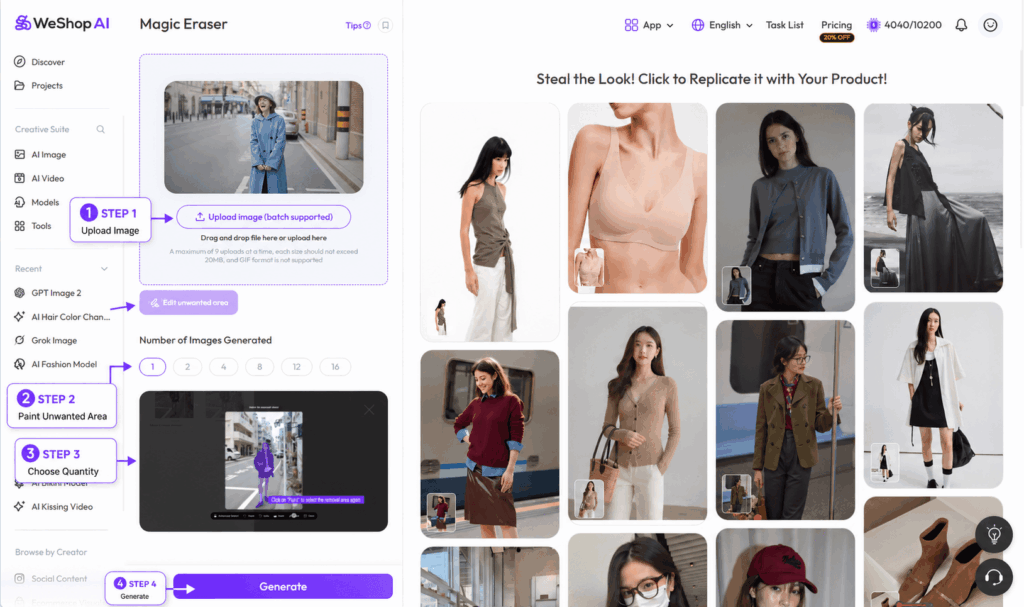
When you access this feature, you’ll notice a slightly different interface. Firstly, there’s an option for algorithm preference. “Free Play” allows AI to freely interpret your instructions, while “Refer to Original Image” instructs AI to generate content more closely resembling the original image.
Next, you’ll find fields for positive and negative prompt. Positive prompt indicates what you want AI to generate, which aligns with what you’d typically describe in the text description. Negative prompt, on the other hand, specify what you don’t want AI to generate.
It’s crucial to note that negative prompt should specify what you want to exclude. For example, if you don’t want hats in the image, simply write “hat” in the negative prompt box. Do not write “do not include hats,” as this would confuse AI.
Example 1
Let’s consider an example:
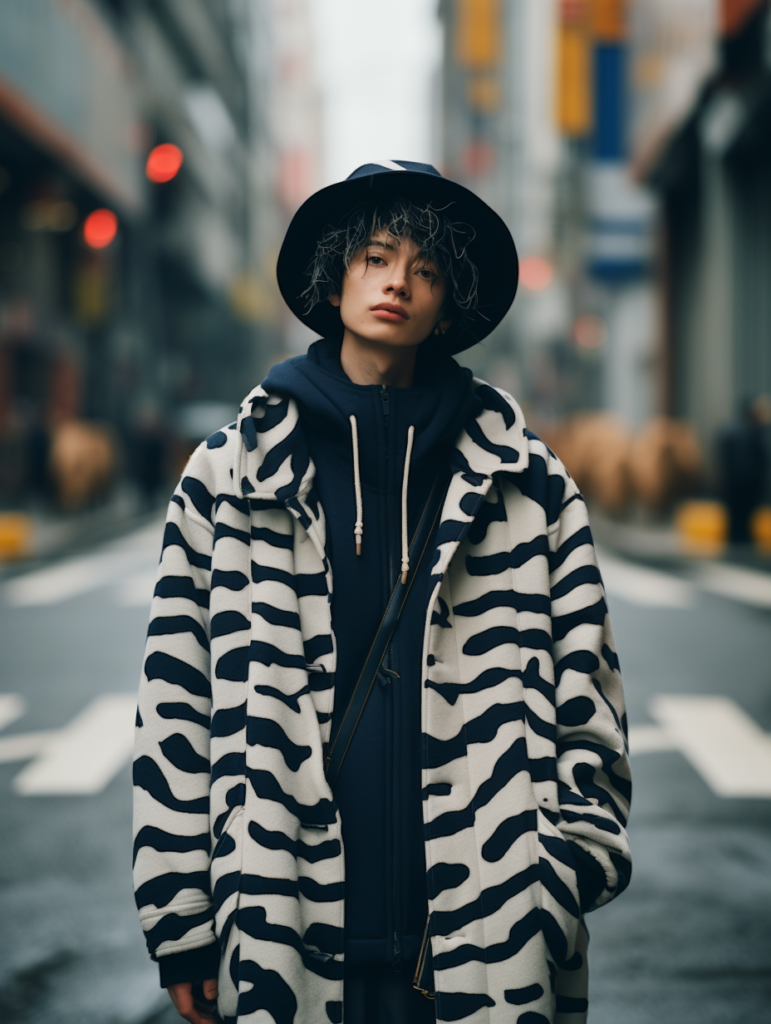
If I don’t want the boy to wear the hat, I would enter “Male adult on the street of New York, curly hair” in the positive prompt box and “hat” in the negative prompt box.
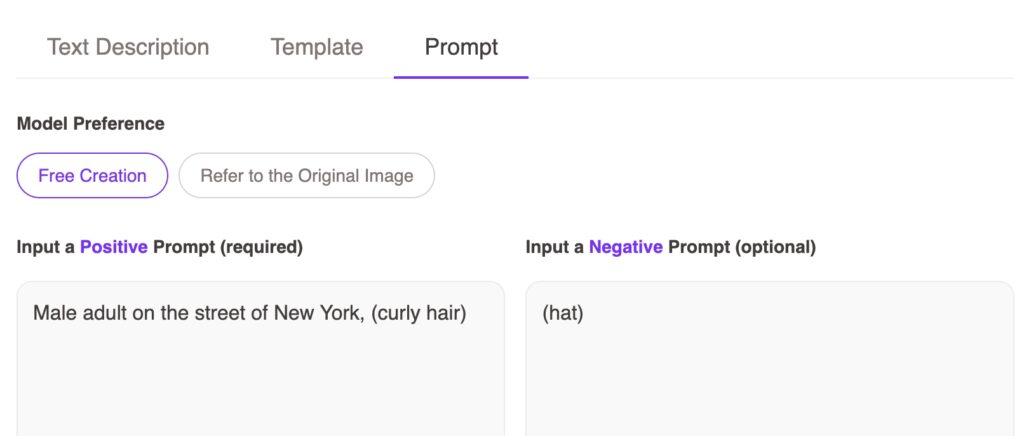
Let’s check out the AI generated results:
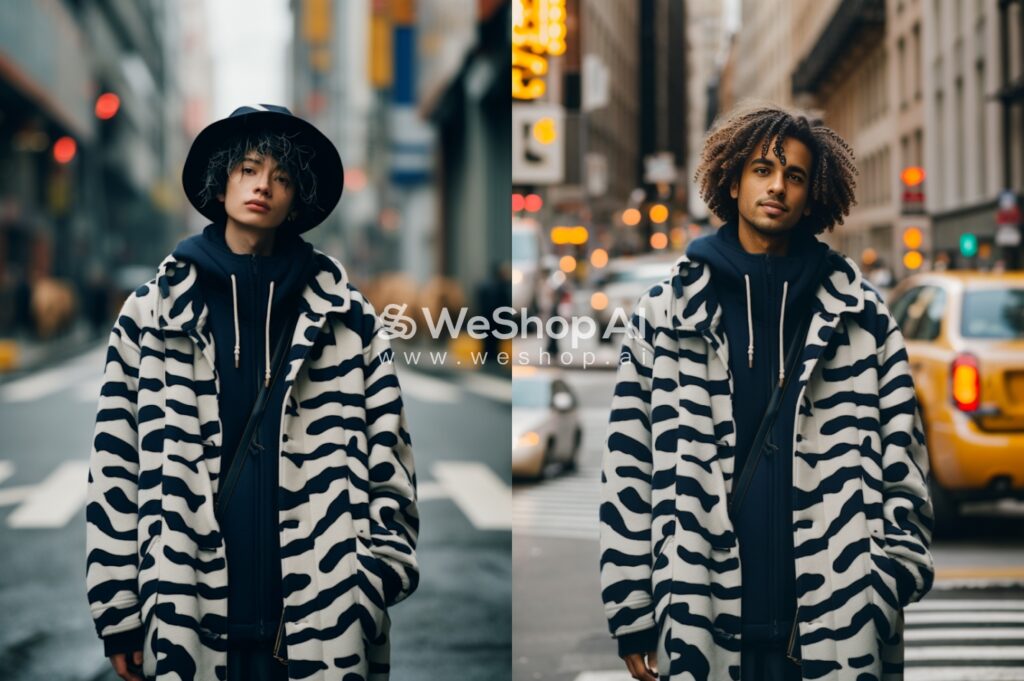
This looks terrific! Let’s try another image.
Example 2
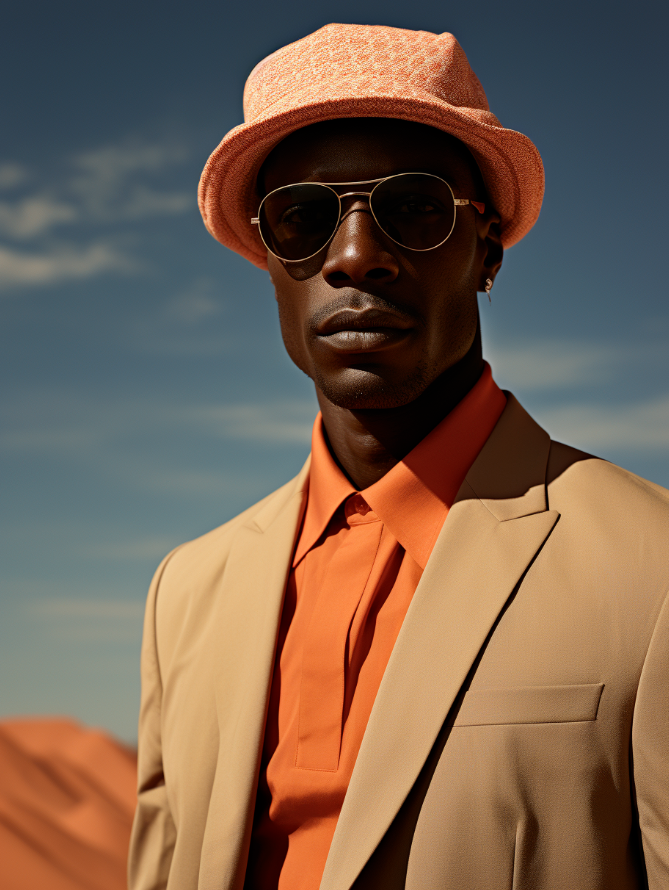
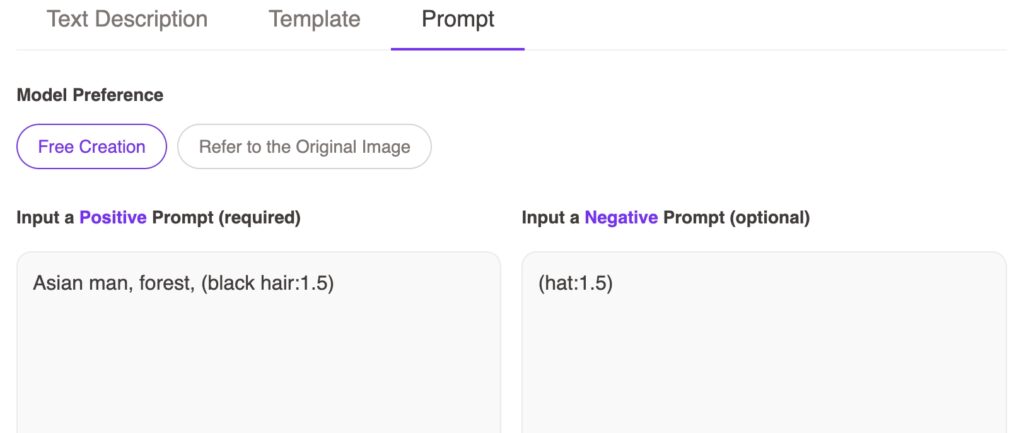
Let’s try remove this man’s hat. When you edit the mask area, only choose his garments. Then, choose prompt, beside text decription and template. I write asian man, forest, (black hair:1.5) in the positive prompt, and (hat:1.5) in the negative prompt. Adding parentheses after a word or phrase indicates emphasis, while adding a colon and a number after a word indicates the degree of emphasis. If AI still doesn’t remove the hat the first time, you can add a number like this after the word, Just as what I did.
Let’s see the result.
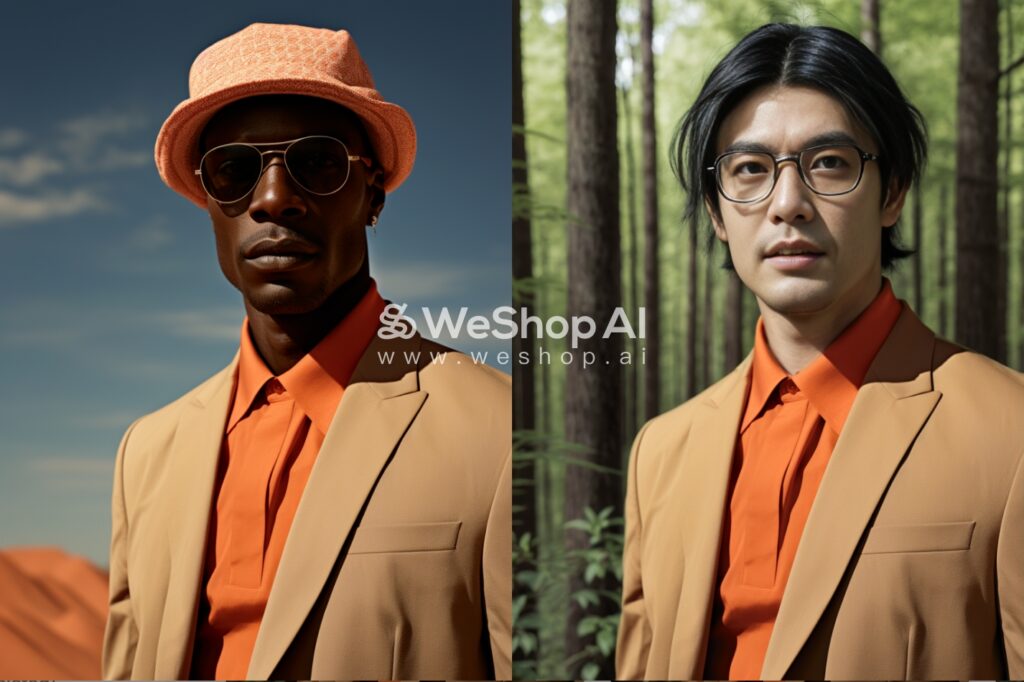
This looks stunning! WeShop AI removed his hat just as what we demanded. Let’s quickly see the last example.
Example 3
I’d like to remove the glasses, so that I write ‘asian woman, mountain trails, beautiful eyes’ in the positive prompt, and ‘(glasses:1.5)’ in the negative prompt.
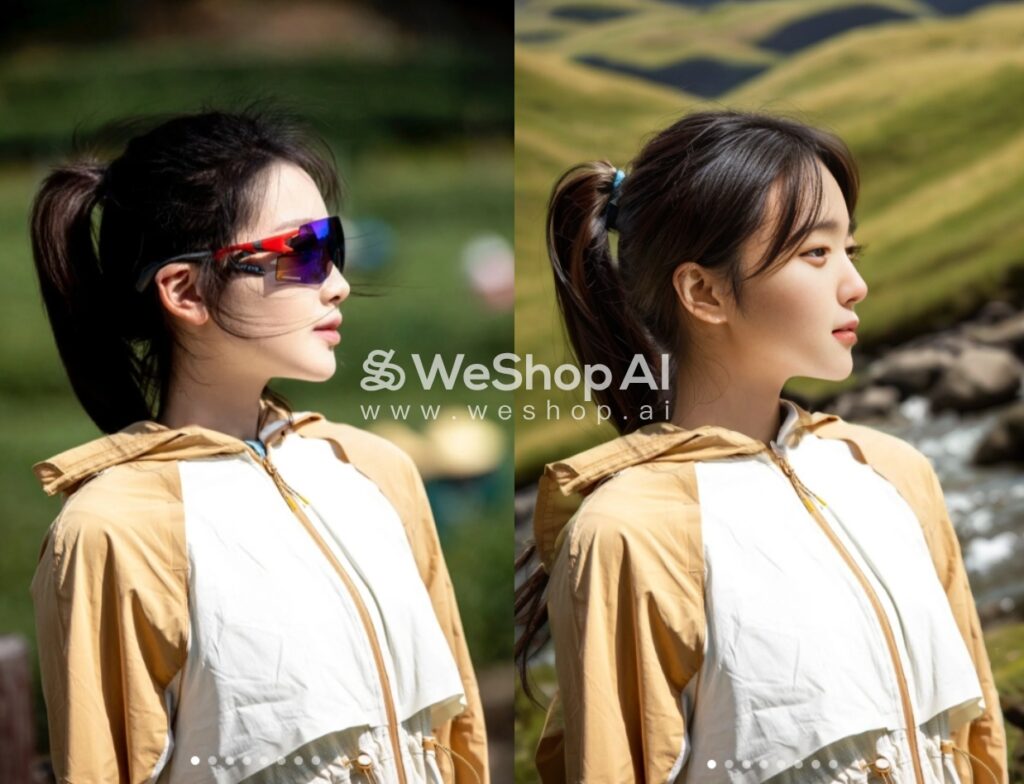
WeShop AI (www.weshop.ai) is a cutting-edge platform that offers a game-changing solution to e-commerce businesses seeking high-quality images at a fraction of the cost. By harnessing the power of artificial intelligence, WeShop AI has developed a groundbreaking AI-Powered E-commerce and Photo Tool, empowering businesses to take their product visuals to new heights. With just a few clicks, you can produce visually striking images that captivate your audience and boost sales.
Author Intro
Baby G specializes in using AI tools to create stunning images. With a wealth of experience, she is a seasoned user of WeShop AI, possessing a deep understanding of various image generation techniques. Known for her expertise, she enjoys sharing his knowledge and insights with others.
Go to WeShop AI For Exploration: