AI video tools are everywhere right now. However, getting clean and stable motion is still harder than it looks. Faces may change, outfits can shift, and actions often feel unnatural.
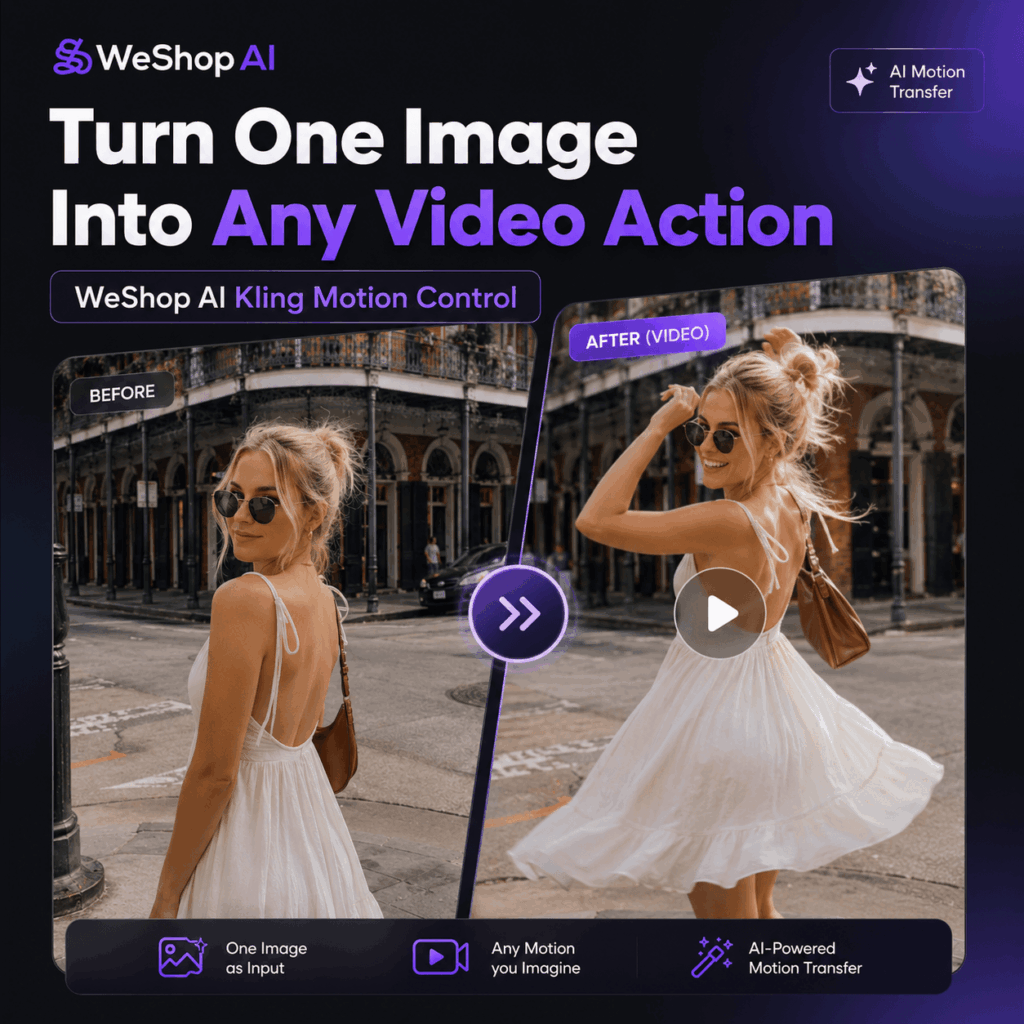
That is where Kling Motion Control comes in. Instead of writing complex prompts or testing different tools, you only need one character image and one motion reference video. As a result, you can quickly turn a static image into an AI video that follows the same action.
Why Use WeShop Kling Motion Control?
There are already many AI motion transfer tools on the market. However, most creators still run into the same problems again and again.
For example:
- The tool feels too complicated
- The workflow takes too many steps
- The generated video is not stable
- The character easily gets distorted
- The face, hairstyle, or outfit changes
- The motion does not match the reference video well
For content creators, these issues can waste a lot of time. More importantly, they make it harder to create videos that are ready to post.
With WeShop Kling Motion Control, the process becomes much more direct. Instead of moving between several platforms, you can complete the main workflow in one place. In addition, you do not need to write a detailed prompt before generating the video.
All you need to do is:
- Upload a character image
- Upload a motion reference video
- Click generate without writing a prompt
After that, Kling Motion Control creates an AI video where your character follows the action from the reference video.
Because of this simple workflow, it is especially useful for AI dance videos, pet videos, anime character videos, brand IP content, and social media trend content.
What Makes Kling Motion Control Useful?
1. One Image + One Video Is Enough for Motion Transfer
One of the biggest advantages of Kling Motion Control is how easy it is to use.
To start, you only need one image of your character and one motion reference video. Then, the system detects the movement in the reference video and transfers it to your target character. As a result, a still image can become a dynamic AI video in just a few steps.
It works well for actions such as:
- Dancing
- Walking
- Turning around
- Waving
- Funny movements
In other words, if you have a clear character image, you can make that character move.
For example, a portrait photo can become a dance video. Meanwhile, a pet image can copy a funny action from a reference clip. In the same way, an anime character can follow a popular dance challenge.
Therefore, Kling Motion Control is a great choice for creators who want to turn static images into eye-catching AI videos. Also, it is useful when you need to create short-form content quickly.
2. It Helps Keep the Character Identity Consistent
One common problem with AI video generation is identity inconsistency.
At first, the original image may look perfect. However, after generation, the final video may look different from the input image.
You may notice that:
- The face changes
- The hairstyle changes
- The clothes look different
- The body shape becomes unstable
- The overall character style feels off
This can be a big issue, especially when you are creating videos with real people, pets, anime characters, or brand IP assets. Therefore, identity preservation matters.
A key strength of Kling Motion Control is that it focuses on keeping the original character recognizable. Even when the motion is large, the tool tries to maintain the main visual features of the original image. As a result, the final video feels more consistent and polished.
This is useful for:
- AI videos with real people
- Pet motion videos
- Anime dance videos
- Brand mascot videos
- Virtual character content
- Series-style short videos
After all, if your character keeps changing from one video to another, it becomes harder to build a consistent visual style. With Kling Motion Control, the character is more likely to stay recognizable. Because of this, creators can produce repeatable content with a more stable look.
3. It Is Great for Recreating Trending Dance Videos
Right now, AI dance videos are one of the most popular formats on short-form video platforms.
You have probably seen videos like:
- A cute dog doing a dance
- A K-pop dance challenge recreated by an AI character
- A cartoon character following a viral dance
- An anime girl dancing to a trending sound
- A funny pet copying human movements
These videos work well because they are simple, visual, and easy to understand. In addition, they often have strong shareability because the concept is clear within the first few seconds.
With Kling Motion Control, you can use a trending dance video as the motion reference. Next, upload your target character image. Then, the system applies the same movement to your character.
As a result, you can follow trends faster. There is no need to shoot new footage or animate frame by frame. Instead, Kling Motion Control helps you create a fresh version of a popular action with less effort.
For creators, this saves time while keeping the content timely and relevant. Moreover, it gives you more room to test different characters, styles, and trends without starting from zero every time.
4. It Supports More Complex Movements
Besides simple dance moves, Kling Motion Control can also support more complex actions.
For example:
- Full-body motion
- Larger body movements
- Continuous movement
- Facial expression changes
These are often the areas where many AI video tools struggle. When the motion becomes more complex, the character may start to blur, break, or lose its original appearance.
However, Kling Motion Control is designed to understand and transfer motion more smoothly. It can analyze the movement rhythm, body posture, and action flow from the reference video. After that, it applies them to the uploaded character image.
Because of this, the tool is not only useful for simple AI dance videos. It can also help with funny clips, character interaction videos, brand IP animations, product character videos, and more. In other words, it gives creators more flexibility when making motion-based AI content.
How to Use WeShop Kling Motion Control
Step 1: Upload a Character Image
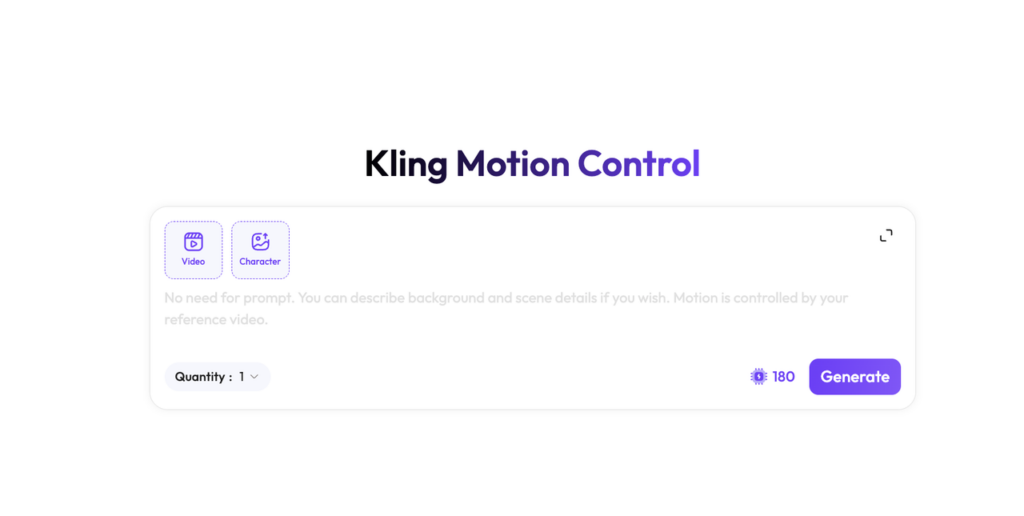
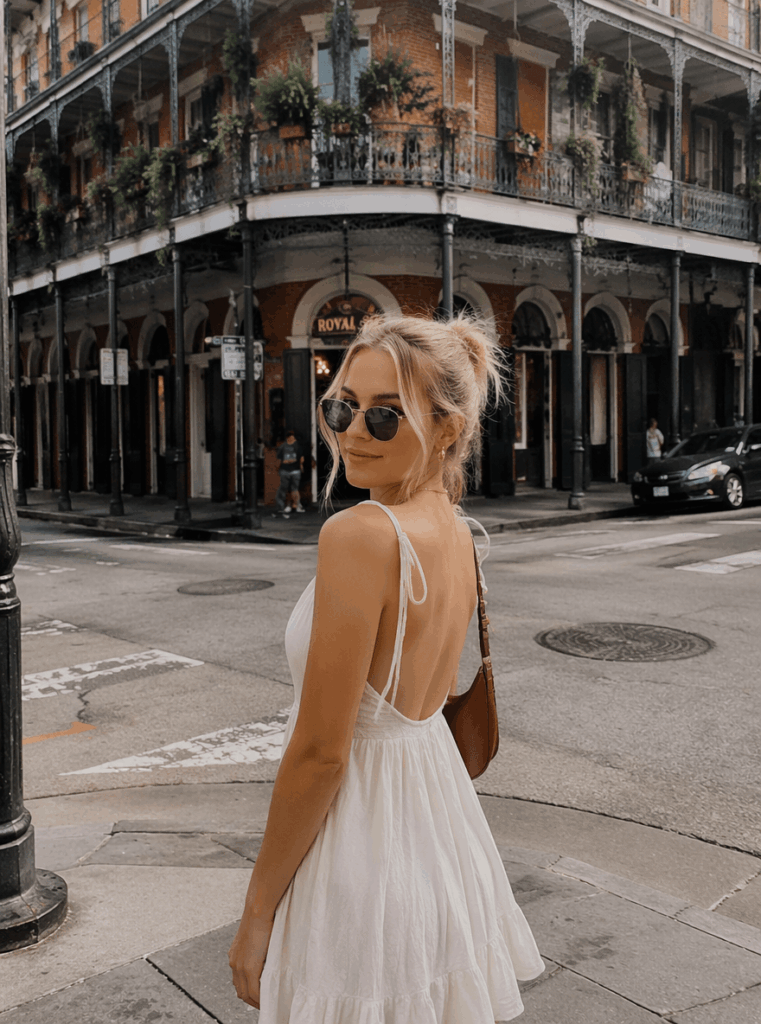
First, open the Kling Motion Control feature page and upload your character image.
For better results, choose an image that is:
- Front-facing
- High-resolution
- Clear and sharp
- Complete in body or subject shape
- Not too crowded in the background
Different types of characters can be used, including:
- Real people
- Pets
- Anime characters
- Brand IP characters
In general, the clearer the character image is, the better the final video will look. Also, a clean image helps the system understand the subject more accurately.
For a person, a front-facing or half-body image often works well. For a pet, choose an image where the full body shape is visible. For an anime character or brand IP, avoid overly complex backgrounds so the system can recognize the subject more easily.
This first step is important because the uploaded image defines the character identity in the final video. Therefore, it is worth spending a little extra time choosing the right image.
Step 2: Upload a Motion Reference Video
Next, upload the video that contains the action you want to copy.
You can use videos such as:
- TikTok dance videos
- Pet jumping videos
- Funny action clips
- K-pop dance videos
- Walking and turning videos
- Waving or interaction videos
The reference video controls the motion in the final result. Therefore, it is worth choosing the clip carefully.
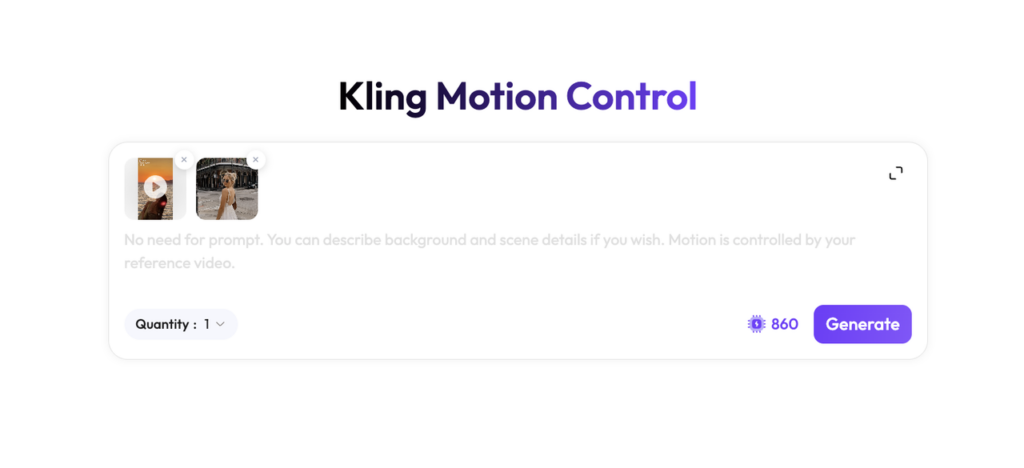
For better output, the reference video should have:
- Clear movement
- A visible subject
- Minimal blocking or covering
- Stable camera movement
- A clear action rhythm
- No excessive scene cuts
If the reference video is too messy, too fast, or too heavily edited, the result may become less stable. On the other hand, a clean and focused reference video can help Kling Motion Control create a more natural motion transfer.
For first-time testing, simple actions are usually better. For instance, try waving, walking, turning, or a short dance move before moving on to complex choreography. After that, you can test faster movements or full-body dance videos.
Step 3: Generate the Video
Once you have uploaded both the character image and the motion reference video, click generate.
After that, Kling Motion Control automatically handles the main process, including:
- Extracting the motion path
- Analyzing body movement
- Transferring the action
- Preserving the character identity
- Generating the final motion video
The final video can be used for:
- TikTok
- Instagram Reels
- YouTube Shorts
- Xiaohongshu
This step is very creator-friendly. No animation skills are required, and there is no need to adjust every movement manually. Instead, Kling Motion Control helps turn a static character image into a dynamic video with much less effort.
As a result, creators can spend less time on technical work and more time testing ideas, formats, and trends.
What Can You Create with Kling Motion Control?
If you are not sure where to start, here are a few content ideas.
1. AI Dance Videos
AI dance videos are one of the easiest ways to use Kling Motion Control.
To create one, pick a trending dance video, upload a character image, and generate a new version with your own character. After that, you can use the result as a fresh short-form video.
This works well for:
- Real people
- Pets
- Anime characters
- Virtual influencers
- Brand mascots
Since dance trends move fast, this type of content is great for TikTok, Instagram Reels, YouTube Shorts, and Xiaohongshu. Also, it is a simple way to join trends without filming new footage.
2. Pet Motion Videos
Pet content already performs well on social media. However, when a pet copies a human-like action, the result can be even more entertaining.
For example, you can create:
- A dog dancing to K-pop
- A cat waving
- A pet doing a runway walk
- A cartoon pet copying a funny human action
This type of content has a strong sense of contrast. It feels cute, funny, and easy to watch. As a result, it can work well for short-form platforms where viewers decide quickly whether to keep watching.
With Kling Motion Control, a single pet photo can become a more dynamic short video. In addition, creators can test different pet actions without needing to record the pet in real life.
3. Anime Character Dance Videos
Anime-style AI videos are also very popular.
To create one, upload an anime character image and use a popular dance video as the motion reference. Then, Kling Motion Control generates a video where the anime character follows the same action.
This is useful for:
- Fan-style content
- Character showcases
- Social media edits
- IP operation
- Virtual character videos
Compared with a static image, an animated character video is much more likely to catch attention in a feed. Moreover, motion makes the character feel more expressive and memorable.
4. Brand IP and Mascot Videos
If you have a brand mascot, virtual character, or IP image, Kling Motion Control can help make it move.
For example, you can create:
- A mascot dance video
- A brand IP waving video
- A virtual character runway clip
- A product character interaction video
This is especially helpful for brands that want more engaging social media content. A moving character feels more alive. It also makes the brand easier to remember.
In addition, brand IP videos can be reused across different campaigns. Therefore, Kling Motion Control can be a useful tool for both content creation and brand storytelling.
Tips for Better Kling Motion Control Results
To get better results from Kling Motion Control, start with high-quality materials.
For the character image, choose a clear picture with a complete subject. Also, make sure the face, body, or key visual features are easy to recognize.
For the motion reference video, use a clip with clear movement and a stable camera. In addition, avoid videos with too much blur, too many cuts, or heavy blocking.
At the beginning, keep the action simple. Try a short walking video, a waving clip, or a basic dance move first. After that, once you understand how the tool responds, you can move on to more complex full-body movements or faster dance videos.
In short, better input usually leads to better output. Therefore, choosing clean source materials is one of the easiest ways to improve your final video.
Final Thoughts
WeShop Kling Motion Control makes AI motion transfer much easier for everyday creators.
Instead of writing complex prompts or learning animation tools, you only need:
One character image + one motion reference video
Then, Kling Motion Control helps generate a video where your character follows the same action from the reference video.
It is especially useful for:
- AI dance videos
- Pet motion videos
- Anime character videos
- Brand IP content
- Viral action recreation
- Short-form video creation
Overall, Kling Motion Control is a practical tool for creators who want to move faster and create more engaging AI videos. If you create content for TikTok, Instagram Reels, YouTube Shorts, or Xiaohongshu, it can help you follow trends more easily and turn static images into videos that feel ready to share.
Go to WeShop AI For Exploration: