Choosing the right batch photo editor becomes important when you need to process dozens or hundreds of images without repeating the same work manually.
Sometimes you need to remove the background from an entire product catalog. Sometimes 80 campaign photos need the same crop and color treatment. Other times you need to turn one product shot into multiple campaign variations.
Those jobs may all be called “batch editing,” but they require different tools.
That distinction matters when choosing a free AI batch photo editor. A tool that is excellent at applying the same color correction to 100 photographs may be the wrong choice for removing complex product backgrounds. A generative AI editor may create new scenes quickly, but it is not necessarily the safest option when exact product details must remain unchanged.
So instead of asking which batch photo editor has the longest feature list, start with a simpler question:
What exactly needs to stay the same across your images?

The Fastest Way to Pick the Right Batch Editor
Here is the practical version.
| Tool | Current batch capability | Strongest fit | Controls that matter | Main limitation |
|---|---|---|---|---|
| WeShop AI Bulk Background Remover | Up to 9 images per upload | Ecommerce product cleanup and transparent backgrounds | Batch upload, transparent PNG output | Not designed to apply Lightroom-style color presets to 100 photos |
| Fotor Batch Photo Editor | Up to 50 images per upload | General online batch enhancement and resizing | Enhance, upscale, crop, resize, background tools, format conversion | Some free and advanced functions vary by feature or plan |
| Pixlr Batch Editor | Around 100 images per batch | Repeating the same edits across many images | Crop, resize, clarity, color, effects, reusable macros | Better for synchronized edits than ecommerce-specific generative workflows |
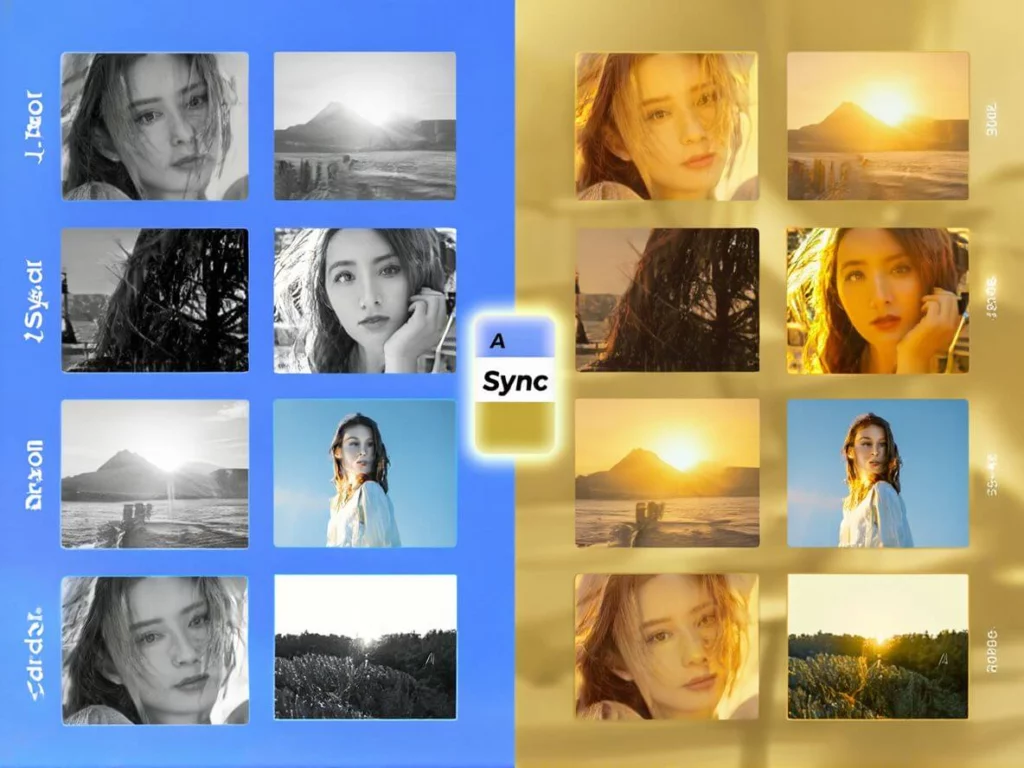
| Adobe Lightroom | Multiple selected photos | RAW photography and controlled color workflows | Presets, copied settings, Sync / Auto Sync | Not a free batch photo editor |
These limits reflect the tools’ current public documentation as checked in August 2026. Fotor currently lists up to 50 images per batch, while Pixlr’s public batch editor documentation describes workflows of around 100 images. Lightroom supports syncing edits across multiple selected photos rather than advertising a fixed public batch count.
WeShop AI’s current Bulk Background Remover supports up to nine images in a single upload and points users toward its API plan when larger-scale bulk processing is required.
The important point is that the highest upload number does not automatically make a tool the best choice.
The type of edit matters more.
Batch Editing Actually Means Three Different Things
A lot of “best batch photo editor” comparisons mix together tools that solve completely different problems.
It is more useful to separate them into three categories.
1. Same Edit, Many Images
You already know the look you want.
For example:
- reduce exposure by the same amount
- use one color grade
- crop everything to 4:5
- resize all images to the same dimensions
- convert a folder to WebP
- apply one preset across a photoshoot
This is where tools such as Pixlr and Lightroom make sense.
The edit itself is predictable. You are mainly eliminating repetitive clicking.
2. Same Task, Different Image Content
This is where AI becomes more useful.
Imagine 30 product photos with completely different backgrounds. The required action is the same — remove the background — but the tool must understand different product shapes in every image.
A traditional preset cannot simply erase the same pixels from every file.
An AI batch editor needs to identify the subject separately in each image.
This is the category where WeShop AI’s Bulk Background Remover fits.
3. Same Product, Multiple New Outputs
This is generative batch production.
You might have one product photo and need:
- a clean ecommerce version
- a lifestyle image
- a summer campaign
- a social media crop
- several scene variations
At that point, the goal is not simply to repeat an edit.
You are producing multiple controlled outputs from the same source material.
That is closer to generative visual production than traditional batch processing.
Recognizing the difference between these three workflows can prevent teams from choosing a tool simply because it says “batch editor” on the landing page.
Where WeShop AI Fits in a Batch Workflow
WeShop AI is most useful when the repeated task involves ecommerce imagery rather than general photographic adjustments.
A straightforward example is bulk background removal.
Imagine an online seller receives product images from several suppliers.
The files are inconsistent:
- some have white studio backgrounds
- some have gray walls
- some contain tables or props
- some include distracting objects
- some have uneven lighting
The goal is to produce a set of clean product cutouts that can be reused across product pages, advertisements, and design templates.
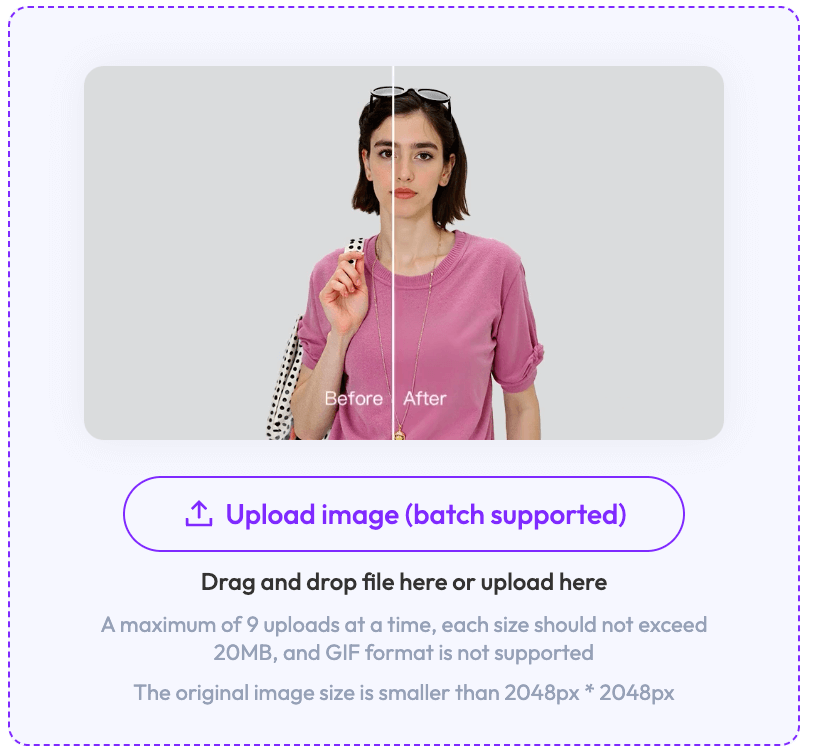
WeShop AI’s current Bulk Background Remover allows users to upload up to nine images in one batch. It removes the surrounding background and can export transparent PNG files.
For this particular workflow, a long prompt is unnecessary.
The task is already defined by the tool:
identify the subject, remove the background, preserve the product.
This is an important distinction when evaluating AI tools.
Not every AI workflow needs prompt engineering.
Sometimes a specialized tool is more efficient precisely because the user does not have to explain the task repeatedly.
Why Smaller Batches Can Still Make Sense
The phrase “batch editing” often creates the expectation that every file should be processed at once.
In real production work, that is not always desirable.
If you have 100 ecommerce images and an automated edit fails on 10% of them, processing the entire catalog without review can simply create 10 bad outputs faster.
Smaller batches make it easier to identify problems early.
A useful workflow is:
small pilot → review difficult examples → adjust the process → scale up
For ecommerce teams, this can be more reliable than immediately sending hundreds of images through the same automated step.
The goal is not only speed.
The goal is usable output.
The 10-Image Pilot Rule
Before processing a large catalog, select a small group of difficult images.
Do not choose only the easiest files.
A useful test set includes:
- the darkest image
- the brightest image
- a reflective product
- a product with thin edges
- a white or pale object
- a dark object
- an image with a busy background
- the lowest-resolution source file
- a product with fine texture
- one ordinary image that represents most of the catalog
This gives the tool a realistic stress test.
If the workflow handles these examples well, scaling to a larger batch becomes safer.
If several of them fail, processing another 100 images will probably reproduce the same problem.
Fix the workflow first.

When Pixlr Makes More Sense
Not every batch project needs AI subject recognition.
If you have a folder of photos that all need the same conventional adjustments, Pixlr may be a better fit.
Its Batch Editor supports operations such as:
- crop
- resize
- brightness adjustments
- contrast adjustments
- color correction
- effects
- reusable macros
- JPG, PNG, WebP, and PDF export
Pixlr also allows users to save a group of edits as a macro and apply the same settings to future batches.
That can be particularly useful for recurring content production.
For example, a social media team may receive a new set of campaign photos every week.
Instead of manually applying the same crop, size, and color adjustments each time, the team can save the settings and reuse them.
This is traditional batch editing at its most useful.
The repeated decision has already been made.
The tool simply applies it consistently.
When Fotor Makes More Sense
Fotor sits somewhere between general batch editing and AI-assisted enhancement.
Its current batch editor supports up to 50 images per upload and includes a broader mix of tools such as:
- AI enhancement
- upscaling
- crop
- resize
- background editing
- compression
- format conversion
- watermark tools
That makes Fotor suitable for users who need several different image-processing functions in one browser-based workspace.
For example, a content team may need to:
- enhance image clarity
- crop images to a common ratio
- resize them for a website
- convert the final files to another format
A general batch editor can be more convenient in that situation than switching between several specialized tools.
When Lightroom Is the Better Choice
A photographer working with RAW files has a different problem from an ecommerce seller removing backgrounds.
The main concerns may be:
- white balance
- exposure
- highlights
- shadows
- color grading
- lens corrections
- consistent photographic style
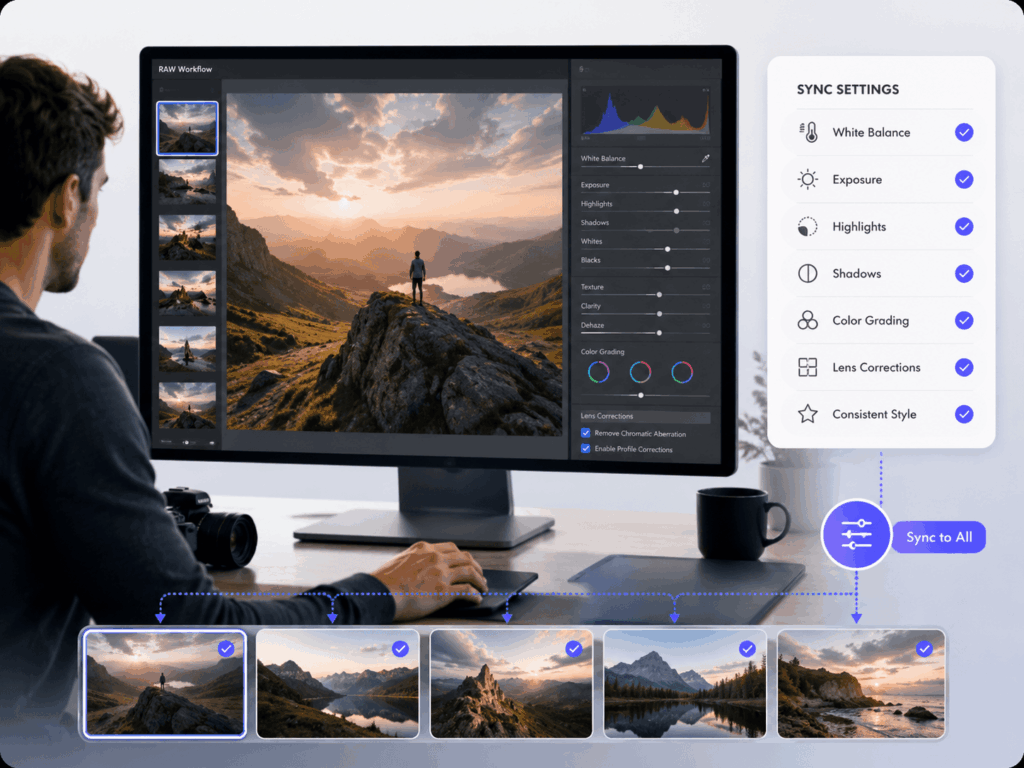
Lightroom Classic allows users to copy selected settings from one image and apply them across multiple photos. Its Sync and Auto Sync features can also update several selected images together.
The important part is that Lightroom lets photographers choose which settings should be synchronized.
That matters because blindly copying every setting across every image can cause problems.
Five Batch Editing Problems Worth Testing
Large-volume image processing becomes more reliable when you actively test the situations most likely to fail.
White Product on a Light Background
Subject detection can become more difficult when the object and the background have similar tones.
A white sneaker against a pale gray backdrop may be harder to separate than a black sneaker against the same background.
Inspect the edges carefully before processing the full batch.
Glass and Transparent Packaging
Transparent objects are naturally difficult for background removal.
The tool has to preserve reflections, transparent areas, and edges without turning the object into a solid cutout.
Perfume bottles, drinking glasses, and transparent plastic packaging should always be included in the test batch.
Thin Product Details
Shoelaces, jewelry chains, straps, loose fabric threads, hair, and fine product edges can disappear during automated background removal.
These details may look acceptable at thumbnail size but become obvious when the image is enlarged.
Mixed Lighting Conditions
A shared preset can produce inconsistent results when the original images were captured under different lighting.
Instead of applying one setting to the entire collection, group visually similar images first.
For example:
Group A: daylight
Group B: studio light
Group C: darker indoor images
Each group can then receive a more appropriate batch adjustment.
Generative Editing Changes the Product
Generative AI introduces a different type of risk.
When a product image is regenerated rather than simply corrected, details such as:
- logos
- labels
- packaging text
- stitching
- buttons
- hardware
- proportions
can change.
That may be acceptable for conceptual campaign imagery.
It is much more problematic for images that are supposed to show customers exactly what they are buying.
Product accuracy should always take priority over visual novelty on factual product pages.
A Better Quality-Control Routine for Large Batches
Do not inspect 100 files randomly.
Use a structured quality check.
Gate 1 — Technical Output
Start with basic file integrity.
Check:
- expected dimensions
- correct file format
- transparency where required
- no failed exports
- no blank images
- acceptable file size
These issues are easy to identify and should be caught before visual review.
Gate 2 — Compare the Batch as a Grid
Next, view the images together.
A grid makes inconsistencies much easier to notice.
Look for:
- different crop positions
- inconsistent product scale
- sudden color changes
- inconsistent background tones
- strange shadows
- noticeably different brightness
A single image may look acceptable in isolation but appear wrong when placed beside the rest of the collection.
Gate 3 — Inspect Difficult Edges
Zoom into the images most likely to contain problems.
Focus on:
- glass
- reflective metal
- hair
- fur
- lace
- thin straps
- product text
- logos
- hands
- faces
You do not need to spend the same amount of time inspecting every image.
Spend more time on the files with the highest risk of visible errors.
Gate 4 — Check the Publishing Channel
A successful edit is not automatically a successful final asset.
Different platforms may require different:
- dimensions
- ratios
- file formats
- background styles
- safe areas
- text placement
An ecommerce marketplace, Shopify product grid, social media post, and paid advertisement may all need different versions of the same image.
Batch processing should therefore be planned around the final destination, not only around the editing tool.
Which Tool Fits Which Workflow?
The easiest way to choose is to start with the repeated task.
Choose WeShop AI when:
- you are working with ecommerce product images
- you need bulk background removal
- transparent PNG output is important
- you want AI to understand each product independently
- the work may later connect to broader ecommerce visual production
The current Bulk Background Remover supports up to nine images per web upload.
Choose Pixlr when:
- you need to edit a very large group of images
- the same adjustments should be applied repeatedly
- crop and resize are central to the workflow
- you want to save and reuse macros
- browser-based batch processing is a priority
Pixlr currently documents workflows of around 100 images and reusable batch macros.
Choose Fotor when:
- you want several general batch tools in one interface
- you need enhancement, resizing, compression, or conversion
- your batch contains up to around 50 images
- you prefer a general-purpose online editor
Fotor currently supports up to 50 images per upload.
Choose Lightroom when:
- RAW photography is involved
- precise color correction matters
- you need presets and selective synchronization
- the images come from a professional photography workflow
- visual consistency matters more than having a completely free browser tool
Lightroom Classic allows selected Develop settings to be copied or synchronized across multiple photos.
The Real Goal of Batch Editing
The most useful free AI batch photo editor is not necessarily the tool with the largest upload limit.
It is the tool that automates the repetitive part of your workflow without removing the quality control that still requires human judgment.
For large image collections, a safer production process is:
run a representative pilot → review difficult cases → adjust the workflow → scale the batch → compare outputs together → prepare files for the final channel
That process may sound less dramatic than promising to edit hundreds of images instantly.
But when those images are going onto a real store, campaign, or client project, consistency and accuracy matter more than the size of the batch counter.
Go to WeShop AI For Exploration: