


WeShop AI's Workspace
 Start
Start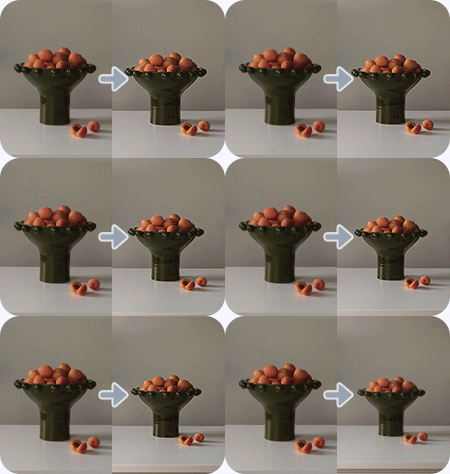
 New Task
Image to Video
WeShop AI Image-to-Video User Guide
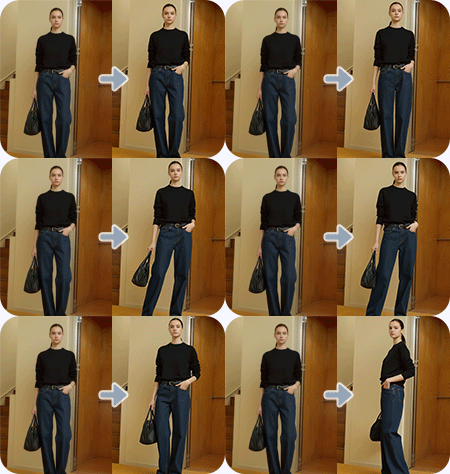
The Image-to-Video feature allows you to instantly transform static images into dynamic videos, infusing your products with storytelling and expressive motion. By seamlessly connecting the opening and ending frames with smooth camera transitions, you can create more fluid, immersive, and visually appealing product presentations that elevate your brand’s visual identity.
Turn Single Images into Instant Social Videos
Many content creators are used to spend hours editing reels. Now she simply uploads one image, selects a 9:16 ratio, and instantly gets a high-quality motion video perfect for Instagram. It saves her time while keeping her content polished and engaging.
Boost Ecommerce Sales with Motion Product Videos
Ecommerce sellers transform static product photos into eye-catching motion videos that increase store engagement and drive more conversions. No studio shoots or editors — just upload and generate.
Produce Dynamic Ad Creatives at Scale
Marketing managers can turn static campaign images into motion-rich promotional videos, enabling her to launch ads faster without relying on a large design team. Perfect for A/B tests and multi-market campaigns.
Deliver Cinematic Motion for Photography Clients
Photographer breathes new life into portrait shots by converting still photos into cinematic motion sequences. Clients love the elevated, premium look — and he delivers it in seconds.
FAQs
What is the Image to Video tool?
What video formats and lengths are supported?
Can I upload both a first frame and a last frame?
Do I need video editing skills to use it?
How much does generating a video cost?
Is this suitable for commercial and e-commerce use?
Can I use an existing image already generated by another tool?
What kinds of motions or animations can the tool produce?
Are there best practices for input images?
How fast is the generation process?

